
1. Introduction
This user manual provides essential information for the proper installation, operation, and maintenance of the Yoton Effort ef-830 Electronic Cashing Machine Print Head. To ensure optimal performance and longevity of your print head, please read this manual thoroughly before use and retain it for future reference.
The Yoton Effort ef-830 print head, also identified as FTP-628MCL 101, is designed for reliable thermal printing in compatible electronic cashing machines.
2. Product Overview
The Yoton Effort ef-830 print head is a critical component for thermal printing functionality in electronic cashing machines. It is designed for precise and efficient printing of receipts and other transactional documents.
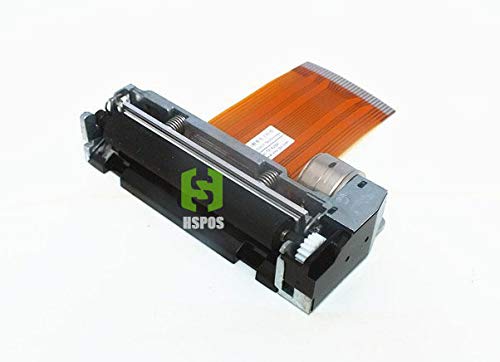
Figure 2.1: Front view of the Yoton Effort ef-830 print head, showing the thermal printing mechanism and attached flexible ribbon cable for data and power connection.
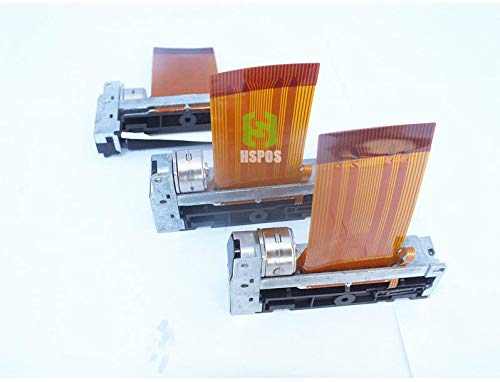
Figure 2.2: Multiple Yoton Effort ef-830 print heads, illustrating their compact design and the standard flexible ribbon cable interface.
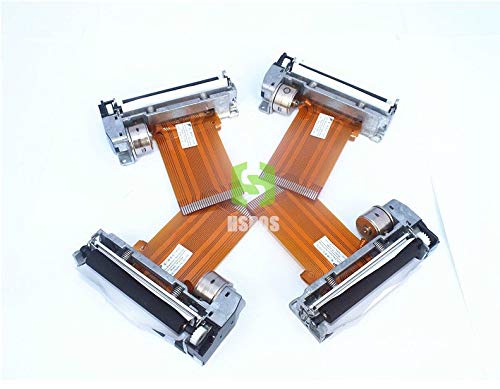
Figure 2.3: An array of Yoton Effort ef-830 print heads, highlighting their consistent form factor and the connection points for integration into cashing machines.
3. Specifications
| Feature | Detail |
|---|---|
| Model Number | ef-830 / FTP-628MCL 101 |
| Manufacturer | Yoton |
| Print Technology | Thermal |
| Compatibility | Electronic Cashing Machines requiring 58mm print heads (verify specific model compatibility) |
| ASIN | B07RJJDM3P |
| Manufacturer Reference | YTN-D41D8CD98F00B204E9800998ECF8427E |
4. Installation and Setup
The installation of the Yoton Effort ef-830 print head should be performed by a qualified technician or an individual with experience in electronic cashing machine maintenance. Improper installation can damage the print head or the cashing machine.
- Power Off: Ensure the electronic cashing machine is completely powered off and unplugged from its power source before beginning any installation.
- Access Print Head Compartment: Open the cashing machine's cover or access panel to locate the existing print head. Refer to your cashing machine's specific service manual for instructions on accessing this component.
- Remove Old Print Head: Carefully disconnect any ribbon cables and mounting screws securing the old print head. Note the orientation of the cables and components for reassembly.
- Install New Print Head: Position the Yoton Effort ef-830 print head in the designated slot. Secure it with the appropriate screws.
- Connect Cables: Reconnect the flexible ribbon cable(s) to the new print head and the main board, ensuring correct orientation and secure connections. Avoid bending or creasing the ribbon cable sharply.
- Close Compartment: Close and secure the cashing machine's cover or access panel.
- Test Functionality: Plug in and power on the cashing machine. Perform a test print to verify that the new print head is functioning correctly.
5. Operation
Once installed, the Yoton Effort ef-830 print head operates as an integral part of your electronic cashing machine. Its function is primarily controlled by the cashing machine's software and hardware.
- Paper Loading: Ensure that thermal paper of the correct width (58mm) and type is loaded properly into the cashing machine's paper compartment. Refer to your cashing machine's manual for specific paper loading instructions.
- Printing Process: The print head will automatically activate to print receipts or other documents as commanded by the cashing machine's system during transactions.
- Print Quality: Monitor print quality regularly. Faint or incomplete prints may indicate a need for cleaning or, in rare cases, replacement.
6. Maintenance
Regular maintenance helps extend the life of your print head and ensures consistent print quality.
- Cleaning the Print Head:
- Power off and unplug the cashing machine.
- Gently open the print head cover.
- Using a lint-free cloth or a cotton swab lightly dampened with isopropyl alcohol (99% pure), carefully wipe the thermal elements of the print head. Avoid abrasive materials.
- Allow the print head to dry completely before closing the cover and powering on the machine.
- Perform cleaning approximately once a month or if print quality degrades.
- Cleaning the Platen Roller: The rubber roller that presses the paper against the print head should also be cleaned with isopropyl alcohol to remove paper dust and residue.
- Avoid Touching: Do not touch the thermal elements of the print head with bare hands, as oils and dirt can affect print quality and damage the head.
7. Troubleshooting
If you encounter issues with your print head, refer to the following common problems and solutions:
| Problem | Possible Cause | Solution |
|---|---|---|
| No print or very faint print |
|
|
| Streaks or gaps in print |
|
|
| Paper jam |
|
|
If the problem persists after attempting these solutions, contact a qualified service technician or your product supplier for further assistance.
8. Warranty and Support
For specific warranty information regarding your Yoton Effort ef-830 print head, please refer to the documentation provided at the time of purchase or contact your vendor. Yoton provides support for its products to ensure customer satisfaction.
For technical assistance or inquiries, please visit the official Yoton website or contact their customer service department through the channels provided with your purchase.
Manufacturer: Yoton
ASIN: B07RJJDM3P