
1. Introduction and Overview
This manual provides comprehensive instructions for the setup, operation, maintenance, and troubleshooting of your SHARP 4T-C55BJ3EF2NB 55-inch 4K UHD Smart LED TV. Please read this manual thoroughly before using your television to ensure proper functionality and safety.
The SHARP 4T-C55BJ3EF2NB is a 55-inch 4K Ultra HD Smart LED TV, offering a resolution of 3840 x 2160 pixels. It features Active Motion 400, HDR10, HLG, Aquos UltraClear, and Aquos Motion technologies for smooth and clear image movements. The integrated Harman/Kardon speaker system, with 2 x 10W output, Dolby Digital, Dolby Digital Plus, DTS-HD, DTS Studio Sound, and Sound Equalizer, delivers an immersive audio experience. This TV also includes a Triple Tuner for satellite, cable, and antenna reception, along with a range of pre-installed smart applications.

Figure 1.1: Front view of the Sharp 4T-C55BJ3EF2NB 55-inch 4K UHD Smart LED TV, displaying colorful content and smart app logos.
2. Safety Information
Always follow basic safety precautions when using this television to reduce the risk of fire, electric shock, and injury.
- Do not expose the TV to rain or moisture.
- Do not block ventilation openings.
- Ensure the power cord is not walked on or pinched.
- Unplug the TV during lightning storms or when unused for long periods.
- Refer all servicing to qualified service personnel.
3. Package Contents
Carefully unpack your television and check that all the following items are included:
- 1 x SHARP 4T-C55BJ3EF2NB 55-inch 4K UHD Smart LED TV
- 1 x Remote Control (including 2 x AAA batteries)
- 1 x TV Stand with Installation Package (screws, etc.)
- 1 x Quick Start Guide
- 1 x User Manual (this document)
4. Setup
4.1 Physical Setup (Stand or Wall Mount)
You can either install the TV on its included stand or mount it on a wall. Ensure the TV is placed on a stable, level surface if using the stand.
Stand Installation:
- Place the TV screen-down on a soft, flat surface to prevent damage.
- Attach the stand components to the bottom of the TV using the provided screws from the installation package.
- Ensure all screws are securely tightened.
Wall Mounting:
The TV supports VESA standard mounting 400 x 200 mm. Use a compatible wall mount bracket (not included) and follow the instructions provided with the wall mount. Ensure the wall can support the TV's weight (approximately 21.4 kg).
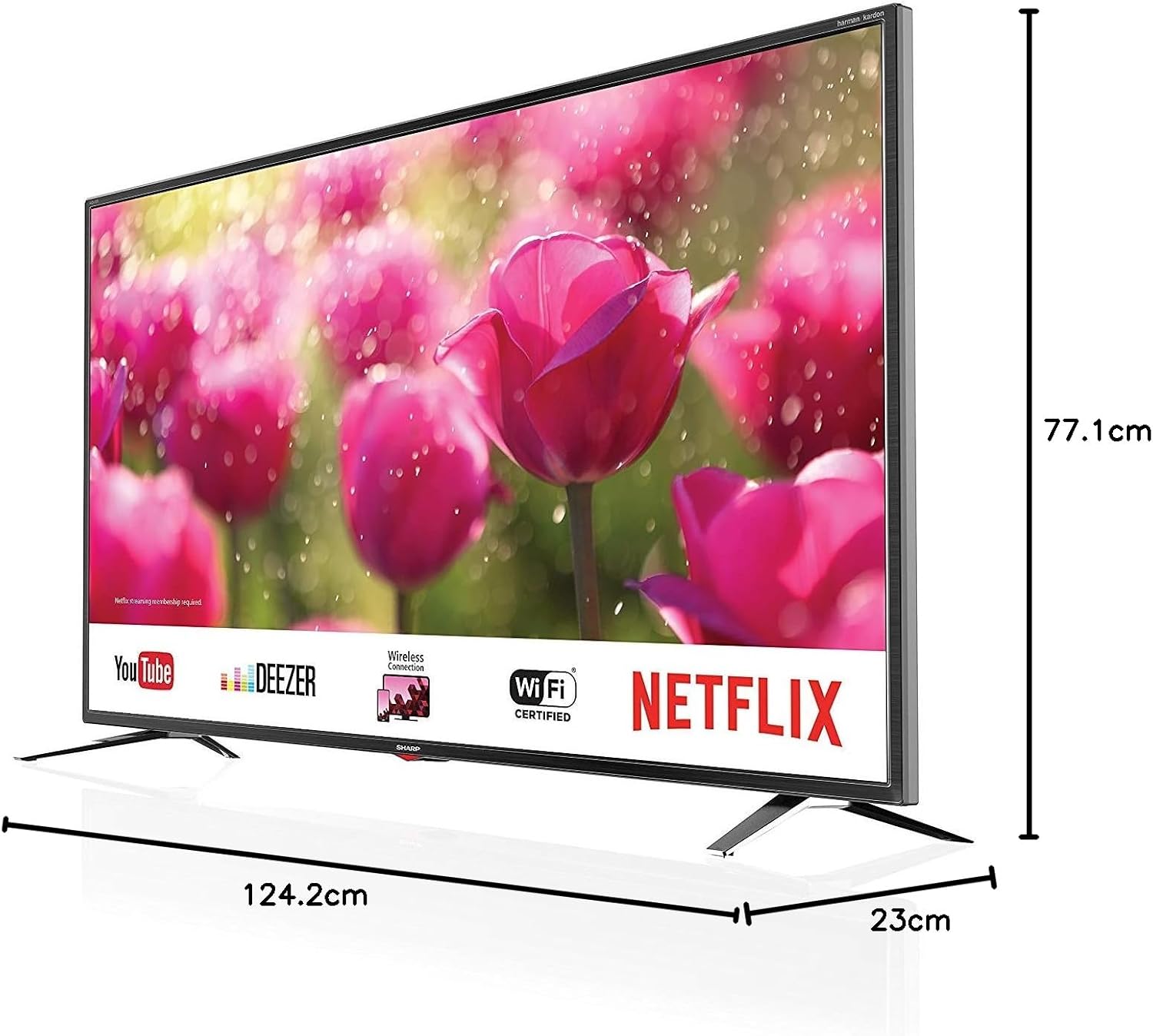
Figure 4.1: Product dimensions of the Sharp 4T-C55BJ3EF2NB 55-inch 4K UHD Smart LED TV.
4.2 Connections
Connect your external devices to the TV using the appropriate ports located on the rear panel.

Figure 4.2: Rear view showing connection ports.
- HDMI: Connect up to 3 HDMI devices (e.g., Blu-ray player, game console).
- USB: Connect USB storage devices for media playback (3 ports available).
- Antenna/Cable/Satellite: Connect your antenna, cable, or satellite feed to the Triple Tuner input.
- LAN (RJ-45): For wired internet connection.
- Digital Optical Audio Output: For connecting to an external audio system.
- Audio/Headphone (3.5 mm jack): For headphones or external speakers.
- CI+ Slot: For Conditional Access Modules (CAM) for encrypted channels.
- SD Card Slot: For media playback from SD cards.
4.3 First-Time Setup
After connecting all necessary cables and plugging in the power cord, press the power button on the remote control or TV. The TV will guide you through the initial setup process, including language selection, network connection (Wi-Fi or LAN), channel scanning, and time zone settings.
5. Operating
5.1 Basic Operation
- Power On/Off: Press the power button on the remote control.
- Volume Control: Use the VOL +/- buttons.
- Channel Selection: Use the CH +/- buttons or number buttons.
- Input Source: Press the SOURCE button to select between HDMI, TV (Tuner), USB, etc.
- Menu Navigation: Use the arrow keys and OK button to navigate menus.
5.2 Smart TV Features
Your SHARP TV is equipped with smart functionalities, allowing access to various online content and applications via the Sharp Aquos Net+ App Store.
- Pre-installed Apps: Access popular services like YouTube, Deezer, Rakuten TV, Chili, Netflix, Eurosport Player, Joyn, and Prime Video directly from the home screen.
- Web Browser: Browse the internet directly on your TV.
- Wireless Connection (WLAN): Connect to your home Wi-Fi network for internet access.
5.3 Picture and Sound Settings
Customize your viewing and listening experience through the TV's settings menu.
- Picture Modes: Select from various preset picture modes (e.g., Standard, Movie, Game) or customize brightness, contrast, color, and sharpness.
- HDR Support: The TV supports HDR10 and HLG for enhanced contrast and color with compatible content.
- Sound Modes: Choose from preset sound modes or adjust bass, treble, and balance. The Harman/Kardon speaker system provides high-quality audio.
- Sound Equalizer: Fine-tune audio frequencies for a personalized sound profile.
5.4 Triple Tuner Operation
The integrated Triple Tuner supports DVB-T/T2 (terrestrial), DVB-C (cable), and DVB-S/S2 (satellite) signals. After initial channel scanning, you can access digital channels directly.
- Channel List: View and manage your scanned channels.
- Electronic Program Guide (EPG): Access program information and schedules.
6. Maintenance
6.1 Cleaning
- Screen: Gently wipe the screen with a soft, lint-free cloth. For stubborn marks, use a screen cleaning solution specifically designed for TVs, applied to the cloth, not directly to the screen.
- Cabinet: Wipe the TV cabinet with a soft, dry cloth. Do not use abrasive cleaners or solvents.
6.2 Software Updates
Periodically check for software updates to ensure optimal performance and access to the latest features. Updates can typically be performed via the TV's settings menu when connected to the internet.
7. Troubleshooting
If you encounter issues with your TV, refer to the following common problems and solutions:
| Problem | Possible Solution |
|---|---|
| No power | Check if the power cord is securely plugged into the TV and the wall outlet. Try a different outlet. |
| No picture, but sound is present | Ensure the correct input source is selected. Check cable connections to external devices. |
| No sound, but picture is present | Check volume level and mute status. Verify audio cable connections. Check TV audio output settings. |
| Remote control not working | Replace batteries. Ensure there are no obstructions between the remote and the TV's IR sensor. |
| Cannot connect to Wi-Fi | Check Wi-Fi password. Restart your router. Ensure the TV is within range of the Wi-Fi signal. |
For more complex issues, consult the full user manual (if available in print) or contact Sharp customer support.
8. Specifications
| Feature | Description |
|---|---|
| Model Number | 4T-C55BJ3EF2NB |
| Brand | Sharp |
| Screen Size | 55 Inches (139 cm) |
| Display Technology | LED |
| Resolution | 4K Ultra HD (3840 x 2160 pixels) |
| Refresh Rate | 60 Hz |
| HDR Support | HDR10, HLG |
| Motion Technology | Active Motion 400, Aquos UltraClear, Aquos Motion |
| Sound System | Harman/Kardon, 2 x 10W (8 Ohm), Dolby Digital, Dolby Digital Plus, DTS-HD, DTS Studio Sound, Sound Equalizer |
| Tuners | Triple Tuner (DVB-T/T2/C/S/S2) with HEVC/H.265 (10-bit), MPEG4/H.264, VP9 support |
| Connectivity | 3x HDMI 4K, 3x USB, Audio/Headphone (3.5 mm jack), Digital Optical Audio Output, LAN (RJ-45), WLAN (2.412 GHz – 2.472 GHz), 1x SD Card Slot, CI+ Slot |
| Smart Features | Web Browser, Sharp Aquos Net+ App Store, Pre-installed apps (YouTube, Netflix, Deezer, Prime Video, etc.) |
| Product Dimensions (with stand) | 124.2 x 77.1 x 23 cm (W x H x D) |
| Product Weight (with stand) | 21.4 kg |
| VESA Mounting Standard | 400 x 200 mm |
| Manufacturer | Sharp |
| First Available Date | January 15, 2020 |
9. Warranty and Support
For warranty information, please refer to the warranty card included with your product or visit the official Sharp website. For technical support, troubleshooting assistance beyond this manual, or service requests, please contact Sharp customer service.
Online Support: www.sharp.eu


