
1. Introduction
The Digoo DG-FT2103 is a Bluetooth-enabled digital cooking thermometer designed to help you achieve precise cooking temperatures for various foods. It features an LED touch screen, a stainless steel temperature probe, and connectivity to a smartphone application for remote monitoring and control. This manual provides detailed instructions for the proper use and maintenance of your thermometer.
2. Package Contents
Please check the package contents to ensure all items are present:
- 1 x Digoo DG-FT2103 LED Touch Screen Digital Bluetooth Cooking Thermometer Unit
- 1 x Digoo DG-FT2103 Stainless Steel Temperature Probe
- 1 x Digoo DG-FT2103 User Manual

Image: The Digoo DG-FT2103 thermometer unit, its stainless steel probe, and a smartphone showing the accompanying application interface.
3. Product Overview
The Digoo DG-FT2103 consists of a main display unit and a detachable temperature probe. The main unit features an LED touch screen for displaying temperatures and settings, along with touch controls for operation.
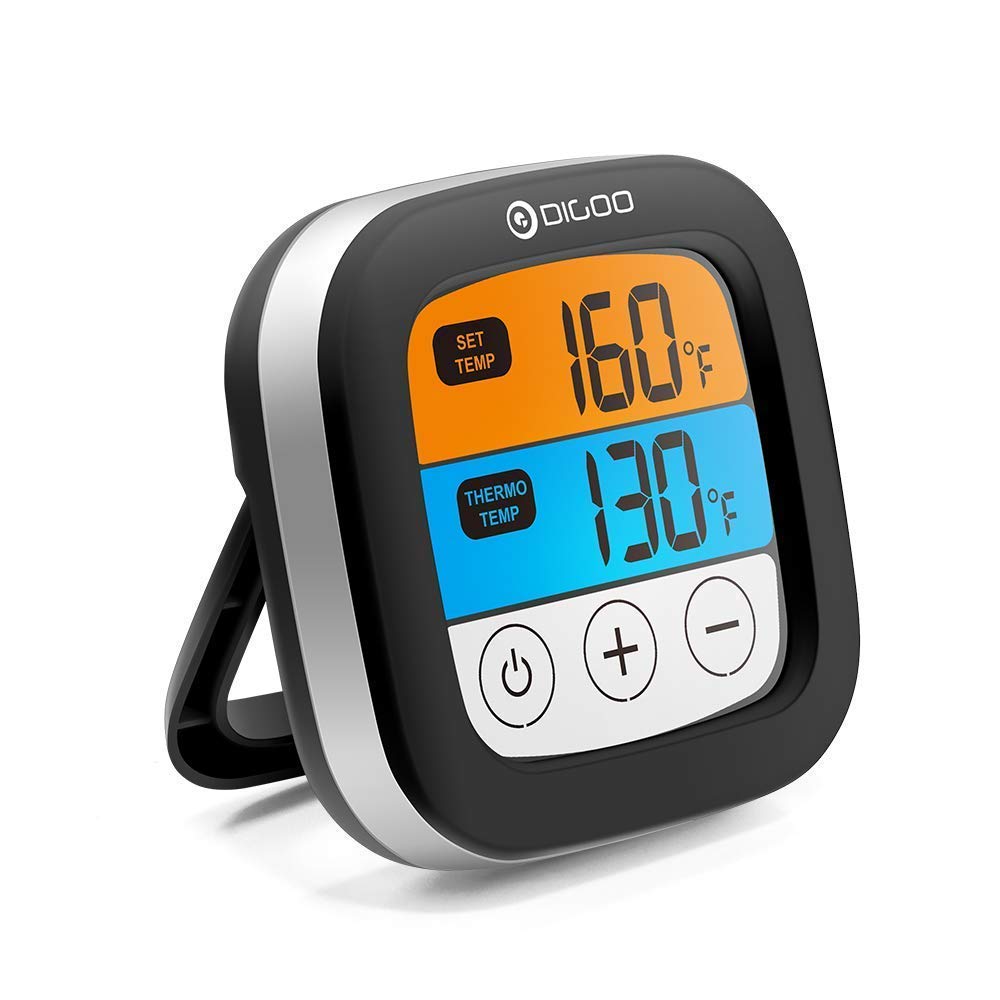
Image: Front view of the Digoo DG-FT2103 thermometer, showcasing its LED display and integrated stand.
3.1 Main Unit Features
- LED Touch Screen: Displays current and target temperatures.
- Controls: Touch buttons for power, temperature adjustment, and mode selection.
- Integrated Stand: Allows for upright placement on a countertop.
- Bluetooth Connectivity: For pairing with a smartphone application.

Image: Side profile of the Digoo DG-FT2103 thermometer, highlighting its slim design and adjustable stand.
3.2 Temperature Probe
The stainless steel probe is designed for insertion into food to measure internal temperature. It is connected to the main unit via a durable cable.

Image: The stainless steel temperature probe, showing its pointed tip, cable, and connector.
4. Setup
4.1 Battery Installation
- Locate the battery compartment on the back of the thermometer unit.
- Open the battery compartment cover.
- Insert two 1.5V AA batteries (not included), ensuring correct polarity (+/-).
- Close the battery compartment cover securely.
4.2 Probe Connection
- Insert the probe connector firmly into the designated port on the side of the main thermometer unit.
- Ensure the connection is secure to prevent inaccurate readings.
4.3 App Installation and Bluetooth Pairing
To utilize the smart features, download the companion application to your smartphone.
- Search for "SmartThermo" or the recommended app name (if available) in your smartphone's app store (e.g., Apple App Store or Google Play Store).
- Download and install the application.
- Ensure Bluetooth is enabled on your smartphone.
- Power on the Digoo DG-FT2103 thermometer unit.
- Open the installed application on your smartphone.
- Follow the in-app instructions to pair the thermometer. Typically, this involves selecting a "Pair" or "Connect" option within the app.
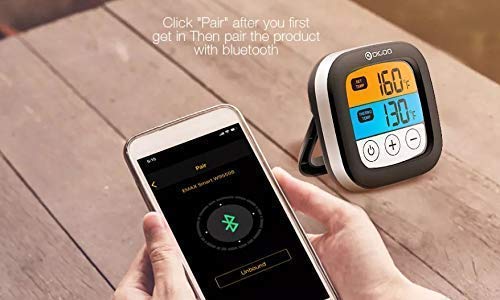
Image: A smartphone displaying the Bluetooth pairing screen within the companion application, ready to connect to the thermometer.
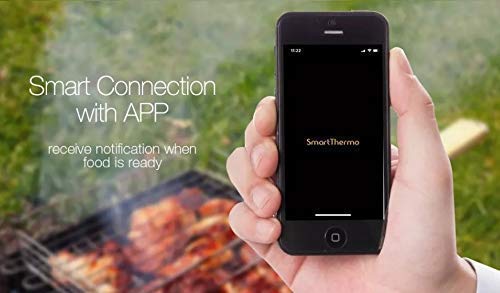
Image: A smartphone showing the "SmartThermo" application interface, indicating successful connection and readiness for use during a BBQ session.
5. Operating Instructions
5.1 Power On/Off
- Press and hold the power button (usually indicated by a circle with a vertical line) on the touch screen to turn the unit on or off.
5.2 Temperature Unit Selection
- On the device or within the app settings, you can switch between Celsius (°C) and Fahrenheit (°F) temperature units.
5.3 Setting Target Temperatures
The thermometer offers preset temperature settings for various types of meat and doneness levels, as well as the option to set custom temperatures.
Using Preset Temperatures:
- Access the preset menu on the device or through the app.
- Select the desired meat type (e.g., Beef, Lamb, Chicken, Pork, Turkey, Fish, Hamburger) and preferred doneness level (e.g., Rare, Medium, Well Done).
- The target temperature will be automatically set.
Setting Custom Temperatures:
- Use the '+' and '-' buttons on the device's touch screen or the app interface to manually adjust the target temperature to your desired value.
5.4 Timer Function
The DG-FT2103 can also function as a cooking timer.
- Switch to timer mode using the appropriate button or app setting.
- Set the desired countdown time.
- An alarm will sound when the timer expires.
5.5 Using the Smartphone Application
The companion app provides enhanced control and monitoring capabilities:
- Remote Monitoring: View current and target temperatures from your smartphone within the Bluetooth range (up to 300ft).
- Temperature Settings: Easily select preset meat types and doneness levels or set custom temperatures.
- Timer Control: Start, stop, and reset the cooking timer.
- Alarms and Notifications: Receive alerts on your phone when the target temperature is reached or the timer expires.
- Customization: Adjust notification sounds and other app settings.
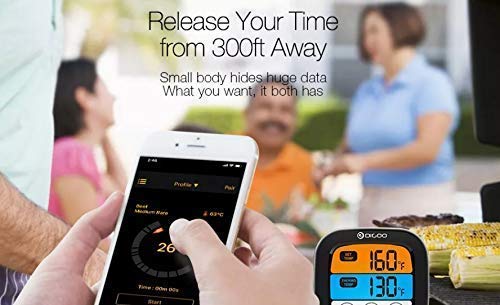
Image: The smartphone application interface showing real-time temperature monitoring and cooking progress, allowing users to manage their cooking remotely.
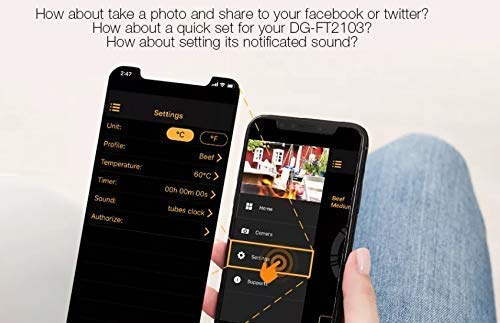
Image: The settings screen within the smartphone application, where users can customize units, profiles, temperatures, timers, and notification sounds.
6. Maintenance
6.1 Cleaning
- Thermometer Unit: Wipe the main unit with a damp cloth. Do not immerse the unit in water.
- Temperature Probe: The stainless steel probe can be cleaned with warm soapy water. Ensure the probe connector and cable are kept dry. The probe is oven safe, but the main unit is not.
- Do not use abrasive cleaners or scouring pads, as these may damage the surface.
6.2 Storage
- Store the thermometer and probe in a clean, dry place when not in use.
- Remove batteries if the device will not be used for an extended period to prevent leakage.
7. Troubleshooting
- No Power:
- Check if batteries are installed correctly with proper polarity.
- Replace old batteries with new 1.5V AA batteries.
- Inaccurate Temperature Readings:
- Ensure the probe is fully inserted into the thickest part of the meat, avoiding bone.
- Check that the probe connector is securely plugged into the main unit.
- Verify that the probe cable is not damaged.
- Bluetooth Connection Issues:
- Ensure Bluetooth is enabled on your smartphone.
- Make sure the thermometer unit is powered on and within the 300ft Bluetooth range.
- Restart both the thermometer and your smartphone.
- Try unpairing and re-pairing the device through the app settings.
- Ensure the app is updated to the latest version.
- App Not Receiving Notifications:
- Check your smartphone's notification settings for the app to ensure they are enabled.
- Ensure the app is running in the background or foreground.
8. Specifications
| Feature | Detail |
|---|---|
| Brand | Digoo |
| Model | DG-FT2103 |
| Connectivity Technology | Bluetooth |
| Bluetooth Range | Up to 300ft (approximately 91 meters) |
| Temperature Range | -25℃ to 300℃ (-13℉ to 572℉) |
| Temperature Units | ℃ / ℉ adjustable |
| Display | LED Touch Screen |
| Power Source | 2 x 1.5V AA batteries (not included) |
| Special Features | Timer Setting, Alarm, Preset Temperatures, App Synchronization |
| Product Care Instructions | Oven Safe (probe only), Wipe Clean (main unit) |
| Material | Plastic (main unit), Stainless Steel (probe) |
9. Warranty and Support
This Digoo DG-FT2103 thermometer comes with a 14-day warranty from the date of purchase, covering manufacturing defects. Please retain your proof of purchase for warranty claims.
For technical support or warranty inquiries, please contact your retailer or the Digoo customer service department. Refer to the product packaging or the official Digoo website for contact information.