
1. Important Safety Instructions
Please read all instructions carefully before using the UNIC UC28+ projector. Keep this manual for future reference.
- Power Supply: Use only the specified power adapter. Ensure the power outlet voltage matches the projector's requirements.
- Ventilation: Do not block ventilation openings. Ensure adequate space around the projector for proper airflow to prevent overheating.
- Heat: The projector lamp generates heat. Avoid touching the lens or ventilation areas immediately after use.
- Moisture: Do not expose the projector to rain, moisture, or immerse it in water. Keep liquids away from the device.
- Cleaning: Unplug the projector before cleaning. Use a soft, dry cloth. Do not use liquid or aerosol cleaners.
- Eye Safety: Do not look directly into the projector lens when the lamp is on. The bright light can cause eye damage.
- Placement: Place the projector on a stable, flat surface. Avoid placing it in direct sunlight or near heat sources.
- Servicing: Do not attempt to service this product yourself. Refer all servicing to qualified service personnel.
2. Product Overview
The UNIC UC28+ is a portable LED projector designed for home cinema and entertainment. It supports a native resolution of 1920x1080 and offers multiple input options for versatile connectivity.
2.1 Projector Components

Image 1: Top view of the UNIC UC28+ projector. This image displays the manual control buttons located on the top panel, including 'ENTER', navigation arrows, 'INPUT' for source selection, and 'ESC' for exiting menus. The focus ring is also visible at the front.

Image 2: Front and side view of the UNIC UC28+ projector. This image highlights the main projection lens and the ventilation grilles on the side, essential for heat dissipation during operation.
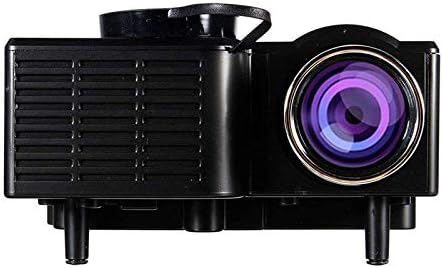
Image 3: Side view of the UNIC UC28+ projector. This image clearly shows the various input ports available: HDMI, USB, AV, SD card slot, and VGA, providing multiple options for connecting external devices.
3. Setup
3.1 Package Contents
- UNIC UC28+ LED Projector
- Power Adapter
- Remote Control
- AV Cable
- User Manual
3.2 Projector Placement
Position the projector on a stable, flat surface. Ensure the projection surface (screen or wall) is clean and smooth. The optimal projection distance will vary based on desired screen size. Adjust the projector's angle to achieve a rectangular image.
3.3 Power Connection
- Connect the power adapter to the projector's power input port.
- Plug the power adapter into a suitable electrical outlet.
- The power indicator light on the projector will illuminate.
3.4 Connecting Input Devices
The UC28+ supports various input sources:
- HDMI: Connect a device (e.g., laptop, Blu-ray player, gaming console) using an HDMI cable to the HDMI port.
- USB: Insert a USB flash drive into the USB port to play media files directly.
- AV: Use the provided AV cable to connect older devices (e.g., DVD player, VCR) to the AV port.
- SD Card: Insert an SD card into the SD card slot to play media files.
- VGA: Connect a computer or laptop using a VGA cable to the VGA port.

Image 4: Connectivity diagram for the UNIC UC28+ projector. This illustration demonstrates how various external devices such as computers, gaming consoles, smartphones, and media players can be connected to the projector using its multiple input options.
3.5 Focus Adjustment
After powering on and selecting an input source, rotate the focus ring located around the lens until the projected image appears clear and sharp.
4. Operating Instructions
4.1 Powering On/Off
- Power On: Press the power button on the projector or the remote control. The projector will start up, and the lamp will illuminate.
- Power Off: Press the power button again. The projector will initiate a shutdown sequence. Allow the projector to cool down completely before unplugging or moving it.
4.2 Input Source Selection
Press the 'INPUT' button on the projector or remote control to cycle through available input sources (HDMI, USB, AV, SD, VGA). Select the source corresponding to your connected device.
4.3 Menu Navigation
Use the navigation arrows on the projector or remote control to move through menu options. Press 'ENTER' to confirm a selection and 'ESC' to go back or exit the menu.
4.4 Basic Settings
- Picture Mode: Adjust brightness, contrast, color, and sharpness.
- Aspect Ratio: Select between 16:9, 4:3, or Auto to match your content.
- Sound: Adjust volume or mute the audio output.
5. Maintenance
Regular maintenance ensures optimal performance and extends the lifespan of your projector.
- Lens Cleaning: Use a soft, lint-free cloth or lens cleaning paper to gently wipe the lens. Avoid abrasive materials or excessive pressure.
- Projector Body Cleaning: Wipe the exterior of the projector with a soft, dry cloth. Do not use harsh chemicals or solvents.
- Ventilation: Periodically check and clean the ventilation grilles to prevent dust buildup, which can impede airflow and cause overheating. Use a soft brush or compressed air.
- Storage: When not in use for extended periods, store the projector in a cool, dry, dust-free environment. Use the original packaging or a protective case.
6. Troubleshooting
If you encounter issues with your projector, refer to the following common problems and solutions:
| Problem | Possible Cause | Solution |
|---|---|---|
| No Power | Power cable disconnected, power outlet issue | Check power cable connection. Try a different power outlet. |
| No Image | Incorrect input source, cable not connected, device not powered on | Select correct input source. Ensure all cables are securely connected. Power on the source device. |
| Blurry Image | Focus not adjusted, incorrect projection distance | Adjust the focus ring. Reposition the projector for optimal distance. |
| No Sound | Volume too low, audio cable disconnected, source device muted | Increase projector volume. Check audio cable connections. Unmute source device. |
| Overheating Warning | Blocked ventilation, prolonged use | Ensure ventilation openings are clear. Allow the projector to cool down. |
7. Specifications
| Feature | Detail |
|---|---|
| Brand | UNIC |
| Model Number | UC28+ |
| Display Type | LED |
| Native Resolution | 1920 x 1080 pixels |
| Maximum Display Resolution | 1920 x 1080 pixels |
| Brightness | 400 Lumens |
| Connectivity Technology | HDMI, USB, AV, SD, VGA |
| Form Factor | Portable |
| Mounting Type | Tabletop Mount |
| Power Consumption | 70 Watts |
8. Warranty and Support
For warranty information or technical support, please refer to the warranty card included with your product or contact the retailer where the product was purchased. Keep your proof of purchase for warranty claims.

