
Introduction
This manual provides comprehensive instructions for the setup, operation, maintenance, and troubleshooting of your Zyxel AC750 Dual-band Wireless Router, model EMG1702-T10A. Please read this manual thoroughly before using the device to ensure proper installation and optimal performance.
Safety Information
- Warning: Do not expose the device to water or moisture.
- Ensure proper ventilation around the router to prevent overheating.
- Use only the power adapter supplied with the device.
- Keep the device away from direct sunlight and heat sources.
- Do not attempt to open or repair the device yourself. Refer all servicing to qualified personnel.
Package Contents
Verify that your package contains the following items:
- Zyxel AC750 Dual-band Wireless Router (EMG1702-T10A)
- Power Adapter
- Ethernet Cable
- Quick Start Guide
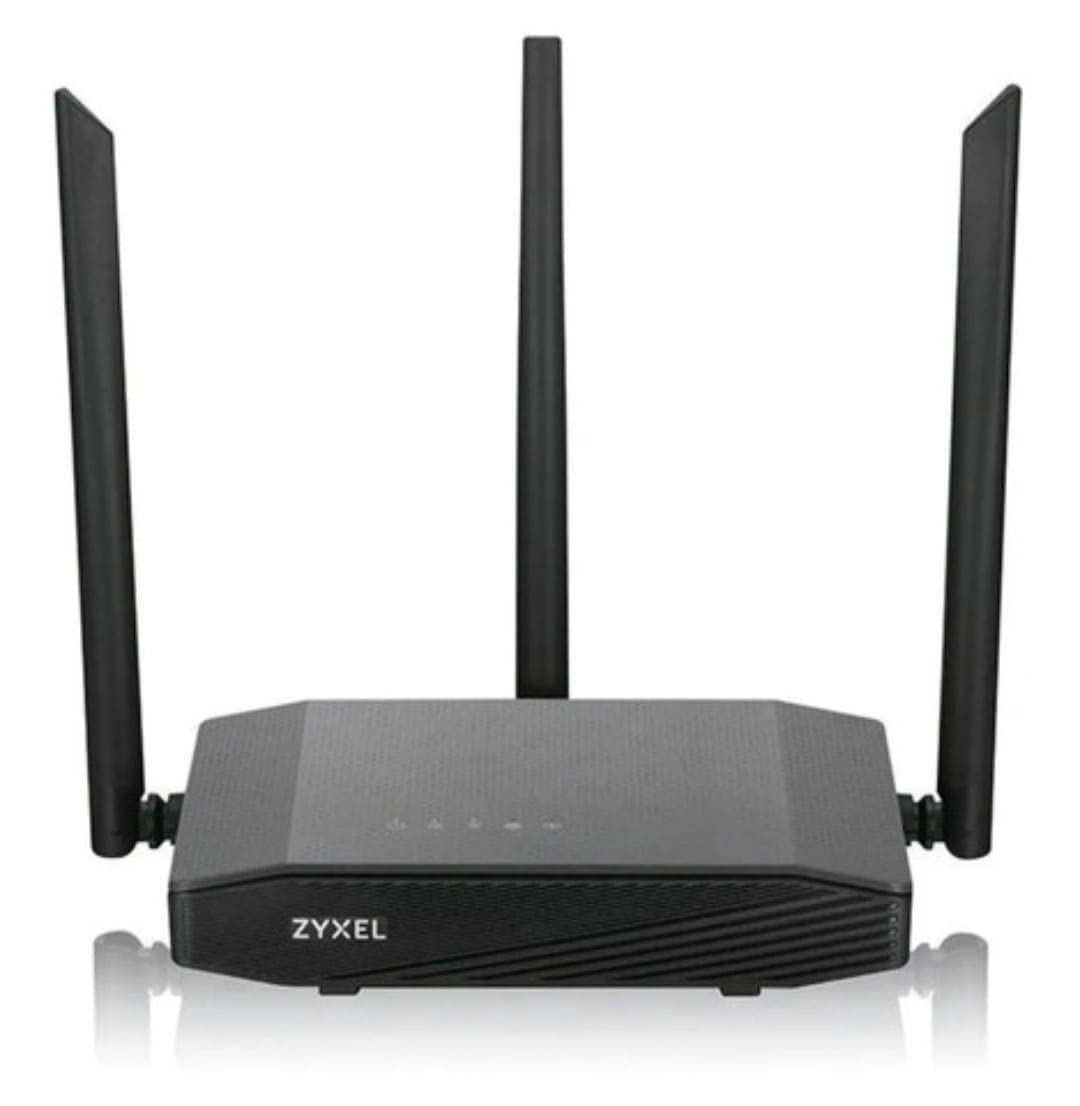
Image: Zyxel AC750 Dual-band Wireless Router with its power adapter and Ethernet cable.
Setup Guide
1. Hardware Connection
- Positioning the Router: Place the router in a central location in your home or office, away from obstructions and potential sources of interference (e.g., microwaves, cordless phones).
- Connect the Internet Cable: Connect one end of an Ethernet cable from your modem's LAN port to the WAN port (usually blue) on the Zyxel router.
- Connect Power: Plug the power adapter into the router's power jack and then into a wall outlet.
- Power On: Press the power button on the router. Wait for the power LED to turn solid green, indicating the device is ready.
Image: Rear panel of the Zyxel AC750 router, highlighting the WAN port, LAN ports, and power input.
2. Initial Configuration
- Connect to the Router:
- Wired: Connect your computer to one of the router's LAN ports (yellow) using an Ethernet cable.
- Wireless: On your computer or mobile device, search for the Wi-Fi network name (SSID) printed on the label at the bottom of the router. Connect using the provided Wi-Fi password.
- Access Router Interface: Open a web browser and type http://192.168.1.1 (or the address specified on the router label) into the address bar and press Enter.
- Login: Enter the default username and password (usually admin/1234 or admin/password, check the router label).
- Run Setup Wizard: Follow the on-screen instructions of the setup wizard to configure your internet connection and wireless settings. It is highly recommended to change the default Wi-Fi name (SSID) and password for security.
Operating Instructions
Wireless Network Management
Your Zyxel AC750 router supports dual-band Wi-Fi (2.4 GHz and 5 GHz). You can manage these networks through the web interface.
- Changing SSID and Password: Navigate to the "Wireless" or "Wi-Fi Settings" section in the router's web interface. Here you can modify the network names (SSIDs) and passwords for both 2.4 GHz and 5 GHz bands.
- Guest Network: Enable a guest network for visitors to provide internet access without sharing your main network's password. This feature is typically found under "Guest Network" settings.
- Access Control: Manage which devices can connect to your network by setting up MAC address filtering in the "Security" or "Access Control" section.
Advanced Features
- Port Forwarding: Configure port forwarding to allow external devices to access services on your local network, such as gaming servers or security cameras.
- Firewall Settings: Adjust firewall rules to enhance network security.
- Parental Control: Set up parental controls to restrict internet access for specific devices or during certain times.
Maintenance
- Firmware Updates: Regularly check the Zyxel support website for firmware updates. Updating the firmware can improve performance, add new features, and fix security vulnerabilities.
- Cleaning: Gently wipe the router's exterior with a soft, dry cloth. Do not use liquid cleaners or aerosols. Ensure ventilation holes are free from dust.
- Restarting the Router: If you experience network issues, try restarting the router by unplugging the power adapter for 10 seconds and then plugging it back in.
- Factory Reset: To restore the router to its factory default settings, press and hold the reset button (usually a small pinhole button) for about 10 seconds while the router is powered on. Use a paperclip or similar object. Note: This will erase all your custom settings.
Troubleshooting
| Problem | Possible Cause | Solution |
|---|---|---|
| No Internet Access | Modem issue, incorrect router settings, cable disconnected. |
|
| Weak Wi-Fi Signal | Router placement, interference, outdated firmware. |
|
| Cannot Access Router Web Interface | Incorrect IP address, network connection issue, browser cache. |
|
Specifications
| Feature | Detail |
|---|---|
| Model | EMG1702-T10A |
| Brand | Zyxel |
| Wi-Fi Standard | IEEE 802.11ac/n/a 5 GHz, IEEE 802.11n/g/b 2.4 GHz |
| Wi-Fi Speed | AC750 (300 Mbps 2.4 GHz + 433 Mbps 5 GHz) |
| Antennas | 3 External Antennas |
| Ethernet Ports | 1x WAN, 4x LAN (10/100 Mbps) |
| Frequency Band | Dual-Band (2.4 GHz & 5 GHz) |
| Compatible Devices | Gaming Consoles, Tablets, Smart TVs |
Warranty Information
Zyxel products are covered by a limited warranty. The specific terms and duration of the warranty may vary by region and product. Please refer to the warranty card included with your product or visit the official Zyxel website for detailed warranty information and registration.
Keep your purchase receipt as proof of purchase for warranty claims.
Technical Support
If you encounter any issues that cannot be resolved using the troubleshooting guide, please contact Zyxel technical support.
- Website: Visit the official Zyxel support website for FAQs, drivers, firmware, and contact information.
- Phone: Refer to the support contact numbers provided in your product packaging or on the Zyxel website for your region.
When contacting support, please have your product model (EMG1702-T10A) and serial number ready.


