
1. Introduction
Thank you for choosing the EWEADN GX-50 USB Keyboard. This manual provides essential information for setting up, operating, and maintaining your new keyboard. Please read these instructions carefully to ensure optimal performance and longevity of your device.
2. Package Contents
Please check the package for the following items:
- EWEADN GX-50 USB Keyboard
- User Manual (this document)
3. Product Overview
The EWEADN GX-50 is a full-sized 104-key USB keyboard designed for PC and laptop use. It features a standard QWERTY layout and USB connectivity for reliable performance. The keyboard also includes customizable backlighting for enhanced visibility and aesthetics.

Figure 3.1: EWEADN GX-50 USB Keyboard. This image displays the full 104-key layout of the keyboard in its standard white color, viewed from a slight angle.
3.1 Key Features
- Full-Size Layout: 104 keys, including a numeric keypad.
- USB Connectivity: Plug-and-play functionality.
- Backlighting: Integrated backlighting with multiple color options.
- Durable Design: Constructed for everyday use.
4. Setup Instructions
Follow these steps to connect your EWEADN GX-50 USB Keyboard to your computer:
- Unpack the Keyboard: Carefully remove the keyboard from its packaging.
- Locate a USB Port: Identify an available USB Type-A port on your PC or laptop.
- Connect the USB Cable: Insert the USB connector of the keyboard cable firmly into the USB port on your computer.
- Driver Installation: The operating system (e.g., Windows 10) will automatically detect and install the necessary drivers. This process may take a few moments.
- Verify Functionality: Once the drivers are installed, the keyboard is ready for use. Test by typing in a text editor or browser.
5. Operating Instructions
5.1 Basic Typing
The EWEADN GX-50 keyboard functions like a standard 104-key keyboard. Simply press the desired keys to input text or commands into your computer.
5.2 Function Keys (F1-F12)
The function keys (F1 through F12) perform various tasks depending on the application or operating system. Some common uses include:
- F1: Help
- F2: Rename (files/folders)
- F5: Refresh (web pages)
- F11: Full-screen mode
5.3 Backlight Control
The GX-50 keyboard features integrated backlighting. Use the following key combinations to control the backlight:
- Fn + Scroll Lock: Toggles backlight on/off or cycles through lighting modes.
- Fn + Home/End: Adjusts backlight brightness (if supported).
- Fn + Page Up/Page Down: Changes backlight color or effect (if supported).
Refer to the visual examples below for different backlight appearances:
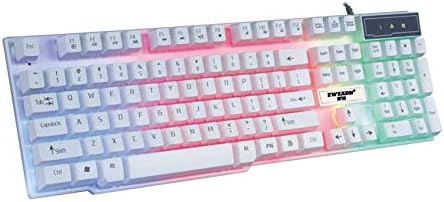
Figure 5.1: Keyboard with multi-color (RGB) backlighting activated. This image shows the keys illuminated with a spectrum of colors.
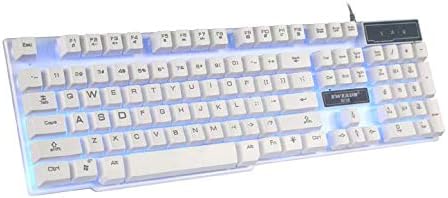
Figure 5.2: Keyboard with blue backlighting. The keys are illuminated with a solid blue color.

Figure 5.3: Keyboard with pink backlighting. The keys are illuminated with a solid pink color.
6. Maintenance and Care
To ensure the longevity and proper functioning of your EWEADN GX-50 keyboard, follow these maintenance guidelines:
- Cleaning:
- Disconnect the keyboard from your computer before cleaning.
- Use a soft, lint-free cloth slightly dampened with water or a mild cleaning solution to wipe the keycaps and surface.
- Avoid using harsh chemicals, abrasive cleaners, or solvents.
- Use compressed air to remove dust and debris from between the keys.
- Storage: Store the keyboard in a cool, dry place away from direct sunlight and extreme temperatures.
- Avoid Spills: Keep liquids away from the keyboard to prevent damage to internal components.
7. Troubleshooting
If you encounter issues with your EWEADN GX-50 keyboard, refer to the following common troubleshooting steps:
| Problem | Possible Solution |
|---|---|
| Keyboard is not responding. |
|
| Certain keys are not working. |
|
| Backlighting is not working or behaving incorrectly. |
|
If the problem persists after trying these solutions, please contact EWEADN customer support for further assistance.
8. Specifications
| Feature | Detail |
|---|---|
| Brand | Eweadn |
| Model Number | GX-50 |
| Connectivity | USB Wired |
| Number of Keys | 104 |
| Keyboard Language | English |
| Compatible Devices | PC, Laptop |
| Operating System Compatibility | Windows 10 (and generally compatible with other Windows versions, macOS, Linux) |
| Color | White |
| Water Resistance Level | Not Water Resistant |
9. Warranty and Support
EWEADN products are designed for reliability and performance. For warranty information, please refer to the warranty card included with your purchase or visit the official EWEADN website. If you require technical support or have questions not covered in this manual, please contact EWEADN customer service through their official channels.
Keep your purchase receipt as proof of purchase for warranty claims.
