
TMEZON MZ-WF8430W
TMEZON Wireless 3MP Security Camera System User Manual
Model: MZ-WF8430W
Introduction
This manual provides detailed instructions for the installation, operation, and maintenance of your TMEZON Wireless 3MP Security Camera System. This system includes an 8-channel Network Video Recorder (NVR) and four IP66 waterproof outdoor cameras, offering reliable surveillance with WiFi connectivity, remote monitoring, motion detection, and night vision capabilities.
Please read this manual thoroughly before using the product to ensure proper setup and optimal performance.
Package Contents
Verify that all items listed below are included in your package:
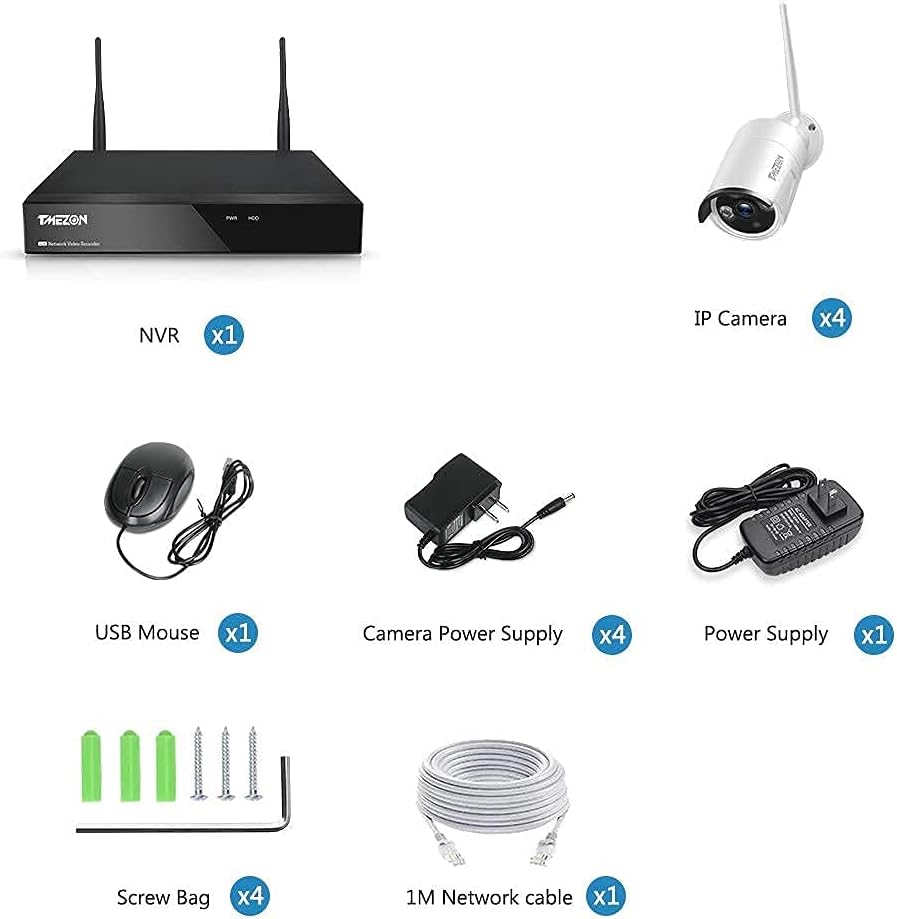
Image: Contents of the TMEZON Wireless Security Camera System package, showing the NVR, four IP cameras, USB mouse, camera power supplies, main power supply, screw bags, and a 1M network cable.
- 1x 8-Channel Network Video Recorder (NVR)
- 4x 3MP IP Cameras
- 1x USB Mouse
- 4x Camera Power Supplies
- 1x NVR Power Supply
- 4x Screw Bags for camera installation
- 1x 1M Network Cable
- User Manual (this document)
Note: A hard drive is not included with this product. A 3.5-inch Toshiba hard drive is required for video storage. A 15V 3A power adapter replacement may be needed for the hard drive.
Setup Guide
1. Initial Connection and Automatic Pairing
The IP cameras and the NVR are pre-paired at the factory for ease of installation. No complex wiring is required for local viewing.

Image: Diagram illustrating the simple setup process with automatic pairing. Power adapters are connected to the NVR and cameras, which then wirelessly connect to each other.
- Connect the NVR to a monitor (HDMI/VGA) and a power source.
- Connect the IP cameras to their respective power sources.
- The cameras and NVR will automatically pair. You should see the camera feeds on the connected monitor within seconds.
2. NVR System Wiring
For remote viewing and advanced features, connect the NVR to your home router.

Image: Rear view of the NVR showing ports for HDMI/VGA output to a monitor, Ethernet (WAN) for router connection, USB for mouse, and DC 12V power input.
- Connect the NVR's WAN port to your home router using the provided LAN cable.
- Connect a USB mouse to the NVR's USB port for local control.
- Connect a monitor to the NVR via HDMI or VGA for local display.
3. Hard Drive Installation (Optional, for recording)
If you wish to record video, you will need to install a 3.5-inch hard drive (not included) into the NVR. Refer to the NVR's specific hard drive installation guide for detailed steps.
4. Camera Placement
The cameras are IP66 waterproof and dustproof, making them suitable for both indoor and outdoor use. Choose locations that provide optimal viewing angles and are within range of the NVR's wireless signal.
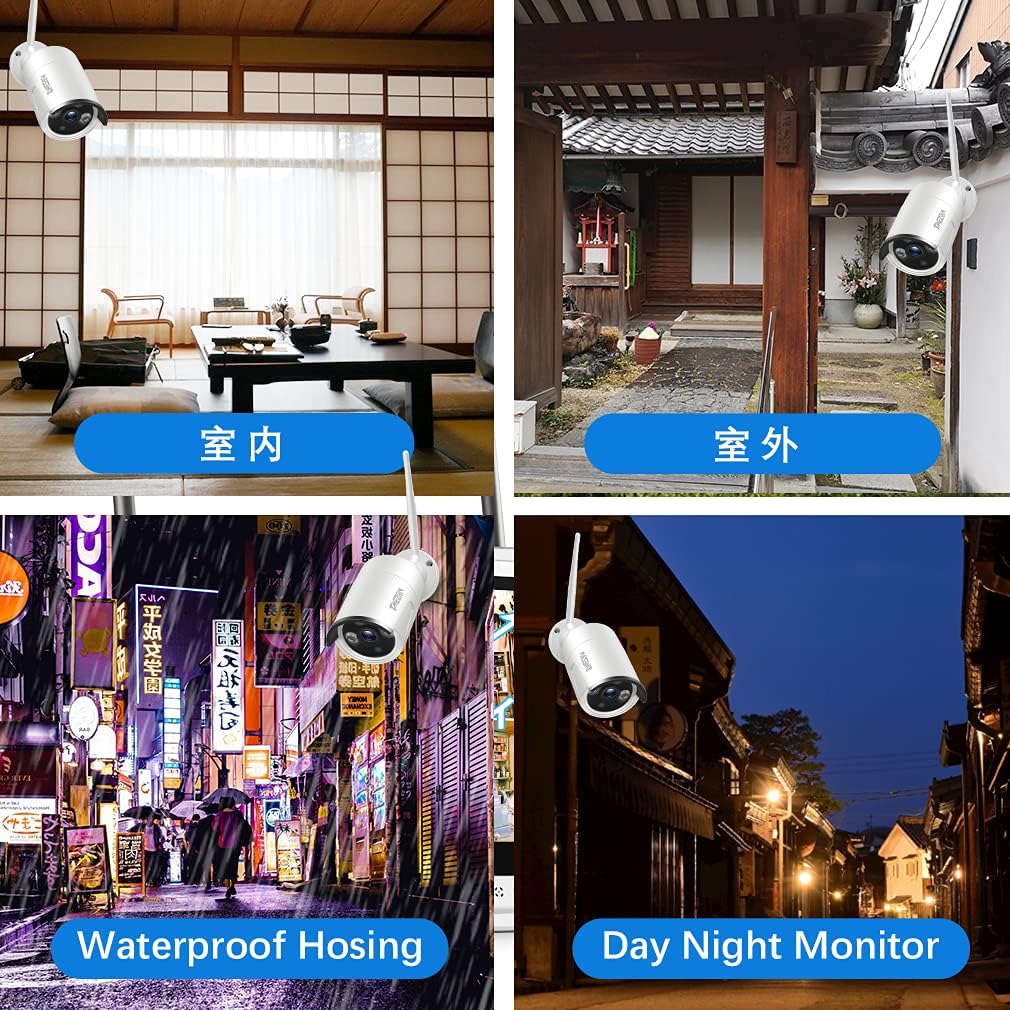
Image: Examples of camera placement, showing indoor and outdoor scenarios, highlighting waterproof housing and day/night monitoring capabilities.

Image: Various locations where the security camera system can be installed, including offices, shops, parking lots, convenience stores, pet monitoring areas, and schools.
Operating Instructions
1. Local Monitoring
Once the NVR and cameras are powered on and paired, you can view live feeds directly on the monitor connected to the NVR. Use the USB mouse to navigate the NVR's interface for playback, settings, and other functions.
2. Remote Monitoring (Smartphone/PC)
To access your camera system remotely, ensure the NVR is connected to your router via LAN cable.

Image: A simplified diagram showing the NVR connected to a router via network cable, and a smartphone displaying the camera feed via an app (IP PRO).
- Download the dedicated smartphone app (e.g., "IP PRO" or similar, as indicated in the product's specific instructions) from the App Store (iOS) or Google Play Store (Android).
- For PC, download the compatible software from the TMEZON website.
- Register an account within the app/software.
- Scan the QR code on the NVR or manually add the device ID to connect your system.
- You can now view live feeds, playback recordings, and manage settings from your smartphone or PC via WiFi, 2G, 3G, or 4G networks.

Image: Collage showing remote access to the camera system from various devices including a tablet, laptop, and smartphone (Android and Apple logos visible).
3. Motion Detection and Alerts
The system supports motion detection. When motion is detected within the camera's field of view, you will receive instant notifications on your connected smartphone or PC. This feature helps in real-time monitoring and crime prevention.
4. Night Vision
The cameras are equipped with night vision functionality, allowing for clear surveillance even in low-light or complete darkness. The night vision range is up to 30 meters.

Image: A comparison showing the superior clarity of 1080P resolution compared to 720P, demonstrating the high image quality of the system.
Maintenance
- Cleaning: Regularly wipe the camera lenses with a soft, dry cloth to ensure clear image quality. For outdoor cameras, periodically check for dirt or debris accumulation.
- Firmware Updates: Check the TMEZON official website for any available firmware updates for your NVR and cameras. Keeping your system updated ensures optimal performance and security.
- Power Supply: Ensure all power adapters are securely connected and free from damage. Replace any damaged adapters immediately.
- Hard Drive (if installed): If a hard drive is installed, monitor its health through the NVR interface. Consider regular backups of important footage.
Troubleshooting
No Image on Monitor:
- Check if the NVR and cameras are powered on.
- Ensure the monitor is correctly connected to the NVR via HDMI or VGA.
- Verify the input source on your monitor is set to the correct HDMI/VGA port.
- If cameras were replaced, perform the simple matching process as described in the setup section.
Cannot Connect to Remote App/Software:
- Ensure the NVR is connected to your home router via a LAN cable.
- Check your internet connection.
- Verify that the app/software is the correct version and is updated.
- Double-check the device ID or QR code used for connection.
- Restart your NVR and router.
Motion Detection Not Working:
- Ensure motion detection is enabled in the NVR settings or app settings.
- Adjust the motion detection sensitivity.
- Check the detection zones to ensure they cover the desired areas.
Poor Image Quality:
- Clean the camera lenses.
- Ensure cameras are within optimal range of the NVR's wireless signal. Obstructions like thick walls can degrade signal quality.
- Verify the resolution settings in the NVR or app.
Specifications
| Brand | TMEZON |
| Model Number | MZ-WF8430W |
| Connectivity Technology | Wireless |
| Video Capture Resolution | 1440p (3MP) |
| Special Features | Waterproof, Night Vision, Motion Detection |
| Number of Channels | 8 |
| Communication Interface | Wireless |
| Night Vision Range | 30 meters |
| Recording Mode | Schedule |
| Signal Format | Digital |
| Color | White |
| Product Dimensions | 32.6 x 30.5 x 18.1 cm |
Warranty and Support
Warranty Information
This product comes with a 1-year warranty from the date of purchase. If you encounter any quality issues within this period, please contact our customer support team for assistance.
Customer Support
For technical assistance, product inquiries, or warranty claims, please contact us through the following channels:
- Email: tmezoncctvsystem@yahoo.com
- WeChat: h614681772
- WhatsApp: +86 18898394643
For technical issues, video communication support is available via the app.
If you plan to purchase 2 or more sets, please contact us for special discounts.
Related documentsMZ-WF8430W


Ask a question about this manual
Ask about setup, troubleshooting, compatibility, parts, safety, or missing instructions. Manuals+ will review the question and use this page’s manual context to help answer it.