
1. Introduction
This manual provides essential information for the installation, operation, and maintenance of your SP Silicon Power XPOWER RGB Turbine Gaming DDR4 memory module. Designed for high-performance computing, this module enhances system responsiveness and gaming experiences.
The XPOWER Turbine RGB DDR4 memory module is engineered for eSports professionals and enthusiasts, combining high performance with a customizable RGB aesthetic. Its robust heat sink design ensures optimal thermal management, preventing overheating and contributing to system stability and longevity.
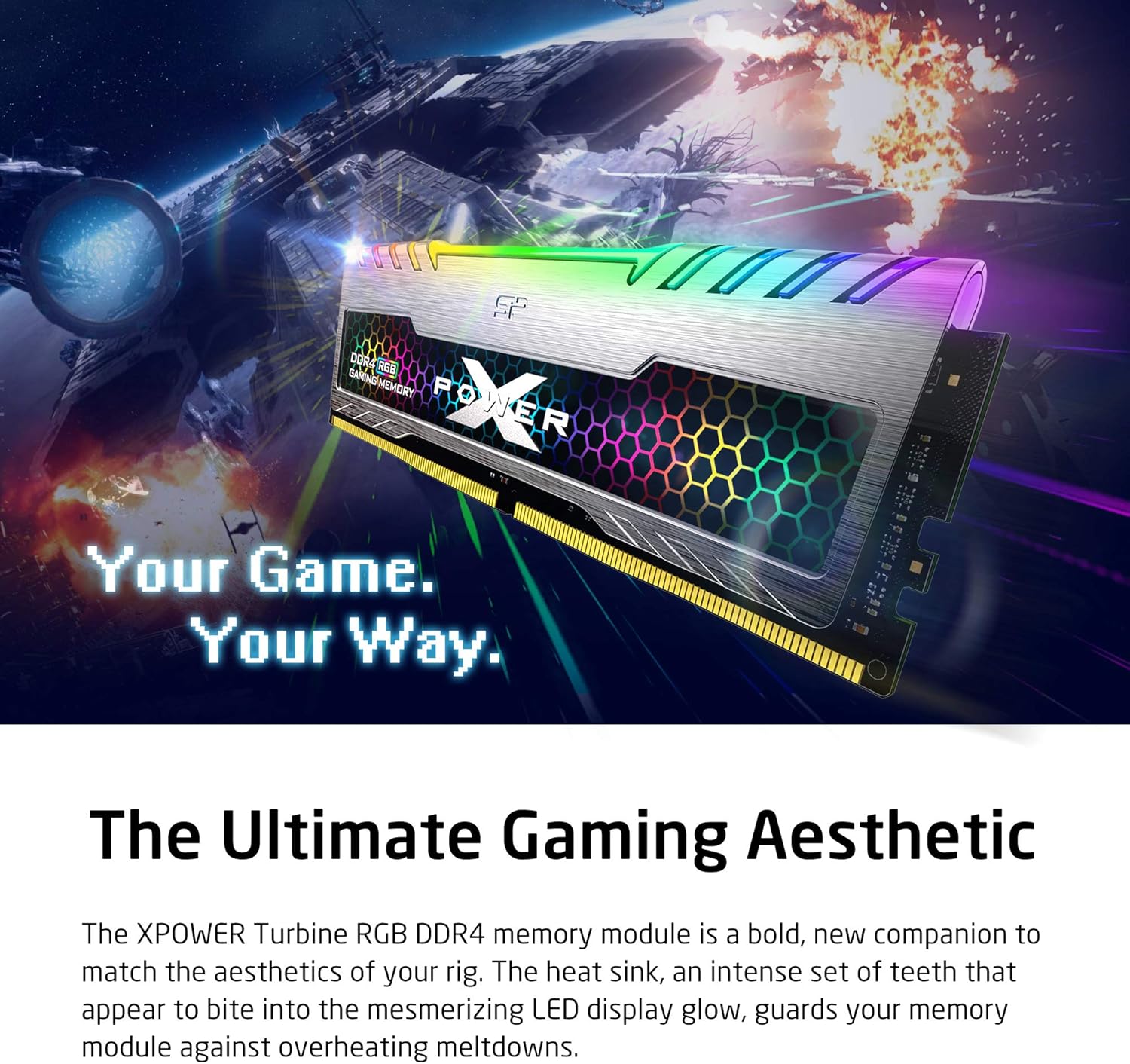
Image 1.1: SP Silicon Power XPOWER RGB Turbine Gaming DDR4 Memory Module, showcasing its design and RGB lighting capabilities.
2. Key Features
- RGB Lighting Control: Supports major motherboard RGB lighting software including ASUS Aura Sync, GIGABYTE RGB Fusion, MSI Mystic Light Sync, and ASROCK-Polychrome Sync for synchronized lighting effects.
- Enhanced Thermal Management: Features a dynamic thermal heatsink mechanism designed to dissipate heat effectively, preventing overheating and maintaining stable performance.
- Energy Efficiency: Operates at a low voltage of 1.35V, contributing to reduced power consumption and improved system efficiency.
- High Stability & Reliability: Constructed with up to 10-layer PCBs to ensure robust stability and long-term reliability under demanding conditions.
- Optimized Performance: Delivers speeds up to 3200 MT/s with timings of 16-18-18-36, supporting Intel Extreme Memory Profile (XMP) Standards for easy performance optimization.
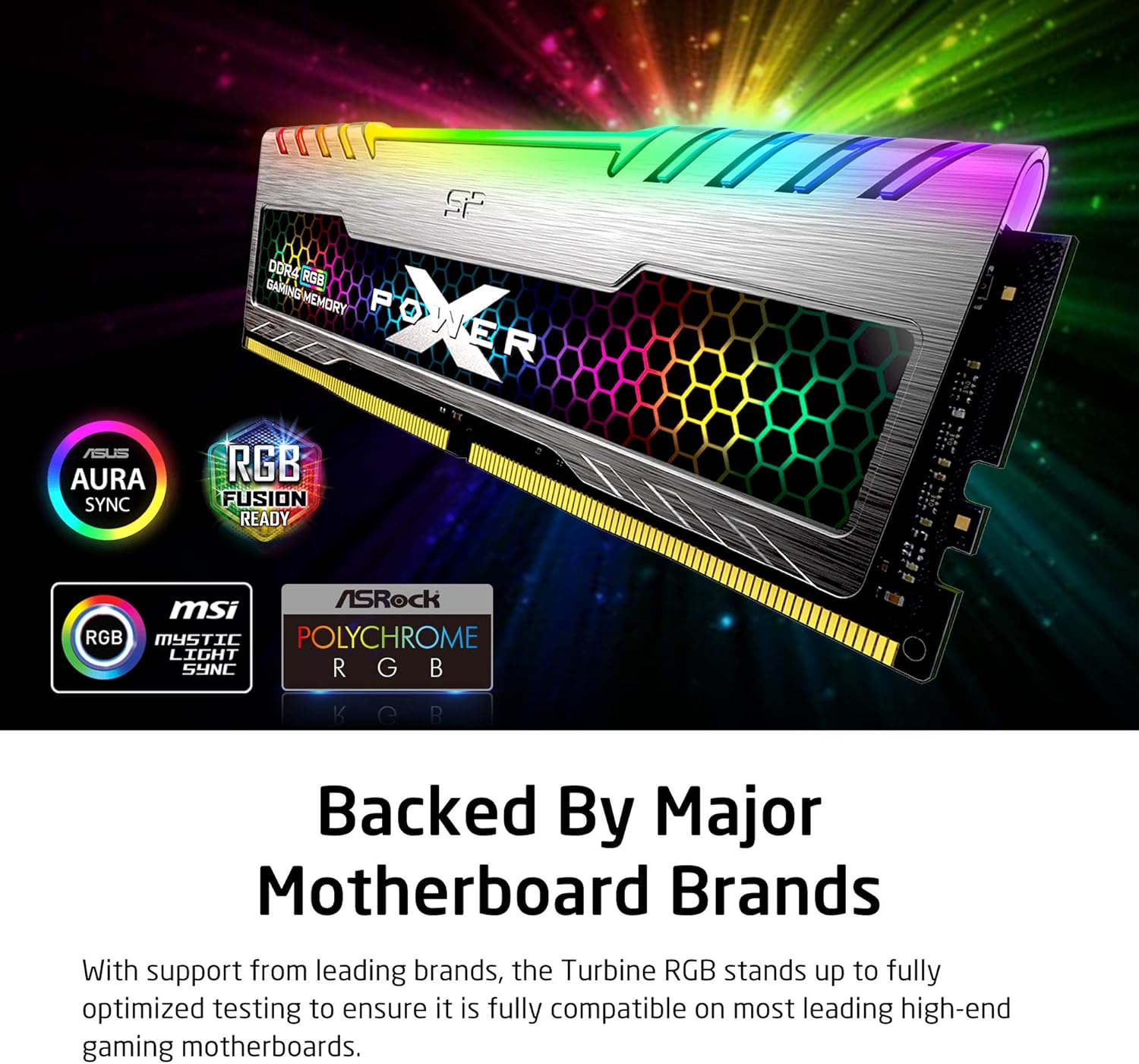
Image 2.1: The memory module highlighting its compatibility with various motherboard RGB synchronization software.

Image 2.2: The memory module illustrating its power-saving features.
3. Setup & Installation
Before installing the memory module, ensure your computer is powered off and unplugged from the wall outlet. It is recommended to wear an anti-static wrist strap to prevent electrostatic discharge (ESD) damage to components.
- Open Computer Case: Remove the side panel of your computer case to access the motherboard.
- Locate DIMM Slots: Identify the DDR4 DIMM slots on your motherboard. Consult your motherboard manual for the correct slot configuration for dual-channel or quad-channel memory.
- Prepare Slots: Gently push down the clips at both ends of the DIMM slot to open them.
- Insert Memory Module: Align the notch on the memory module with the key in the DIMM slot. Apply even pressure to both ends of the module until it clicks into place and the clips automatically close.
- Secure Module: Ensure both clips are fully engaged and the module is seated firmly.
- Close Case: Replace the side panel of your computer case.
- Power On: Reconnect power and turn on your computer.
After physical installation, you may need to enable the Intel XMP profile in your motherboard's BIOS/UEFI settings to achieve the advertised speeds (e.g., 3200MHz). Refer to the "Operation" section for details.

Image 3.1: Multiple memory modules ready for installation into a motherboard, demonstrating their uniform design.
4. Operation
4.1. Enabling XMP (Extreme Memory Profile)
To achieve the optimal performance of 3200MHz, you must enable the Intel XMP profile in your motherboard's BIOS/UEFI settings. By default, memory modules often run at a standard JEDEC speed (e.g., 2133MHz or 2400MHz).
- Enter BIOS/UEFI: Restart your computer and repeatedly press the designated key (commonly DEL, F2, F10, or F12) during startup to enter the BIOS/UEFI setup.
- Locate XMP Setting: Navigate to the "Overclocking," "Advanced," or "AI Tweaker" section. Look for an option related to "XMP," "DOCP," or "Memory Profile."
- Enable Profile: Select the XMP profile (usually "Profile 1") that corresponds to the advertised speed (3200MHz).
- Save & Exit: Save your changes and exit the BIOS/UEFI. Your system will restart with the memory running at the optimized speed.
4.2. RGB Lighting Control
The XPOWER RGB Turbine memory modules are compatible with various motherboard RGB synchronization software. This allows you to customize and synchronize the lighting effects with other RGB components in your system.
- ASUS Aura Sync: For ASUS motherboards.
- GIGABYTE RGB Fusion: For GIGABYTE motherboards.
- MSI Mystic Light Sync: For MSI motherboards.
- ASROCK-Polychrome Sync: For ASRock motherboards.
Download and install the appropriate software from your motherboard manufacturer's website. Once installed, you can access the software to select colors, patterns, and synchronize the memory module's RGB lighting with your system's overall aesthetic.
5. Maintenance
Memory modules generally require minimal maintenance. However, following these guidelines can help ensure their longevity and optimal performance:
- Keep Clean: Periodically clean the interior of your computer case to prevent dust buildup on the memory modules and other components. Dust can impede heat dissipation. Use compressed air for this purpose.
- Ensure Proper Airflow: Maintain good airflow within your computer case to help keep memory modules cool. Ensure case fans are functioning correctly and not obstructed.
- Avoid Physical Damage: Handle memory modules by their edges to avoid touching the gold contacts or integrated circuits. Store unused modules in anti-static bags.
- Software Updates: Keep your motherboard's BIOS/UEFI firmware updated, as updates can sometimes improve memory compatibility and stability.
6. Troubleshooting
If you encounter issues with your memory modules, consider the following troubleshooting steps:
6.1. System Not Booting / No Display
- Reseat Modules: Power off and unplug your PC. Carefully remove and reinsert the memory modules, ensuring they are fully seated and the clips are locked.
- Check Slot Configuration: Refer to your motherboard manual for the correct DIMM slot population order, especially for dual-channel operation.
- Test Individually: If you have multiple modules, try booting with only one module at a time in different slots to identify a faulty module or slot.
- Clear CMOS: Clear your motherboard's CMOS settings (refer to your motherboard manual) to reset BIOS settings to default, which can resolve compatibility issues.
6.2. Memory Not Running at Advertised Speed (e.g., 3200MHz)
- Enable XMP: As detailed in the "Operation" section, ensure the Intel XMP profile is enabled in your motherboard's BIOS/UEFI settings.
- BIOS/UEFI Update: Update your motherboard's BIOS/UEFI to the latest version, as this often includes improved memory compatibility.
- Check Motherboard Support: Verify that your motherboard and CPU officially support the 3200MHz memory speed.
6.3. RGB Lighting Not Working or Synchronizing
- Install Software: Ensure you have installed the correct RGB control software for your motherboard (e.g., ASUS Aura Sync, GIGABYTE RGB Fusion).
- Check Connections: Verify that the memory modules are properly seated and that any necessary RGB headers (if applicable, though usually integrated for RAM) are connected.
- Software Conflicts: If you have multiple RGB control applications, they might conflict. Try uninstalling other RGB software or using only one.
- Motherboard Settings: Check your motherboard's BIOS/UEFI for any settings related to RGB control that might be disabled.
7. Technical Specifications
| Feature | Detail |
|---|---|
| Brand | SP Silicon Power |
| Model Name | SP016GXLZU320BDB |
| Model Number | FBE-SU016GXLZU320BDBED |
| Computer Memory Size | 16 GB (8GBx2) |
| RAM Memory Technology | DDR4 |
| Memory Speed | 3200 MHz (MT/s) |
| Column Address Strobe Latency (CL) | 16 |
| Timing | 16-18-18-36 |
| Voltage | 1.35 Volts |
| Form Factor | UDIMM (288-pin) |
| Compatible Devices | Desktop |
| Additional Features | RGB Lighting, Dynamic Thermal Heatsink, Low Voltage |
8. Warranty & Support
SP Silicon Power stands behind the quality of its products. The XPOWER RGB Turbine Gaming DDR4 Memory Module is backed by a lifetime warranty.
This warranty covers defects in material and workmanship under normal use. For warranty claims, technical support, or further assistance, please visit the official SP Silicon Power website or contact their customer service department.
For the most up-to-date support information and contact details, please refer to the official SP Silicon Power Store on Amazon or their corporate website.