
Introduction
Thank you for purchasing the JOYACCESS Wireless Keyboard and Mouse Combo. This manual provides detailed instructions on how to set up, operate, and maintain your new device. Please read this manual carefully before use to ensure optimal performance and longevity of the product.
This combo features a full-size, slim, and ergonomic keyboard paired with a silent, adjustable DPI mouse, both rechargeable via built-in 500mAh lithium-ion batteries. It utilizes reliable 2.4GHz wireless connectivity for a stable connection up to 10 meters.
Package Contents
- JOYACCESS Wireless Keyboard
- JOYACCESS Wireless Mouse
- USB Nano Receiver (stored inside the mouse battery compartment)
- USB Charging Cable
- User Manual
Product Overview

Figure 1: Overview of the JOYACCESS Wireless Keyboard and Mouse Combo with USB receiver.

Figure 2: Close-up of the JOYACCESS Wireless Mouse showing the USB Nano Receiver port and quiet click zones. The mouse features adjustable DPI settings from 800 to 2400.
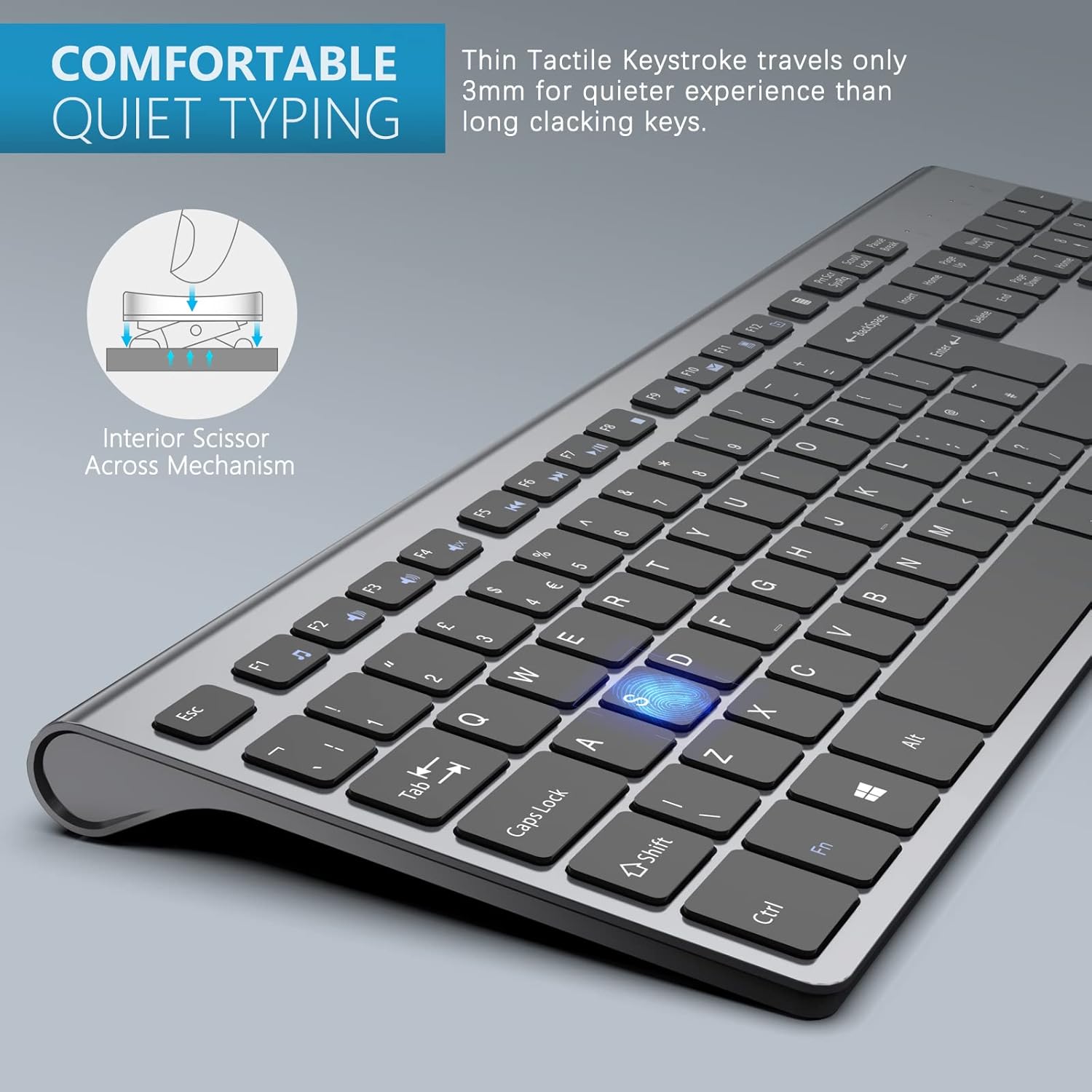
Figure 3: Illustration of the interior scissor mechanism of the keyboard keys, designed for comfortable and quiet typing with a short 3mm keystroke travel.

Figure 4: Detail of the keyboard's indicator lights for Num Lock, Caps Lock, Power, and Charging, along with the Micro USB charging port.
Setup Guide
- Charge the Devices: Before first use, fully charge both the keyboard and the mouse using the provided USB charging cable. Connect the cable to the Micro USB port on each device and a USB power source (e.g., computer USB port, USB wall adapter). The charging indicator light will show charging status. A full charge provides approximately 4 months of use for the keyboard and 90 days for the mouse.
- Locate the USB Nano Receiver: The USB Nano Receiver is typically stored in the battery compartment of the mouse for safe keeping during transport. Open the battery cover on the underside of the mouse to retrieve it.
- Connect the Receiver: Insert the USB Nano Receiver into an available USB port on your computer, laptop, or compatible device.
- Power On: Turn on the keyboard and mouse. There is usually a power switch on the underside of both devices. The devices should automatically connect to the receiver.
- Driver Installation (Plug and Play): No additional drivers are typically required. Your operating system (Windows, macOS, iOS) should automatically recognize and install the necessary drivers.

Figure 5: Diagram illustrating the simple plug-and-play setup process for the JOYACCESS wireless keyboard and mouse combo.
Operating Instructions
Keyboard Usage
- Typing: The full-size keyboard provides a comfortable typing experience with well-spaced keys and a standard layout, including a numeric keypad.
- Multimedia Keys: Access multimedia functions (e.g., volume control, play/pause, next/previous track) using the dedicated function keys (F1-F12) in combination with the Fn key, if applicable. Refer to the key legends for specific functions.
- Indicator Lights: Observe the indicator lights for Num Lock, Caps Lock, and Power status.
Mouse Usage
- Clicking: The mouse features quiet click buttons for a less disruptive experience.
- DPI Adjustment: The mouse supports adjustable DPI settings up to 2400 DPI. This allows you to change the cursor speed and sensitivity. Typically, there is a DPI button near the scroll wheel to cycle through different DPI levels (e.g., 800/1200/1600/2000/2400).
- Ergonomic Design: The slim and ergonomic design ensures comfortable use for extended periods.
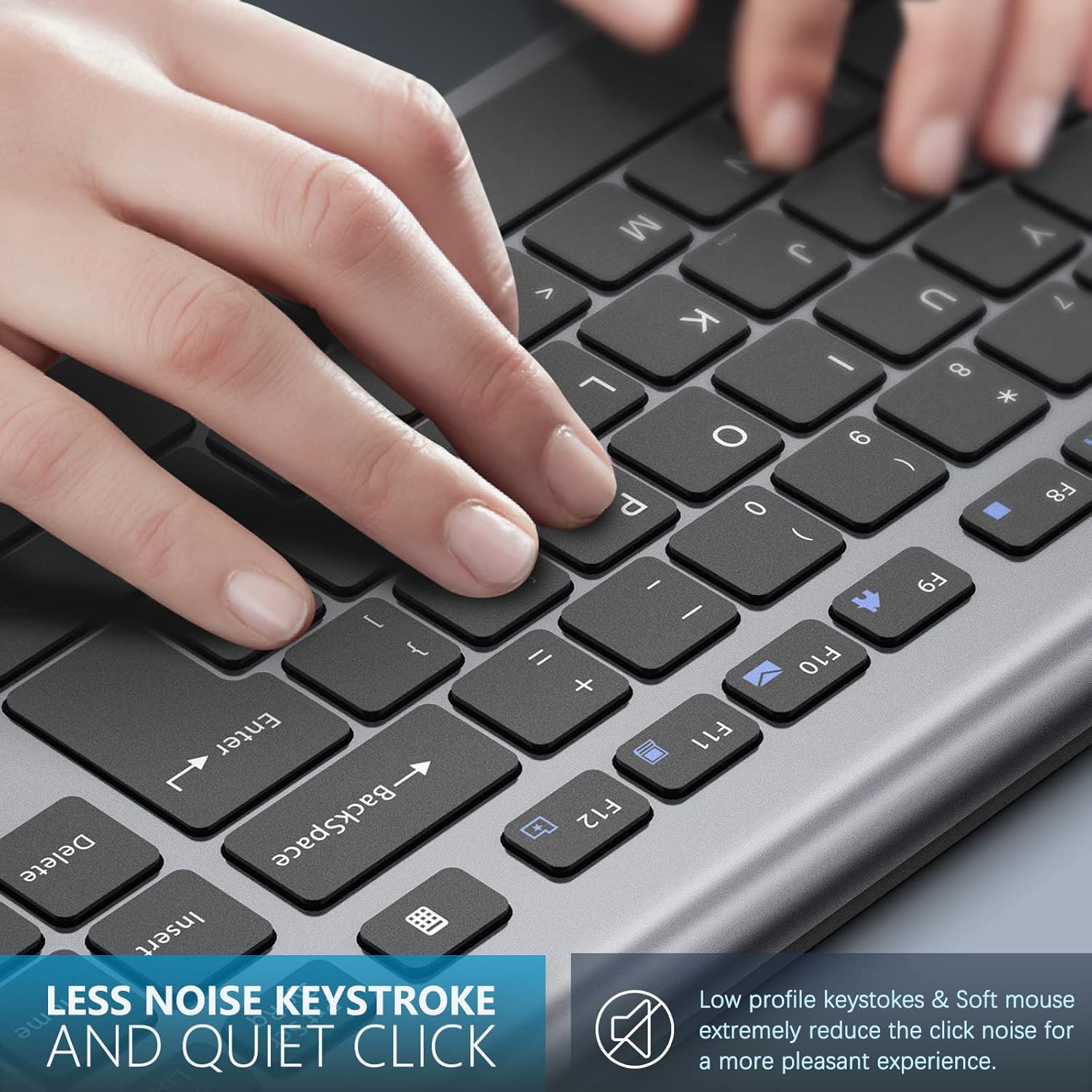
Figure 6: Demonstrates hands typing on the JOYACCESS wireless keyboard, highlighting the low-profile keystrokes and quiet click design for reduced noise.
Charging and Battery Life
Both the keyboard and mouse are equipped with built-in 500mAh rechargeable lithium-ion batteries. They are designed for long battery life and automatic sleep mode to conserve power.
- Charging Time: Approximately 2-3 hours for a full charge.
- Battery Life: Up to 4 months for the keyboard and 90 days for the mouse on a single charge, depending on usage.
- Low Battery Indicator: The power indicator light on the keyboard will flash or change color to indicate low battery. For the mouse, performance may degrade when the battery is low.
- Automatic Sleep Mode: To save power, the devices will enter sleep mode after a period of inactivity. Press any key or click the mouse to wake them up.

Figure 7: Illustration showing the charging process for both the keyboard and mouse, emphasizing their rechargeable nature and long battery life of over 90 days on a single charge.
Maintenance and Care
- Cleaning: Use a soft, dry cloth to clean the surfaces of the keyboard and mouse. For stubborn dirt, a slightly damp cloth can be used, but ensure no moisture enters the device.
- Storage: When not in use for extended periods, turn off the devices to conserve battery life. Store them in a cool, dry place away from direct sunlight and extreme temperatures.
- Avoid Liquids: Do not expose the devices to water or other liquids.
- Handle with Care: Avoid dropping or subjecting the devices to strong impacts.
Troubleshooting
| Problem | Possible Cause | Solution |
|---|---|---|
| Keyboard/Mouse not responding | Low battery; Receiver not connected; Devices not powered on; Interference. | Charge the devices. Ensure the USB receiver is securely plugged into a working USB port. Turn on both the keyboard and mouse. Move closer to the receiver or try a different USB port. |
| Lag or delayed response | Distance from receiver; Interference from other wireless devices; Low battery. | Reduce the distance between the devices and the receiver (within 10m). Minimize interference from other 2.4GHz devices. Recharge the batteries. |
| Mouse cursor erratic or not moving smoothly | Dirty optical sensor; Unsuitable surface; Low battery. | Clean the optical sensor on the underside of the mouse. Use the mouse on a clean, non-reflective, opaque surface or a mouse pad. Recharge the battery. |
| Keyboard keys not working | Low battery; Device in sleep mode; Physical damage. | Recharge the keyboard. Press any key to wake it from sleep mode. Inspect for physical damage. |
Specifications
- Model: X-JK6BUK
- Connectivity: 2.4GHz Wireless (USB Nano Receiver)
- Operating Range: Up to 10 meters (33 feet)
- Keyboard Type: Full-size, Slim, Ergonomic, Multimedia Keys
- Mouse DPI: Adjustable (800/1200/1600/2000/2400 DPI)
- Battery Type: Built-in 500mAh Lithium-ion (rechargeable)
- Charging Port: Micro USB
- Compatible Operating Systems: Windows 10, Windows Vista, iOS (and generally compatible with PC, Laptop, Smart TV)
- Color: Black/Grey
Warranty and Support
JOYACCESS products come with a standard manufacturer's warranty. For detailed warranty information, please refer to the warranty card included in your package or visit the official JOYACCESS website. If you encounter any issues or have questions not covered in this manual, please contact JOYACCESS customer support through their official channels.
For support, visit: www.joyaccess.com (Note: This is a placeholder URL, please refer to actual product documentation for correct support contact.)
