
Cisco CP-6921-C-K9
Cisco CP-6921 Unified IP Phone User Manual
Model: CP-6921-C-K9
Introduction
This manual provides comprehensive instructions for the setup, operation, and maintenance of your Cisco CP-6921 Unified IP Phone. The CP-6921 is designed to deliver clear voice communication with advanced features for business environments. It integrates seamlessly with Cisco call control systems and supports Power over Ethernet (PoE) for simplified deployment.
Safety Information
Please read all safety instructions before using the phone to prevent injury or damage. Keep this manual for future reference.
- Do not expose the phone to water or excessive moisture.
- Avoid placing the phone near heat sources or in direct sunlight.
- Use only the power adapter or PoE source specified for this device.
- Do not attempt to open or repair the phone yourself. Refer all servicing to qualified personnel.
- Ensure proper ventilation around the phone.
Package Contents
Verify that all items are present in your package:
- Cisco CP-6921 Unified IP Phone unit
- Handset
- Handset cord
- Ethernet cable
- Adjustable foot stand (pre-attached or separate)
- Quick Start Guide (this manual serves as the full guide)
Product Overview

Figure 1: Angled view of the Cisco CP-6921 Unified IP Phone with its handset and coiled cord, resting on its adjustable desk stand. This image highlights the phone's monochrome display, keypad, and various function buttons.
Key Features:
- Display: 396 x 81 pixel-based, anti-glare, monochrome display for clear information viewing.
- Line Support: Supports two lines for simultaneous call handling.
- Speakerphone: Full-duplex speakerphone for hands-free communication.
- Network Features: Includes Cisco Discovery Protocol and IEEE 802.1 p/q tagging and switching for robust network integration.
- Power over Ethernet (PoE): Compatible with IEEE 802.3af-compliant blades for power delivery over the network cable.
- Ergonomics: Easy-to-view display and user-friendly buttons. Removable foot stand allows for wall mounting.
Setup
1. Connecting the Phone
- Connect the Handset:
Plug one end of the coiled handset cord into the handset and the other end into the handset port on the phone base. The handset port is typically marked with a handset icon.
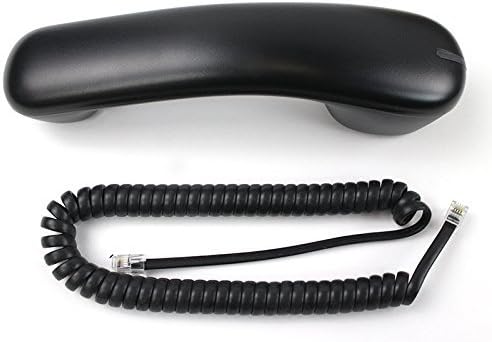
Figure 2: The phone's handset and its coiled cord, ready for connection to the phone base.
- Connect to Network/Power:
Connect one end of the Ethernet cable to the network port on the back of the phone (usually labeled "SW" or "Network") and the other end to a network switch or router. If your network supports Power over Ethernet (PoE), the phone will power on automatically. If PoE is not available, connect an appropriate Cisco power adapter (sold separately) to the power port on the phone.
- Optional: Connect to PC (PC Port):
If you wish to connect a computer through the phone, connect an Ethernet cable from your computer to the PC port on the back of the phone (usually labeled "PC").
2. Wall Mounting (Optional)
The Cisco CP-6921 can be wall-mounted by removing the adjustable foot stand and utilizing the mounting holes on the base.
- Remove the Foot Stand:
Gently detach the foot stand from the base of the phone. Refer to the phone's underside for release mechanisms or screws.
- Attach Wall Mount Bracket:
If a separate wall mount bracket is provided or required, secure it to the wall using appropriate screws and anchors (not included). Ensure the bracket is level and securely fastened.
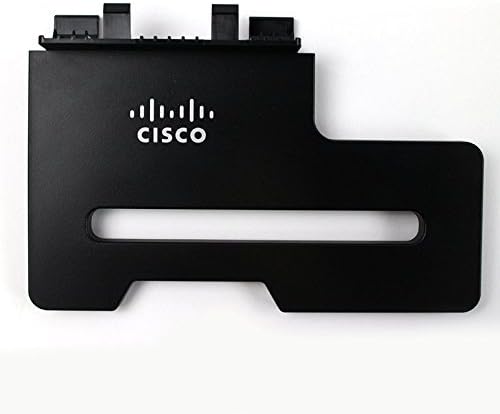
Figure 3: The wall mount bracket for the Cisco CP-6921, showing the Cisco logo and mounting slots.
- Mount the Phone:
Align the mounting holes on the phone's base with the studs or hooks on the wall mount bracket or directly with wall screws if mounting without a bracket. Slide the phone down to secure it in place.
Operating Instructions
Making and Receiving Calls
- To Make a Call: Lift the handset, press the speakerphone button, or press a line button. Dial the number using the keypad.
- To Answer a Call: Lift the handset, press the flashing line button, or press the speakerphone button.
- To End a Call: Replace the handset, or press the speakerphone button if using hands-free.
- Redial: Press the Redial button to call the last dialed number.
Using the Speakerphone
Press the Speakerphone button to activate or deactivate the speakerphone function during a call. The button will illuminate when active.
Display Navigation
Use the navigation cluster (up, down, left, right arrows, and Select button) to scroll through menus and select options on the monochrome display. The display provides call information, menu options, and status indicators.
Voicemail Access
Press the Messages button (envelope icon) to access your voicemail system. Follow the voice prompts to retrieve messages.
Volume Control
Adjust the volume for the handset, speakerphone, or ringer using the Volume button (vertical bar with plus/minus). Press the button up to increase volume and down to decrease.
Maintenance
Proper maintenance ensures the longevity of your Cisco CP-6921 IP Phone.
- Cleaning: Use a soft, dry, lint-free cloth to clean the phone's surface and display. Do not use liquid cleaners, aerosols, or harsh chemicals.
- Dust: Regularly dust the phone, especially around the speaker and microphone grilles, to prevent accumulation.
- Cords: Inspect handset and Ethernet cords periodically for any signs of wear or damage. Replace if necessary.
Troubleshooting
If you encounter issues with your phone, try the following solutions:
| Problem | Possible Cause / Solution |
|---|---|
| Phone does not power on. |
|
| No dial tone. |
|
| Cannot hear caller / Caller cannot hear me. |
|
| Display is blank or frozen. |
|
Specifications
| Model | Cisco CP-6921-C-K9 |
| Display | 396 x 81 pixel-based, anti-glare, monochrome |
| Line Support | 2 lines |
| Speakerphone | Full-duplex |
| Power Source | Power over Ethernet (PoE) IEEE 802.3af or optional AC adapter |
| Network Features | Cisco Discovery Protocol, IEEE 802.1 p/q tagging and switching |
| Dimensions (L x W x H) | 10 x 8 x 4 inches (25.4 x 20.32 x 10.16 cm) |
| Weight | 2.3 pounds (1.04 kg) |
| Color | Black |
| Material | Plastic |
| Compatible Devices | Cisco's communication systems, VoIP services, traditional telephone networks (PSTN, ISDN), computer systems |
Warranty and Support
For information regarding warranty coverage and technical support for your Cisco CP-6921 Unified IP Phone, please refer to the official Cisco website or contact your authorized Cisco reseller. Specific warranty terms may vary based on region and purchase agreement.
For further assistance, consult your IT department or the system administrator responsible for your Cisco Unified Communications deployment.
Related documentsCP-6921-C-K9


Ask a question about this manual
Ask about setup, troubleshooting, compatibility, parts, safety, or missing instructions. Manuals+ will review the question and use this page’s manual context to help answer it.