
Product Overview
The Peteme Smart WiFi Alexa Light Bulb offers a versatile lighting solution for your home. These LED RGB color-changing bulbs are compatible with popular voice assistants like Alexa, Siri, and Google Home, eliminating the need for a separate hub. Enjoy 16 million colors and dimmable brightness to create your desired ambiance.

Image: Four Peteme Smart WiFi Light Bulbs, showcasing their colorful capabilities.
What's in the Box
- Light bulb (4 Count)
Setup Guide
1. Installation
- Carefully screw the Peteme Smart Light Bulb into a standard E26 light socket.
- Ensure the power is turned off before installation.
- Turn on the power to the light fixture. The bulb should blink, indicating it's in pairing mode.

Image: A hand installing a smart light bulb into a lamp.
2. App Connection (Smart Life App)
- Download the "Smart Life" app from your smartphone's app store (iOS or Android).
- Register or log in to your Smart Life account.
- Open the app and tap the "+" icon in the top right corner to add a device.
- Select "Lighting" > "Light Source (Wi-Fi)".
- Confirm the bulb is blinking rapidly. If not, turn the light switch OFF-ON-OFF-ON-OFF-ON (3 times) to reset it.
- Enter your Wi-Fi network password (2.4GHz network required).
- The app will connect to the bulb. Once connected, you can rename the bulb for easy control.

Image: Smartphone displaying the Smart Life app, demonstrating group control functionality.
Operating Instructions
App Control
Control your Peteme Smart Bulbs from anywhere using the Smart Life app. You can turn lights on/off, change colors, adjust brightness, and set scenes.
- On/Off: Tap the power icon next to the bulb's name.
- Color & Brightness: Select the bulb, then use the color wheel and brightness slider to customize.
- Scene System: Choose from various preset scenes (e.g., Night, Reading, Party, Leisure) or create your own custom scenes.
- Group Control: Add multiple bulbs to a group to control them simultaneously.

Image: Remote control of smart light bulbs via the app, showing a house illuminated at dusk.
Voice Control
Peteme Smart Bulbs are compatible with Alexa, Siri, and Google Home for convenient voice commands.
- Connecting to Voice Assistant:
- Open your Alexa, Google Home, or Siri app.
- Navigate to "Skills" (Alexa) or "Works with Google" (Google Home).
- Search for and enable the "Smart Life" skill.
- Link your Smart Life account.
- Discover devices.
- Example Commands:
- "Alexa, turn on the living room light."
- "Hey Google, change bedroom light to blue."
- "Siri, dim the kitchen light to 50%."

Image: Voice control demonstration with a smart bulb, showing compatibility with Siri, Alexa, and Google Assistant.
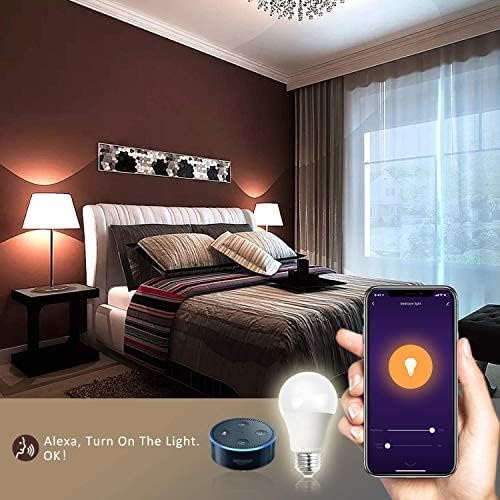
Image: Alexa integration with a smart bulb and Echo Dot.
Scheduling and Timers
Set schedules for your lights to turn on or off automatically, perfect for waking up or simulating occupancy.
- In the Smart Life app, select the bulb or group.
- Tap on "Timer" or "Schedule" to set desired on/off times for specific days.

Image: Smartphone displaying a light scheduling interface, showing a 7:00 AM wake-up and 10:00 PM sleeping time schedule.
Maintenance
- Cleaning: Ensure the bulb is off and cool before cleaning. Wipe with a soft, dry cloth. Do not use liquid cleaners.
- Storage: Store bulbs in a cool, dry place when not in use for extended periods.
- Lifespan: These LED bulbs are designed for long-lasting performance, saving up to 80% energy compared to traditional bulbs.
Troubleshooting
| Problem | Solution |
|---|---|
| Bulb not connecting to Wi-Fi. |
|
| Voice control not working. |
|
| Bulb frequently disconnects. |
|
Specifications
- Brand: Peteme
- Light Type: LED
- Special Feature: Group Control, Voice Control by Alexa and Siri, Timer, Dimmable 0-100%, 8 Scenes and DIY Mode, RGBCW & 16 Million Color, No Hub Required, Energy Saving
- Wattage: 7.5 watts (60 Watts Incandescent Equivalent)
- Bulb Shape Size: A19
- Bulb Base: E26
- Light Color: Multicolor (16 Million Colors)
- Voltage: 110 Volts (Accepted: 100 to 240 Volts)
- Unit Count: 4 Count
- Color Temperature: 6500 Kelvin
- Brightness: 650 Lumen (White Brightness: 700 Lumens)
- Material: Glass
- Connectivity Technology: Wi-Fi, Infrared
- Indoor/Outdoor Usage: Indoor
- Controller Type: Google Assistant, Amazon Alexa
- Item Weight: 8.8 ounces
- Product Dimensions: 4.72"W x 4.72"H
Warranty and Support
Peteme is committed to producing smart, safe, and energy-saving household products. If you encounter any problems with your smart light bulbs, please feel free to contact us. We will provide you with technical support.
For further assistance, please visit the official Peteme Store on Amazon or refer to the contact information provided with your purchase.
This manual is for informational purposes only. Product specifications and features are subject to change without notice.
