1. Product Overview
The iRobot Roomba S9 (9150) Robot Vacuum is designed for advanced home cleaning, featuring powerful suction and intelligent navigation. It is ideal for homes with pets and offers a comprehensive cleaning experience.
Key features include:
- Deepest Clean: 40X the suction power with a superior 3-Stage Cleaning System to lift, loosen, and eliminate debris and pet hair from carpets. Power boost technology increases suction for deeper carpet cleaning.
- Detailed Powerful Clean: PerfectEdge Technology with advanced sensors and a specially designed Corner Brush optimizes cleaning deep into corners and along edges. Features 30% wider Dual Rubber Brushes that resist tangling with pet hair.
- Guided by Serious Smarts: vSLAM navigation learns your home's layout and builds personal Smart Maps, enabling efficient cleaning in neat rows. Automatically recharges and resumes cleaning if battery runs low.
- Vacuums Messes in the Moment: Easily clean specific messes with voice commands (Google Assistant or Alexa) or via the iRobot Home App.
- Complete Control of Your Clean: Smart Mapping allows you to define where and when the robot cleans. Keep Out Zones prevent the robot from entering sensitive areas.

Figure 1: The iRobot Roomba S9 Robot Vacuum, showcasing its sleek design and top-down view.

Figure 2: Illustration of the Roomba S9's 3-Stage Cleaning System, highlighting the 40x suction power and dual rubber brushes for effective debris collection.

Figure 3: Close-up view of the Roomba S9 demonstrating its PerfectEdge Technology, designed to clean deep into corners and along edges.
Video 1: A short video demonstrating the Roomba S9's ability to navigate under furniture, highlighting its compact design and intelligent movement.
2. Setup
Follow these steps to set up your iRobot Roomba S9 for the first time:
- Unpack the Robot: Carefully remove the Roomba S9 and its accessories from the packaging. Ensure all components are present.
- Place the Clean Base (if applicable): Position the Clean Base charging station in an open, uncluttered area with good Wi-Fi coverage. Ensure there is enough space around it for the robot to dock easily.
- Charge the Battery: Place the Roomba S9 on the Clean Base. The light ring will illuminate to indicate charging status. Allow the robot to fully charge before its first cleaning mission.
- Download the iRobot Home App: Search for "iRobot Home" in your smartphone's app store and download the application.
- Connect to Wi-Fi: Open the iRobot Home App and follow the on-screen instructions to connect your Roomba S9 to your home Wi-Fi network. This enables smart features and remote control.
- Initial Mapping Run: Once connected, initiate a mapping run through the app. The robot will explore your home to create a Smart Map, which is essential for advanced navigation and room-specific cleaning.
3. Operating Instructions
Operating your Roomba S9 is intuitive, whether through the app, voice commands, or directly on the robot.
3.1. Starting a Cleaning Job
- Using the iRobot Home App: Open the app, select your Roomba S9, and tap "Clean" to start a full cleaning cycle. You can also select specific rooms or areas from your Smart Map.
- Using Voice Assistant: Connect your Roomba S9 to a compatible voice assistant (e.g., Amazon Alexa, Google Assistant). Say commands like "Alexa, tell Roomba to clean" or "Hey Google, ask Roomba to clean the kitchen."
- Using the CLEAN Button: Press the CLEAN button on top of the robot to start a general cleaning cycle.

Figure 4: The Roomba S9 robot vacuum cleaning crumbs under a kitchen table, demonstrating its ability to vacuum messes in the moment.
Video 2: An official iRobot video titled "Goodbye cleaning. Hello Clean.", showcasing the convenience and effectiveness of the Roomba S9 in maintaining a clean home.
3.2. Smart Mapping and Navigation
The Roomba S9 uses vSLAM navigation to learn and adapt to your home's layout.
- Creating Smart Maps: After initial setup, the robot will create a detailed map of your home. You can view and customize this map in the iRobot Home App.
- Customizing Cleaning: Use the Smart Map to define specific rooms, set cleaning schedules for individual areas, or create Keep Out Zones for areas you want the robot to avoid.
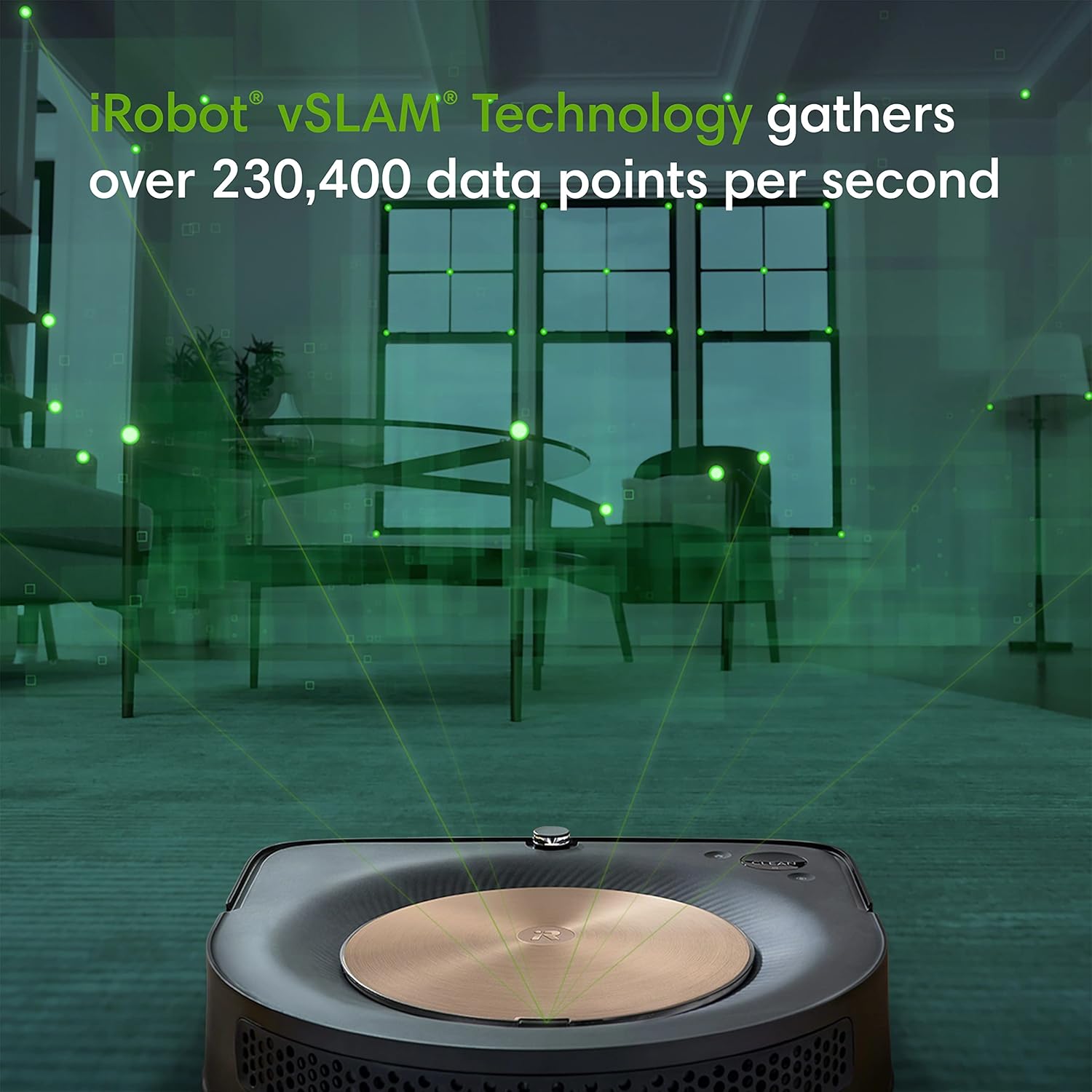
Figure 5: Visual representation of iRobot vSLAM Technology, illustrating how the Roomba S9 gathers data points to navigate and map your home effectively.

Figure 6: The Roomba S9 learning and mapping a home's layout, showing how it identifies different rooms for customized cleaning.

Figure 7: An example of Keep Out Zones being set up for the Roomba S9, allowing users to define areas the robot should avoid.
Video 3: An official iRobot video demonstrating the s9's coverage capabilities, showing its efficient navigation and cleaning patterns.
4. Maintenance
Regular maintenance ensures your Roomba S9 operates at peak performance.
4.1. Emptying the Dust Bin
The Roomba S9 features an improved dust bin design for easy emptying. If you have the Clean Base, the robot will automatically empty its bin.
- For manual emptying, remove the dust bin from the robot.
- Hold the bin over a trash can and press the release button to open the bottom flap, allowing dirt to fall out.
- The dust bin can also be washed with water for thorough cleaning. Ensure it is completely dry before reinserting.
4.2. Cleaning Brushes and Filter
Inspect and clean the brushes and filter regularly to maintain optimal cleaning performance.
- Dual Multi-Surface Rubber Brushes: These brushes are designed to prevent tangles, especially with pet hair. Remove them and clear any hair or debris.
- Filter: Tap the filter against a trash can to remove loose debris. Replace the filter periodically as recommended in the app or user guide.
4.3. Sensor Cleaning
Clean the robot's sensors to ensure proper navigation.
- Wipe the cliff sensors and charging contacts on the robot and Clean Base with a clean, dry cloth.
5. Troubleshooting
If your Roomba S9 encounters an issue, the robot will often provide an error message or indicator. Refer to the iRobot Home App for detailed troubleshooting steps.
Common Issues and Solutions:
- Robot not charging: Ensure the robot is properly docked on the Clean Base and the charging contacts are clean. Check if the Clean Base is plugged in.
- Poor cleaning performance: Empty the dust bin, clean the brushes, and replace the filter if necessary. Ensure no debris is obstructing the suction path.
- Navigation issues (e.g., getting stuck, missing areas): Clean all sensors on the robot. Ensure your home is well-lit during cleaning and clear of excessive clutter. Perform a new mapping run if the Smart Map seems inaccurate.
- Robot not connecting to Wi-Fi: Verify your Wi-Fi network is active and the robot is within range. Restart your router and the robot. Follow the app's instructions for re-connecting to Wi-Fi.
For persistent issues, a factory reset may resolve the problem, but this will erase your Smart Maps. Consult the iRobot Home App or the full user manual for instructions on performing a factory reset.
6. Specifications
| Feature | Detail |
|---|---|
| Brand | iRobot |
| Model Name | S9 |
| Model Number | s915020 |
| Special Features | 40x Suction, Smart Mapping, Powerful Suction, Anti-Allergen System, Corners & Edges, Ideal for Pet Hair, Wi-Fi Connected |
| Color | Java Black |
| Product Dimensions | 12.25"L x 12.25"W x 3.5"H |
| Item Weight | 8.15 pounds |
| Filter Type | Disk |
| Power Source | Battery Powered (1 Lithium Ion battery included) |
| Control Method | Voice, App |
| Compatible Devices | Amazon Echo, Google Home |
| Form Factor | Robotic |
| Specific Instructions for Use | Dual action, hard floor, carpet |
7. Warranty and Support
The iRobot Roomba S9 (9150) Robot Vacuum comes with a 1-year limited warranty.
For detailed warranty information, please refer to the official warranty document:
For additional support, troubleshooting, or to access the full user manual, please visit the iRobot website or use the iRobot Home App.


