
1. Introduction
This manual provides essential information for the setup, operation, maintenance, and troubleshooting of your Acer Predator Triton 500 PT515-51-75BH gaming laptop. Please read this manual thoroughly to ensure proper use and to maximize the performance and longevity of your device.
2. Package Contents
Verify that all items listed below are present in your product packaging:
- Acer Predator Triton 500 Laptop
- AC Adapter
- Power Adapter
3. Product Overview
The Acer Predator Triton 500 PT515-51-75BH is a high-performance gaming laptop designed for demanding applications and immersive gaming experiences. It features a 9th Generation Intel Core i7-9750H processor, NVIDIA GeForce RTX 2060 graphics, a 15.6-inch Full HD 144Hz IPS display, 16GB DDR4 RAM, and a 512GB PCIe NVMe SSD.
3.1 Visual Components

Figure 1: Front-left view of the Acer Predator Triton 500 laptop, showcasing the open display and keyboard. The screen features a dynamic, abstract wallpaper.

Figure 2: Right side view of the Acer Predator Triton 500 laptop, highlighting the USB ports, HDMI port, and Mini DisplayPort.
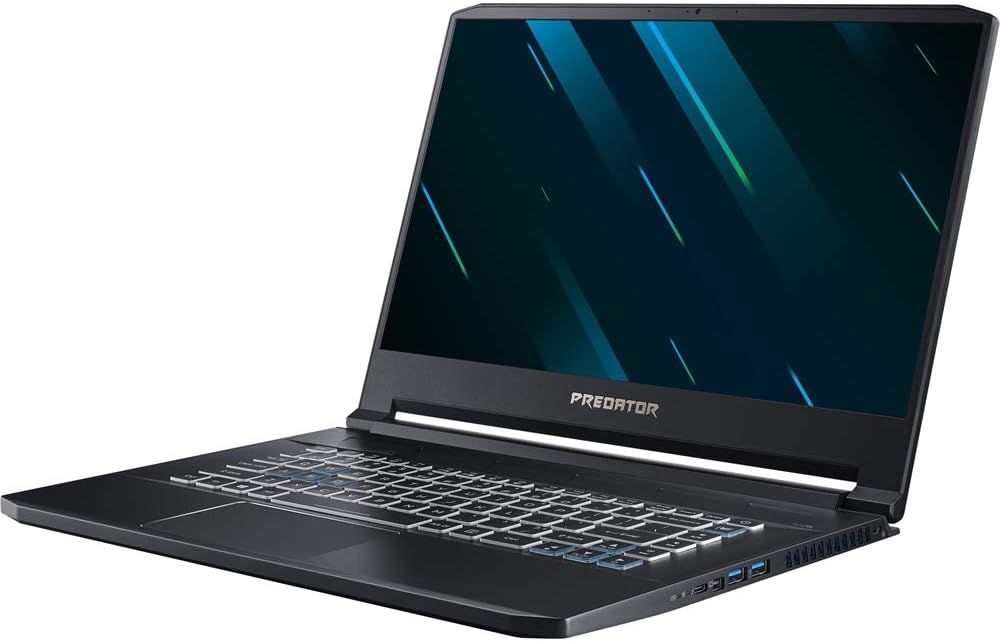
Figure 3: Front-right view of the Acer Predator Triton 500 laptop, showing the open display, keyboard, and touchpad. The screen displays a dynamic, abstract wallpaper.
3.2 Product Video
Video 1: A 360-degree view of the Acer Predator Triton 500 laptop, demonstrating its design and form factor from various angles.
4. Setup
- Unpack the Laptop: Carefully remove the laptop and all accessories from the packaging.
- Connect Power: Plug the AC adapter into the laptop's power port and then into a wall outlet. Ensure the power indicator light on the laptop illuminates.
- Initial Boot: Open the laptop lid and press the power button. The system will guide you through the initial Windows 10 Home setup process. Follow the on-screen instructions to configure your operating system, network connection, and user account.
- Connect Peripherals: Connect any external devices such as a mouse, keyboard, or external monitor to the available ports.
5. Operating Instructions
5.1 Power On/Off
- Power On: Press the power button located on the keyboard deck.
- Shut Down: Click the Windows Start button, then select Power > Shut down.
- Restart: Click the Windows Start button, then select Power > Restart.
- Sleep: Click the Windows Start button, then select Power > Sleep, or close the laptop lid.
5.2 Keyboard and Touchpad
- Keyboard: The laptop features a 3-zone RGB backlit keyboard. Customize lighting effects using the PredatorSense software.
- Touchpad: Use the integrated touchpad for cursor control and gestures. Refer to Windows settings for touchpad customization.
5.3 Connectivity
- Wi-Fi: Connect to wireless networks via Killer DoubleShot Pro Wireless-AC 1550 802.11ac.
- Ethernet: Use the Killer Ethernet E3000 port for wired network connections.
- Bluetooth: Pair Bluetooth devices using the integrated Bluetooth 4.2.
- Ports: Utilize the Thunderbolt 3 (USB 3.1 Type C), USB 3.1 Gen 1, HDMI 2.0, and Mini DisplayPort 1.4 for external connections.
6. Maintenance
- Cleaning: Use a soft, lint-free cloth to clean the screen and chassis. Avoid harsh chemicals. For the keyboard, use compressed air to remove dust and debris.
- Battery Care: To prolong battery life, avoid fully discharging the battery frequently. Store the laptop in a cool, dry place when not in use for extended periods.
- Software Updates: Regularly update your Windows operating system, drivers, and PredatorSense software to ensure optimal performance and security.
- Cooling System: Ensure the laptop's vents are clear of obstructions to allow for proper airflow and cooling.
7. Troubleshooting
7.1 Common Issues and Solutions
| Issue | Possible Solution |
|---|---|
| Laptop does not power on | Ensure the AC adapter is securely connected to both the laptop and a working power outlet. Check if the power outlet is functional. |
| Display is blank | Press the display toggle key (Fn + F6 or similar, check keyboard icons) to ensure the display is not turned off. Connect an external monitor to check if the issue is with the laptop's internal display. |
| No internet connection | Check Wi-Fi settings and ensure you are connected to the correct network. For wired connections, verify the Ethernet cable is properly connected and the router is working. |
| System performance is slow | Close unnecessary applications. Check for background processes consuming high resources. Ensure drivers and operating system are up to date. Run a system scan for malware. |
| Fan noise is excessive | Ensure vents are clear. Use PredatorSense software to adjust fan speeds or cooling profiles. High fan noise during intensive tasks (gaming, video editing) is normal. |
8. Specifications
| Feature | Specification |
|---|---|
| Brand | acer |
| Model Name | PT515-51-75BH |
| Screen Size | 15.6 Inches |
| Color | Black |
| Hard Disk Size | 512 GB |
| CPU Model | Core i7 Family (i7-9750H) |
| RAM Memory Installed Size | 16 GB DDR4 |
| Operating System | Windows 10 Home |
| Graphics Coprocessor | NVIDIA GeForce RTX 2060 (6GB GDDR6 VRAM) |
| Display Resolution Maximum | 1920x1080 (Full HD) |
| Refresh Rate | 144 Hz |
| Battery Life | Up to 8 Hours |
| Item Weight | 4.4 Pounds (2.1 kg) |
| Connectivity Technology | Ethernet, HDMI, USB, Wi-Fi, Bluetooth |
| Ports | 1x Thunderbolt 3 (USB 3.1 Type C), 3x USB 3.1 Gen 1, 1x HDMI 2.0, 1x Mini DisplayPort 1.4 |
| Special Feature | Backlit RGB Keyboard, VR Ready |
9. Warranty and Support
Your Acer Predator Triton 500 PT515-51-75BH comes with a One-year International Travelers Limited Warranty (ITW). This warranty covers manufacturing defects and hardware failures under normal use conditions. For detailed terms and conditions, please refer to the warranty documentation included with your product.
For technical assistance, troubleshooting beyond this manual, or warranty claims, please contact Acer's dedicated support team. You can find contact information on the official Acer website or in your product's documentation.


