
1. Introduction
This manual provides detailed instructions for the Logitech G513 Carbon LIGHTSYNC RGB Mechanical Gaming Keyboard. The G513 is a high-performance mechanical gaming keyboard designed with advanced technologies and a sleek, modern aesthetic. It features customizable RGB lighting, durable construction, and comfortable ergonomics for an enhanced gaming and typing experience.
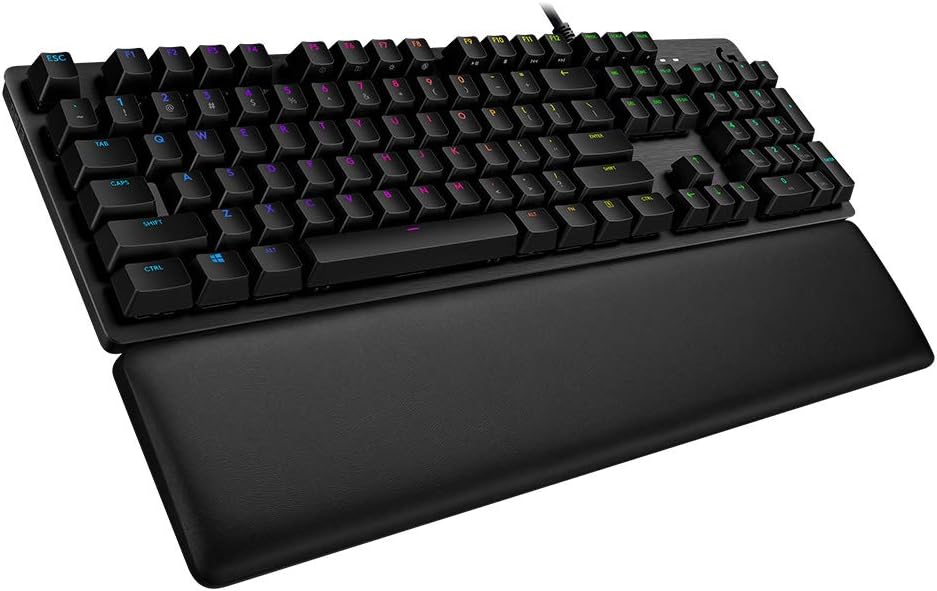
Image 1.1: Logitech G513 Carbon keyboard with detachable memory foam palmrest.
2. Setup
2.1 Connecting the Keyboard
- Connect the keyboard's USB cable to an available USB 2.0 port on your PC.
- For optimal functionality, including the USB pass-through port, ensure both USB connectors from the keyboard are plugged into your PC.
2.2 Software Installation
To unlock the full customization potential of your G513 keyboard, download and install the Logitech G Hub software:
- Visit the official Logitech G website.
- Navigate to the support section for the G513 keyboard.
- Download and install the latest version of Logitech G Hub.
- Follow the on-screen instructions to complete the installation.
3. Features
3.1 Mechanical Switches
The G513 keyboard is equipped with GX mechanical switches, offering distinct tactile feedback. This model features GX Brown (Tactile) switches, providing a discernible actuation point for precise control. Other variants with GX Red (Linear) and GX Blue (Clicky) switches are available separately.

Image 3.1: Exploded view of GX Red (Linear), GX Brown (Tactile), and GX Blue (Clicky) mechanical switches.

Image 3.2: Comparison table for GX Brown, GX Red, and GX Blue switch specifications.
3.2 LIGHTSYNC RGB Lighting
Experience full-spectrum 16.8M color RGB per-key lighting with LIGHTSYNC technology. Customize lighting effects and enjoy in-game integrations through the Logitech G Hub software.

Image 3.3: Customizable LIGHTSYNC RGB lighting on the G513 keyboard.
3.3 Aircraft-Grade Aluminum Alloy Construction
The keyboard features an aircraft-grade 5052 aluminum top case, anodized and brushed for a slim, premium design that ensures rigid durability.

Image 3.4: The aircraft-grade aluminum alloy top case provides durability and a premium aesthetic.
3.4 Memory Foam Palmrest
A comfortable memory foam palmrest is included, designed to quickly and fully recover from pressure, providing consistent comfort during extended use.
3.5 USB Pass-Through Port
A convenient USB 2.0 pass-through port is integrated into the keyboard, allowing for easy connection of a mouse, flash drive, or phone for data transmission or charging.

Image 3.5: The dedicated USB 2.0 port for convenient peripheral connection.
3.6 Game Mode and Media Controls
The keyboard features dedicated keys for Game Mode (F8) and built-in media controls (F9-F12), along with 26-key rollover and anti-ghosting for reliable input during intense gaming sessions.

Image 3.6: Key features of the Logitech G513 keyboard.
4. Operating Instructions
4.1 Customizing Lighting and Macros
Use the Logitech G Hub software to:
- Personalize lighting for each individual key.
- Customize lighting effects and animations.
- Create and assign macros to various keys.
- Set up game-specific profiles that automatically activate when a game is launched.
4.2 Using Media Controls
Access media playback functions directly from the keyboard:
- Press the FN key in combination with F9 (Play/Pause), F10 (Stop), F11 (Previous Track), or F12 (Next Track) to control media playback.
- Volume controls are typically integrated with FN keys or dedicated buttons, refer to the keyboard layout for specific assignments.
4.3 Activating Game Mode
Press the F8 key to activate Game Mode, which disables the Windows key to prevent accidental interruptions during gameplay.
4.4 Utilizing the USB Pass-Through
Plug your compatible USB device into the dedicated USB 2.0 port located on the top right rear side of the keyboard for convenient access.
Video 4.1: Official Logitech G513 Mechanical Gaming Keyboard overview, demonstrating key features and functionality.
5. Maintenance
To ensure the longevity and optimal performance of your Logitech G513 keyboard, follow these maintenance guidelines:
- Cleaning the Keycaps: Use a soft, damp cloth to wipe down the keycaps. For deeper cleaning, use a keycap puller (not included) to remove keycaps and clean underneath with compressed air.
- Cleaning the Aluminum Top Case: Wipe the brushed aluminum surface with a soft, dry cloth. Avoid abrasive cleaners that may damage the finish.
- Palmrest Care: The memory foam palmrest can be wiped clean with a damp cloth. Avoid harsh chemicals.
- Cable Management: Ensure the braided cable is not kinked or excessively bent to prevent damage.
6. Troubleshooting
If you encounter issues with your G513 keyboard, try the following steps:
- Keyboard Not Responding: Check all USB connections to ensure they are securely plugged into your PC. Try a different USB port.
- Lighting Issues: Ensure Logitech G Hub software is running and updated. Check lighting profiles for correct settings.
- Key Input Problems: Verify that Game Mode is not active if you are experiencing issues with certain keys (e.g., Windows key). Clean under the affected keycaps for any debris.
- Software Not Detecting Keyboard: Restart your PC and Logitech G Hub. Reinstall the G Hub software if the issue persists.
- Firmware Update: Check Logitech G Hub for any available firmware updates for your keyboard.
7. Specifications
- Model: G513 Carbon
- Part Number: 920-009321
- Switch Type: GX Brown (Tactile)
- Connectivity: Wired USB 2.0
- Backlighting: LIGHTSYNC RGB, per-key customizable
- Material: Aircraft-grade 5052 aluminum top case
- Dimensions (LxWxH): 18.31 x 7.28 x 2.36 inches
- Weight: 4.23 pounds
- Compatible OS: Windows 10
- Special Features: Memory foam palmrest, USB pass-through, 26-key rollover, anti-ghosting
8. Warranty and Support
Your Logitech G513 Carbon keyboard comes with a limited hardware warranty. For detailed warranty information, technical support, and additional resources, please visit the official Logitech G support website.
You can also find FAQs, troubleshooting guides, and community forums to assist with any questions or issues you may have.


