
1. Introduction
This manual provides detailed instructions for the Altice One Remote Control, designed for seamless interaction with Altice One receivers from Optimum (CableVision). This remote features Bluetooth connectivity, voice search capabilities, and a convenient dedicated Netflix button, alongside standard DVR and On Demand controls. Please read this manual thoroughly to ensure proper setup and operation.
2. Features
- Original Equipment: Genuine Altice One remote.
- Advanced Connectivity: Features Bluetooth for reliable pairing.
- Voice Search: Integrated voice control for easy content discovery.
- Dedicated Netflix Button: Quick access to the Netflix application.
- Comprehensive Controls: Includes DVR and On Demand functionalities.
- Ergonomic Design: Small, compact size, light, and easy to grip.
- Energy Efficient: Low energy consumption for extended battery life.
3. Package Contents
Your Altice One Remote Control package includes:
- 1 x Altice One Remote Control
- 3 x AAA Batteries
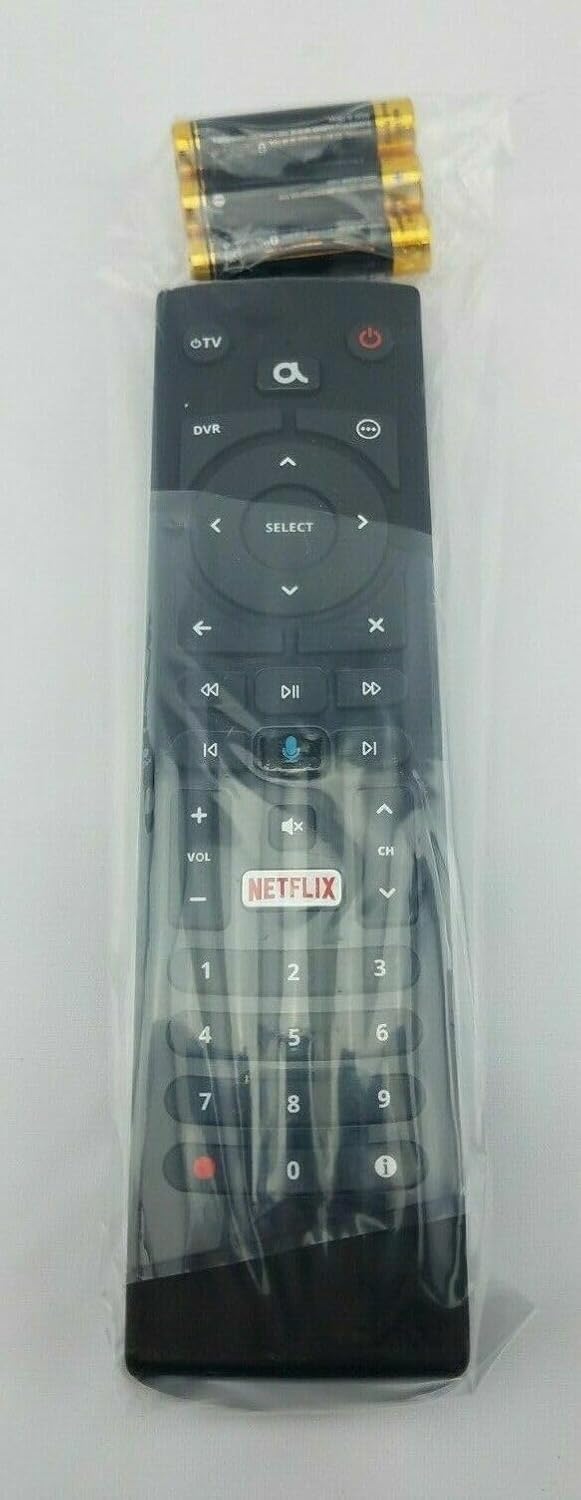
Image: Altice One Remote Control in its sealed packaging, accompanied by three AAA batteries.
4. Setup
4.1. Battery Installation
The remote requires three AAA batteries (included). To install:
- Locate the battery compartment on the back of the remote.
- Slide open the battery compartment cover.
- Insert the three AAA batteries, ensuring correct polarity (+ and -).
- Close the battery compartment cover securely.

Image: The Altice One Remote Control displayed alongside the three AAA batteries required for operation.
4.2. Pairing Your Altice One Remote
To use voice commands and control your Altice One box, you must first pair it via Bluetooth:
- Turn on the TV connected to your Altice One box.
- Press the Altice button (
 ) on your remote and navigate to Settings.
 - Select Remote, then choose Pair Remote To Altice One.
- Press and hold the 7 and 9 buttons simultaneously on your remote for 5 seconds.
- Highlight Pair Remote Control and press SELECT.
- A confirmation message will appear on-screen once your remote is paired.
4.3. Programming TV Control (Power & Volume)
To control your TV's power and volume with the Altice One remote, you need to program it using a brand code:
- Identify your TV brand code from the chart below. If your brand is not listed, refer to the full instructions provided with the remote for additional codes.
- Turn on the TV you wish to control.
- Press and hold the OTV button and the corresponding brand number (e.g., 5 for Samsung) for 3 seconds. The LED light at the top of the remote will turn on, then release the buttons.
- With the LED light still on, press and hold the OTV button again. When the TV turns off, release the button. This may take a few seconds.
- Verify that the programming worked by pressing the OTV button. This should turn the TV back on.
- Press SELECT to store the code. The blue light will turn off when the code is stored.
| Brand | Number |
|---|---|
| Insignia | 1 |
| LG | 2 |
| Panasonic | 3 |
| Philips/Magnavox | 4 |
| Samsung | 5 |
| Sanyo | 6 |
| Sharp | 7 |
| Sony | 8 |
| Toshiba | 9 |
| Vizio | 0 |
Important: Once a remote is paired to a box, it can only control that particular box. If you need to use a paired remote on a different TV and box, you must unpair it first. To unpair, press 7 and 9 simultaneously for 5 seconds, then repeat the "Program your remote" steps above.

Image: Visual guide for pairing the Altice One remote to the Altice One box and programming it for TV control.
5. Operating Instructions
5.1. Remote Button Functions
Familiarize yourself with the various buttons and their functions:
Image: Detailed diagram illustrating the layout and function of each button on the Altice One Remote Control.
- OTV Power: Turns the TV on/off.
- Box Power: Turns the Altice One box on/off.
- Home: Displays or exits the main menu.
- Options: Displays or exits the options menu (where available).
- DVR: Displays or exits the DVR menu.
- Select: Selects a highlighted option.
- Arrows (Up, Down, Left, Right): Navigates through screens and menus.
- Exit: Exits screens or apps, stops playback, and returns to live TV.
- Back: Returns to the previous screen or channel.
- Playback Controls (Rewind, Play/Pause, Fast Forward): Controls media playback.
- Skip Back: Skips back 10 seconds.
- Skip Forward: Skips forward 30 seconds.
- Volume (+/-): Raises or lowers sound.
- Microphone: Activates voice controls.
- Netflix: Opens the Netflix App directly.
- Channel (+/-): Selects the next higher or lower channel, or pages up/down in guide and menus.
- Number Pad (0-9): Tunes to channels directly.
- Mute: Turns sound off and on.
- Record: Records programming.
- Info: Displays program information.
5.2. Voice Commands
The Altice One remote supports voice commands for various functions:
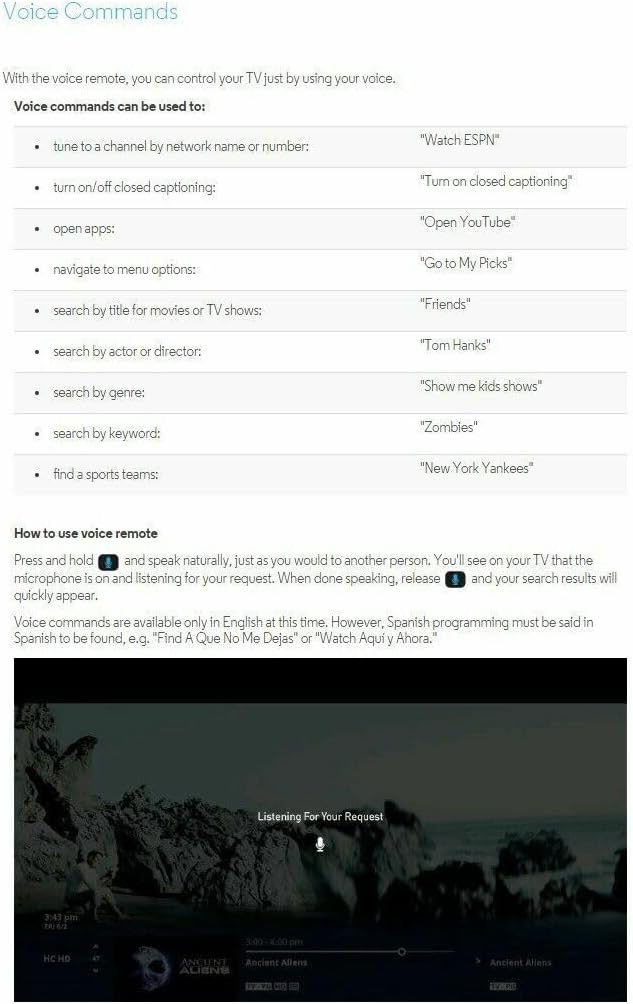
Image: Examples of voice commands that can be used with the Altice One remote, such as 'Watch ESPN' or 'Open YouTube'.
To use voice commands:
- Press and hold the Microphone button.
- Speak naturally, stating your command (e.g., "Watch ESPN", "Open YouTube", "Navigate to menu options", "Search by title for movies or TV shows", "Search by actor or director", "Search by genre", "Search by keyword", "Find a sports team").
- Release the Microphone button when finished speaking. Your TV will display the search results.
Note: Voice commands are primarily available in English. Spanish programming may be found by specific titles (e.g., "Find a Que No Me Dejas" or "Watch Aquí y Ahora").
6. Troubleshooting
- Remote Not Responding: Ensure batteries are correctly inserted and have sufficient charge. Replace batteries if necessary.
- Pairing Issues: If the remote is not pairing, ensure your Altice One box is powered on and within range. Re-attempt the pairing process as described in Section 4.2.
- Multiple Remotes/Boxes: When programmed via Bluetooth, the remote is paired with a specific Altice One box. One remote cannot control two boxes, and two remotes cannot control the same box simultaneously.
- Unpairing Remote: If you need to use a paired remote with a different TV or box, you must first unpair it. Press and hold the 7 and 9 buttons simultaneously for 5 seconds to unpair, then follow the programming steps in Section 4.2 and 4.3.
- TV Power/Volume Not Working: Ensure the TV control programming (Section 4.3) was completed successfully using the correct brand code. Re-attempt programming if issues persist.
7. Specifications
- Model Number: T4HU1714 36k
- Brand: Altice
- Color: Black
- Item Weight: 1.58 ounces
- Package Dimensions: 8 x 2 x 0.79 inches
- Batteries: 3 AAA batteries required (included)
- Max Number of Supported Devices: 1 (per Altice One box)
- Compatible Devices: Altice One receivers, Television (via programming)
8. Safety Information
- Keep batteries out of reach of children.
- Do not mix old and new batteries, or different types of batteries.
- Dispose of used batteries according to local regulations.
- Avoid exposing the remote to extreme temperatures, direct sunlight, or moisture.
- Do not attempt to disassemble or modify the remote control.
9. Warranty and Support
Specific warranty and support information for this product is not available in the provided data. For warranty details, technical support, or service inquiries, please refer to the documentation included with your Altice One service or contact Altice/Optimum customer service directly.


