
Introduction
The Senville Smart WiFi Kit USB enables remote control and programming of your compatible Senville mini split air conditioner using an iOS or Android application. This kit enhances the functionality of your mini split system, allowing for convenient management of climate settings from any location with internet access.
Setup
1. Kit Contents
Verify that your package contains the Senville Smart WiFi Kit USB adapter.
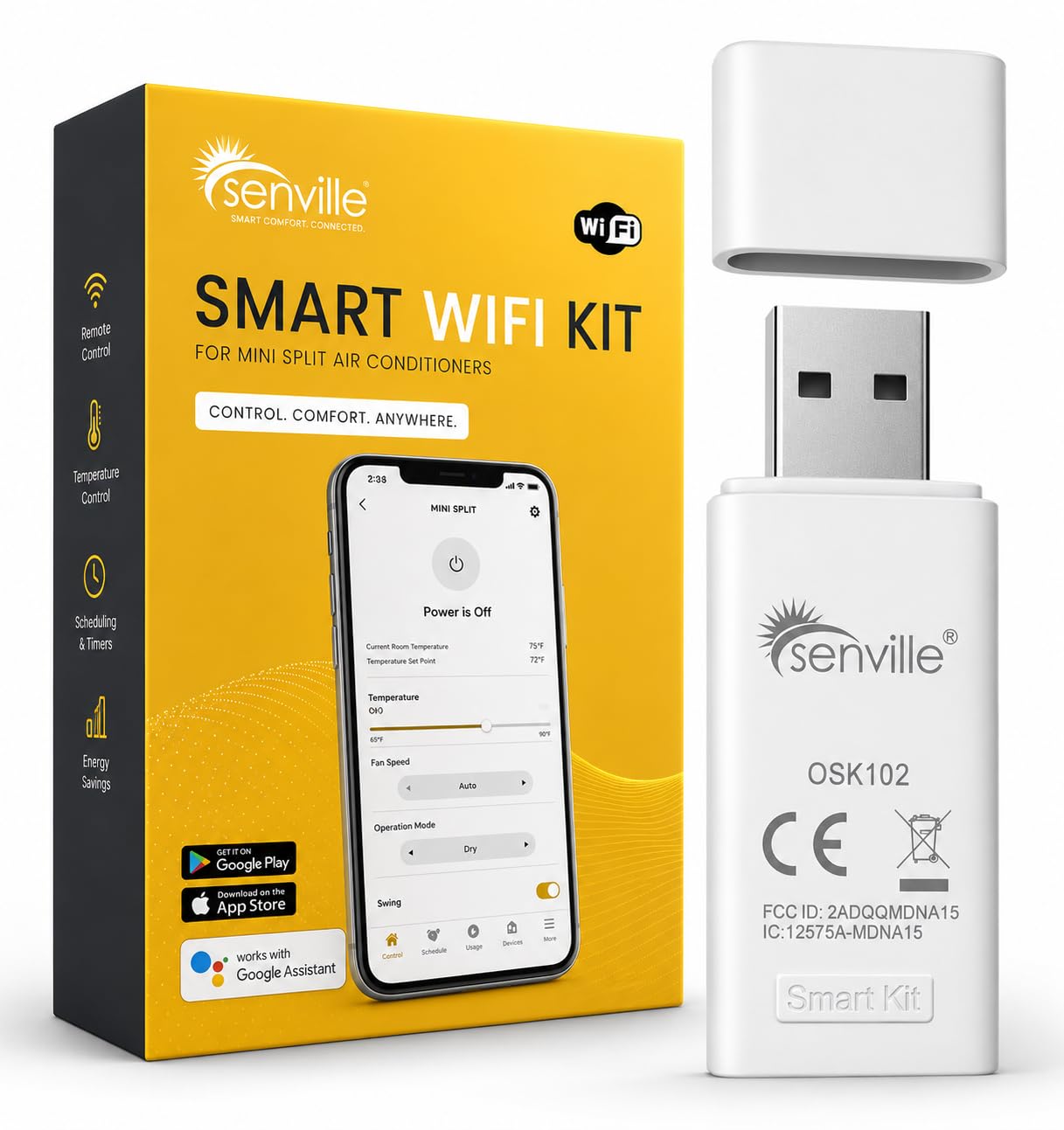
Image: Senville Smart WiFi Kit USB adapter.
2. Physical Installation
- Locate the USB port on your compatible Senville mini split air conditioner unit. This port is typically found on the indoor unit. Refer to your mini split's manual for the exact location.
- Carefully insert the Senville Smart WiFi Kit USB adapter into the designated USB port. Ensure it is securely connected.

Image: Close-up of the Senville Smart WiFi Kit USB adapter, showing its compact design.

Image: Side view of the Senville Smart WiFi Kit USB adapter, highlighting its connection interface.
3. Mobile Application Download and Pairing
- Download the official Senville app from the Apple App Store (for iOS devices) or Google Play Store (for Android devices). Search for "Senville".
- Open the Senville app and follow the on-screen instructions to create an account and add your device.
- Ensure your mobile device is connected to a 2.4 GHz Wi-Fi network during the pairing process. The Senville Smart WiFi Kit USB requires a 2.4 GHz Wi-Fi connection.
- The app will guide you through connecting the WiFi kit to your home network. This typically involves selecting your Wi-Fi network and entering the password.

Image: Screenshot of the Senville mobile app displaying temperature control and various modes.
Operating Instructions
Once the Senville Smart WiFi Kit USB is installed and paired with the app, you can control your mini split air conditioner remotely.
Remote Control Functions
- Power On/Off: Turn your mini split unit on or off from anywhere.
- Temperature Adjustment: Precisely set your desired temperature.
- Mode Selection: Choose between cooling, heating, fan, dry, and auto modes.
- Fan Speed Control: Adjust the fan speed to your preference.
- Scheduling: Create custom schedules for your mini split to operate automatically, optimizing comfort and energy efficiency.
- Energy Saving (ECO Mode): Activate ECO mode to reduce energy consumption.
- System Insights: Access detailed performance analytics and system status.

Image: The Senville app interface demonstrating smart home integration capabilities.
Maintenance
The Senville Smart WiFi Kit USB requires minimal maintenance. To ensure optimal performance:
- Software Updates: Regularly check for and install updates for the Senville mobile application to benefit from new features and performance improvements.
- Wi-Fi Connection: Ensure your home Wi-Fi network remains stable and provides adequate signal strength to the mini split unit where the USB kit is installed.
- Physical Inspection: Periodically check that the USB adapter is securely plugged into the mini split unit.
Troubleshooting
| Problem | Possible Cause | Solution |
|---|---|---|
| Device Offline in App | No Wi-Fi connection, incorrect Wi-Fi password, or app permissions issue. |
|
| App Not Responding | Outdated app version, temporary software glitch, or insufficient phone resources. |
|
| Cannot Connect to Wi-Fi during Setup | Incorrect Wi-Fi band (5 GHz instead of 2.4 GHz), weak signal, or network interference. |
|
Specifications
- Brand: Senville
- Model: Smart WiFi Kit USB
- Hardware Interface: USB
- Color: White
- Data Link Protocol: USB
- Smart Home Compatibility: Smart Home Compatible
- Compatible Devices: Senville Mini Split Air Conditioners (WiFi Ready models), iOS and Android mobile devices.
- Compatible Operating System Family: Android, iOS
- Minimum Required Operating System Version: Android 11.0, iOS 14
- Manufacturer: Senville
Warranty Information
For detailed warranty information regarding your Senville Smart WiFi Kit USB, please refer to the documentation included with your original mini split air conditioner unit or visit the official Senville website. Warranty terms and conditions may vary.
Support
If you encounter any issues or require assistance with your Senville Smart WiFi Kit USB, please contact Senville customer support. Support contact details can typically be found on the official Senville website or in the documentation provided with your product.
Senville offers 24/7 customer support for setup, maintenance, and troubleshooting.