
1. Introduction
Thank you for purchasing the Gembird MUSW-6B-01 Wireless Optical Mouse. This user manual provides detailed instructions for setting up, operating, maintaining, and troubleshooting your new wireless mouse. Designed for comfort and precision, this optical mouse offers reliable wireless connectivity for your personal computer.
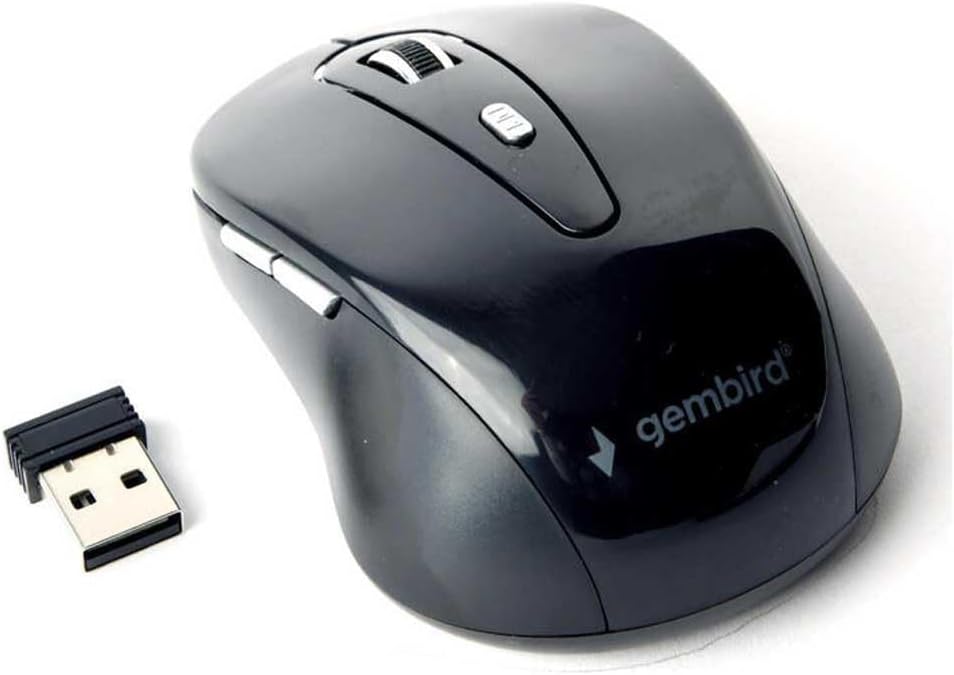
Image 1.1: The Gembird MUSW-6B-01 Wireless Optical Mouse shown with its compact USB receiver. The mouse features a sleek black design with the Gembird logo visible.
2. Package Contents
Please check the package contents to ensure all items are present and in good condition. If any items are missing or damaged, please contact your retailer.
- Gembird MUSW-6B-01 Wireless Optical Mouse (Black)
- USB Nano Receiver
- User Manual (this document)

Image 2.1: The Gembird MUSW-6B-01 Wireless Optical Mouse displayed in its original retail blister packaging, indicating it is a "Wireless optical mouse".
3. Setup
Follow these steps to set up your Gembird wireless mouse:
- Insert Batteries: Locate the battery compartment on the underside of the mouse. Open the cover and insert the required batteries (typically 1x AA or 2x AAA, not included) according to the polarity indicators (+/-). Close the battery compartment cover securely.
- Connect USB Receiver: Take the USB nano receiver out of its storage slot (usually located near the battery compartment or on the underside of the mouse). Plug the USB receiver into an available USB port on your computer.
- Power On: If your mouse has a power switch (usually on the underside), slide it to the "ON" position.
- Automatic Connection: Your computer should automatically detect and install the necessary drivers for the mouse. This process may take a few moments. Once installed, the mouse will be ready for use.
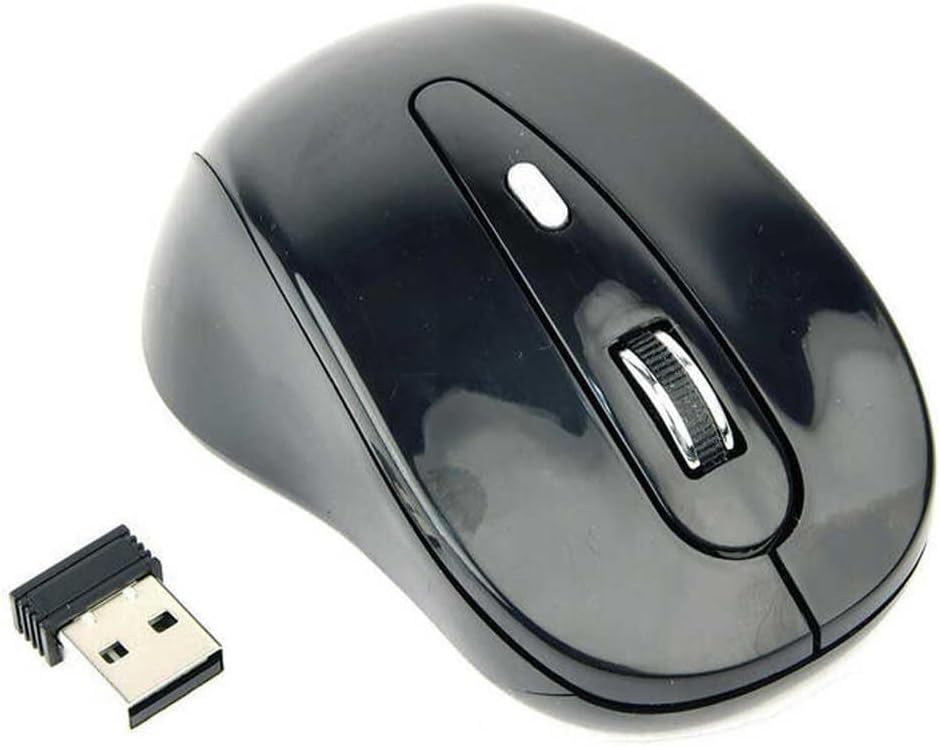
Image 3.1: The Gembird MUSW-6B-01 mouse positioned next to its small USB receiver, illustrating the two main components required for setup.
4. Operating Instructions
The Gembird MUSW-6B-01 mouse features standard controls for intuitive navigation:
- Left Button: Primary click function, used for selecting items, opening files, and activating links.
- Right Button: Secondary click function, typically used to open context menus.
- Scroll Wheel: Scroll up or down through documents and web pages. Can also be pressed as a middle button for specific functions (e.g., opening links in new tabs).
- DPI Button: (If present, usually a small button behind the scroll wheel) Allows you to adjust the mouse's sensitivity (DPI - Dots Per Inch) on the fly. Pressing this button cycles through different DPI settings, changing cursor speed.
- Side Buttons: (If present, typically on the left side for right-handed mice) Often used for "back" and "forward" navigation in web browsers or file explorers.
For optimal performance, use the mouse on a clean, non-reflective surface. The optical sensor provides precise tracking on most common desk surfaces.
5. Maintenance and Care
To ensure the longevity and optimal performance of your mouse, follow these maintenance guidelines:
- Cleaning: Use a soft, dry, lint-free cloth to clean the mouse. For stubborn dirt, slightly dampen the cloth with water or a mild cleaning solution. Avoid using harsh chemicals, abrasives, or solvents.
- Sensor Care: Keep the optical sensor on the underside of the mouse clean and free from dust or debris. Do not touch the sensor directly.
- Battery Replacement: When the mouse performance degrades or the indicator light (if present) signals low battery, replace the batteries with new ones of the correct type and polarity.
- Storage: When not in use for extended periods, turn off the mouse (if it has a power switch) and store it in a dry, cool place. Consider removing batteries if storing for very long durations to prevent leakage.
- Avoid Drops: Protect the mouse from drops and impacts, which can damage internal components.
6. Troubleshooting
If you encounter issues with your Gembird wireless mouse, refer to the following common problems and solutions:
| Problem | Possible Solution |
|---|---|
| Mouse not responding / Cursor not moving. |
|
| Erratic cursor movement. |
|
| Buttons or scroll wheel not working. |
|
| Connection frequently drops. |
|
7. Specifications
Key technical specifications for the Gembird MUSW-6B-01 Wireless Optical Mouse:
| Feature | Detail |
|---|---|
| Brand | Gembird |
| Model Name | MUSW-6B-01 |
| Connectivity Technology | USB (Wireless via USB receiver) |
| Special Feature | Wireless |
| Movement Detection Technology | Optical |
| Number of Buttons | 4 |
| Hand Orientation | Right |
| Recommended Uses for Product | Radio (Wireless) |
| Compatible Devices | Personal Computer |
| Color | Black |
8. Warranty and Support
Gembird products are designed and manufactured to the highest quality standards. For information regarding warranty coverage, technical support, or service, please refer to the warranty card included with your product or visit the official Gembird website. Keep your proof of purchase for warranty claims.
For further assistance, you may also contact your retailer or the Gembird customer support team.


