1. Introduction
The Eizo ColorEdge CS2731 is a 27-inch IPS LCD monitor designed for creative professionals who demand exceptional color accuracy and image quality. This manual provides detailed instructions for setting up, operating, and maintaining your monitor to ensure optimal performance.

Figure 1.1: Front view of the Eizo ColorEdge CS2731 Monitor, showcasing its sleek design and display capabilities.
2. Key Features
- 27-inch Wide Gamut LCD: Features a 2560x1440 resolution IPS panel for fine detail and wide viewing angles.
- 99% Adobe RGB Color Space: Ensures accurate reproduction of a wide range of colors, crucial for professional photo and video editing.
- Hardware Calibration Support: Compatible with free calibration software (ColorNavigator 7) for precise color management.
- Versatile Inputs: Includes USB Type-C, DisplayPort, HDMI, and DVI-D for broad connectivity.
- 5-Year Manufacturer Warranty: Provides long-term assurance of product quality and reliability.
3. Setup
3.1 Unpacking and Assembly
Carefully remove the monitor and its components from the packaging. Assemble the stand according to the included quick setup guide, ensuring all connections are secure before placing the monitor on a stable surface.
3.2 Connecting the Monitor
Connect the monitor to your computer using one of the available input ports. The ColorEdge CS2731 supports USB Type-C, DisplayPort, HDMI, and DVI-D connections. For optimal performance and color depth, DisplayPort or USB Type-C are recommended.

Figure 3.1: USB Type-C connection allows for video, USB signal, and power delivery (up to 60W) with a single cable.
Ensure the power cable is securely connected to the monitor and a power outlet. The monitor supports 240 Volts input.
3.3 Physical Adjustments
The monitor stand allows for various adjustments to enhance your viewing comfort and efficiency:
- Height Adjustment: Adjust the monitor's height to your eye level.
- Tilt Adjustment: Tilt the screen forward or backward to reduce glare and improve viewing angle.
- Pivot Function: Rotate the screen 90 degrees for portrait viewing, ideal for editing long documents or images.

Figure 3.2: Adjusting the monitor height for ergonomic viewing.


Figure 3.3: Monitor tilt adjustments (+5° to -35°).
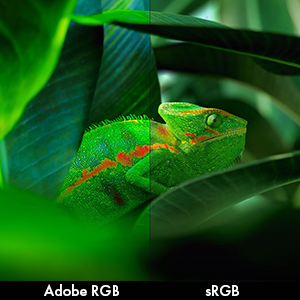
Figure 3.4: Monitor pivot function for portrait orientation.
4. Operating the Monitor
4.1 Power On/Off
Press the power button located on the front bezel to turn the monitor on or off. The power indicator light will illuminate when the monitor is active.
4.2 Color Management and Calibration
The Eizo ColorEdge CS2731 is designed for precise color reproduction. It features a wide color gamut covering 99% of the Adobe RGB color space, ensuring accurate and vibrant colors.

Figure 4.1: Illustration of the monitor's 99% Adobe RGB color gamut coverage, ideal for creative work.
The monitor also includes a Digital Uniformity Equalizer (DUE) to ensure consistent brightness and chromaticity across the entire screen, minimizing variations that can affect color accuracy.

Figure 4.2: The Digital Uniformity Equalizer corrects tone deviations for consistent display across the screen.
For hardware calibration, use Eizo's ColorNavigator 7 software. This software, combined with an optional calibration sensor, simplifies the calibration process and ensures predictable, accurate results across all units.

Figure 4.3: ColorNavigator 7 software facilitates precise hardware calibration for various creative workflows.
Video 4.1: An overview of the ColorEdge CS Series Monitors, highlighting their features for creative professionals, including color reproduction, image quality, and ease of use. This video demonstrates the wide color gamut, digital uniformity equalizer, and hardware calibration capabilities.
5. Maintenance
5.1 Cleaning the Monitor
To clean the monitor screen, gently wipe it with a soft, lint-free cloth. For stubborn smudges, slightly dampen the cloth with water or a screen-cleaning solution. Avoid using harsh chemicals or abrasive materials.
5.2 General Care
Keep the monitor in a well-ventilated area, away from direct sunlight and excessive heat or moisture. Avoid placing heavy objects on the monitor or its cables. When moving the monitor, ensure it is powered off and disconnected from all cables.
6. Troubleshooting
6.1 No Power
- Check if the power cable is securely connected to both the monitor and the power outlet.
- Ensure the power outlet is functional by plugging in another device.
6.2 No Image on Screen
- Verify that the video cable (USB-C, DisplayPort, HDMI, or DVI-D) is securely connected to both the monitor and your computer.
- Ensure the correct input source is selected on the monitor's OSD (On-Screen Display) menu.
- Check your computer's display settings to ensure it is configured to output to the monitor.
6.3 Color Inaccuracies
- Perform a hardware calibration using Eizo ColorNavigator 7 software and a compatible sensor.
- Ensure your graphics card drivers are up to date.
- Check the monitor's color mode settings in the OSD menu.
For further assistance, please refer to the comprehensive troubleshooting guide available on the Eizo support website.
7. Specifications

Figure 7.1: Key dimensions of the Eizo ColorEdge CS2731 Monitor.
| Attribute | Value |
|---|---|
| Screen Size | 27 Inches |
| Resolution | 2560 x 1440 (QHD Wide 1440p) |
| Aspect Ratio | 1.78:1 |
| Image Brightness | 350 cd/m2 |
| Screen Surface Description | Matte |
| Inputs | USB Type-C, DisplayPort, HDMI, DVI-D |
| Total USB Ports | 3 |
| Voltage | 240 Volts |
| Item Weight | 22.2 pounds |
| Item Model Number | CS2731-BK |
| Date First Available | April 8, 2019 |
Note: Some regional models may have specific voltage requirements or warranty limitations. Refer to your product's specific documentation.

Figure 7.2: Specific warranty and input voltage information for models intended for the Japanese market.
8. Warranty and Support
The Eizo ColorEdge CS2731 monitor comes with a 5-year manufacturer warranty. This warranty covers defects in materials and workmanship under normal use.
For warranty claims, technical support, or additional product information, please visit the official Eizo support website or contact their customer service. You can find more information and resources at the Eizo Store on Amazon.
Please note that the warranty may be region-specific. For example, some models may have a warranty valid only in Japan, as indicated in certain product images.


