
Woox R4294
Woox Smart Universal IR Remote Control User Manual
Model: R4294
1. Introduction
The Woox Smart Universal IR Remote Control (Model R4294) is designed to centralize control of your infrared-controlled home appliances. This device connects to your existing 2.4 GHz Wi-Fi network, allowing you to manage various devices such as televisions, air conditioners, set-top boxes, and more, directly from your smartphone or through voice commands via compatible smart assistants like Amazon Alexa and Google Assistant.
This manual provides detailed instructions for setting up, operating, maintaining, and troubleshooting your Woox Smart Universal IR Remote Control to ensure optimal performance and user experience.
2. Safety Information
- Do not expose the device to direct sunlight, high temperatures, or humid environments.
- Avoid dropping or subjecting the device to strong impacts.
- Do not attempt to disassemble or repair the device yourself. Refer to qualified service personnel.
- Ensure the device is powered by a stable USB power source as specified.
- Keep the device away from water and other liquids.
- This device is intended for indoor use only.
3. Product Overview
The Woox Smart Universal IR Remote Control is a compact, black, square-shaped device designed to blend seamlessly into your home environment. It features an integrated infrared emitter and a Wi-Fi module for smart connectivity.


4. Setup Instructions
Follow these steps to set up your Woox Smart Universal IR Remote Control:
- Power On: Connect the device to a stable USB power source using the provided cable. The device will power on automatically.
- Download the Woox Home App: Search for "Woox Home" in your smartphone's app store (available on iOS and Android) and download the application.
- Register/Log In: Open the Woox Home app and register for a new account or log in if you already have one.
- Add Device: In the app, tap the "+" icon to add a new device. Select "Universal Remote Control" or a similar option from the list of devices.
- Connect to Wi-Fi: Follow the on-screen instructions in the app to connect the remote control to your 2.4 GHz Wi-Fi network. Ensure your smartphone is also connected to the same 2.4 GHz network during the pairing process.
- Pair Appliances: Once the remote control is successfully added to the app, you can begin adding your infrared-controlled appliances (e.g., TV, AC, DVD player) by selecting their brand and model from the app's database or by using the DIY learning function.

5. Operating Instructions
The Woox Smart Universal IR Remote Control offers several ways to manage your home appliances:
5.1. App Control (Remote Access)
Use the Woox Home app on your smartphone or tablet to control your paired devices from anywhere with an internet connection. The app provides a virtual remote interface for each appliance.

5.2. Voice Control
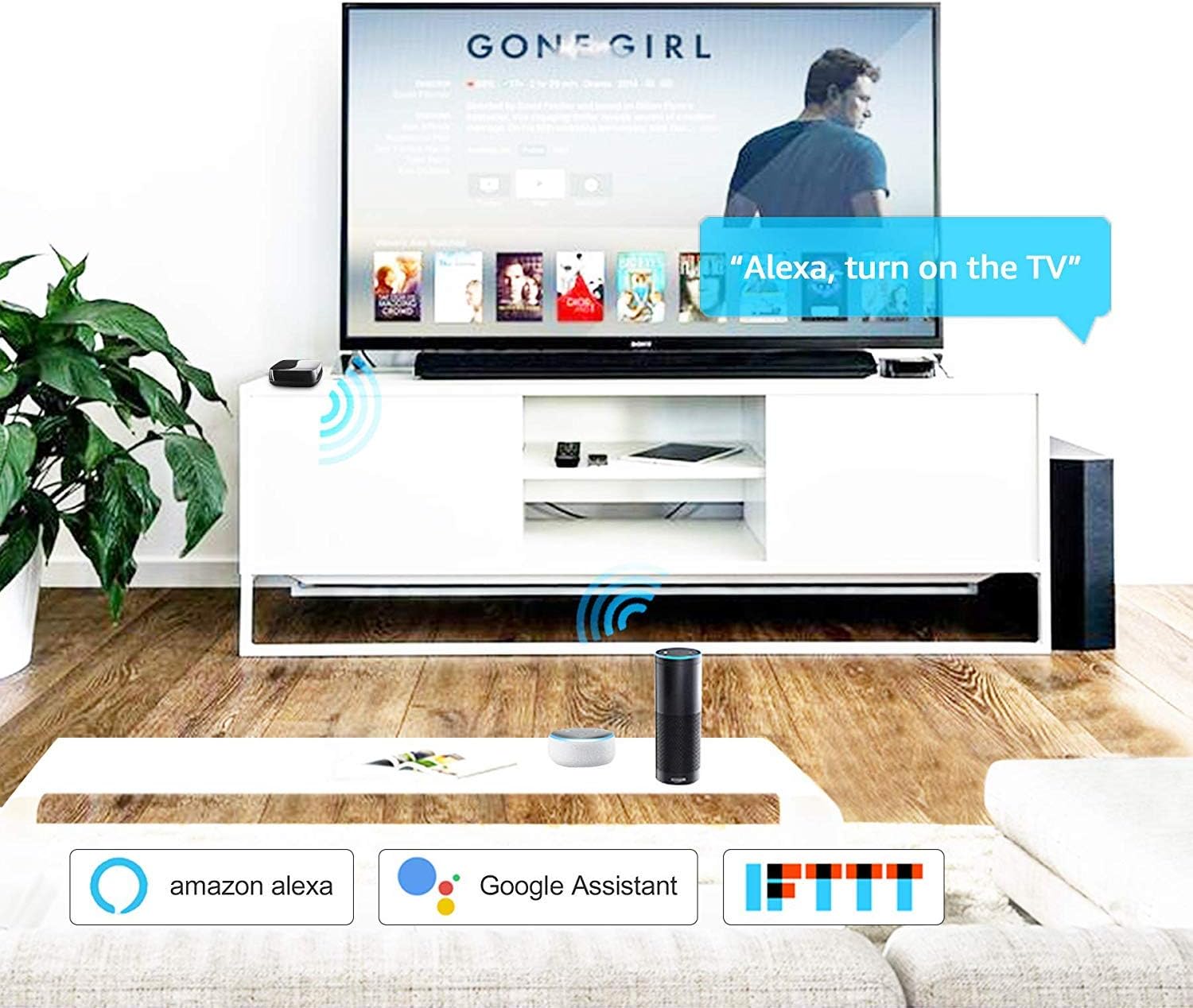
Integrate your Woox Smart Universal IR Remote Control with Amazon Alexa or Google Assistant for hands-free control. Link your Woox Home account in the Alexa or Google Home app, then use voice commands like "Alexa, turn on the TV" or "Hey Google, set the AC to 22 degrees."
5.3. Scheduling
Set schedules for your appliances to turn on or off at specific times. This feature is useful for automating daily routines, such as turning on the TV for your favorite show or adjusting the air conditioning before you arrive home.

5.4. DIY Learning Function
If your appliance's brand or model is not listed in the Woox Home app's database, you can use the DIY (Do It Yourself) learning function. This allows the universal remote to learn infrared signals directly from your original remote control, enabling compatibility with a wider range of devices.

5.5. Absence Mode
Activate Absence Mode to randomly turn paired devices on and off, simulating occupancy and enhancing home security when you are away.
6. Maintenance
- Cleaning: Use a soft, dry cloth to clean the surface of the device. Do not use abrasive cleaners or solvents.
- Storage: When not in use for extended periods, store the device in a cool, dry place away from direct sunlight.
- Firmware Updates: Regularly check the Woox Home app for available firmware updates to ensure your device has the latest features and security enhancements.
7. Troubleshooting
| Problem | Possible Cause | Solution |
|---|---|---|
| Device does not power on. | No power, faulty USB cable/adapter. | Ensure the USB cable is securely connected to a working USB power source. Try a different USB cable or adapter. Note: This device is powered via USB, not batteries, despite some conflicting information. |
| Cannot connect to Wi-Fi. | Incorrect Wi-Fi password, 5GHz network, weak signal. | Ensure you are connecting to a 2.4 GHz Wi-Fi network. Verify the Wi-Fi password. Move the device closer to the router. |
| Appliance not responding to commands. | Incorrect appliance model selected, IR signal blocked, device out of range. | Ensure the correct appliance model is selected in the app. Use the DIY learning function if the model is not listed. Ensure there is a clear line of sight between the universal remote and the appliance. The maximum range is 8 meters. |
| DIY learning function not working. | Original remote battery low, incorrect learning procedure. | Ensure the original remote has fresh batteries. Follow the DIY learning steps precisely as instructed in the Woox Home app, ensuring the original remote is pointed directly at the universal remote during learning. |
| Voice control not working. | Woox Home account not linked, incorrect voice command. | Verify that your Woox Home account is correctly linked to your Amazon Alexa or Google Assistant app. Use the exact voice commands specified in the respective smart assistant's app. |
8. Specifications
- Brand: Woox
- Model Number: R4294
- Color: Black
- Connectivity Technology: WLAN (Wi-Fi 2.4 GHz)
- Special Feature: Universal IR Remote Control, DIY Learning Function
- Compatible Devices: Smartphone, Television, Home Cinema, Set-top Box, Personal Computer, Laptop, Tablet, Air Conditioner, DVD Player, Fan, etc.
- Max Range: 8 meters (IR signal)
- Power Source: USB Powered
- Operating Temperature: 0°C to 40°C (32°F to 104°F)
- Operating Humidity: 0% to 95% RH (non-condensing)
9. Warranty Information
Woox products are covered by a limited warranty from the date of purchase. This warranty covers defects in materials and workmanship under normal use. It does not cover damage caused by misuse, accidents, unauthorized modifications, or external causes. Please retain your proof of purchase for warranty claims. For specific warranty terms and conditions, refer to the documentation provided with your product or visit the official Woox website.
10. Customer Support
For technical assistance, troubleshooting, or product inquiries, please contact Woox customer support through the following channels:
- Woox Home App: Access the support section within the app for FAQs and direct contact options.
- Official Website: Visit www.wooxhome.com/support (or relevant regional website) for comprehensive support resources, updated manuals, and contact information.
- Email Support: Refer to the contact details on the official website for email support.
When contacting support, please have your product model number (R4294) and a detailed description of your issue ready.
Ask a question about this manual
Ask about setup, troubleshooting, compatibility, parts, safety, or missing instructions. Manuals+ will review the question and use this page’s manual context to help answer it.