
1. Introduction
The Technical Pro STUDIOPRO1 is a versatile recording deck designed for audio professionals. It allows you to capture audio from various sources and record it directly onto USB flash drives or SD cards in standard .mp3 format, ensuring wide compatibility. This unit features comprehensive connectivity options including RCA input and output ports, Bluetooth, and a 1/8'' (3.5mm) input for MP3 players. It also includes a master equalizer and microphone inputs with individual controls for enhanced audio management.

Figure 1: Front view of the Technical Pro STUDIOPRO1 recording deck, showing the display, controls, and input ports.
2. Safety Information
Please read and understand all safety instructions before operating this device. Retain this manual for future reference.
- Electrical Shock Hazard: To reduce the risk of electric shock, do not remove the cover or back panel of this unit. There are no user-serviceable parts inside. Refer all servicing to qualified service personnel.
- Do Not Open: Opening the unit will void the warranty.
- Ventilation: Ensure adequate ventilation around the unit. Do not block ventilation openings.
- Power Source: Connect the unit only to the power supply specified in this manual or on the unit itself. Verify the voltage selector switch on the rear panel is set correctly for your region (110V or 220V) before connecting power.
- Moisture: Do not expose this appliance to rain or moisture. Do not place objects filled with liquids, such as vases, on the apparatus.
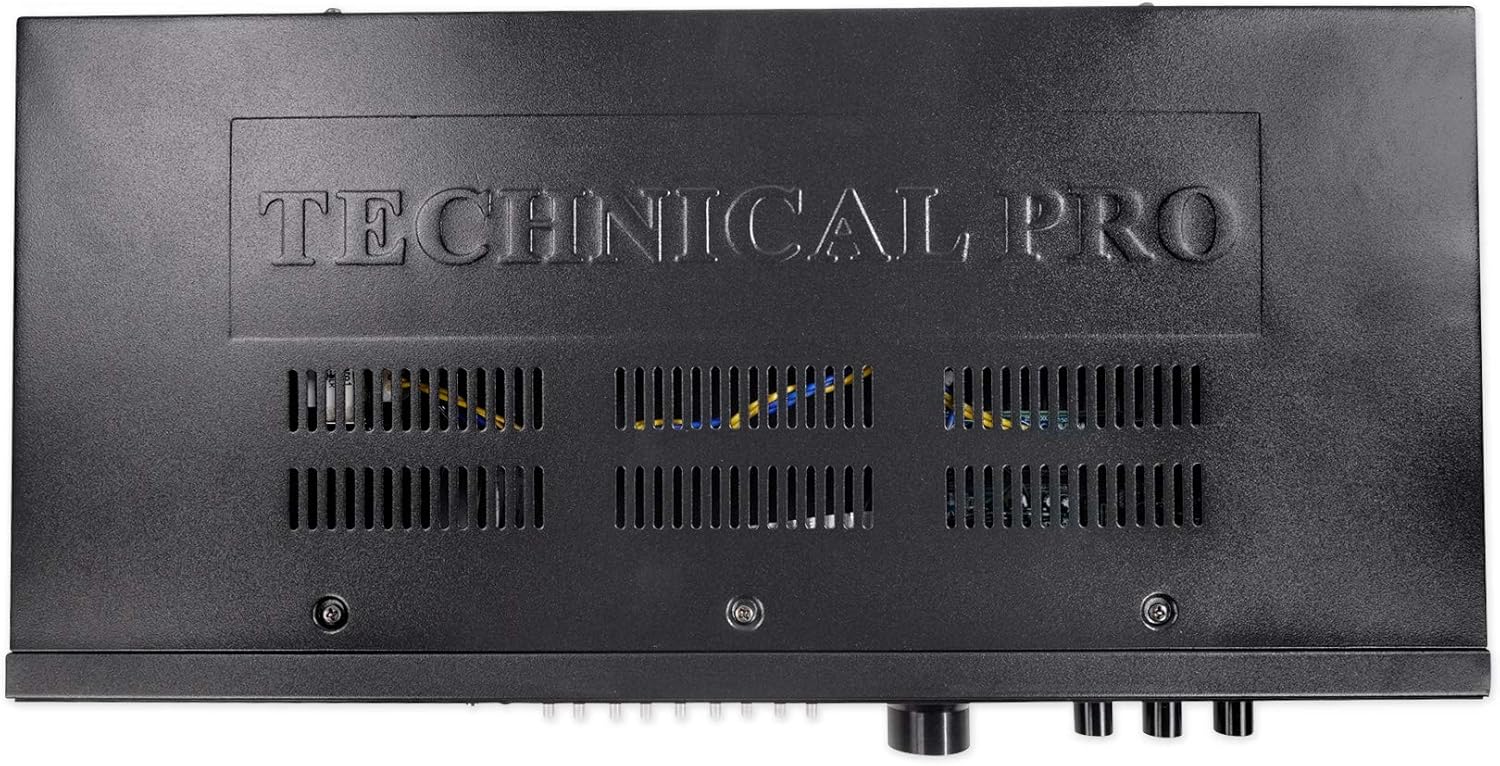
Figure 2: Rear view of the STUDIOPRO1, showing RCA inputs/outputs, voltage selector, and safety warnings.
3. Package Contents
Carefully unpack your STUDIOPRO1 and ensure all items are present:
- 1 x Technical Pro STUDIOPRO1 Rack Mountable Recording Deck
- 2 x Rack Mount Brackets
- 4 x Rack Mount Screws
- 1 x 1/8" (3.5mm) to 1/8" (3.5mm) Audio Cable
- 1 x User Manual (this document)

Figure 3: Included rack mount brackets and audio cable.
4. Controls and Features
4.1 Front Panel

Figure 4: Left side of the front panel, showing power, display, and media inputs.
- Power Switch: Toggles the unit on or off.
- Digital Display: Shows current mode, track information, volume level, and Bluetooth status.
- SD Card Input: Slot for inserting an SD card (up to 32 GB) for playback and recording.
- USB Input: Port for connecting a USB flash drive (up to 32 GB) for playback and recording.
- Bluetooth (BT) Button: Activates Bluetooth pairing mode.
- Input Selection Buttons: Used to cycle through available audio inputs (USB, SD, Bluetooth, RCA, 1/8").
- Navigation/Playback Controls: Play/Pause, Stop, Previous/Next Track.

Figure 5: Middle section of the front panel, featuring the Master Equalizer.
- Master Equalizer: 8-band graphic equalizer with sliders for adjusting frequency bands from 63Hz to 16KHz, allowing for precise tone control.

Figure 6: Right side of the front panel, showing volume, recording, and microphone controls.
- Volume Knob: Adjusts the overall output volume.
- Record Button: Initiates recording to the inserted USB or SD card.
- Delete Button: Deletes the currently selected file.
- Echo Knob: Adjusts the echo effect for microphone inputs.
- Mic Tone Knob: Adjusts the tone (treble/bass) for microphone inputs.
- Mic Volume Knob: Adjusts the volume level for microphone inputs.
- Mic 1 / Mic 2 Inputs: 1/4" (6.35mm) jacks for connecting microphones.
- Headphone Output: 1/8" (3.5mm) jack for connecting headphones.
4.2 Rear Panel
Figure 7: Rear panel connections.
- RCA Input (L/R): For connecting external audio sources via RCA cables.
- RCA Output (L/R): For connecting the unit to an amplifier or other audio system.
- Voltage Selector: Switch to select between 110V and 220V power input. Ensure this is set correctly for your region before connecting power.
- Power Input: Connects to the AC power cord.
5. Setup
5.1 Rack Mounting (Optional)
If you intend to install the STUDIOPRO1 into a standard audio rack, use the provided rack mount brackets and screws. Attach the brackets to the sides of the unit, then secure the unit into your rack.
5.2 Power Connection
- Before connecting the power cord, verify that the Voltage Selector switch on the rear panel is set to the correct voltage for your region (110V or 220V).
- Connect the AC power cord to the Power Input on the rear panel and then to a suitable wall outlet.
5.3 Audio Connections
- Input Sources: Connect your audio source (e.g., CD player, mixer, smartphone) to the RCA Input jacks on the rear panel or the 1/8" (3.5mm) input on the front panel.
- Output to Amplifier/Speakers: Connect the RCA Output jacks on the rear panel to the input of your amplifier or powered speakers.
- Microphones: Connect up to two microphones to the Mic 1 and Mic 2 1/4" jacks on the front panel.
- Headphones: For private monitoring, connect headphones to the Headphone Output jack on the front panel.
6. Operating Instructions
6.1 Power On/Off
Press the Power Switch on the front panel to turn the unit on or off. The digital display will illuminate when the unit is powered on.
6.2 Input Selection
Use the Input Selection Buttons on the front panel to cycle through the available audio sources: USB, SD Card, Bluetooth, RCA, or 1/8" (MP3) input. The selected input will be indicated on the digital display.
6.3 Recording
The STUDIOPRO1 records audio in .mp3 format at a sampling rate of 128 kbps / 44.1 KHz.
- Insert a USB flash drive or SD card (up to 32 GB) into the corresponding slot on the front panel.
- Select the desired input source (RCA or 1/8" input) from which you wish to record.
- Ensure the input audio level is appropriate to avoid distortion.
- Press the Record Button. The recording indicator light will illuminate, and recording will begin.
- To stop recording, press the Record Button again. The recorded file will be saved to the USB drive or SD card.
6.4 Playback
The unit supports playback of .mp3, .wav, and .wma files from USB drives and SD cards.
- Insert a USB flash drive or SD card containing audio files.
- Select either USB or SD as the input source using the Input Selection Buttons.
- Use the Navigation/Playback Controls (Play/Pause, Previous/Next) to select and play your desired audio files.
- Adjust the overall output volume using the Volume Knob.
6.5 Bluetooth Operation
- Press the Bluetooth (BT) Button on the front panel to activate Bluetooth mode. The display will show "Bluetooth Mode" and indicate pairing status.
- On your Bluetooth-enabled device (e.g., smartphone, tablet), search for available Bluetooth devices and select "STUDIOPRO1" to pair.
- Once paired, you can stream audio wirelessly from your device to the STUDIOPRO1.
6.6 Microphone Usage
- Connect your microphones to the Mic 1 or Mic 2 inputs.
- Adjust the microphone volume using the Mic Volume Knob.
- Use the Mic Tone Knob to adjust the tonal characteristics of the microphone signal.
- Apply an echo effect using the Echo Knob as desired.
6.7 Master Equalizer
Use the sliders on the Master Equalizer to fine-tune the frequency response of the overall audio output. Adjust individual bands (63Hz, 125Hz, 250Hz, 500Hz, 1KHz, 2KHz, 4KHz, 8KHz, 16KHz) to boost or cut specific frequencies for your desired sound.
7. Maintenance
- Cleaning: Use a soft, dry cloth to clean the exterior of the unit. Do not use abrasive cleaners or solvents.
- Storage: When not in use for extended periods, store the unit in a cool, dry place away from direct sunlight and extreme temperatures.
- Ventilation: Ensure the ventilation openings on the top and sides of the unit remain clear of dust and obstructions.
8. Troubleshooting
| Problem | Possible Cause | Solution |
|---|---|---|
| No power | Power cord not connected; Power switch off; Incorrect voltage selector setting | Ensure power cord is securely connected; Turn power switch on; Verify voltage selector is set correctly (110V/220V) |
| No sound output | Volume too low; Incorrect input selected; Output cables not connected | Increase volume; Select correct input source; Check RCA output connections to amplifier/speakers |
| Cannot record | No USB/SD card inserted; USB/SD card full or corrupted; Incorrect input selected for recording | Insert a valid USB/SD card; Use a different USB/SD card; Ensure RCA or 1/8" input is selected for recording |
| Bluetooth not pairing | Bluetooth not activated; Device too far; Device already paired to another unit | Press BT button to activate pairing; Move device closer; Disconnect from other Bluetooth devices |
9. Specifications
- Dimensions (L x W x H): 19.1'' x 4.3'' x 1.8''
- Weight: 3.56 lbs (Unit), 4 lbs (Package)
- Voltage: 110/220V (Switchable)
- Inputs: USB Flash Drive / SD Card (Up to 32 GB), RCA (L/R), 1/8'' (3.5mm) MP3, 2 x 1/4'' Microphone
- Outputs: RCA (Line Out), 1/8'' (3.5mm) Headphone
- Playback Formats: .mp3, .wav, .wma from USB drives and SD Cards
- Record Format: .mp3 files onto USB Flash Drive or SD Card
- Sampling Rate (Recording): 128 kbps / 44.1 KHz
- Frequency Response: 20Hz-20KHz ±3dB
- Signal to Noise Ratio: >90dB
- Compatibility: USB 2.0
- Memory Storage Capacity: 32 GB (Max for USB/SD)
10. Warranty and Support
10.1 Limited Warranty
Technical Pro warrants this product to be free from defects in materials and workmanship for a period of one (1) year from the original date of purchase. This warranty covers parts and labor. Additionally, the product is warranted against defects in materials and workmanship for ninety (90) days from the original date of purchase. This warranty is valid only for the original purchaser and is non-transferable.
This warranty does not cover damages caused by accident, misuse, abuse, modification, neglect, improper installation, unauthorized repair, or damage during shipment. The warranty is void if the product has been opened or serviced by unauthorized personnel.
10.2 Obtaining Service
To obtain service under warranty, you must return the product to Technical Pro's Return Merchandise Authorization (RMA) department. You must first obtain an RMA number by contacting Technical Pro customer service. The unit must be sent back in its original packaging with all accessories, a copy of the original bill of sale, and the RMA number clearly written on the exterior of the shipping carton.
10.3 Contact Information
For questions, comments, or support, please contact Technical Pro:
- Phone: 888-842-6277
- Email: info@tpro.com

Figure 8: Technical Pro Limited Warranty information.


