
Interphone INTERPHOCONNECTTP
INTERPHONE Connect Bluetooth Communication System
Model: INTERPHOCONNECTTP - Twin Pack
1. Introduction
The INTERPHONE Connect is a state-of-the-art Bluetooth communication system designed for motorcyclists, enabling clear and reliable communication between rider and passenger, or between two riders. This twin pack includes two units, offering a communication range of up to 300 meters. It integrates seamlessly with smartphones for calls, music, and GPS navigation, and features an integrated FM radio. Built to withstand various weather conditions, the unit boasts an IP67 waterproof rating and offers up to 12 hours of talk time and 40 days of standby time.
2. Package Contents
Your INTERPHONE Connect Twin Pack includes the following items:
- 2 x INTERPHONE Connect Main Units
- 2 x Audio Kits (Speakers and Microphones for full-face and jet/modular helmets)
- 2 x Mounting Brackets (Clip and Adhesive)
- 2 x USB Charging Cables
- User Manual
3. Setup and Installation
3.1 Initial Charging
Before first use, fully charge the INTERPHONE Connect unit. Connect the supplied USB cable to the charging port on the unit and to a USB power source. The LED indicator will show charging status and turn off when fully charged. A full charge takes approximately 3 hours.
3.2 Mounting the Unit to Your Helmet
The INTERPHONE Connect can be mounted using either the clip bracket or the adhesive bracket. Choose the method most suitable for your helmet type and preference.
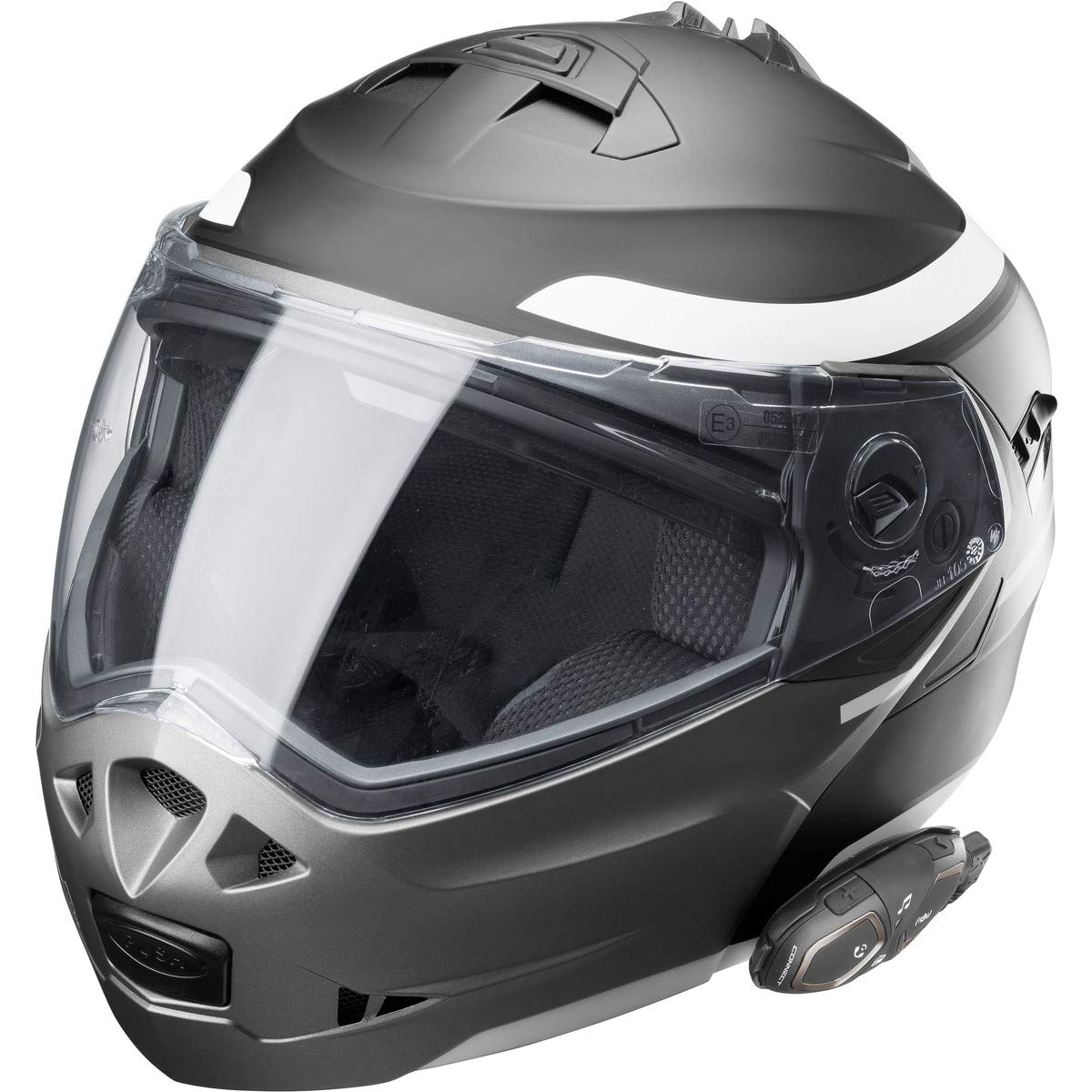
Image: INTERPHONE Connect unit securely mounted on the side of a motorcycle helmet, demonstrating typical placement.
- Clip Bracket: Slide the clip bracket between the helmet shell and the inner padding. Ensure it is firmly secured and does not interfere with helmet safety or comfort.
- Adhesive Bracket: Clean the desired mounting area on the helmet surface thoroughly. Peel off the protective film from the adhesive bracket and firmly press it onto the helmet for at least 30 seconds. Allow the adhesive to cure for 24 hours before attaching the unit.
- Once the bracket is in place, slide the INTERPHONE Connect main unit onto the bracket until it clicks securely.
3.3 Installing Speakers and Microphone
Carefully remove the helmet's inner padding to access the ear pockets. Place the speakers inside the ear pockets, ensuring they are centered with your ears for optimal audio quality. Route the microphone cable along the helmet's interior, positioning the microphone close to your mouth, ideally within the chin bar area for full-face helmets or on the boom for jet/modular helmets. Reinstall the helmet padding, ensuring no cables are pinched.
4. Operating Instructions
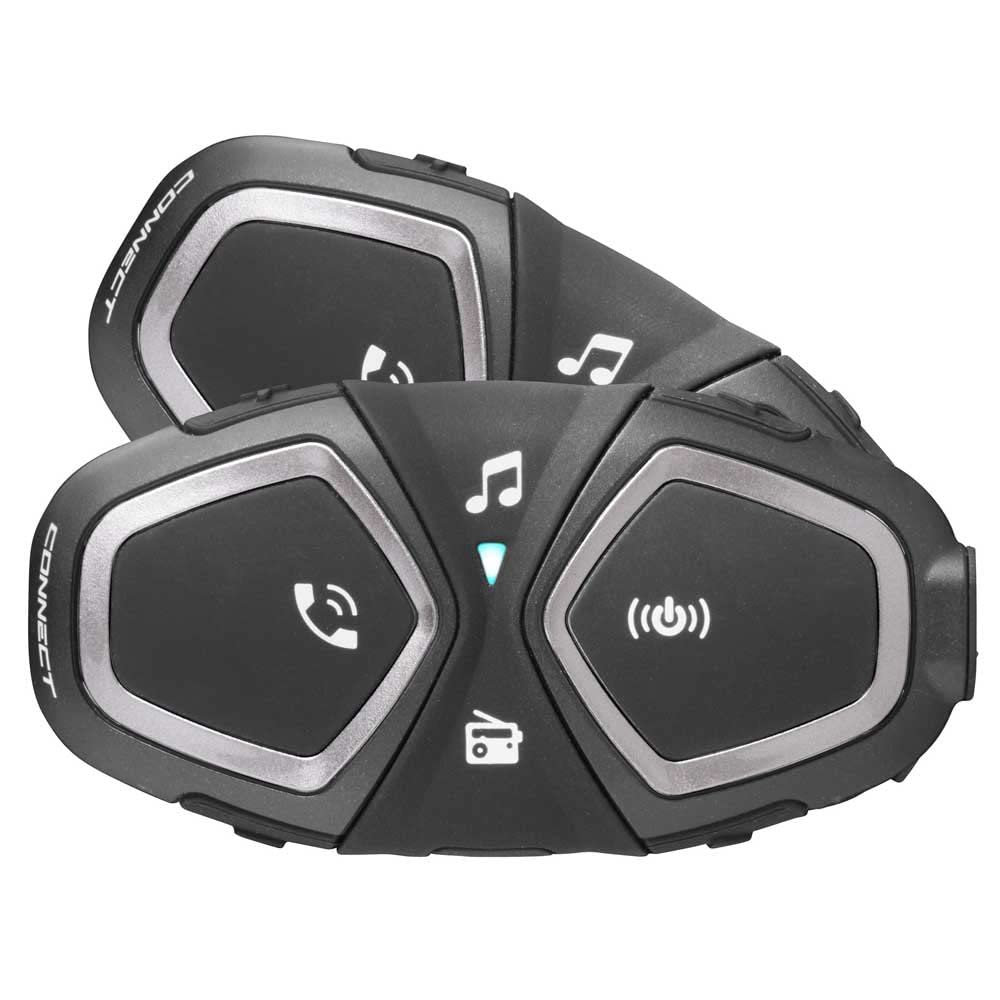
Image: Two INTERPHONE Connect units, highlighting the intuitive button layout for various functions.
4.1 Power On/Off
- Power On: Press and hold the central button until the LED indicator lights up.
- Power Off: Press and hold the central button until the LED indicator turns off.
4.2 Volume Control
- Increase Volume: Press the 'Music' button.
- Decrease Volume: Press the 'Phone' button.
- The unit features NDVC (Noise Dependent Volume Control) for automatic volume adjustment based on ambient noise.
4.3 Intercom Functions
The INTERPHONE Connect allows communication with another Connect unit or other Interphone intercoms (Anycom feature).
- Pairing: With both units off, press and hold the central button on both units until they enter pairing mode (flashing red/blue). Once paired, the LED will turn solid blue.
- Initiate Intercom Call: Briefly press the central button on either paired unit.
- End Intercom Call: Briefly press the central button again.
4.4 Phone Calls
Pair your smartphone via Bluetooth to the INTERPHONE Connect unit.
- Answer Call: Briefly press the 'Phone' button.
- End Call: Briefly press the 'Phone' button.
- Reject Call: Press and hold the 'Phone' button.
- Voice Dial: Press and hold the 'Phone' button to activate your smartphone's voice assistant (Siri/Google Assistant).
- Speed Dial: Store a preferred number via the smartphone app. Briefly press the 'Phone' button twice to dial.
- Last Number Redial: Briefly press the 'Phone' button three times.
- Call Sharing: Share a phone call with your passenger via intercom.
4.5 Music Playback
Stream music from your paired smartphone or MP3 player.
- Play/Pause: Briefly press the 'Music' button.
- Next Track: Press and hold the 'Music' button.
- Previous Track: Press and hold the 'Phone' button.
- Song Sharing: Share music with your passenger via intercom.
4.6 FM Radio
The unit has an integrated FM radio with automatic station storage.
- Turn On/Off Radio: Press the 'Radio' button (car icon).
- Scan Stations: Press and hold the 'Radio' button to automatically scan and save the 8 strongest stations.
- Change Station: Briefly press the 'Music' or 'Phone' button to cycle through saved stations.
4.7 GPS Navigation
Receive voice instructions from your Bluetooth-enabled GPS navigator.
- Pair your GPS device with the INTERPHONE Connect unit.
- GPS voice instructions will automatically override other audio sources when active.
4.8 Smartphone App
Download the dedicated INTERPHONE app for iOS and Android devices. The app allows for easy configuration of settings, firmware updates, and management of your unit directly from your smartphone.
5. Maintenance and Care
- Cleaning: Clean the unit with a soft, damp cloth. Do not use harsh chemicals or abrasive cleaners.
- Water Resistance: The unit is IP67 waterproof. While it can withstand rain and splashes, avoid submerging it in water for extended periods. Ensure the charging port cover is securely closed.
- Battery Care: For optimal battery life, avoid fully discharging the unit frequently. If storing for an extended period, charge the battery to approximately 50% and recharge every few months.
- Storage: Store the unit in a cool, dry place away from direct sunlight and extreme temperatures.
6. Troubleshooting
| Problem | Possible Cause | Solution |
|---|---|---|
| No power/Unit won't turn on | Low battery | Charge the unit fully. |
| No sound from speakers | Speakers not connected properly or volume too low | Check speaker connections. Increase volume. |
| Cannot pair with smartphone/intercom | Incorrect pairing procedure or interference | Ensure both devices are in pairing mode. Turn off and on both devices. Clear previous pairings and try again. |
| Short intercom range | Obstructions, terrain, or environmental interference | Ensure line of sight between units. Avoid dense urban areas or large obstacles. |
| Microphone not working | Microphone not connected or positioned incorrectly | Check microphone connection. Ensure microphone is close to your mouth. |
7. Specifications

Image: Key specifications of the INTERPHONE Connect, including rider capacity, range, and battery life.
| Feature | Specification |
|---|---|
| Model Name | INTERPHOCONNECTTP |
| Connectivity Technology | Wireless (Bluetooth) |
| Intercom Range | Up to 300 meters (rider-to-rider) |
| Max Riders | 2 |
| Talk Time | Up to 12 hours (advertised 15 hours in some materials) |
| Standby Time | Up to 40 days |
| Battery Type | Lithium Polymer |
| Charging Time | Approx. 3 hours |
| Water Resistance | IP67 (Waterproof) |
| Special Features | Noise Isolation, Volume Control, Noise Cancellation, Microphone Included, Water Resistant |
| Compatible Devices | Smartphones, Bluetooth Navigation Systems, most leading headsets |
| Control Type | App Control, Button Control |
| Material | Plastic |
| Weight | Approx. 1 gram (unit only) |
8. Warranty and Support
For detailed warranty information, please refer to the warranty card included in your product packaging or visit the official Interphone website. Interphone provides customer support and firmware updates through their dedicated smartphone application and website.
For further assistance, please visit the Interphone Store on Amazon or the manufacturer's official support channels.
Related documentsINTERPHOCONNECTTP


Ask a question about this manual
Ask about setup, troubleshooting, compatibility, parts, safety, or missing instructions. Manuals+ will review the question and use this page’s manual context to help answer it.