
1. Introduction
Thank you for choosing the Tracer Mark USB Bluetooth Stereo 2.0 Speakers. These speakers are designed to provide high-quality audio for your computer, laptop, or gaming console. Featuring both Bluetooth wireless connectivity and a 3.5mm auxiliary input, they offer versatile audio playback options. The speakers are conveniently powered via a USB port, eliminating the need for an external power adapter.
2. Safety Information
- Do not expose the speakers to water or excessive moisture.
- Avoid placing the speakers near heat sources or in direct sunlight.
- Do not attempt to disassemble or modify the speakers. This will void the warranty.
- Keep out of reach of children.
- Use only the provided cables or compatible replacements.
3. Package Contents
Please check the box for the following items:
- Tracer Mark USB Bluetooth Stereo 2.0 Speakers (2 units)
- Integrated USB Power Cable
- Integrated 3.5mm Audio Jack Cable
- User Manual (this document)
4. Product Overview
The Tracer Mark speakers feature a compact design with essential controls located on the front of the primary speaker unit.
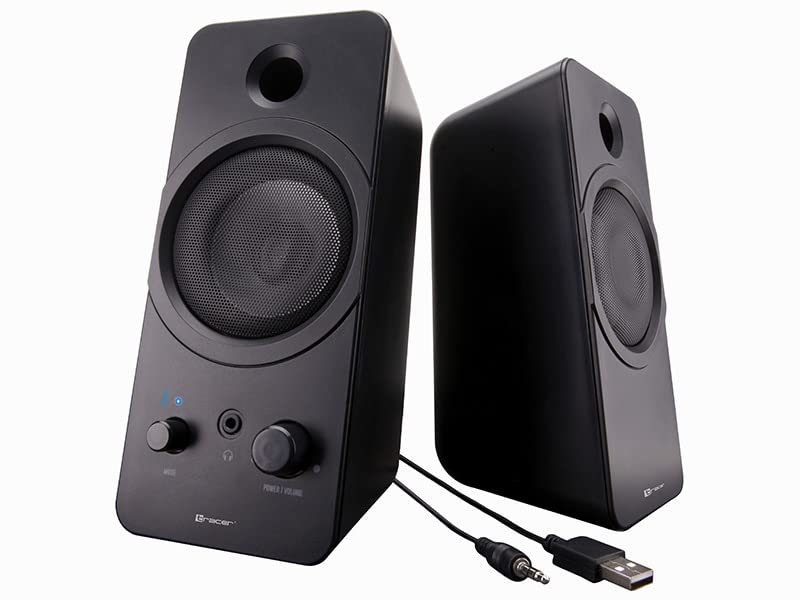
Image: Front view of the Tracer Mark USB Bluetooth Stereo 2.0 Speakers. The left speaker shows a 'Mode' knob, a headphone jack, a 'Power | Volume' knob, and a blue LED indicator. Both speakers have a circular grille for the main driver and a port above it.
Controls and Indicators:
- Power | Volume Knob: Turns the speakers on/off and adjusts the audio volume.
- Mode Knob: Switches between Bluetooth and 3.5mm auxiliary input modes.
- Headphone Jack: For connecting headphones.
- Bluetooth Indicator LED: Displays the Bluetooth connection status.

Image: Angled view of the Tracer Mark USB Bluetooth Stereo 2.0 Speakers, showing their compact, rectangular design and the control panel on the front of the left speaker.
5. Setup
5.1 Power Connection
- Locate the integrated USB power cable extending from the primary speaker.
- Connect the USB plug to an available USB port on your computer, laptop, or a compatible USB wall adapter (5V/1A recommended).
- Ensure the power source is active.
5.2 Audio Connection (Wired - 3.5mm Auxiliary)
- Locate the integrated 3.5mm audio jack cable extending from the primary speaker.
- Plug the 3.5mm audio jack into the headphone output or auxiliary audio output port of your computer, laptop, or other audio device.
- Turn the 'Mode' knob on the speaker to select the auxiliary input mode.
5.3 Audio Connection (Wireless - Bluetooth)
- Ensure the speakers are powered on.
- Turn the 'Mode' knob to select Bluetooth mode. The Bluetooth indicator LED will start blinking, indicating it is in pairing mode.
- On your audio device (smartphone, tablet, computer), enable Bluetooth and search for available devices.
- Select "Tracer Mark" from the list of found devices.
- Once paired, the Bluetooth indicator LED on the speaker will turn solid blue, indicating a successful connection.
6. Operating
6.1 Power On/Off and Volume Control
- To power on the speakers, rotate the 'Power | Volume' knob clockwise until you hear a click and the indicator light illuminates.
- Continue rotating clockwise to increase the volume.
- To decrease the volume, rotate the knob counter-clockwise.
- To power off the speakers, rotate the 'Power | Volume' knob counter-clockwise until you hear a click and the indicator light turns off.
6.2 Mode Selection
- Use the 'Mode' knob to switch between the 3.5mm auxiliary input and Bluetooth input.
- The Bluetooth indicator LED will show the current mode status.
6.3 Headphone Use
- Plug your headphones into the 3.5mm headphone jack on the front of the primary speaker.
- When headphones are connected, audio will automatically be routed to the headphones, muting the speakers.
- Unplug the headphones to resume audio playback through the speakers.
7. Maintenance
7.1 Cleaning
- Ensure the speakers are powered off and disconnected from the power source before cleaning.
- Use a soft, dry cloth to wipe the exterior surfaces of the speakers.
- Do not use liquid cleaners, aerosols, or abrasive materials, as these may damage the finish or internal components.
7.2 Storage
- When not in use for extended periods, store the speakers in a cool, dry place, away from direct sunlight and extreme temperatures.
- Keep the speakers free from dust.
8. Troubleshooting
If you encounter issues with your speakers, please refer to the following common problems and solutions:
| Problem | Possible Cause | Solution |
|---|---|---|
| No sound from speakers. | Speakers not powered on. Volume too low. Incorrect input mode selected. Audio cable not connected properly. Device volume too low/muted. | Ensure 'Power | Volume' knob is turned on. Increase volume using the knob. Select the correct mode (Bluetooth or AUX) with the 'Mode' knob. Check 3.5mm audio cable connection. Increase volume on your audio device. |
| Bluetooth not connecting. | Speakers not in pairing mode. Bluetooth disabled on device. Speakers too far from device. Interference. | Ensure 'Mode' knob is set to Bluetooth and LED is blinking. Enable Bluetooth on your device. Move speakers closer to your device (within 10 meters). Turn off other Bluetooth devices nearby. |
| Distorted sound. | Volume too high. Poor audio source quality. Loose cable connection. | Reduce volume on speakers and/or audio device. Try a different audio source. Check all cable connections. |
9. Specifications
Detailed technical specifications for the Tracer Mark USB Bluetooth Stereo 2.0 Speakers:
| Model Number | TRAGLO46370 |
| Brand | Tracer |
| Speaker Type | Portable Bluetooth Speaker |
| Audio Output Mode | Stereo (2.0 Channels) |
| Maximum Output Power | 12 Watts |
| Frequency Response | 25 Hz - 22 KHz |
| Connectivity Technology | Bluetooth, 3.5mm Auxiliary |
| Wireless Technology | Bluetooth |
| Power Source | USB Powered (5V) |
| Control Method | Knob/Dial Control |
| Recommended Uses | Computer, Laptop, Gaming Console |
| Compatible Devices | Personal Computer, Laptop |
| Weight | 958 Grams |
| Mounting Type | Tabletop |
10. Warranty and Support
For warranty information and technical support, please refer to the documentation provided with your purchase or contact Tracer customer service directly. Keep your proof of purchase for warranty claims.