
1. Introduction
Thank you for purchasing the VIVIBRIGHT f30 1080P Projector. This projector is designed to provide a true cinematic experience with its Full HD 1080P native resolution, high brightness, and versatile connectivity. This manual will guide you through the setup, operation, and maintenance of your new projector to ensure optimal performance and longevity.
2. Safety Information
Please read all safety warnings and instructions carefully before using this projector. Keep this manual for future reference.
- Power Source: Use only the power adapter supplied with the projector. Ensure the power outlet matches the voltage requirements.
- Ventilation: Do not block the ventilation openings. Ensure adequate space around the projector for proper airflow to prevent overheating.
- Heat: The projector may become warm during operation. This is normal. Avoid touching the projector's surface during or immediately after use.
- Liquid Exposure: Do not expose the projector to rain, moisture, or any liquids. Do not place objects filled with liquids, such as vases, on the projector.
- Cleaning: Unplug the projector before cleaning. Use a soft, dry cloth. Do not use liquid or aerosol cleaners.
- Eye Safety: Do not look directly into the projector lens when the lamp is on. The bright light can cause eye damage.
- Servicing: Do not attempt to service this product yourself. Refer all servicing to qualified service personnel.
3. Package Contents
Verify that all items listed below are included in your package:
- 1 x VIVIBRIGHT f30 Projector
- 1 x Remote Control
- 1 x Power Cable
- 1 x User Manual (this document)

Image: VIVIBRIGHT f30 Projector with its included carrying bag.
4. Product Overview
4.1 Front and Side View
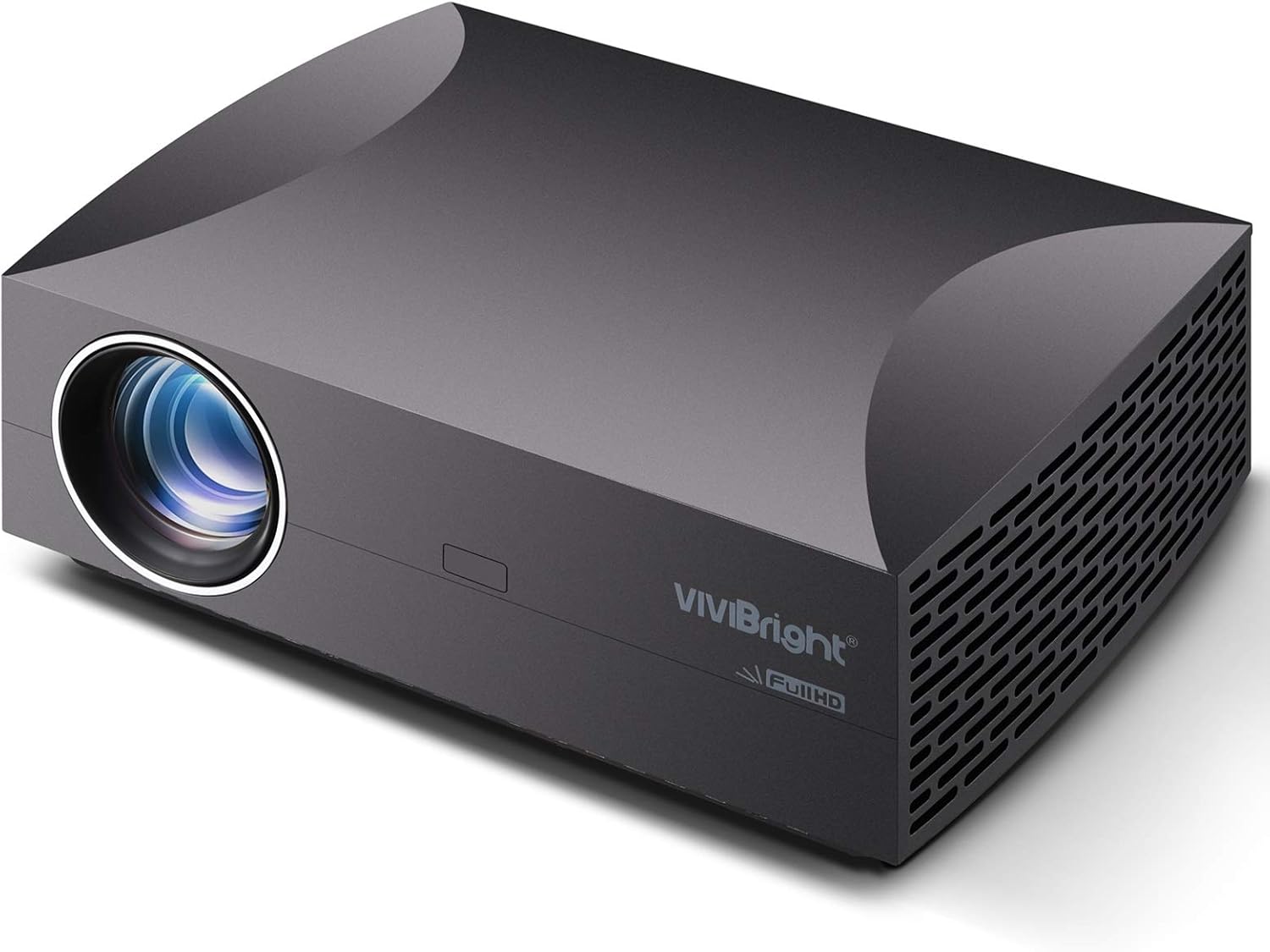
Image: Front and side view of the VIVIBRIGHT f30 Projector, showing the lens and ventilation grilles.
4.2 Rear Panel and Ports
The rear panel of the f30 projector features various ports for connecting external devices.
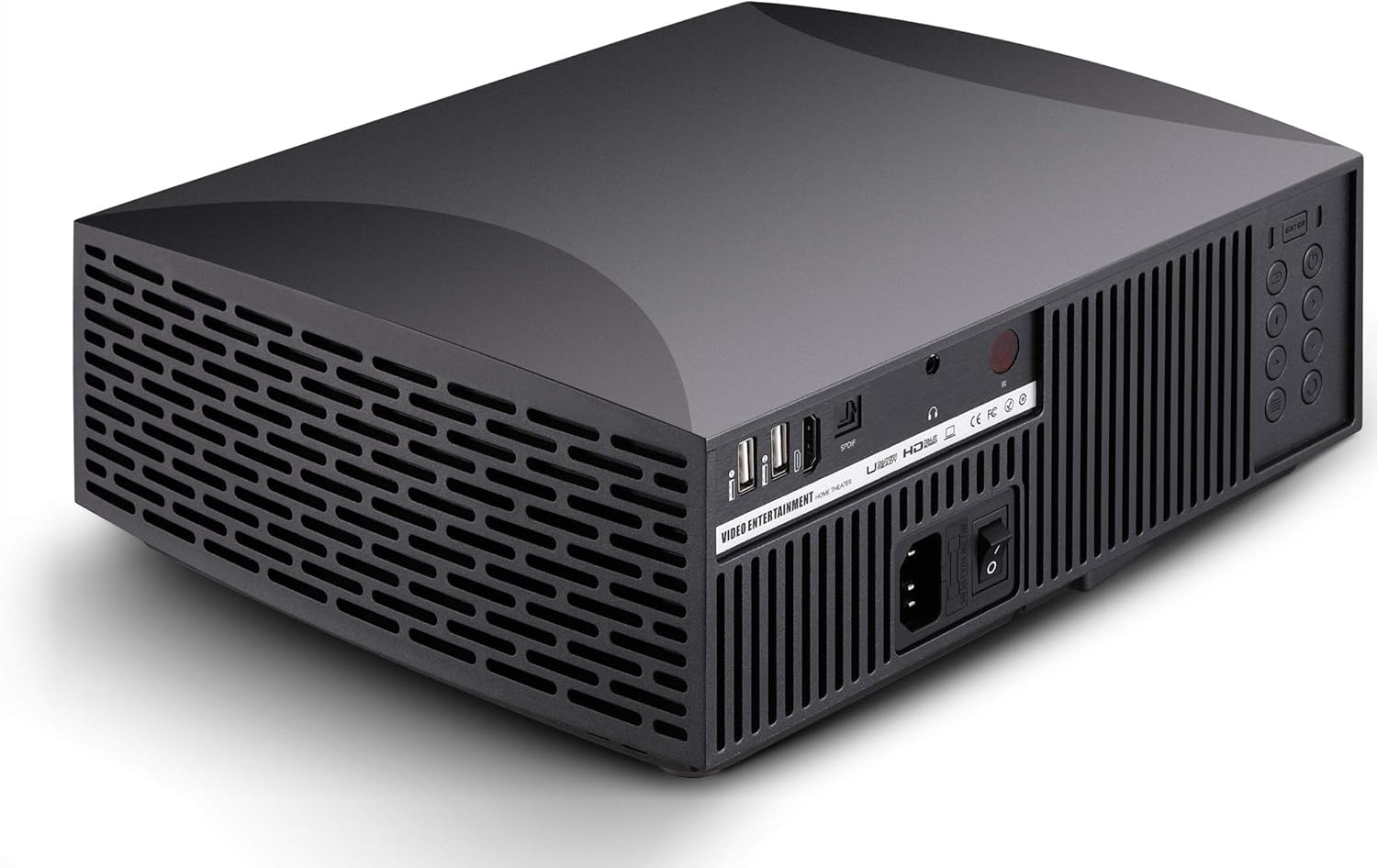
Image: Rear view of the VIVIBRIGHT f30 Projector, highlighting the input/output ports.
- Power Input: Connects the power cable.
- USB Ports (x2): For connecting USB storage devices (e.g., USB drives) for multimedia playback.
- HDMI Ports: For connecting devices like laptops, gaming consoles, or Blu-ray players.
- SPDIF Out: Digital audio output for connecting to external sound systems.
- Audio Out (3.5mm): Analog audio output for headphones or external speakers.
- Control Buttons: Manual controls for power, menu navigation, and input selection.
5. Setup
5.1 Placement
The VIVIBRIGHT f30 projector offers flexible placement options:
- Tabletop Placement: Place the projector on a stable, flat surface in front of the projection screen or wall.
- Ceiling Mount: The projector can be mounted to the ceiling using a compatible projector mount. Ensure the mount is securely fastened and the projector is oriented correctly for projection.
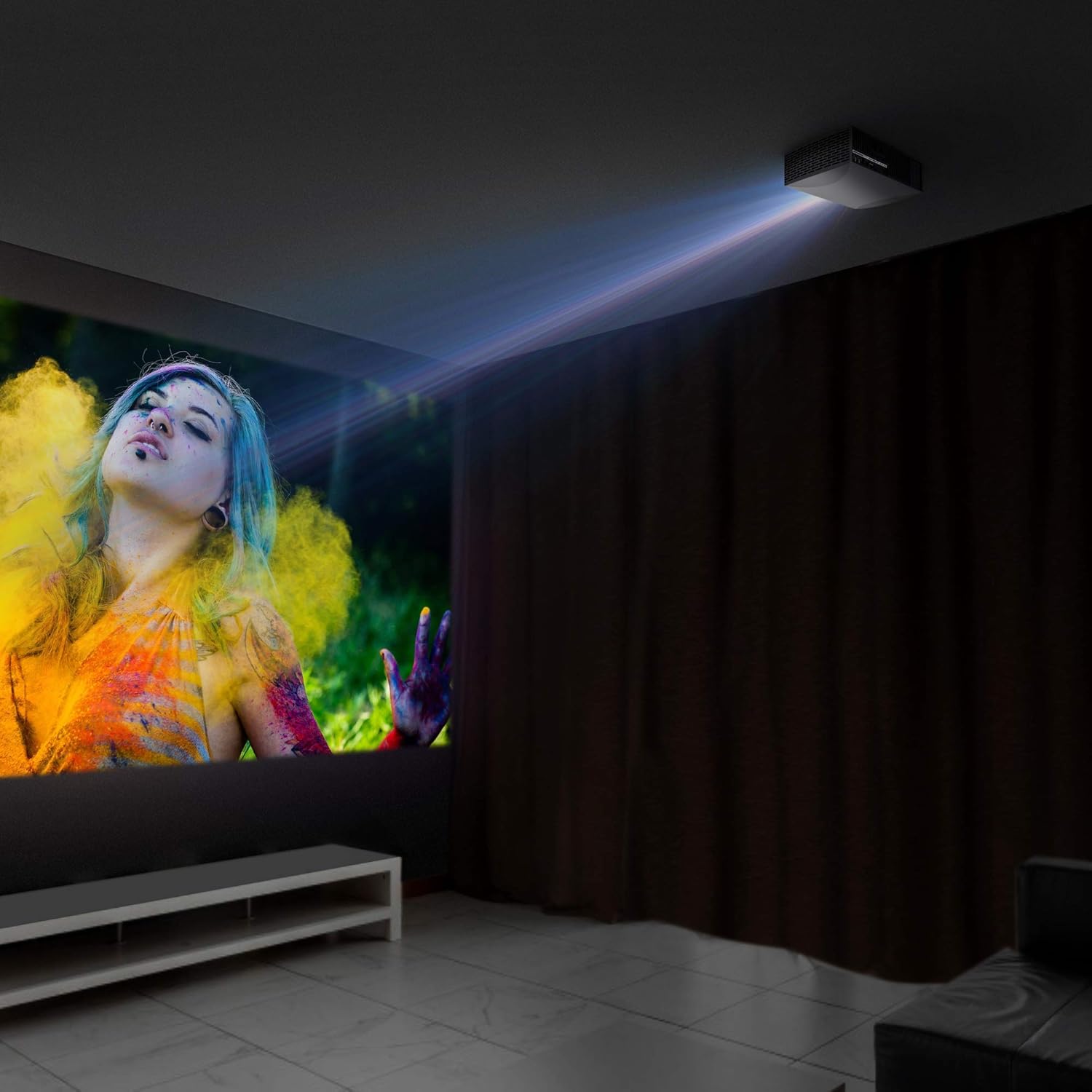
Image: VIVIBRIGHT f30 Projector shown mounted on a ceiling, projecting an image.
5.2 Power Connection
- Connect the power cable to the projector's power input port.
- Plug the other end of the power cable into a grounded electrical outlet.
5.3 Connecting Devices
The f30 projector supports various input sources:
- HDMI: Connect your laptop, Blu-ray player, gaming console, or streaming device to an HDMI port using an HDMI cable.
- USB: Insert a USB flash drive into one of the USB ports for direct playback of multimedia files (videos, photos, music).
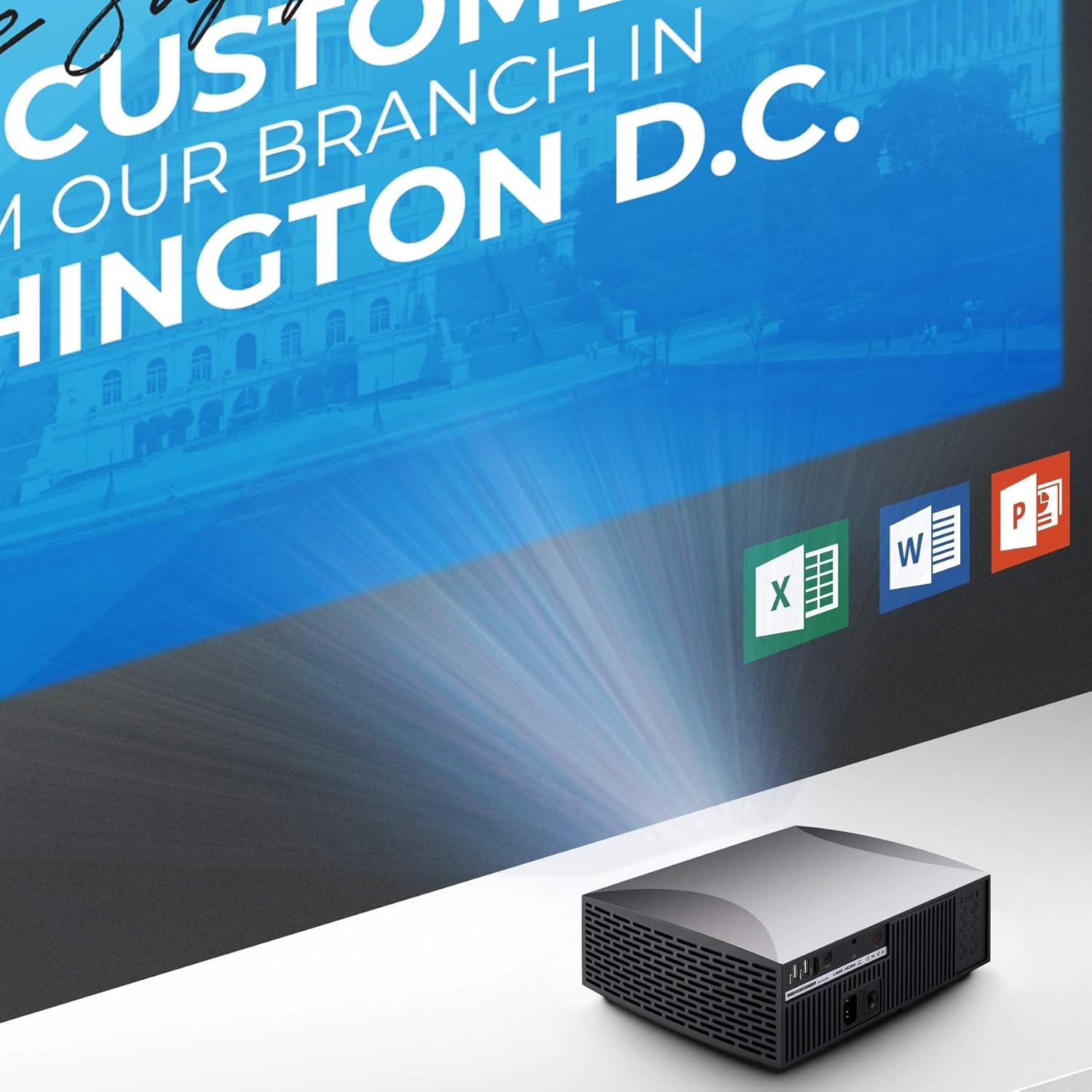
Image: VIVIBRIGHT f30 Projector displaying a presentation from a connected device.
5.4 Focus and Keystone Correction
- Focus: Rotate the focus ring on the projector lens until the projected image is clear and sharp.
- Keystone Correction: If the projected image appears trapezoidal (wider at the top or bottom), use the keystone correction feature (usually a dial or button on the projector or remote) to adjust the image geometry until it is rectangular. The f30 supports +/-15 degree keystone correction.
6. Operating the Projector
6.1 Powering On/Off
- Power On: Press the power button on the projector or the remote control. The indicator light will change, and the projector lamp will illuminate.
- Power Off: Press the power button again. The projector will go through a shutdown sequence. Do not unplug the power cable until the fan has stopped and the indicator light is off.

Image: VIVIBRIGHT f30 Projector in operation, emitting light onto a surface.
6.2 Input Source Selection
After powering on, select the desired input source using the 'Source' button on the remote control or the projector's control panel. Navigate through options like HDMI, USB, etc., and press 'OK' to confirm.
6.3 Menu Navigation
Use the 'Menu' button on the remote or projector to access the on-screen display (OSD) menu. Use the arrow keys to navigate through settings such as picture mode, aspect ratio, sound, and system settings. Press 'OK' to select and 'Exit' to leave the menu.
6.4 Audio Output
The f30 projector includes an internal speaker. For enhanced audio experience, you can connect external speakers or a sound system:
- SPDIF Out: Connect a digital audio cable from the SPDIF Out port on the projector to a compatible input on your soundbar or AV receiver for high-fidelity sound.
- 3.5mm Audio Out: Connect headphones or analog speakers to the 3.5mm audio jack.
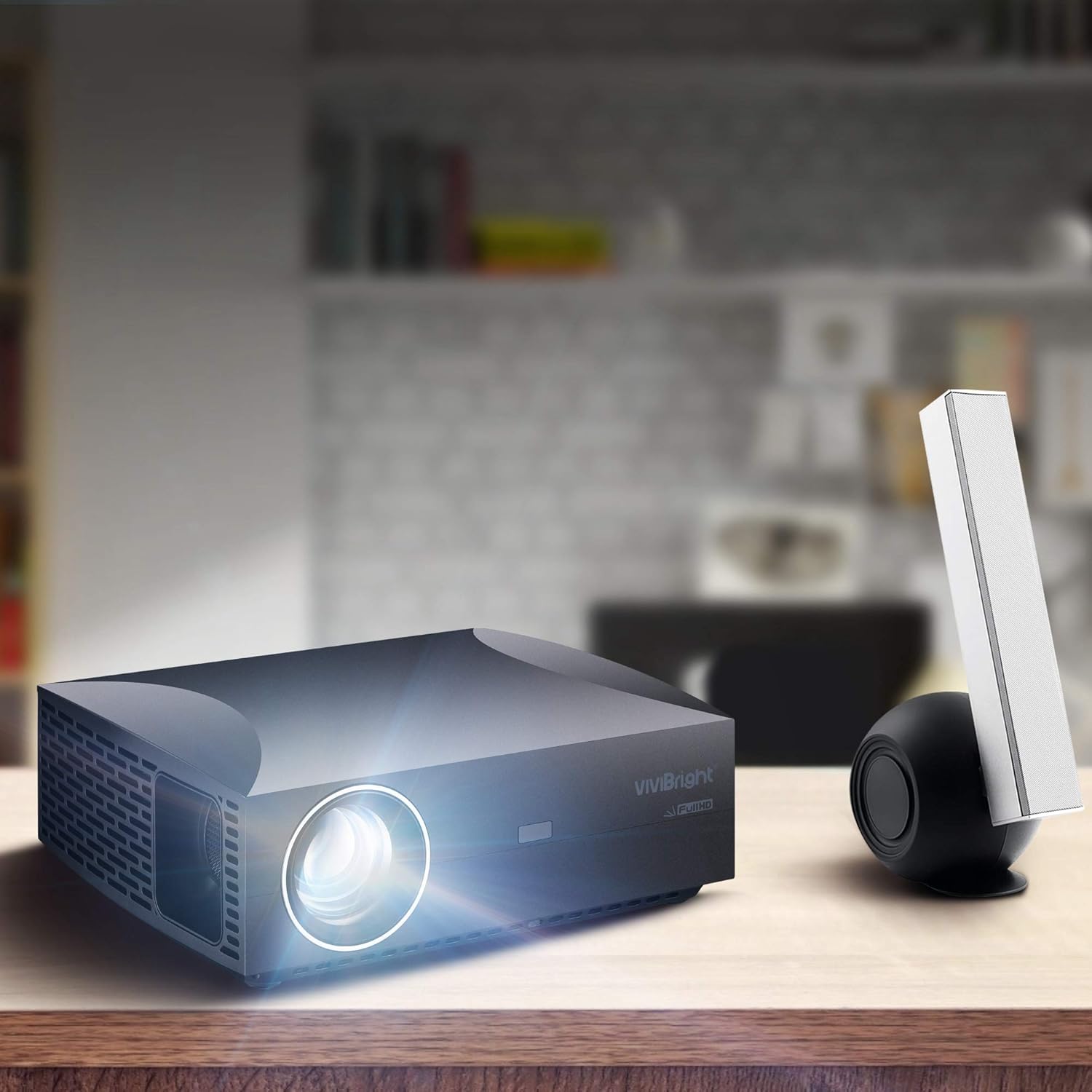
Image: VIVIBRIGHT f30 Projector positioned next to an external speaker, demonstrating audio connectivity.
7. Maintenance
7.1 Cleaning the Lens
Use a soft, lint-free cloth specifically designed for optical lenses. Gently wipe the lens in a circular motion. Do not use abrasive cleaners or excessive force.
7.2 Ventilation
Regularly check and clean the projector's ventilation grilles to prevent dust buildup, which can impede airflow and lead to overheating. Use a soft brush or compressed air to remove dust.
7.3 Lamp Life
The VIVIBRIGHT f30 utilizes an LED lamp with a lifespan of over 50,000 hours. This means the lamp is designed to last for the entire life of the projector under normal usage conditions, requiring no replacement.
8. Troubleshooting
If you encounter issues with your projector, refer to the following common problems and solutions:
| Problem | Possible Cause | Solution |
|---|---|---|
| No image projected | Power cable loose; Projector not powered on; Incorrect input source selected; Source device not connected or off. | Check power connections; Press power button; Select correct input source; Ensure source device is on and connected. |
| Image is blurry | Focus not adjusted; Projector too close/far from screen. | Adjust the focus ring on the lens; Adjust projection distance. |
| Image is trapezoidal | Keystone correction needed; Projector not perpendicular to screen. | Adjust keystone correction; Reposition projector. |
| No sound | Volume too low; Muted; External audio device not connected or off; Incorrect audio output selected. | Increase volume; Unmute; Check external audio connections and power; Select correct audio output. |
| Remote control not working | Batteries dead or incorrectly inserted; Obstruction between remote and projector. | Replace batteries; Ensure clear line of sight to IR receiver on projector. |
9. Specifications
| Feature | Specification |
|---|---|
| Model Name | VIVIBRIGHT f30 |
| Native Resolution | 1920 x 1080 (Full HD) |
| Brightness | 4200 White Light LED Brightness |
| Contrast Ratio | 15000:1 (Dynamic) |
| Lamp Life | Over 50,000 hours (LED) |
| Projection Size | Up to 180 inches (Max.) |
| Keystone Correction | +/-15 degrees |
| Display Technology | LCD |
| Hardware Interface | USB, HDMI |
| Connectivity Technology | USB, HDMI |
| Audio Output | SPDIF Out, 3.5mm Audio Out |
| Power Source | AC |
| Wattage | 150 watts |
| Product Dimensions | 29.46 x 24.38 x 8.89 cm |
| Item Weight | 2.68 kg |
| Mounting Type | Ceiling Mount, Tabletop |
10. Warranty and Support
VIVIBRIGHT products are designed for reliability and performance. For warranty information and technical support, please refer to the warranty card included with your product or visit the official VIVIBRIGHT website. Keep your purchase receipt as proof of purchase for warranty claims.
For further assistance, please contact VIVIBRIGHT customer service through the contact information provided on the official website or your retailer's support channels.


