
Introduction
This manual provides instructions for the setup, operation, and maintenance of your Targus U660 USB Optical Mouse. The Targus U660 is designed for smooth and precise cursor control, featuring a 1000 DPI optical sensor and a comfortable ambidextrous design.
Package Contents
- Targus U660 USB Optical Mouse
- User Manual (this document)
Product Overview
The Targus U660 USB Optical Mouse features a standard three-button layout with a scroll wheel, designed for ease of use and compatibility with various operating systems.

Figure 1: Top-down view of the Targus U660 USB Optical Mouse, showing the left and right click buttons, and the scroll wheel in the center. The Targus logo is visible on the palm rest.

Figure 2: Front view of the Targus U660 USB Optical Mouse, highlighting the USB cable connection point and the scroll wheel.
Setup
- Connect the Mouse: Locate an available USB port on your computer (desktop, laptop, or compatible device). Insert the USB connector of the Targus U660 mouse into the USB port.
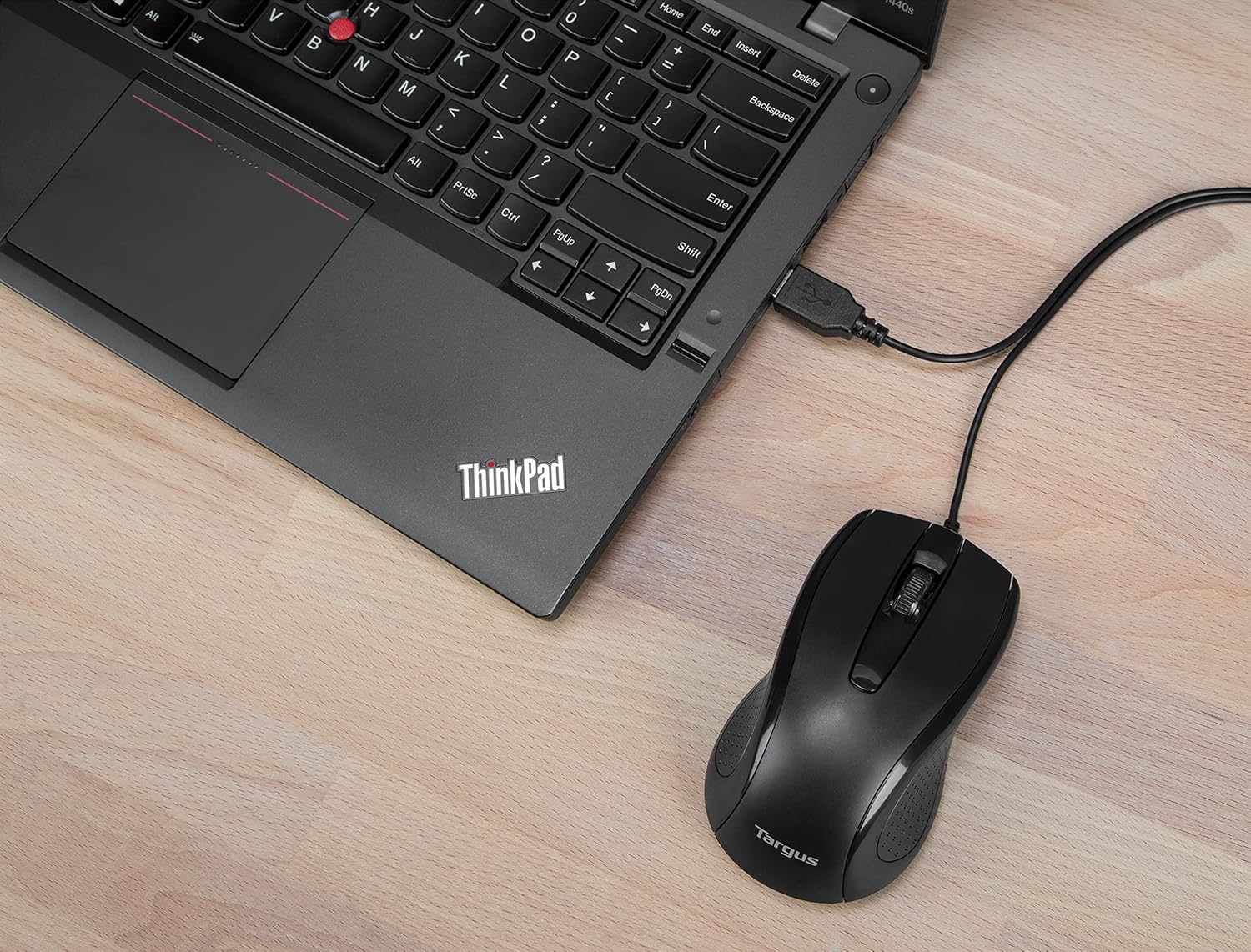
Figure 3: The Targus U660 USB Optical Mouse connected to a laptop via its USB cable.
- Driver Installation: The Targus U660 is a plug-and-play device. Your operating system (Windows or macOS) will automatically detect and install the necessary drivers. No manual driver installation is typically required.
- Ready for Use: Once the drivers are installed, the mouse is ready for immediate use.
Operating Instructions
The Targus U660 USB Optical Mouse operates like a standard computer mouse.
- Left Click: Press the left button to select items, open applications, or activate functions.
- Right Click: Press the right button to open context menus or access additional options.
- Scroll Wheel: Roll the scroll wheel up or down to navigate through documents and web pages. The scroll wheel can also be pressed as a middle button for specific functions depending on the application.
- Movement: Move the mouse across a flat surface to control the cursor on your screen. The 1000 DPI optical sensor provides precise tracking.
Maintenance
Proper maintenance ensures the longevity and optimal performance of your mouse.
- Cleaning: Use a soft, dry cloth to clean the exterior of the mouse. For stubborn dirt, a slightly damp cloth can be used, ensuring no moisture enters the device. Avoid harsh chemicals or abrasive cleaners.
- Optical Sensor: Keep the optical sensor on the underside of the mouse clean and free from dust or debris to ensure accurate tracking.

Figure 4: The underside of the Targus U660 USB Optical Mouse, displaying the optical sensor window and product information.
- Storage: When not in use, store the mouse in a clean, dry environment away from extreme temperatures.
Troubleshooting
| Problem | Possible Cause | Solution |
|---|---|---|
| Mouse not responding |
|
|
| Erratic cursor movement |
|
|
| Buttons or scroll wheel not working |
|
|
Specifications
- Model Name: U660
- Part Number: AMU660AP
- Connectivity: USB (Wired)
- Sensor Technology: Optical
- DPI: 1000 DPI
- Number of Buttons: 3 (Left, Right, Scroll Wheel Click)
- Hand Orientation: Ambidextrous
- Cable Length: 4.9 ft (1.5 m)
- Weight: Approximately 84 g
- Compatible Operating Systems: Windows, macOS
- Compatible Devices: Laptop, Personal Computer
Warranty and Support
For warranty information and technical support, please refer to the official Targus website or contact Targus customer service. Keep your purchase receipt for warranty claims.
Targus Official Website: www.targus.com


