
Ciglow gdagre-181
Ciglow Mini Wireless Keyboard User Manual
Model: gdagre-181
1. Product Overview
The Ciglow Mini Wireless Keyboard is a compact and versatile input device designed for use with Smart TVs, PCs, Android TV Boxes, and other compatible devices. It features a full QWERTY keyboard layout, a sensitive touchpad, and multimedia control keys, offering a convenient solution for navigation and typing.
Key Features:
- 92-key 2.4GHz keyboard with integrated touchpad.
- Plug and play functionality with a USB receiver, no software installation required.
- Adjustable Touchpad DPI for customized sensitivity.
- Ergonomic, hand-held design for comfortable operation.
- High-sensitivity smart touchpad with 360-degree flip design.
- Dedicated multimedia control keys and PC game control keys.
- Automatic sleep and wake modes for power efficiency.
Package Contents:
- 1 x Ciglow Mini Wireless Keyboard (Batteries not included)
- 1 x USB Receiver
- 1 x User Manual (This document)
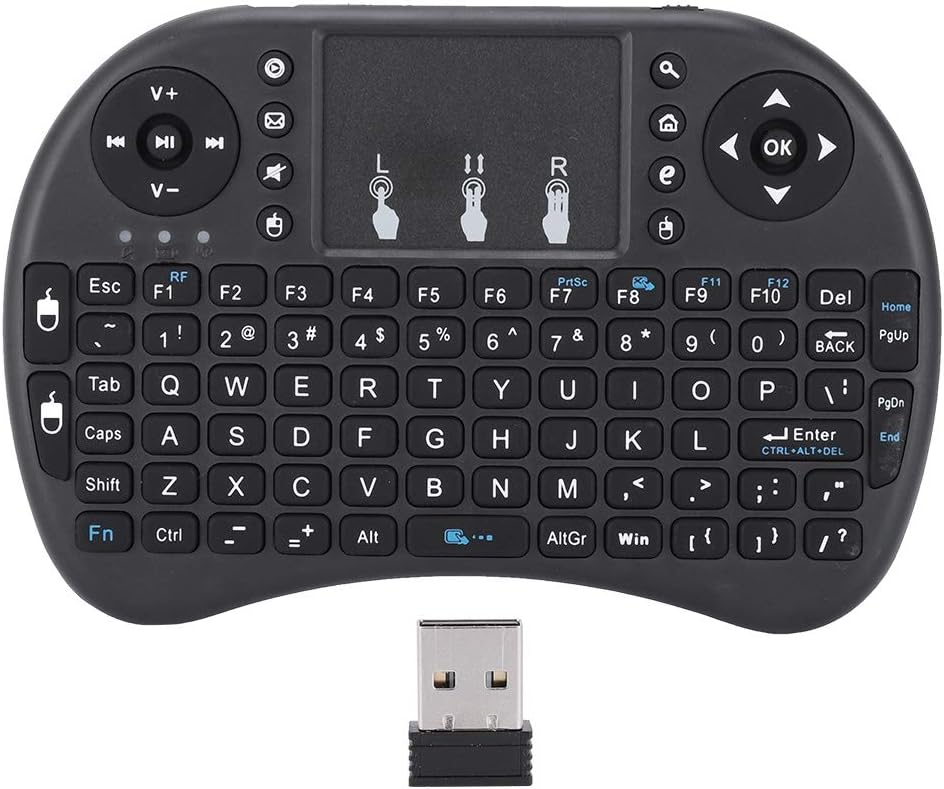
Figure 1.1: The Ciglow Mini Wireless Keyboard shown with its accompanying USB receiver. The keyboard features a full QWERTY layout and an integrated touchpad.
2. Setup Guide
2.1 Battery Installation
The keyboard requires two AAA batteries (not included) for operation. Follow these steps to install them:
- Locate the battery compartment cover on the back of the keyboard.
- Slide the cover open in the direction indicated by the arrow.
- Insert two AAA batteries, ensuring the correct polarity (+ and -) as marked inside the compartment.
- Close the battery compartment cover securely.

Figure 2.1: The rear view of the keyboard showing the open battery compartment and the USB receiver, which is typically stored within this compartment for convenience.
2.2 Connecting the USB Receiver
The keyboard operates via a 2.4GHz wireless connection using the included USB receiver. No additional drivers are typically required for most operating systems.
- Remove the USB receiver from the battery compartment of the keyboard.
- Plug the USB receiver into an available USB port on your Smart TV, PC, Android TV Box, or other compatible device.
- The device should automatically detect the keyboard. The keyboard is now ready for use.

Figure 2.2: The keyboard demonstrating its 2.4GHz wireless connectivity to various devices such as Smart TVs, Android TV Boxes, PCs, and gaming consoles.

Figure 2.3: An illustration showing the versatility of the keyboard, compatible with a range of devices including televisions, gaming consoles, tablets, and laptops.
3. Operating Instructions
3.1 Basic Keyboard Functions
The keyboard features a standard QWERTY layout. Simply type as you would on a regular keyboard. Function keys (F1-F12) may have secondary multimedia functions accessible by pressing the Fn key simultaneously.
3.2 Touchpad Operation
The integrated touchpad allows for mouse-like navigation. It supports multi-finger gestures:
- Single Finger Tap: Left-click.
- Two Finger Tap: Right-click.
- Two Finger Scroll: Drag two fingers up or down to scroll.

Figure 3.1: A close-up view highlighting the high-sensitivity smart touchpad, designed for intuitive navigation and supporting a 360-degree flip function for versatile use.
3.3 Adjusting Touchpad DPI
The touchpad's sensitivity (DPI) can be adjusted to suit your preference. Refer to the keyboard's markings or the specific key combination for DPI adjustment, typically involving the Fn key and a designated function key (e.g., Fn + F7).

Figure 3.2: The keyboard's touchpad area, indicating the presence of a DPI adjustable function for customizing cursor sensitivity.
3.4 Multimedia and Game Control Keys
The keyboard includes dedicated multimedia control keys (e.g., volume up/down, play/pause) and PC game control keys for enhanced user experience. These are typically located around the edges of the keyboard or as secondary functions on the F-keys.

Figure 3.3: The mini QWERTY keyboard being used to control a game displayed on a television, demonstrating its multimedia and PC game control capabilities.

Figure 3.4: The 92-key 2.4GHz wireless keyboard with touchpad in use, illustrating its application for gaming and general control across multiple screen types.
3.5 Automatic Sleep and Wake Mode
To conserve battery life, the keyboard will automatically enter a sleep mode after a period of inactivity. To wake the keyboard, simply press any key or move the touchpad. It will automatically reconnect to the USB receiver.

Figure 3.5: The keyboard being held, demonstrating its automatic sleep and wake mode functionality, which helps conserve battery power during periods of inactivity.
4. Maintenance
Proper maintenance ensures the longevity and optimal performance of your keyboard.
4.1 Cleaning
- Use a soft, dry cloth to wipe the surface of the keyboard.
- For stubborn dirt, slightly dampen the cloth with water or a mild, non-abrasive cleaner. Avoid excessive moisture.
- Do not use harsh chemicals, solvents, or abrasive cleaning agents.
- Ensure no liquid enters the keyboard's internal components.
4.2 Battery Replacement
When the keyboard's performance degrades or it stops responding, it may be time to replace the batteries. Refer to Section 2.1 for battery installation instructions.
5. Troubleshooting
If you encounter issues with your Ciglow Mini Wireless Keyboard, try the following troubleshooting steps:
5.1 Keyboard Not Responding
- Check Batteries: Ensure batteries are correctly installed and have sufficient charge. Replace if necessary.
- Check USB Receiver: Make sure the USB receiver is securely plugged into a working USB port on your device. Try a different USB port.
- Re-establish Connection: Turn the keyboard off and then on again (if it has a power switch). Remove and re-insert the USB receiver.
- Distance: Ensure the keyboard is within the working range (up to 10m) of the USB receiver and there are no significant obstructions.
- Interference: Move away from other 2.4GHz wireless devices that might cause interference.
5.2 Touchpad Not Working Correctly
- Clean Touchpad: Ensure the touchpad surface is clean and free of dirt or moisture.
- DPI Setting: Adjust the DPI setting (refer to Section 3.3) to see if it improves responsiveness.
- Restart: Try restarting the keyboard and the connected device.
5.3 Multimedia Keys Not Functioning
- Fn Key: Ensure you are pressing the Fn key simultaneously with the desired function key if required.
- Software Compatibility: Some multimedia functions may depend on the operating system or application.
6. Specifications
| Feature | Detail |
|---|---|
| Working Range | Up to 10 meters (33 feet) |
| Battery Type | 2 x AAA Batteries (Not Included) |
| Transmit Power | +5db Max |
| Working Voltage | 3.3V |
| Operating Current | <50mA (on), <1mA (sleep mode) |
| Charging Current | <300mA (Note: This model uses AAA batteries and does not have a charging function. This specification might refer to a different variant or general product line.) |
| Color | Black |
| Dimensions (Approx.) | 14 x 9.5 x 2 cm (5.51 x 3.74 x 0.79 inches) |
| Weight (Approx.) | 3.87 ounces (110 grams) |
| Connectivity | 2.4GHz Wireless (USB Receiver) |
| Number of Keys | 92 |
| Compatible Devices | Smart TV, PC, Android TV Box, PS3/Xbox360, HTPC |
7. Product Video
Video 7.1: An official product video from the seller, Ciciglow, demonstrating the Mini Keyboard for Smart TV PC for Android. This short video provides a quick overview of the product's appearance and basic functionality.
8. Warranty and Support
This product is manufactured by Ciglow. For warranty information, technical support, or service inquiries, please refer to the contact information provided with your purchase or visit the official Ciglow website. Please retain your proof of purchase for warranty claims.
For further assistance, you may also contact the retailer from whom you purchased the product.
Ask a question about this manual
Ask about setup, troubleshooting, compatibility, parts, safety, or missing instructions. Manuals+ will review the question and use this page’s manual context to help answer it.