
1. Introduction
Thank you for choosing the Targus W620 Wireless Optical Mouse. This manual provides detailed instructions for setting up, operating, and maintaining your mouse to ensure optimal performance and longevity. The Targus W620 offers reliable 2.4 GHz wireless connectivity, a precise 1600 DPI optical sensor, and a compact design suitable for both office and mobile use.
2. Package Contents
Please check the package for the following items:
- Targus W620 Wireless Optical Mouse
- USB Receiver
- 2 x AAA Batteries
3. Product Overview
Familiarize yourself with the components of your Targus W620 Wireless Optical Mouse.
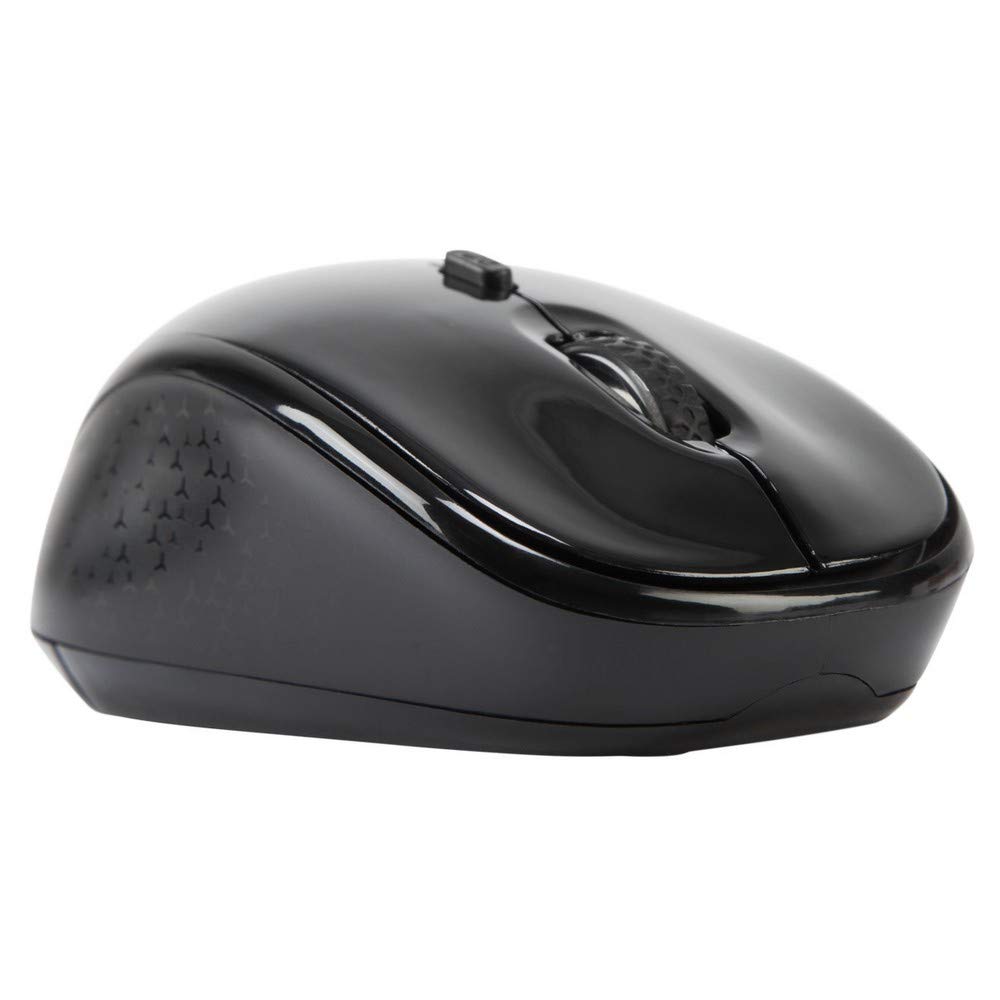
Image 3.1: Top view of the Targus W620 Wireless Optical Mouse. This image displays the primary buttons and scroll wheel.
- Left Click Button: Standard primary click function.
- Right Click Button: Standard secondary click function.
- Scroll Wheel: For vertical scrolling and middle-click function.
- DPI Button: Adjusts the mouse sensitivity (DPI).
- Optical Sensor: Located on the bottom, detects mouse movement.
- Battery Compartment: Located on the bottom, holds two AAA batteries.
- USB Receiver Storage: A dedicated slot on the bottom for storing the USB receiver when not in use.

Image 3.2: Bottom view of the mouse, highlighting the battery compartment and optical sensor.
4. Setup Instructions
Follow these steps to set up your Targus W620 Wireless Optical Mouse:
- Install Batteries:
- Locate the battery compartment cover on the bottom of the mouse.
- Slide the cover open.
- Insert the two AAA batteries, ensuring correct polarity (+/-).
- Close the battery compartment cover securely.
- Connect USB Receiver:
- The USB receiver is typically stored in a slot on the bottom of the mouse for transport. Gently remove it.
- Plug the USB receiver into an available USB port on your computer.

Image 4.1: The mouse with its USB receiver, ready for connection.
- Power On:
- There is no explicit power switch on this model; the mouse activates upon movement and connection.
- Your computer should automatically detect and install the necessary drivers. This may take a few moments.
- Once drivers are installed, the mouse is ready for use.
5. Operating Instructions
The Targus W620 Wireless Optical Mouse is designed for intuitive use. Here are its primary functions:
- Basic Navigation: Move the mouse on a flat surface to control the cursor on your screen.
- Left Click: Use for selecting items, opening files, or activating functions.
- Right Click: Use for accessing context menus or secondary functions.
- Scroll Wheel: Rotate the wheel to scroll vertically through documents and web pages. Press the scroll wheel for a middle-click function, often used for opening links in new tabs or auto-scrolling.
- DPI Adjustment: Press the DPI button (located behind the scroll wheel) to cycle through the available DPI settings (800, 1200, 1600 DPI). This changes the sensitivity of the mouse cursor. A higher DPI means the cursor moves further with less physical mouse movement.
6. Maintenance
Proper maintenance ensures the longevity and performance of your mouse.
- Cleaning: Use a soft, dry, lint-free cloth to clean the exterior of the mouse. For stubborn dirt, slightly dampen the cloth with water. Avoid using harsh chemicals or abrasive cleaners.
- Optical Sensor: Keep the optical sensor area on the bottom of the mouse clean and free from dust or debris to ensure accurate tracking.
- Battery Replacement: When the mouse performance degrades or stops responding, it is likely time to replace the batteries. Follow the steps in Section 4.1 to replace the two AAA batteries.
- Storage: When transporting or storing the mouse, always place the USB receiver back into its dedicated storage slot on the bottom of the mouse to prevent loss.
7. Troubleshooting
If you encounter issues with your Targus W620 mouse, try the following solutions:
| Problem | Possible Solution |
|---|---|
| Mouse not responding or cursor not moving. |
|
| Cursor movement is erratic or jumpy. |
|
| DPI button not changing sensitivity. |
|
| Wireless connection issues. |
|
8. Specifications
| Brand | Targus |
| Model Number | AMW620AP |
| Connectivity Technology | 2.4 GHz Wireless (Radio Frequency) |
| Movement Detection Technology | Optical (BlueTrace Technology) |
| DPI Levels | 800 / 1200 / 1600 DPI (Adjustable) |
| Number of Buttons | 4 (Left, Right, Scroll Wheel, DPI) |
| Hand Orientation | Right (Comfortable for ambidextrous use) |
| Power Source | 2 x AAA Batteries (Included) |
| Item Weight | 26 Grams |
| Operating System Compatibility | Linux, Windows XP (Compatible with modern Windows and macOS) |
| Hardware Platform | Mac, PC |
| Color | Black |
9. Warranty and Support
Warranty Information: The Targus W620 Wireless Optical Mouse comes with a 3-year manufacturer's warranty from the date of purchase. This warranty covers defects in materials and workmanship under normal use. Please retain your proof of purchase for warranty claims.
Customer Support: For technical assistance, troubleshooting beyond this manual, or warranty inquiries, please visit the official Targus website or contact their customer support service. Refer to the contact information provided with your product packaging or on the Targus official website.


