
1. Introduction
The Eve Energy Strip is a smart power strip designed to provide individual control over three electrical outlets, monitor energy consumption, and integrate seamlessly with Apple HomeKit technology. This manual provides essential information for setting up, operating, and maintaining your Eve Energy Strip.
Key features include:
- Individual control of three electrical outlets via iPhone or Siri voice commands.
- Synchronization with daily routines and presence simulation for enhanced home security.
- Monitoring of total electricity consumption and projected costs.
- Advanced protection against overcurrent, overvoltage, and overload.
- Energy saving by automatically turning off devices in standby mode.
- Durable aluminum casing with integrated buttons and LED power indicators.
- Wide spacing of 90-degree oriented outlets to accommodate large power adapters.
- Apple HomeKit compatibility for ease of use and advanced security.
- Direct Wi-Fi connection for easy setup without a bridge or gateway.
- Complete data privacy: all data remains local to your home network.
2. Safety Information
Before using the Eve Energy Strip, please read all safety instructions carefully. Improper use can result in electric shock, fire, or other hazards. Keep this manual for future reference.
- Do not exceed the maximum load capacity of 3680W (16A at 230V).
- Do not connect multiple power strips in series.
- Ensure the device is used in a dry environment. Avoid exposure to water or high humidity.
- Do not disassemble or attempt to repair the device. Contact qualified service personnel for assistance.
- Keep out of reach of children.
For detailed safety information, please refer to the official safety document: Safety Information (PDF)

Image: TÜV Rheinland certification logo and lightning bolt safety icon, emphasizing product safety.
3. Package Contents
Verify that all items are present in the package:
- Eve Energy Strip
- Quick Start Guide
4. Product Overview
The Eve Energy Strip features a robust design with clearly marked components for ease of use.

Image: Detailed view of the Eve Energy Strip with labeled components.
- Power Buttons with LED Status Indicators: For manual control and visual status of each outlet.
- 90-degree Outlets with Ample Spacing: Designed to accommodate large power adapters without blocking adjacent outlets.
- Surge Protection Indicator: Lights up to confirm active surge protection.
- 190cm/6.3 ft Cable: Provides flexible placement options.
- Durable Aluminum Frame: Ensures longevity and a premium aesthetic.
- Surge Protection Fuse: An integrated safety feature to protect connected devices.

Image: The Eve Energy Strip, showcasing its sleek design and three individually controllable outlets.
5. Setup
Follow these steps to set up your Eve Energy Strip:
- Plug In: Connect the Eve Energy Strip to a wall outlet. The device will perform a self-test, indicated by a 'click' sound.
- Download the Eve App: Download the latest version of the Eve app from the Apple App Store on your iPhone or iPad.
- Add Accessory: Open the Eve app and tap 'Add Accessory'. Follow the on-screen instructions to scan the HomeKit setup code located on the device or in the Quick Start Guide.
- Network Requirements: Ensure your Wi-Fi router and any repeaters use Class C IP addresses (e.g., 192.168.178.0/24 with a 255.255.255.0 subnet mask). The Bonjour protocol, essential for HomeKit-compatible Wi-Fi devices, relies on this configuration. Verify that Multicast, mDNS, and IGMP Snooping are enabled on your network.
- Customize: Assign a name to your Eve Energy Strip and its individual outlets within the Eve app or Apple Home app. You can also assign it to a specific room.
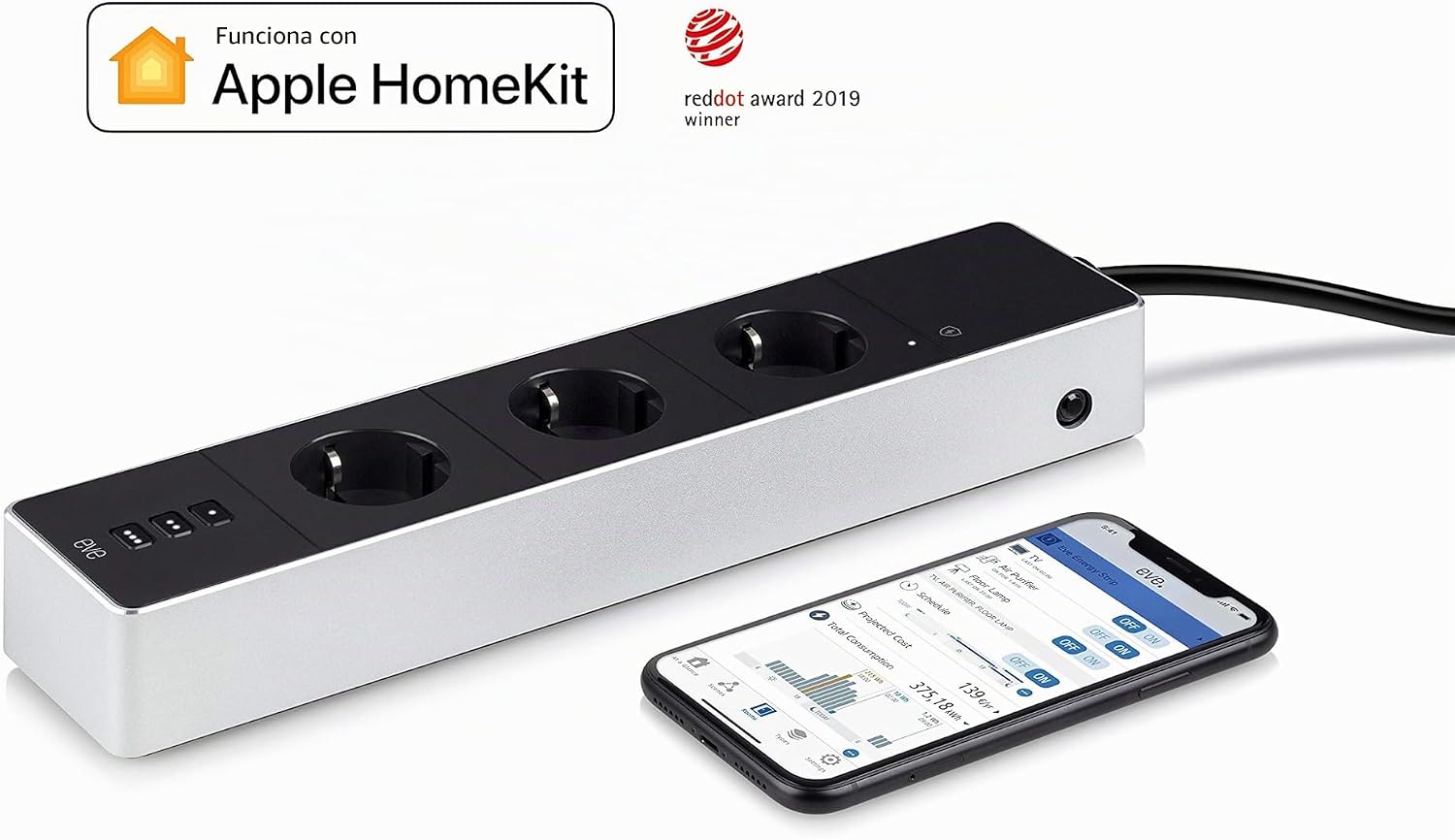
Image: Eve Energy Strip integrated with Apple HomeKit, controlled via the Eve app on an iPhone.

Image: Eve Energy Strip on a wooden floor, highlighting Apple Home and Wi-Fi compatibility.
6. Operating Instructions
The Eve Energy Strip offers multiple ways to control your connected devices:
6.1. Manual Control
Each outlet on the Eve Energy Strip has an integrated power button with an LED indicator. Press the button to manually toggle the power for that specific outlet. The LED will illuminate when the outlet is active.
6.2. App Control
Use the Eve app or Apple Home app on your iPhone or iPad to control the outlets individually. Tap on the respective outlet icon to turn it on or off. The app also allows you to create schedules, scenes, and automations.

Image: Controlling smart devices via the Eve app on a smartphone.
6.3. Voice Control with Siri
With Apple HomeKit integration, you can use Siri to control your outlets. Simply say commands like:
- "Hey Siri, turn on the living room lamp."
- "Hey Siri, turn off the TV."
- "Hey Siri, activate 'Good Morning' scene."

Image: Desk setup showing the Eve Energy Strip and an iPhone with Siri interface.
6.4. Automations and Scenes
Create custom automations and scenes within the Eve app or Apple Home app to synchronize your devices with daily routines. For example, you can set lights to turn on when you arrive home or simulate presence when you are away.

Image: Eve Energy Strip controlling ambient lighting and entertainment in a living room.
7. Energy Monitoring
The Eve Energy Strip provides comprehensive energy consumption data:
- Real-time Monitoring: View the current power consumption of connected devices.
- Historical Data: Access historical data to track energy usage over time (daily, weekly, monthly).
- Cost Projection: Input your electricity tariff in the Eve app to view projected costs based on usage.
- Export Data: Export consumption data for detailed analysis.
This feature helps identify energy-wasting devices and optimize your energy usage to save costs.

Image: Eve Energy Strip on a desk, demonstrating its use for energy monitoring of connected devices.
8. HomeKit Integration
The Eve Energy Strip is designed for seamless integration with Apple HomeKit, offering secure and private smart home control.
- Direct Wi-Fi Connection: No bridge or hub is required, simplifying setup and reducing clutter.
- Advanced Security: HomeKit provides end-to-end encryption and authentication for secure communication.
- Data Privacy: Your data is stored locally on your devices, ensuring privacy.
- Remote Access: Control your Eve Energy Strip from anywhere using an Apple Home Hub (HomePod, Apple TV, or iPad).
9. Maintenance
To ensure optimal performance and longevity of your Eve Energy Strip:
- Cleaning: Disconnect the power strip from the wall outlet before cleaning. Use a soft, dry cloth to wipe the surface. Do not use liquid cleaners or aerosols.
- Inspection: Periodically inspect the power cord and the strip for any signs of damage. If damage is found, discontinue use and contact support.
- Firmware Updates: Regularly check for and install firmware updates via the Eve app to ensure the latest features and security enhancements.
10. Troubleshooting
If you encounter issues with your Eve Energy Strip, try the following:
- No Power: Ensure the power strip is securely plugged into a working wall outlet. Check if the surge protection fuse has tripped (if applicable, reset it).
- Outlet Not Responding: Try pressing the manual power button for the specific outlet. If it still doesn't respond, try restarting the Eve Energy Strip by unplugging it for 10 seconds and plugging it back in.
- App/Siri Control Issues:
- Ensure your iPhone/iPad is connected to the same Wi-Fi network as the Eve Energy Strip.
- Verify your Wi-Fi network meets the requirements for HomeKit devices (Class C IP addresses, Multicast, mDNS, and IGMP Snooping enabled).
- Restart your Wi-Fi router.
- Check if the Eve app or Apple Home app needs an update.
- If using a Home Hub, ensure it is online and functioning correctly.
- Energy Monitoring Inaccurate: Ensure your electricity tariff is correctly entered in the Eve app settings.
If problems persist, consult the Eve support website or contact customer service.
11. Specifications
| Feature | Specification |
|---|---|
| Brand | EVE |
| Model Number | 20EAZ8301 |
| Color | Black |
| Total Outlets | 3 |
| Voltage | 240 Volts |
| Maximum Current | 16 Amperes |
| Special Feature | Energy Consumption Measurement |
| Product Dimensions (L x W) | 28 cm x 7 cm |
| Product Weight | 875 Grams |
| External Material | Aluminum, Plastic |
| Plug Type | Type F: 2 pins (Germany) |
| Recommended Uses | iPad, iPhone, Lamps |
| Box Contents | Eve Energy Strip, Quick Start Guide |
12. Warranty and Support
The Eve Energy Strip comes with a manufacturer's warranty. For specific warranty terms and conditions, please refer to the documentation included with your product or visit the official EVE website.
EU Spare Parts Availability Duration: 7 Years
For technical support, troubleshooting assistance, or to inquire about spare parts, please visit the EVE support portal or contact their customer service department. Always have your product model number (20EAZ8301) and purchase information ready when contacting support.


