1. Introduction
The Lenovo ThinkPad X1 Yoga G2 is a versatile 2-in-1 laptop designed for productivity and flexibility. It features a 14-inch Full HD touchscreen display and can transform into multiple modes, including laptop, tablet, stand, and tent. This manual provides essential information to help you get started and make the most of your device.
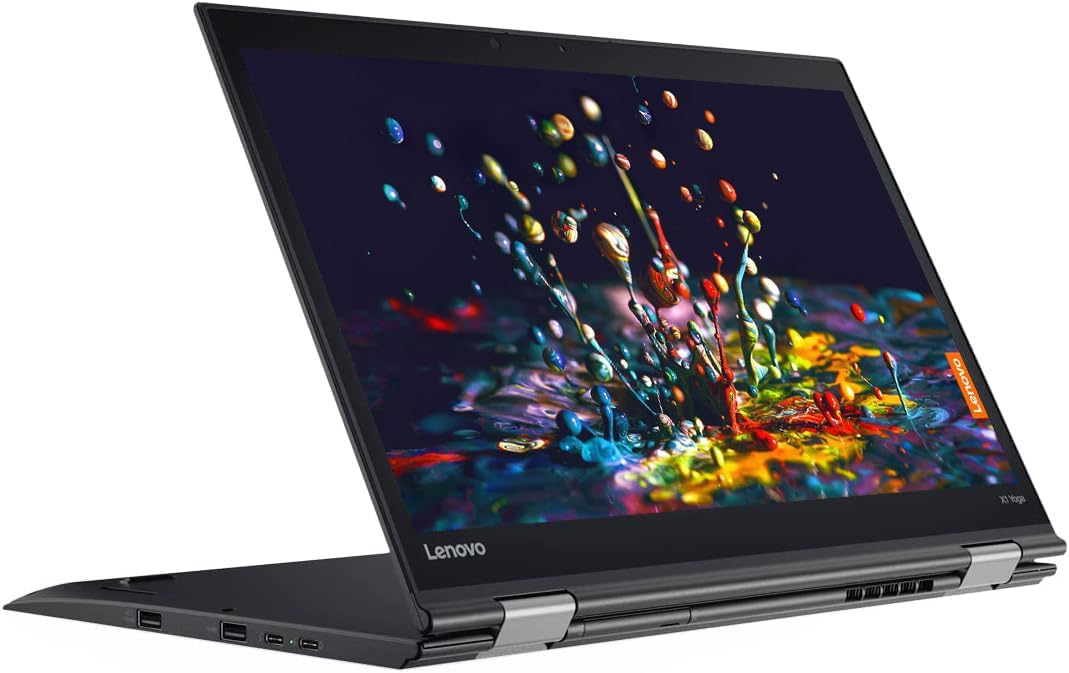
Image: The Lenovo ThinkPad X1 Yoga G2 in its standard laptop configuration.
2. What's in the Box
Upon unboxing your Lenovo ThinkPad X1 Yoga G2, please verify that all the following components are present:
- Lenovo ThinkPad X1 Yoga G2 Laptop
- AC adapter/power supply
- Battery (integrated)
- Documentation (Quick Start Guide, Safety Information)
3. Setup
3.1 Initial Power-On and Charging
- Connect the AC adapter to the power connector on your laptop and then to a power outlet.
- Open the laptop lid. The system may power on automatically, or you may need to press the power button located on the side.
- Follow the on-screen instructions to complete the initial Windows 10 Pro setup, including language, region, network connection, and user account creation.

Image: Left side of the laptop, illustrating port locations for power and peripherals.
3.2 Connecting Peripherals
Your ThinkPad X1 Yoga G2 offers various ports for connecting external devices:
- USB Ports: Connect USB devices such as external drives, mice, or keyboards.
- HDMI Port: Connect an external monitor or projector.
- Audio Jack: Connect headphones or external speakers.

Image: Right side of the laptop, showing additional ports and the integrated stylus slot.
4. Operating Instructions
4.1 Power Management
- Power On: Press the power button.
- Sleep Mode: Close the lid or press the power button briefly.
- Shut Down: Go to Start > Power > Shut down in Windows.
4.2 Using the Keyboard and TrackPoint/Touchpad

Image: Detailed view of the keyboard, TrackPoint, and touchpad for navigation and input.
- The keyboard provides a comfortable typing experience.
- The TrackPoint (red dot in the center of the keyboard) allows for precise cursor control.
- The touchpad below the keyboard supports multi-touch gestures for navigation.
4.3 Convertible Modes
The ThinkPad X1 Yoga G2 can be used in four primary modes:
- Laptop Mode: Standard laptop configuration for typing and traditional use.
- Stand Mode: Fold the keyboard back to use the screen for presentations or media viewing.

Image: The laptop configured in stand mode, ideal for viewing content.
- Tent Mode: Position the laptop like a tent for stable touch interaction or media consumption in confined spaces.

Image: The laptop in tent mode, providing a stable base for touch input.
- Tablet Mode: Fold the screen completely back against the base for a full tablet experience, ideal for touch and stylus input.

Image: The laptop fully converted to tablet mode, demonstrating stylus usage.
4.4 Wireless Connectivity
- Wi-Fi: To connect to a wireless network, click the Wi-Fi icon in the taskbar, select your network, and enter the password if required.
- Bluetooth: Enable Bluetooth in Windows settings to pair with Bluetooth devices like headphones or mice.
5. Maintenance
5.1 Cleaning Your Device
- Screen: Use a soft, lint-free cloth lightly dampened with water or a screen-cleaning solution. Avoid harsh chemicals.
- Keyboard and Chassis: Use a soft, dry cloth. For stubborn dirt, a slightly damp cloth can be used, ensuring no liquid enters openings.
5.2 Battery Care
- To prolong battery life, avoid extreme temperatures.
- Periodically allow the battery to discharge partially before recharging.
5.3 Software Updates
Regularly check for and install Windows updates and Lenovo driver updates to ensure optimal performance and security.
6. Troubleshooting
If you encounter issues with your ThinkPad X1 Yoga G2, try the following basic troubleshooting steps:
- No Power: Ensure the AC adapter is securely connected and the power outlet is functional. Try a different outlet.
- Display Issues: If the screen is blank, try connecting an external monitor to check if the display output is working. Adjust brightness settings.
- Wi-Fi Connectivity: Restart your router and the laptop. Check network settings in Windows.
- Slow Performance: Close unnecessary applications. Check for malware. Ensure sufficient free storage space.
For more complex issues, refer to the Lenovo support website or contact technical support.
7. Specifications
Key technical specifications for the Lenovo ThinkPad X1 Yoga G2:
| Feature | Specification |
|---|---|
| Processor | Intel Core i7-7600U (2.8 GHz) |
| RAM | 8 GB DDR4 |
| Storage | 256 GB SSD |
| Display | 14 inch Full HD (1920 x 1080) Touchscreen LCD |
| Operating System | Windows 10 Pro |
| Graphics | Integrated Intel Graphics |
| Wireless Connectivity | 802.11abg, Bluetooth |
| Average Battery Life | Up to 11 Hours |
| Dimensions (LxWxH) | 13.1 x 9 x 0.7 inches |
| Item Weight | 3.13 pounds |
8. Warranty and Support
This product is offered as an Amazon Renewed item. Amazon Renewed products are professionally inspected and tested to work and look like new. They are eligible for replacement or refund under the Amazon Renewed Guarantee if you are not satisfied with your purchase.
For technical assistance or further support regarding your Lenovo ThinkPad X1 Yoga G2, please visit the official Lenovo support website or contact their customer service.


