
Introduction
This manual provides comprehensive instructions for the Xgody 9-inch GPS Navigation System X4. Please read this manual carefully before using your device to ensure proper operation and to maximize its features. This system is designed to assist with navigation for various vehicle types, including cars, trucks, buses, and bicycles.
Package Contents and Setup
Before you begin, ensure all items are present in the package:
- Xgody 9-inch GPS Navigation Device
- USB Cable
- Suction Cup Mount
- Car Charger (12-36V/2A)
- Instruction Manual
- Protective Case
Mounting the Device: Attach the suction cup mount to a clean, smooth surface on your dashboard or windshield. Ensure the device is securely fastened and does not obstruct your view of the road. Connect the GPS device to the mount.
Charging the Device: Connect the car charger to your vehicle's power outlet and to the GPS device's charging port. The device has a built-in Li-ion rechargeable 2000mAh battery, providing approximately 1 hour of working time. Full charging typically takes 2-3 hours.

Image: Package contents of the Xgody 9-inch GPS Navigation System X4, including the device, USB cable, suction cup, car charger, manual, and protective case.

Image: The Xgody 9-inch GPS Navigation System X4 mounted on a dashboard inside a truck, displaying a navigation route.
Initial Power On and Configuration
Press and hold the power button to turn on the device. Follow the on-screen prompts to select your language, time zone, and initial map settings. Ensure the device has a clear view of the sky for optimal GPS signal acquisition.
Video: An official product video demonstrating the Xgody 9-inch GPS navigation system, highlighting its features, voice broadcast, and user interface for various vehicle types.
Operating Instructions
The Xgody X4 features a 9-inch capacitive touchscreen for intuitive control. The main menu provides access to various functions including Navigation, System Info, RMVB Player, Video, FM, Settings, Music, Games, Photo, and Tools.
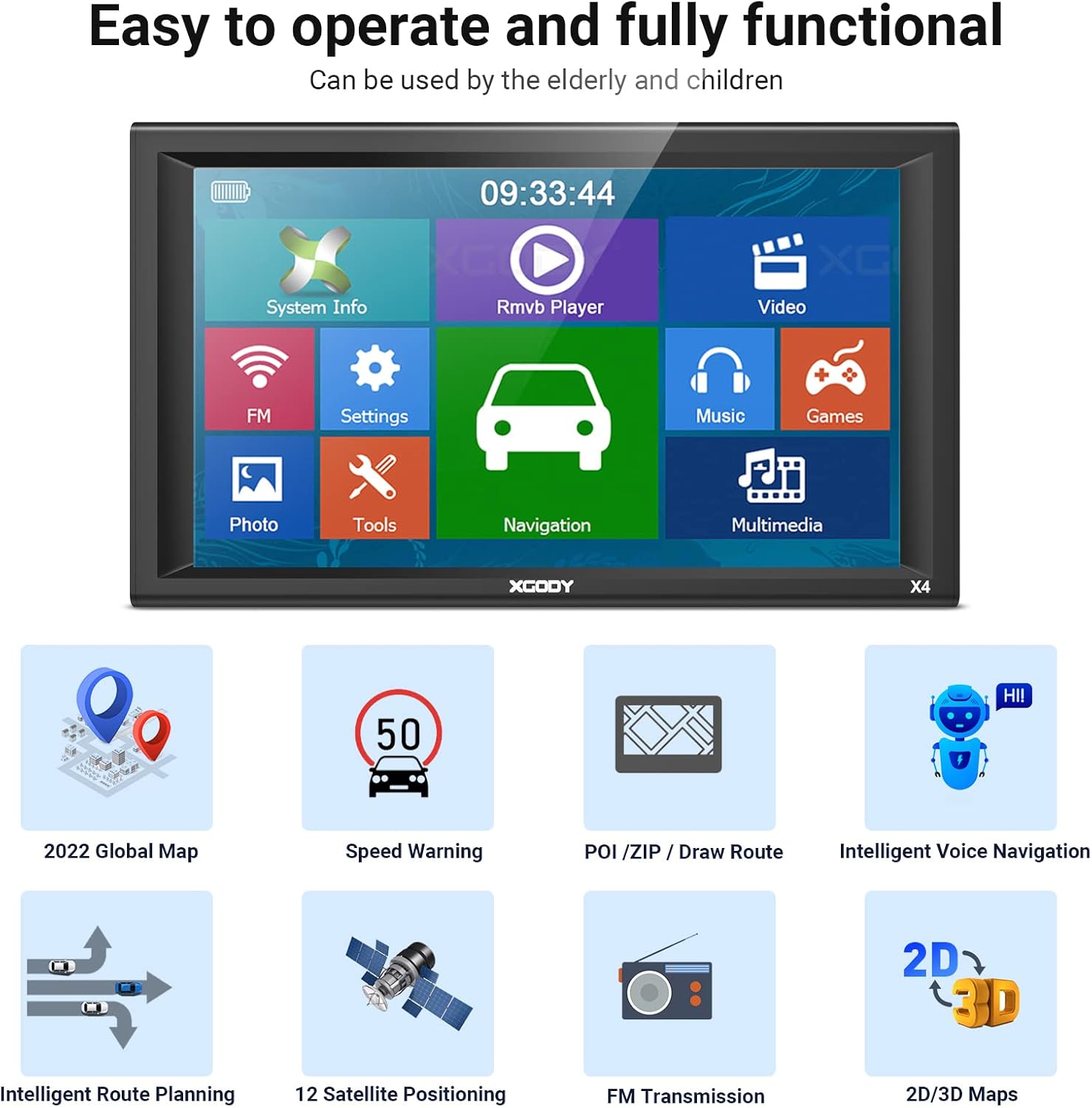
Image: The main menu screen of the Xgody 9-inch GPS, showing icons for System Info, RMVB Player, Video, FM, Settings, Music, Games, Photo, Tools, and Navigation.
Navigation Features
- Route Planning: Enter your destination, and the system will calculate the optimal route.
- Voice Guidance: Receive clear, spoken turn-by-turn directions.
- Speed Warning: Alerts you when exceeding speed limits.
- POI (Points of Interest): Find nearby gas stations, restaurants, and other important locations.
- 2D/3D Maps: Switch between two-dimensional and three-dimensional map views for better spatial understanding.
- Truck Customization: Input your truck's dimensions (length, width, height, axles, weight) to receive routes that avoid low bridges, weight restrictions, and other truck-specific hazards.

Image: A detailed navigation screen on the Xgody GPS, showing a turn instruction, distance to next turn, estimated arrival time, and nearby gas stations.

Image: A screen demonstrating the truck customization feature, allowing users to input vehicle dimensions and weight to optimize routes for trucks, buses, and other large vehicles.
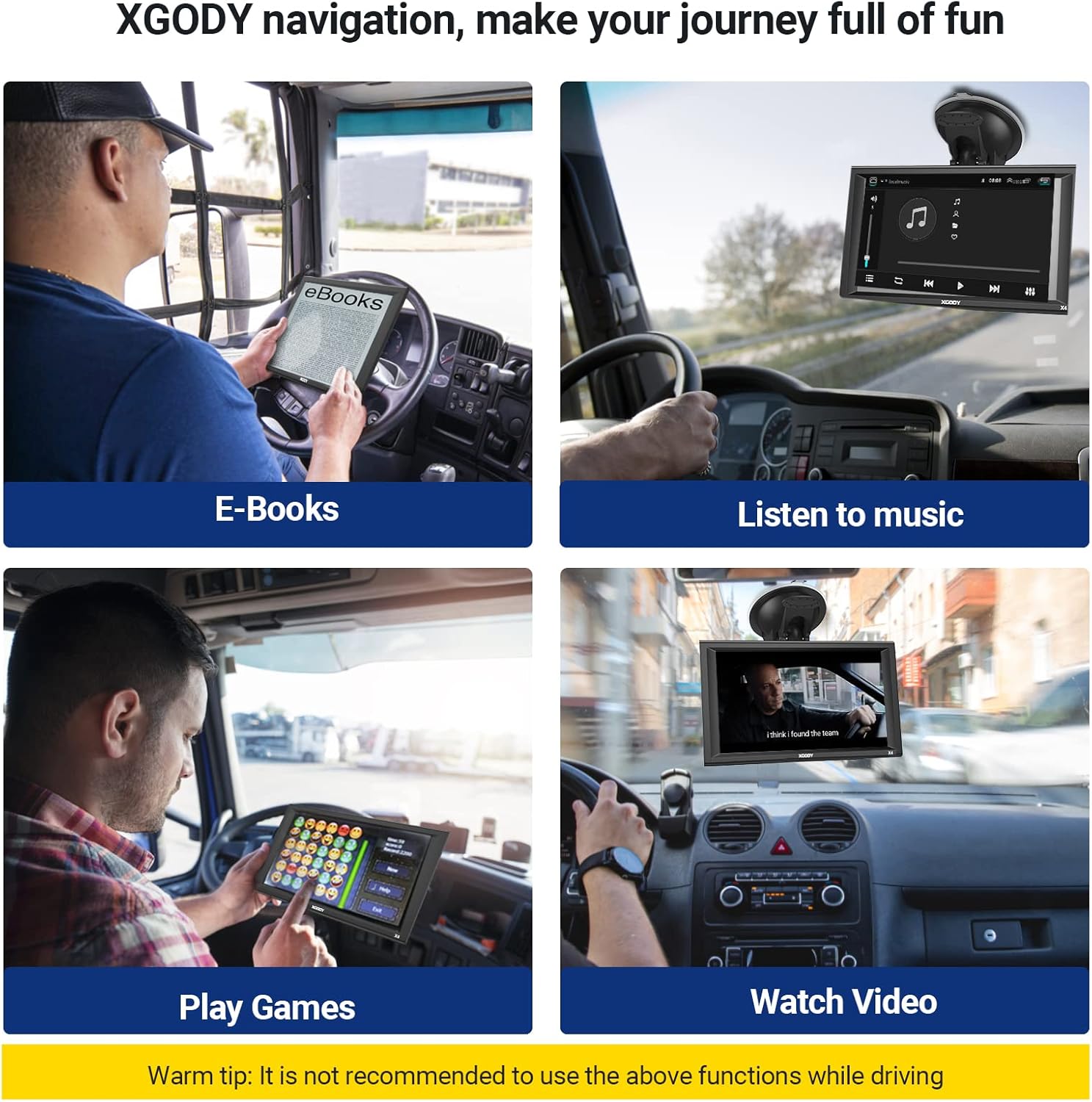
Image: Four panels illustrating entertainment features of the Xgody GPS: E-books, Music, Games, and Video playback. A warning advises against using these functions while driving.
Maintenance
To ensure the longevity and optimal performance of your Xgody GPS, follow these maintenance guidelines:
- Map Updates: The device supports lifetime map updates. Regularly check for and install the latest map data to ensure accurate navigation. Instructions for updating maps are typically found in the device's settings or on the manufacturer's website.
- Screen Care: The 9-inch capacitive touchscreen should be cleaned with a soft, lint-free cloth. Avoid using harsh chemicals or abrasive materials that could damage the screen.
- Battery Care: To prolong battery life, avoid exposing the device to extreme temperatures. Charge the device fully before long trips and avoid completely draining the battery frequently.
- Storage: When not in use for extended periods, store the device in a cool, dry place, preferably in its protective case.

Image: A screen showing the map downloading process for the Xgody GPS, indicating that the device offers free lifetime map updates.
Troubleshooting
If you encounter issues with your Xgody GPS, refer to the following common problems and solutions:
- Device Not Powering On:
- Ensure the device is fully charged or connected to the car charger.
- Check the car charger connection and the vehicle's power outlet.
- Try a soft reset by pressing and holding the power button for 10-15 seconds.
- No GPS Signal:
- Ensure the device has a clear view of the sky, away from tall buildings or dense foliage.
- Move the vehicle to an open area.
- Allow several minutes for the device to acquire a signal after power-on.
- Inaccurate Routing or Map Errors:
- Verify that the map data is up-to-date. Perform a map update if available.
- Check your vehicle type settings (car, truck, bus) to ensure routes are calculated correctly for your specific vehicle.
- Ensure all truck-specific parameters (height, weight, etc.) are accurately entered.
- Low Volume:
- Adjust the volume settings within the device's menu.
- Ensure the FM transmitter function (if enabled) is correctly configured with your vehicle's radio.
- Mount Not Sticking:
- Clean the mounting surface and the suction cup thoroughly.
- Ensure the surface is smooth and non-porous.
- Apply slight moisture to the suction cup before attaching.
- Screen Unresponsive or Flickering:
- Restart the device.
- Ensure the screen is clean and free of debris.
- If the screen is physically damaged, contact customer support.
Specifications
| Feature | Detail |
|---|---|
| Brand | Xgody |
| Model | X4 |
| Screen Size | 9 Inches |
| Display Type | LCD |
| Resolution | 800 x 480 |
| Touch Screen Type | Capacitive |
| GPS Module | High Sensitive GPS Receiver |
| Memory (RAM) | 256MB |
| Internal Memory (ROM) | 8GB |
| SD Slot | Micro SD socket, MAX 32GB |
| Connectivity | USB (2.0 USB slot) |
| Bluetooth & AV-IN | No |
| Battery | Built-in Li-ion Rechargeable 2000mAh |
| Working Time | Approximately 1 hour |
| Charging Time | 2-3 hours |
| Car Charger Input | 12-36V/2A |
| Supported Navigation System | GPS |
| Vehicle Service Type | Bicycle, Bus, Car, Truck |
| Supported Video Formats | ASF, AVI, WMV, 3GP, MP4, RMVB |
| Item Dimensions (L x W x H) | 9.07"L x 5.51"W x 0.58"H |
Warranty Information
For detailed warranty information regarding your Xgody 9-inch GPS Navigation System X4, please refer to the documentation included in your product packaging or visit the official Xgody website. Warranty terms and conditions may vary by region and purchase date.
Customer Support
If you require further assistance, technical support, or have questions not covered in this manual, please contact Xgody customer service. Contact details can typically be found on the manufacturer's official website or on the product packaging.
For online resources, you may visit the Xgody brand store on Amazon or the official Xgody website.

