
1. Setup
1.1 Unboxing and Initial Placement
Carefully remove the television from its packaging. It is recommended that two or more people handle the television due to its size and weight. Ensure the television is placed on a stable, flat surface or securely mounted to a wall.
Video: LG TV Unboxing. This video demonstrates the process of safely unboxing the LG TV and preparing it for setup.
1.2 Stand Assembly (if applicable)
If using the included stand, attach it to the television following the instructions provided in the separate quick setup guide. Ensure all screws are tightened securely to prevent instability.

Image: Angled view of the LG 65SM9000PUA TV with its crescent-shaped stand attached. This image illustrates the television's appearance when placed on a surface using the provided stand.
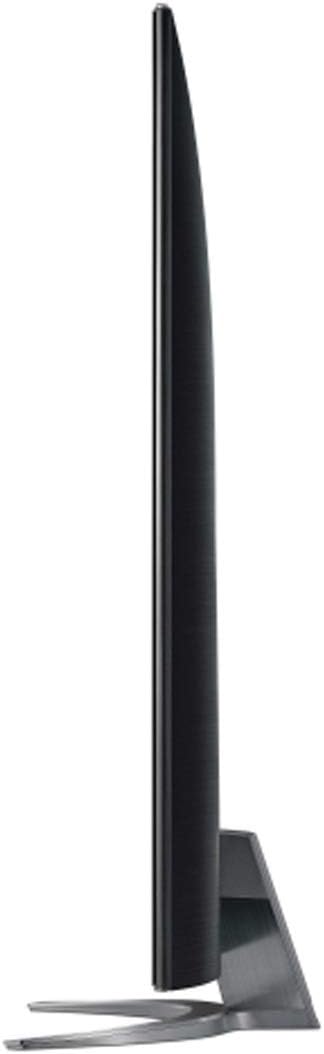
Image: Top-down view of the LG 65SM9000PUA TV's crescent-shaped stand. This image highlights the design of the stand base.
1.3 Connecting Peripherals
Connect your external devices such as cable boxes, Blu-ray players, gaming consoles, and sound systems to the television's input ports. The LG 65SM9000PUA features 4 HDMI ports, 1 Ethernet port, 3 USB 2.0 ports, 1 Digital Audio Output (Optical), 1 Composite Input (AV), and 1 RS-232C Input (Mini Jack).

Image: Rear view of the LG 65SM9000PUA TV, showing various input and output ports. This image helps users identify where to connect their devices.
1.4 Power On and Initial Setup
Plug the power cable into the television and a wall outlet. Press the power button on the remote control or the television itself. Follow the on-screen instructions to complete the initial setup, including language selection, network connection, and channel scanning.
2. Operating the TV
2.1 Basic Functions
Use the remote control to navigate the TV's interface. The power button turns the TV on/off, volume buttons adjust sound, and input buttons switch between connected devices.
2.2 Picture Settings
Optimize your viewing experience by adjusting picture settings. Access the Picture Mode settings to select options like 'Technicolor Expert' for accurate colors. Adjust backlight, contrast, brightness, and sharpness as desired. The TV features Nano Color technology for vibrant images and an α7 Gen 2 Intelligent Processor for enhanced picture quality.
Video: LG TV Picture Setting. This video guides users through adjusting various picture settings on their LG TV for optimal viewing.
2.3 Sound Settings
The TV supports Dolby Atmos for immersive audio. For enhanced wireless audio, the TV is WiSA Speaker Compatible (transmitter dongle sold separately, supports 5.1 and 2.0 Channel). Adjust sound modes and equalizer settings in the audio menu.
Video: LG TV Sound Bar. This video provides information on connecting and optimizing sound with an LG TV and sound bar.
2.4 Smart Features (webOS & AI ThinQ)
The LG 65SM9000PUA runs on webOS and integrates LG ThinQ AI. It has built-in Google Assistant and Alexa for voice control. Use the Magic Remote to navigate smart features and access streaming apps.
Video: LG AI TV Alexa Education. This video explains how to use Alexa voice commands with your LG AI TV.
2.5 Connectivity Features
The TV supports Wi-Fi and Bluetooth for wireless connections. AirPlay 2 is built-in, allowing you to effortlessly cast content from Apple devices to your LG AI TV.
Video: LG TV AirPlay. This video demonstrates the AirPlay 2 functionality on LG TVs, allowing seamless content casting from Apple devices.
3. Maintenance
3.1 Cleaning the TV
To clean the screen, gently wipe it with a soft, dry microfiber cloth. For stubborn marks, slightly dampen the cloth with water. Avoid using harsh chemicals, abrasive cleaners, or alcohol-based solutions. Clean the exterior of the TV with a soft, dry cloth.
3.2 Software Updates
Periodically check for software updates to ensure your TV has the latest features and performance improvements. Navigate to the TV's settings menu, then to 'General' and 'About This TV' to find the software update option. Follow the on-screen prompts to download and install any available updates. Ensure the TV remains connected to the internet and power during the update process.
4. Troubleshooting
4.1 Common Issues
- No Power: Check if the power cable is securely connected to both the TV and the wall outlet. Ensure the outlet is functional.
- No Picture/Sound: Verify that the correct input source is selected. Check all cable connections between the TV and external devices.
- Network Connection Issues: Ensure your Wi-Fi router is on and functioning. Reconnect to the Wi-Fi network or try a wired Ethernet connection.
- Remote Control Not Working: Replace the batteries in the remote control (requires 2 AAA batteries). Ensure there are no obstructions between the remote and the TV.
4.2 Factory Reset
If you encounter persistent issues, performing a factory reset may resolve them. This will erase all personalized settings and return the TV to its original factory state. To perform a factory reset, navigate to the TV's settings menu, then to 'General' and 'Reset to Initial Settings'. Confirm your selection when prompted.
5. Specifications
| Feature | Detail |
|---|---|
| Screen Size | 65 inches |
| Display Technology | LED NanoCell |
| Resolution | 4K Ultra HD (3840 x 2160) |
| Refresh Rate | 120 Hz |
| Processor | α7 Gen 2 Intelligent Processor |
| HDR Format Supported | Dolby Vision, HDR10, HLG |
| Operating System | webOS |
| AI Features | LG ThinQ AI, Google Assistant, Alexa Built-in |
| Connectivity | Wi-Fi, Bluetooth, Ethernet, HDMI (4 ports), USB (3 ports) |
| Audio Output Mode | Stereo, 2.2 Channel Speaker System, Dolby Atmos (Possibly) |
| Screen Mirroring | AirPlay 2 |
| Dimensions with Stand (WxHxD) | 57.3" x 35.7" x 12.8" |
| Weight with Stand | 61.9 lbs |
| VESA Mount Standard | 300 x 300 mm |
| Included Components | Power Cable, Remote Control, Remote Control Batteries, User Manual |
6. Warranty & Support
6.1 Product Warranty
This LG television comes with a 1 Year Parts & Labor limited warranty. Please refer to the warranty card included in your product packaging for full terms and conditions.
6.2 Customer Support
For technical assistance, troubleshooting, or warranty claims, please contact LG Customer Support. You can find contact information on the official LG website or through the 'Customer Support' option in your TV's menu.


