
Poly 7200-85830-001
Poly Studio 4K USB Video Conference System User Manual
Model: 7200-85830-001
Brand: Poly
Introduction
The Poly Studio is a state-of-the-art 4K USB video bar designed to deliver best-in-class audio and video experiences for small and medium conference rooms. It integrates camera, microphone, and speaker functionalities into a single, easy-to-use device, making virtual meetings feel more in-person. With advanced AI features like automatic camera tracking, NoiseBlockAI, and Acoustic Fence technologies, the Poly Studio ensures clear communication and a professional meeting environment.
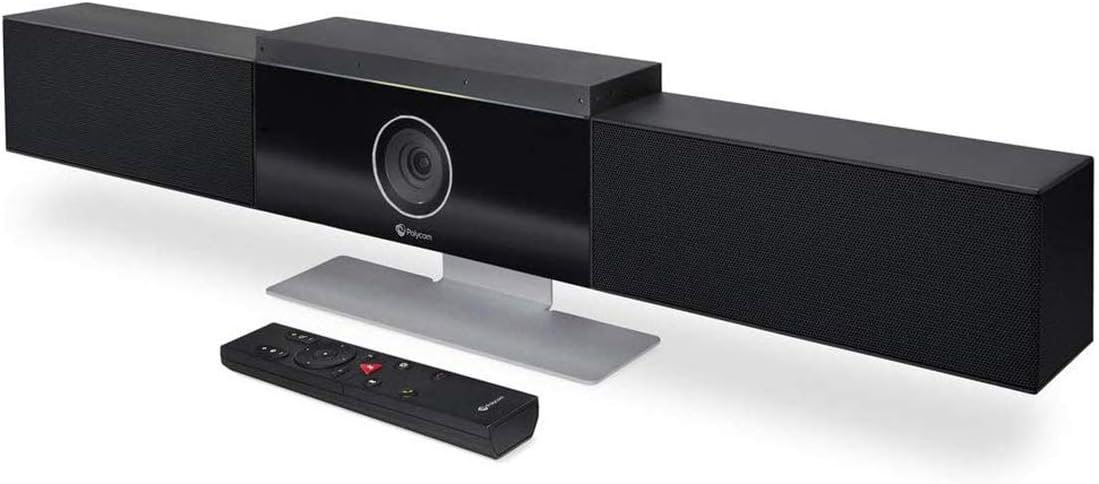
Image: Poly Studio 4K USB Video Conference System with included remote control.
Key Features
- AI-Powered Meetings: Features Poly DirectorAI auto-framing and tracking technology for dynamic meeting experiences. NoiseBlockAI and Acoustic Fence technologies suppress distracting background noise.
- Rich, Clear Audio: Equipped with an advanced 6-microphone array for superior voice clarity and built-in stereo speakers to ensure every word is heard.
- Ultra HD 4K Video: Offers 4K resolution, a 120-degree field of view, and 5x digital zoom for a professional video experience.
- Plug and Play Simplicity: Quick setup by connecting power and USB to your PC or Mac, ready for use with popular conferencing platforms without additional software installation.
- Broad Compatibility: Certified for Zoom and Microsoft Teams, and compatible with most PC or Mac video applications.

Image: Overview of Poly Studio's premium features for mid-sized meeting rooms.
Setup Guide
- Unpack the Device: Carefully remove the Poly Studio video bar and all accessories from the packaging.
- Choose Mounting Option:
- Table Stand: Attach the included table stand to the bottom of the Poly Studio. Place the device on a stable surface in your meeting room.
- Wall Mount: Use the provided wall mount bracket to securely attach the Poly Studio to a wall, typically above or below a display. Ensure the mounting surface can support the device's weight.
- Tripod Mount: The Poly Studio can also be mounted on a standard tripod using the integrated tripod thread.

Image: Poly Studio mounting accessories, including a table stand and wall mount bracket.
- Connect Power: Plug the power adapter into the Poly Studio and then into a power outlet.
- Connect to PC/Mac: Connect the Poly Studio to your computer (PC or Mac) using the provided USB cable. The device is plug-and-play, requiring no special driver installation.
- Positioning: Ensure the Poly Studio has a clear line of sight to all participants in the meeting room for optimal camera tracking and microphone pickup.
Operating Instructions
The Poly Studio is designed for intuitive operation with minimal user intervention. Once connected, it functions as a high-quality USB camera, microphone, and speaker for your conferencing software.
Starting a Meeting
- Launch your preferred video conferencing application (e.g., Zoom, Microsoft Teams, Cisco Webex).
- In the application's audio/video settings, select "Polycom Studio Video" for the camera and "Echo Cancelling Speakerphone (Polycom Studio Audio)" for both the microphone and speakers.
- Start or join your meeting. The Poly Studio will automatically activate.
AI-Powered Features (Poly DirectorAI)
The Poly Studio leverages AI to enhance your meeting experience:
- Automatic Camera Tracking (Speaker Tracking): The camera intelligently tracks the active speaker, zooming in to provide a clear view of who is talking. This feature ensures participants on the far end can easily follow the conversation.
- Auto-Framing (Group Framing): The camera automatically frames all participants in the room, adjusting the view as people enter or leave the meeting space. This provides a comprehensive view of the room.
- NoiseBlockAI: This technology actively blocks distracting background noises, such as keyboard typing, paper shuffling, or external conversations, ensuring only voices are transmitted.
- Acoustic Fence: Creates a virtual "audio fence" around your meeting space, capturing only the voices within a defined area and eliminating sounds from outside that boundary.

Image: Poly Studio's NoiseBlockAI and Acoustic Fence technologies in action, minimizing distractions.

Image: Poly Studio's advanced microphone array and hi-fidelity speakers for clear audio.
Using the Remote Control
The included remote control provides convenient access to key functions:
- Mute/Unmute: Quickly mute or unmute the microphone.
- Volume Control: Adjust the speaker volume up or down.
- Camera Control: Manually pan, tilt, and zoom the camera if automatic tracking is disabled or for specific framing needs.
- Preset Buttons: Save and recall specific camera positions for quick transitions between different views.
Video: A user demonstrates the Poly Studio USB video bar, highlighting its features and ease of use, including the remote control functionality.
Maintenance
To ensure optimal performance and longevity of your Poly Studio, follow these general maintenance guidelines:
- Cleaning: Gently wipe the device with a soft, dry, lint-free cloth. Do not use liquid cleaners or aerosol sprays directly on the device.
- Firmware Updates: Periodically check the Poly support website for firmware updates. Keeping the firmware up-to-date ensures you have the latest features, performance improvements, and bug fixes.
- Environmental Conditions: Operate the device within recommended temperature and humidity ranges. Avoid exposing it to extreme temperatures, direct sunlight, or excessive moisture.
Troubleshooting
If you encounter issues with your Poly Studio, try the following steps:
- No Video/Audio:
- Verify all cables (power, USB) are securely connected.
- Ensure the Poly Studio is selected as the active camera, microphone, and speaker in your conferencing application's settings.
- Restart your computer and the Poly Studio device.
- Poor Audio Quality (Echo/Noise):
- Confirm NoiseBlockAI and Acoustic Fence features are enabled in your Poly Studio settings (if accessible via Poly Lens app or similar utility).
- Reduce background noise in the meeting room.
- Ensure no other microphones or speakers are active in the room that could cause interference.
- Camera Tracking Issues:
- Ensure the device has a clear, unobstructed view of the meeting participants.
- Check for adequate lighting in the room.
- If issues persist, try disabling and re-enabling the auto-tracking feature via the remote or Poly Lens app.
- Remote Control Not Responding:
- Replace the batteries in the remote control.
- Ensure there are no obstructions between the remote and the Poly Studio.
Specifications
| Attribute | Value |
|---|---|
| Product Dimensions | 4 x 30 x 6 inches |
| Item Weight | 8.5 pounds |
| Manufacturer | Poly |
| ASIN | B07PNWM4MN |
| Item Model Number | 7200-85830-001 |
| Date First Available | March 16, 2019 |
| Brand | Poly |
| Photo Sensor Technology | CCD |
| Video Capture Resolution | 4K |
| Maximum Focal Length | 0.01 Millimeters |
| Maximum Aperture | 4 f |
| Flash Memory Type | Micro SD |
| Video Capture Format | AVI |
| Supported Audio Format | [ANY] AAC, MP3, PCM, FLAC, or Dolby Digital/AC-3 |
| Connectivity Technology | Wi-Fi, USB |
| Color | Black |
Warranty and Support
For detailed warranty information and technical support, please refer to the official Poly website or contact their customer service. Keep your purchase receipt for warranty claims.
Visit the Poly Store on Amazon for more products and information.
Related documents7200-85830-001


Ask a question about this manual
Ask about setup, troubleshooting, compatibility, parts, safety, or missing instructions. Manuals+ will review the question and use this page’s manual context to help answer it.