
eLinkSmart eLinkSmart WiFi Camera
eLinkSmart WiFi Camera User Manual
Model: eLinkSmart WiFi Camera
1. Introduction
The eLinkSmart WiFi Camera is a versatile home security and baby monitoring device designed to provide real-time surveillance and communication. Featuring 1280x720 HD display, pan/tilt functionality, two-way audio, motion detection, and night vision, it offers comprehensive monitoring capabilities for your home or office. This manual provides detailed instructions for setting up, operating, and maintaining your camera.

Figure 1.1: eLinkSmart WiFi Camera with live view on a smartphone. This image illustrates the camera's design and its primary function of remote monitoring.
2. Setup Guide
2.1. Package Contents
Before you begin, please ensure all items are present in the package:
- 1 x eLinkSmart Wifi Camera
- 1 x Power Charger (5V, 1.5A) with Cable
- 1 x Wall Mount
- 1 x User Manual
2.2. Powering On
- Connect the power cable to the USB power interface on the back of the camera.
- Plug the power adapter into a standard electrical outlet.
- The camera will power on and initiate its startup sequence.
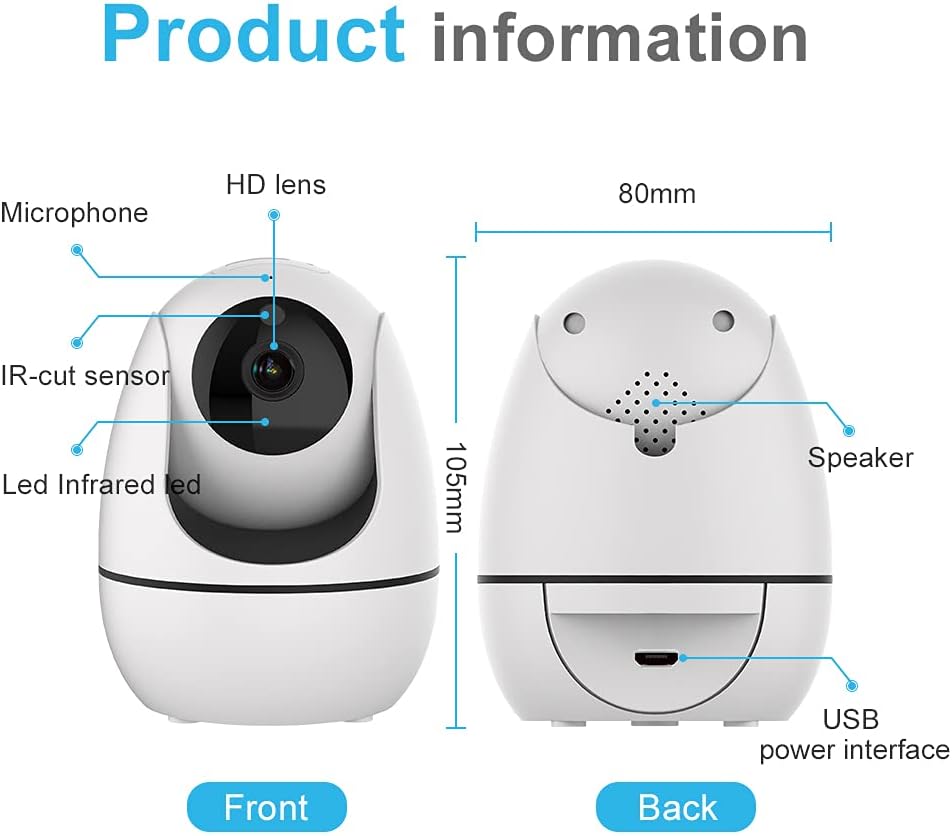
Figure 2.1: Product information showing the front and back of the camera, highlighting the HD lens, microphone, IR-cut sensor, LED infrared, speaker, and USB power interface.
2.3. App Download and Account Creation
Download the official eLinkSmart app from your mobile device's app store (iOS App Store or Google Play Store). Follow the on-screen instructions to create a new account or log in if you already have one.
2.4. Connecting to Wi-Fi
The eLinkSmart WiFi Camera supports 2.4G WiFi networks only. Ensure your mobile device is connected to a 2.4G WiFi network during the setup process.
- Open the eLinkSmart app and tap 'Add Device'.
- Select your camera model from the list.
- Follow the in-app instructions to connect the camera to your Wi-Fi network. This typically involves scanning a QR code generated by the app with the camera's lens.
2.5. Mounting Options
The camera can be placed on a desktop, mounted on a wall, or installed on the ceiling using the provided wall mount. The bracket interface on the bottom of the camera allows for flexible positioning.

Figure 2.2: Mounting options for the camera, including shelf, wall, and ceiling installations, demonstrating the versatility of placement.
3. Operating Instructions
3.1. Live View
Once connected, open the app to access the live video feed from your camera. You can view multiple camera feeds simultaneously if you have more than one device.

Figure 3.1: Multi-picture display on the app, allowing users to monitor different areas simultaneously.
3.2. Pan/Tilt Control
The camera features 355° horizontal pan and 90° vertical tilt functionality. Use the controls within the app to remotely adjust the camera's viewing angle.

Figure 3.2: In-app controls for pan and tilt, enabling remote adjustment of the camera's viewing angle.
3.3. Two-Way Audio
Engage in real-time two-way communication through the camera. Tap the microphone icon in the app to speak, and the camera's built-in speaker will transmit your voice. Listen through the app to hear audio from the camera's environment.

Figure 3.3: Advanced 2-way audio feature, allowing for clear communication through the camera.

Figure 3.4: The two-way audio function allows for direct communication, useful for checking in on family or pets.
3.4. Motion Detection & Alarm Push
The camera is equipped with motion detection capabilities. When motion is detected, the camera will send a 720-pixel alarm snapshot to your mobile device via the app. Ensure app notifications are enabled on your phone.

Figure 3.5: HD screenshot push to your phone for motion detection, providing immediate alerts upon activity.
3.5. Night Vision
The camera automatically switches to night vision mode in low-light conditions, providing clear visibility up to 24 feet. This ensures continuous monitoring even in complete darkness.

Figure 3.6: Daytime and Nighttime display comparison, showcasing the camera's effective night vision capabilities.
3.6. Video Recording and Playback
The camera supports video recording to a TF (Micro SD) card (up to 64GB, SD format 24 days) or cloud storage (subscription may be required). Recorded videos can be played back directly from the app.

Figure 3.7: Video Playback interface, allowing users to review recorded footage from their SD card or cloud storage.

Figure 3.8: Product information showing the top and bottom of the camera, indicating the reset button and TF card slot location.
4. Maintenance
4.1. Cleaning
To maintain optimal performance, regularly clean the camera's lens and exterior with a soft, dry cloth. Avoid using liquid cleaners or abrasive materials.
4.2. Firmware Updates
The camera supports firmware auto-detection and upgrades. Ensure your camera is connected to the internet to receive the latest updates, which can improve performance and add new features.
5. Troubleshooting
| Problem | Possible Cause | Solution |
|---|---|---|
| Camera not connecting to Wi-Fi | Incorrect Wi-Fi password; Camera too far from router; Only 5G WiFi available. | Verify password; Move camera closer to router; Ensure you are connecting to a 2.4G WiFi network. |
| SD card not recognized | SD card not formatted correctly; Incompatible SD card; Faulty SD card. | Format the SD card to FAT32; Use a compatible SD card (up to 64GB); Try a different SD card. |
| No alarm push notifications | App notifications disabled; Motion detection sensitivity too low; Phone not allowed to receive notifications. | Enable notifications for the eLinkSmart app in your phone settings; Adjust motion detection sensitivity in app; Check phone's app permissions. |
| Poor video quality | Weak Wi-Fi signal; Obstruction in front of lens. | Improve Wi-Fi signal strength; Clean the camera lens; Ensure no obstructions. |
| Camera unresponsive | Power issue; Software glitch. | Unplug and re-plug the power cable; Press the reset button for 5 seconds to restore factory defaults (note: this will erase settings). |
6. Specifications
- Display Resolution: 1280x720
- Pan/Tilt Range: 355° Pan, 90° Tilt
- Field of View: 95°
- Audio: High quality two-way talk
- Motion Detection: Supports 720-pixel alarm snapshot push
- Storage: Supports up to 64G TF card (SD format 24 days), Cloud Storage
- Night Vision: Visible distance up to 24 feet
- Connectivity: 2.4G WiFi
- Compatible Devices: Smartphone
- Power: 5V, 1.5A
7. Warranty and Support
For warranty information and technical support, please refer to the contact details provided on the eLinkSmart official website or the product packaging. Keep your purchase receipt for warranty claims.
eLinkSmart is committed to providing reliable products and customer service. If you encounter any issues not covered in this manual, please contact our support team for assistance.
Ask a question about this manual
Ask about setup, troubleshooting, compatibility, parts, safety, or missing instructions. Manuals+ will review the question and use this page’s manual context to help answer it.