
Introduction
This manual provides comprehensive instructions for setting up, operating, maintaining, and troubleshooting your CyberpowerPC Gamer Xtreme VR Gaming PC, model GXiVR8060A7. Designed for high-performance gaming and multimedia, this system features an Intel Core i5-9400F processor and NVIDIA GeForce GTX 1660 graphics. Please read this manual thoroughly to ensure optimal performance and longevity of your system.
What's in the Box
Upon unboxing your CyberpowerPC Gamer Xtreme VR Gaming PC, verify that all the following components are included:
- CyberpowerPC Gamer Xtreme VR Gaming PC Tower
- Gaming Keyboard
- Gaming Mouse
- Power Cable
- Documentation (this manual, warranty information)
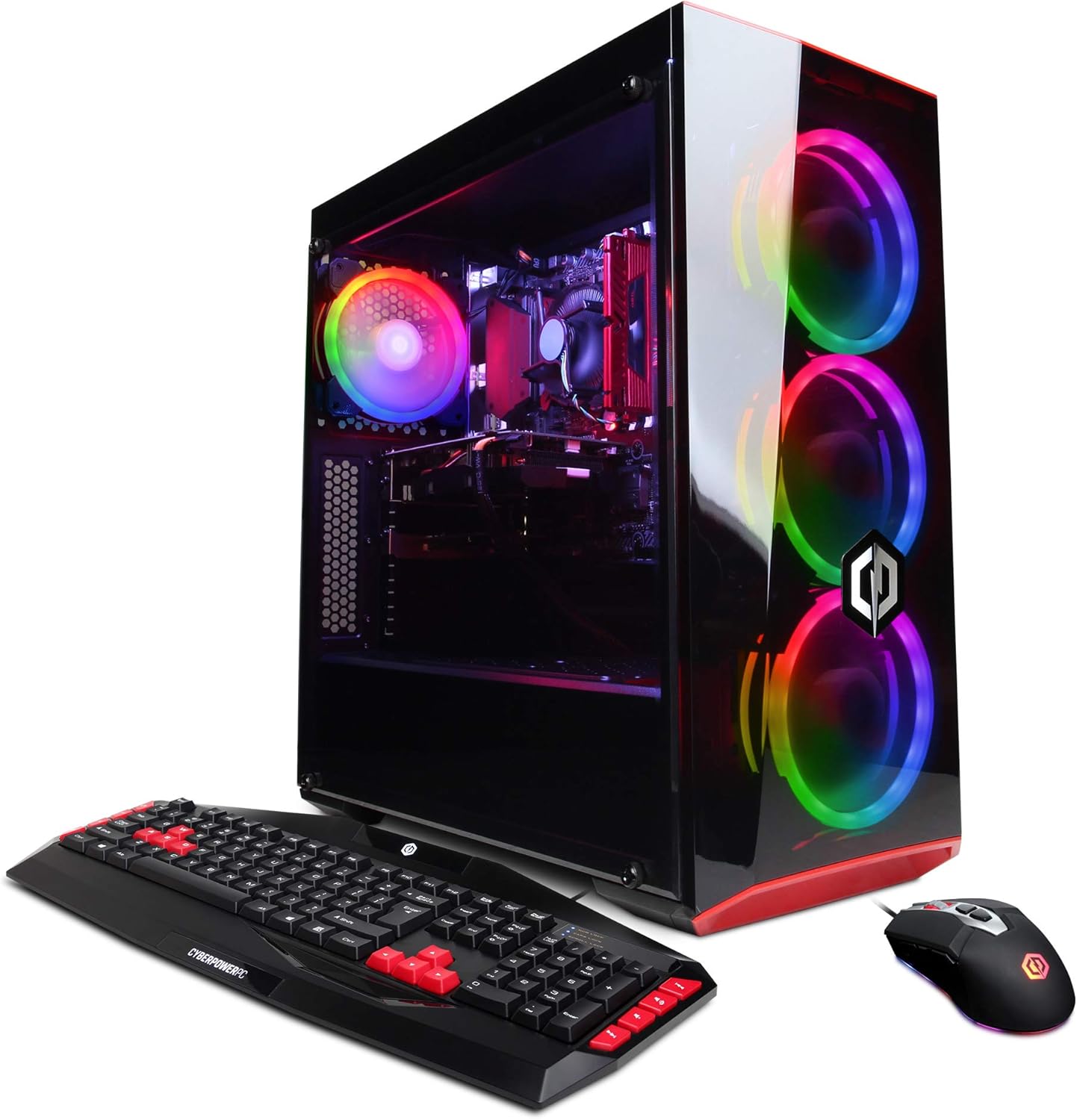
Figure 1: CyberpowerPC Gamer Xtreme VR Gaming PC with its accompanying keyboard and mouse.
Setup Guide
Follow these steps to set up your new gaming PC:
- Unpack the PC: Carefully remove the PC tower and all accessories from their packaging. Retain all packaging materials for future transport or service.
- Connect Peripherals:
- Connect the gaming keyboard and mouse to available USB ports on the rear or front of the PC.
- Connect your monitor(s) to the graphics card ports (HDMI or DisplayPort) located on the rear of the PC. Ensure you connect to the dedicated graphics card, not the motherboard's integrated graphics ports.
- Connect to Network:
- For a wired connection, connect an Ethernet cable from your router/modem to the RJ-45 network port on the rear of the PC.
- For a wireless connection, ensure the Wi-Fi antenna (if included and external) is properly attached. The system supports 802.11ac Wi-Fi.
- Connect Power: Plug the power cable into the power supply unit (PSU) on the rear of the PC, then plug the other end into a grounded electrical outlet.
- Initial Boot: Press the power button on the front of the PC. The system comes with Windows 10 Home 64-bit pre-installed. Follow the on-screen prompts to complete the initial Windows setup.

Figure 2: Front panel connectivity options including USB 3.0 ports, audio jacks, and power button.
Operating Instructions
Power On/Off
- To Power On: Press the power button located on the top-front panel of the PC.
- To Shut Down: Click the Start button in Windows, then select Power > Shut down. Avoid directly unplugging the PC or holding the power button for extended periods unless absolutely necessary, as this can lead to data loss or system corruption.
- To Restart: Click the Start button in Windows, then select Power > Restart.
Connecting Displays
Your PC is equipped with an NVIDIA GeForce GTX 1660 6GB video card, offering multiple display outputs. Connect your monitor(s) using either the HDMI or DisplayPort connections available on the graphics card at the rear of the PC.
RGB Case Lighting
The PC features custom RGB case lighting. Depending on your specific model configuration, lighting effects can typically be controlled via a dedicated button on the case, a remote control, or software installed on the system. Refer to the specific lighting controller's instructions for detailed customization options.

Figure 3: Front view of the PC tower highlighting the illuminated RGB fans.

Figure 4: Internal view of the PC, showcasing the main components and internal RGB lighting.
Maintenance
Regular maintenance helps ensure the longevity and optimal performance of your PC:
- Keep it Clean: Regularly dust the exterior of the PC and ensure vents are clear of obstructions. Use compressed air to gently clean dust from internal components, especially fans and heatsinks, at least every 3-6 months. Always power off and unplug the PC before cleaning.
- Software Updates: Keep your operating system (Windows 10 Home), graphics drivers (NVIDIA), and other software up to date. This ensures security, stability, and performance improvements.
- Ventilation: Ensure the PC is placed in a well-ventilated area, away from walls or other objects that might block airflow. Do not place the PC on carpet or in enclosed spaces.
- Data Backup: Regularly back up important data to an external drive or cloud storage to prevent data loss in case of hardware failure.
Troubleshooting
If you encounter issues with your CyberpowerPC, consider the following common troubleshooting steps:
- No Power:
- Ensure the power cable is securely connected to both the PC and the wall outlet.
- Check if the power switch on the PSU (at the back of the PC) is in the 'On' position.
- Try a different power outlet.
- No Display:
- Verify that the monitor is powered on and connected to the graphics card (not the motherboard's integrated graphics ports).
- Ensure the correct input source is selected on your monitor.
- Try a different display cable or monitor if available.
- System Slowdown/Freezing:
- Close unnecessary applications running in the background.
- Check Task Manager (Ctrl+Shift+Esc) for high CPU, RAM, or disk usage.
- Ensure drivers and Windows are up to date.
- Check for malware or viruses.
- Unusual Noises:
- Loud fan noises may indicate dust buildup or a failing fan. Clean the fans and ensure proper ventilation.
- Clicking or grinding noises from the hard drive may indicate a failing drive. Back up your data immediately and contact support.
For more complex issues or if the above steps do not resolve the problem, please contact CyberpowerPC technical support.
Specifications
| Feature | Detail |
|---|---|
| Model Number | GXiVR8060A7 |
| Processor | Intel Core i5-9400F 2.9GHz 6-Core |
| Chipset | Intel B360 |
| RAM | 8GB DDR4 (2400 MHz) |
| Storage | 120GB SSD + 1TB HDD (7200 RPM, Serial ATA-600) |
| Graphics Card | NVIDIA GeForce GTX 1660 6GB |
| Display Outputs | 1x HDMI, 1x DisplayPort |
| USB Ports | 6 x USB 3.1, 2 x USB 2.0 |
| Network | 1x RJ-45 Network Ethernet 10/100/1000, 802.11ac Wi-Fi |
| Audio | 7.1 Channel |
| Operating System | Genuine Windows 10 Home 64-bit |
| Dimensions (LxWxH) | 18.5 x 7.9 x 17.9 inches |
| Item Weight | 27.1 pounds |
| Special Features | Window side Case Panel, Custom RGB Case Lighting, RGB 7 Colors Gaming mouse |

Figure 5: Benchmark performance for various games at Ultra Graphics Settings.
Warranty and Support
Your CyberpowerPC Gamer Xtreme VR Gaming PC comes with comprehensive support:
- Warranty: 1 Year Parts & Labor warranty.
- Technical Support: Free Lifetime Technical Support is provided for your system.
For technical assistance, warranty claims, or any questions regarding your product, please contact CyberpowerPC customer service. Refer to the official CyberpowerPC website or included documentation for the most current contact information.


