
1. Introduction
The JDIAG JD101 is a universal On-Board Diagnostics II (OBD2) car code reader designed to diagnose engine-related issues in vehicles. It provides essential information such as Diagnostic Trouble Codes (DTCs), live data streams, and vehicle information, helping users identify and resolve common car problems. This device also includes a battery test function to assess the vehicle's battery status. It is compatible with most OBDII compliant vehicles manufactured in the USA (1996 and newer), Europe (EOBD, 2000 and newer), and Asia (2000 and newer), as well as newer OBDII and CAN protocol vehicles.

Figure 1.1: The JDIAG JD101 scanner helps identify various vehicle issues.
2. Package Contents
Upon opening the package, please verify that all items are present and in good condition:
- 1 x JDIAG JD101 OBD2 Scanner Unit
- 1 x Multilingual User Manual

Figure 2.1: Contents of the JDIAG JD101 package.
3. Product Overview
The JDIAG JD101 features a compact design with a 2.4-inch LCD display and a user-friendly 4-button keypad for navigation. It connects directly to your vehicle's OBD2 port for power and data transfer.

Figure 3.1: JDIAG JD101 Product Components.
Key Features:
- Universal Compatibility: Supports most US OBDII (1996+), European EOBD (2000+), Asian (2000+) vehicles, and newer OBDII/CAN protocols.
- One-Click I/M Readiness: Quickly checks emission system status.
- DTC Retrieval: Reads generic (P0, P2, P3, U0) and manufacturer-specific (P1, P3, U1) codes, including pending, stored, and permanent codes.
- MIL Control: Determines the reason for the Malfunction Indicator Lamp (MIL) illumination and allows for its deactivation.
- Display: 2.4-inch LCD with DTC definitions directly on screen.
- Data Display: Shows freeze frame data and live data streams (over 130 PIDs).
- DTC Lookup: Built-in DTC library for quick reference.
- Vehicle Information: Retrieves Vehicle Identification Number (VIN), Calibration ID (CIN), and Calibration Verification Number (CVN).
- Battery Test Function: Assesses the vehicle's battery status.
- Multilingual Support: English, Spanish, French, Russian, German, Italian, etc.
- Firmware Updates: Free online firmware updates via USB cable.

Figure 3.2: Key advantages of the JDIAG JD101 scanner.
4. Setup and Connection
The JDIAG JD101 does not require batteries. It is powered directly by your vehicle's OBD2 port.
- Locate the OBD2 Port: The OBD2 port is typically located under the dashboard on the driver's side, often near the steering column. Refer to your vehicle's owner's manual if you cannot find it.
- Turn Off Ignition: Ensure your vehicle's ignition is in the OFF position before connecting the scanner.
- Connect the Scanner: Plug the OBD2 connector of the JD101 scanner firmly into your vehicle's OBD2 port.
- Turn On Ignition: Turn the vehicle's ignition to the ON position (do not start the engine unless instructed by a specific test procedure). The scanner will automatically power on and display the main menu.
5. Operating Instructions
Use the Up and Down buttons to navigate through menu options, the Enter button to select an option, and the Exit button to return to the previous menu or exit a function.
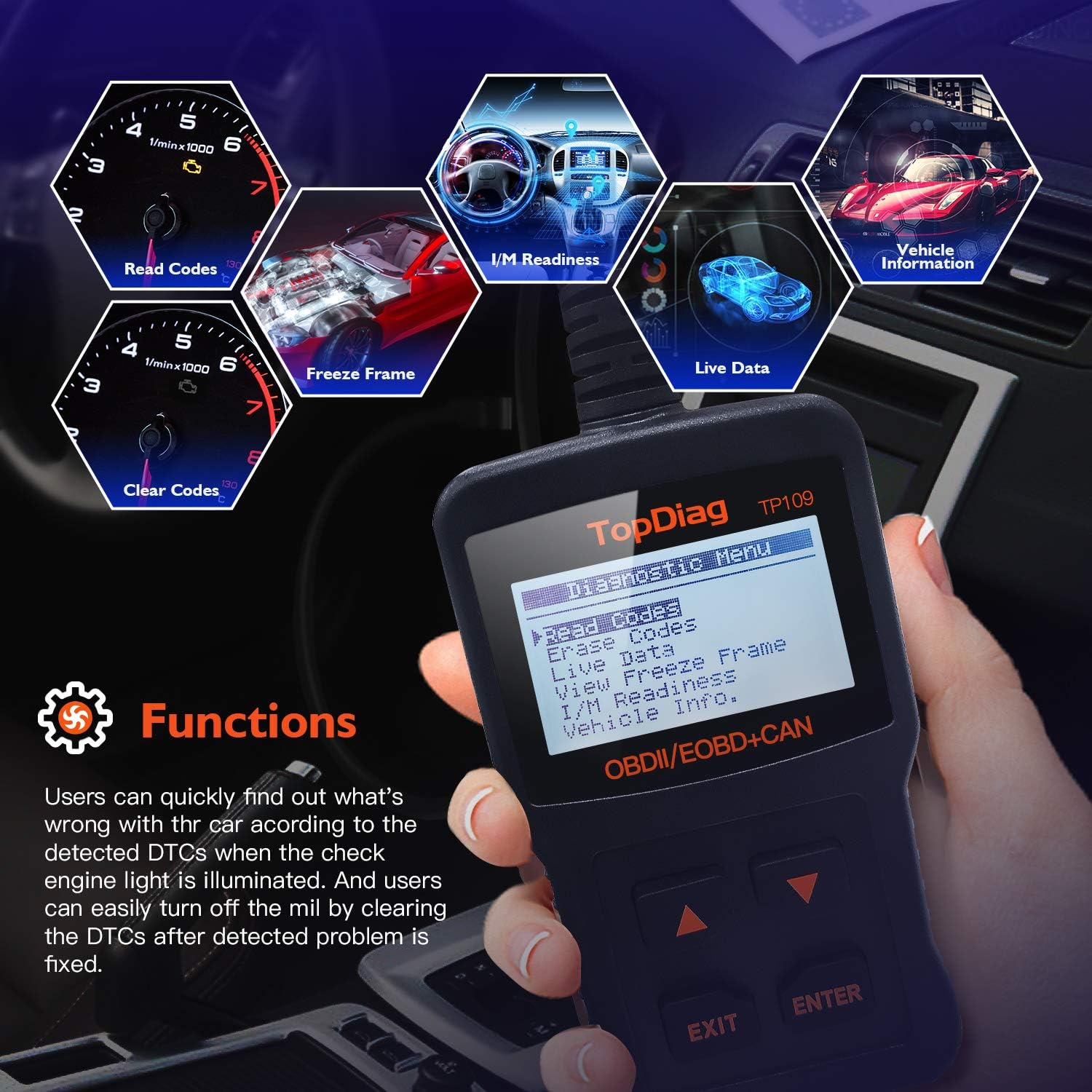
Figure 5.1: Main functions of the JDIAG JD101 scanner.
5.1. Read Codes
This function retrieves Diagnostic Trouble Codes (DTCs) from the vehicle's computer. These codes indicate specific issues detected by the vehicle's self-diagnostic system.
- From the main menu, select Read Codes and press Enter.
- The scanner will display any detected DTCs, along with their definitions on the 2.4-inch LCD.
- Use the Up and Down buttons to scroll through multiple codes if present.
5.2. Erase Codes
This function clears all Diagnostic Trouble Codes (DTCs) from the vehicle's computer and turns off the Malfunction Indicator Lamp (MIL). Ensure the underlying issue has been resolved before clearing codes.
- From the main menu, select Erase Codes and press Enter.
- Confirm your choice when prompted.
- The scanner will clear the codes and turn off the MIL.
5.3. Live Data Stream
This function displays real-time operational parameters from the vehicle's sensors and components, such as engine RPM, vehicle speed, oxygen sensor readings, and more. The JD101 supports over 130 PIDs (Parameter IDs).
- From the main menu, select Live Data and press Enter.
- The scanner will display a list of available PIDs. Select the desired parameters to view.
- The data will be displayed in real-time. Use the Up and Down buttons to scroll through the data.
5.4. I/M Readiness
I/M Readiness (Inspection/Maintenance Readiness) indicates whether the various emissions-related systems on the vehicle are operating correctly and have completed their diagnostic tests. This is useful for emissions testing.
- From the main menu, select I/M Readiness and press Enter.
- The scanner will display the status of various monitors (e.g., Catalyst Monitor, O2 Sensor Monitor). A 'PASS' or 'OK' status indicates the monitor has completed its test.
5.5. Freeze Frame Data
When an emission-related fault occurs, the vehicle's computer stores a snapshot of operating conditions at the moment the fault was detected. This is called Freeze Frame Data and can help in diagnosing intermittent problems.
- From the main menu, select View Freeze Frame and press Enter.
- The scanner will display the recorded parameters.
5.6. Vehicle Information (VIN, CIN, CVN)
This function allows you to retrieve important vehicle identification information.
- VIN (Vehicle Identification Number): A unique 17-character code for the vehicle.
- CIN (Calibration Identification Number): Identifies the software version of the vehicle's Engine Control Unit (ECU).
- CVN (Calibration Verification Number): A checksum value used to verify the integrity of the ECU software.
- From the main menu, select Vehicle Info and press Enter.
- The scanner will display the available vehicle information.

Figure 5.2: Retrieving vehicle identification information.
5.7. Battery Test Function
The JD101 includes a function to determine the vehicle's battery status, providing a quick assessment of its health.
- From the main menu, select Battery Test (or similar option) and press Enter.
- Follow the on-screen prompts to perform the test. The scanner will display the battery voltage and status.
6. Maintenance
6.1. Firmware Update
The JDIAG JD101 supports free online firmware updates to ensure compatibility with newer vehicles and to add new features. This process requires a computer running Windows and a Mini USB cable (not included).
- Download Software: Visit the official JDiag website (www.jdiag.com) and navigate to the 'Downloads' section. Download the latest firmware update tool (e.g., 'JD setup toolkit') and the firmware file for the JD101.
- Install Driver: Install the provided USB driver (e.g., STMicroelectronics driver) on your Windows PC.
- Connect Scanner: Connect the JD101 scanner to your PC using a Mini USB cable.
- Run Update Tool: Launch the appropriate upgrade tool (e.g., 'JD Series upgrade tool', not 'Elite II upgrade tool').
- Follow Prompts: Follow the on-screen instructions to select the firmware file and initiate the update process. The update may take several minutes. Do not disconnect the device during this time.
- Verification: Once complete, the tool will display a success message, including the new firmware version and device serial number.
Note: The update software is compatible with Windows operating systems, including Windows XP as specified in product details. Ensure your PC meets the minimum system requirements for the update tool.
7. Troubleshooting
- Device Does Not Power On: Ensure the scanner is correctly plugged into the vehicle's OBD2 port and the vehicle's ignition is in the ON position. The device draws power directly from the OBD2 port.
- No Communication with Vehicle: Verify that your vehicle is OBDII compliant (most US vehicles 1996+, European EOBD 2000+, Asian 2000+). Check the connection to the OBD2 port. If issues persist, try the scanner on another compatible vehicle to rule out a vehicle-specific problem.
- Scanner Not Working Properly: If the device exhibits unexpected behavior, try performing a firmware update as described in Section 6.1. If the problem persists, contact JDIAG technical support.
- Cannot Read ABS/Airbag Codes: The JDIAG JD101 is designed to work exclusively with engine-related codes (OBDII/EOBD). It does not support diagnostic functions for ABS (Anti-lock Braking System) or Airbag systems.
8. Specifications
| Feature | Specification |
|---|---|
| Brand | JDIAG |
| Model Number | JD101 (also referred to as 'code reader') |
| Power Source | Vehicle OBD2 Port Powered (No internal batteries required for operation) |
| Screen Size | 2.4 Inches |
| Supported Protocols | SAE J1850 PWM, SAE J1850 VPW, ISO 9141-2, ISO 14230-4 KWP, ISO 15765-4 CAN |
| Operating System (for updates) | Windows XP and newer (for firmware update software) |
| Item Weight | 220 Grams |
| Manufacturer | JDiag Electronics Technology Co.,Ltd |
| UPC | 780614143477, 791280490895 |
9. Warranty and Support
The JDIAG JD101 OBD2 scanner comes with a two-year warranty from the date of purchase, covering manufacturing defects and malfunctions under normal use.
For technical assistance, troubleshooting, or warranty claims, please contact JDIAG customer support or visit the official JDIAG website for further resources and contact information:
Official Website: www.jdiag.com