1. Introduction
This manual provides detailed instructions for the installation, operation, and troubleshooting of your CAMECHO Android 13 2 DIN 7-inch Car Radio. Please read this manual thoroughly before using the product to ensure correct usage and optimal performance.
2. Product Overview
The CAMECHO Android 13 Car Radio features a 7-inch touchscreen, offering a comprehensive in-car entertainment and navigation system. Key functionalities include:
- Android 13 Operating System: Access to a wide range of applications.
- 7-Inch Touchscreen: Intuitive control and clear display.
- GPS Navigation: Integrated GPS with support for online and offline maps.
- FM/RDS Radio: Stereo FM tuning (87.5~108.0MHz) with RDS for traffic information.
- Bluetooth Connectivity: Hands-free calling, phone book synchronization, and Bluetooth music streaming.
- Mirror Link: Project your smartphone screen (Android via USB/WiFi, iOS via WiFi) onto the car radio display.
- Canbus Support: Integration with vehicle systems for enhanced functionality.
- Rear Camera Input: Automatic display of rear view when reversing.
- Steering Wheel Control: Compatible with original vehicle steering wheel controls.
2.1 Package Contents
Verify that all items are present in your package:

Image: Product details showing the car radio unit, various cables, and accessories. The image lists: 1. Power Cable, 2. RCA Cable, 3. 8Pin Canbus Plug, 4. USB Cable, 5. USB Cable, 6. Rear Camera Input Cable, 7. Radio Antenna, 8. GPS Antenna, 9. Canbus. Also shown are individual images of the rear camera input cable, radio antenna, user manual, Canbus box, power cables, RCA cable, GPS antenna, and USB cable.
3. Installation Guide
Proper installation is crucial for the functionality and safety of your car radio. It is recommended to have this unit installed by a professional.
3.1 Vehicle Compatibility Check
Before installation, confirm your vehicle's original car system configuration, year, and central control layout to ensure compatibility.

Image: Displays various car dashboard configurations, indicating which ones are compatible ('Can be installed' with green checkmarks) and incompatible ('Cannot be installed' with red crosses) for the car radio unit.
3.2 Wiring Connections
Connect the provided wiring harness and accessories to the car radio and your vehicle's electrical system. Ensure all connections are secure.
Power and Canbus Connection:
If your car supports original car information display, connect the Canbus interface as shown in the video below. If not, use the universal power cable.
Video: Demonstrates the connection method for the car radio, specifically showing how to connect the Canbus interface if the car supports original information display, or how to use the universal power cable if not. This video also covers various UI functions, EQ settings, Bluetooth, Radio, Browser, and troubleshooting steps for GPS, Bluetooth, and reversing lines.
Rear Camera Connection:
Connect the rear camera input cable to the designated port on the car radio. Ensure the camera's power supply is connected to the car's reversing light circuit (positive to positive, negative to negative) for automatic activation.

Image: Illustrates the connection points for a rear camera, a DAB+ module, and a USB interface. The rear camera connection shows the video input and power wiring.
4. Basic Operation
4.1 User Interface Navigation
The car radio features an intuitive Android interface. Navigate through applications and settings using the touchscreen. The main screen typically displays common functions like music, radio, navigation, and phone.

Image: The main screen of the CAMECHO Android car radio, displaying various app icons such as Radio, Media, Mute, Tone, Nav, Phone, Mode, Setup, and an Android logo.
4.2 Audio Settings (EQ)
Adjust the audio output to your preference using the Equalizer (EQ) function. Access sound settings to modify bass, treble, and other audio parameters. Refer to the UI overview video (0:00-0:05) for a demonstration.

Image: Shows the Equalizer (EQ) settings interface on the car radio screen, allowing adjustment of sound frequencies. Also displays icons for optional external devices like RDV, OBD2, DVR, DAB+, MIC, and TPMS.
4.3 Bluetooth Function
Connect your mobile phone via Bluetooth for hands-free calling and music streaming. Pair your device through the Bluetooth settings menu. Refer to the UI overview video (0:05-0:10) for Bluetooth calling demonstration.
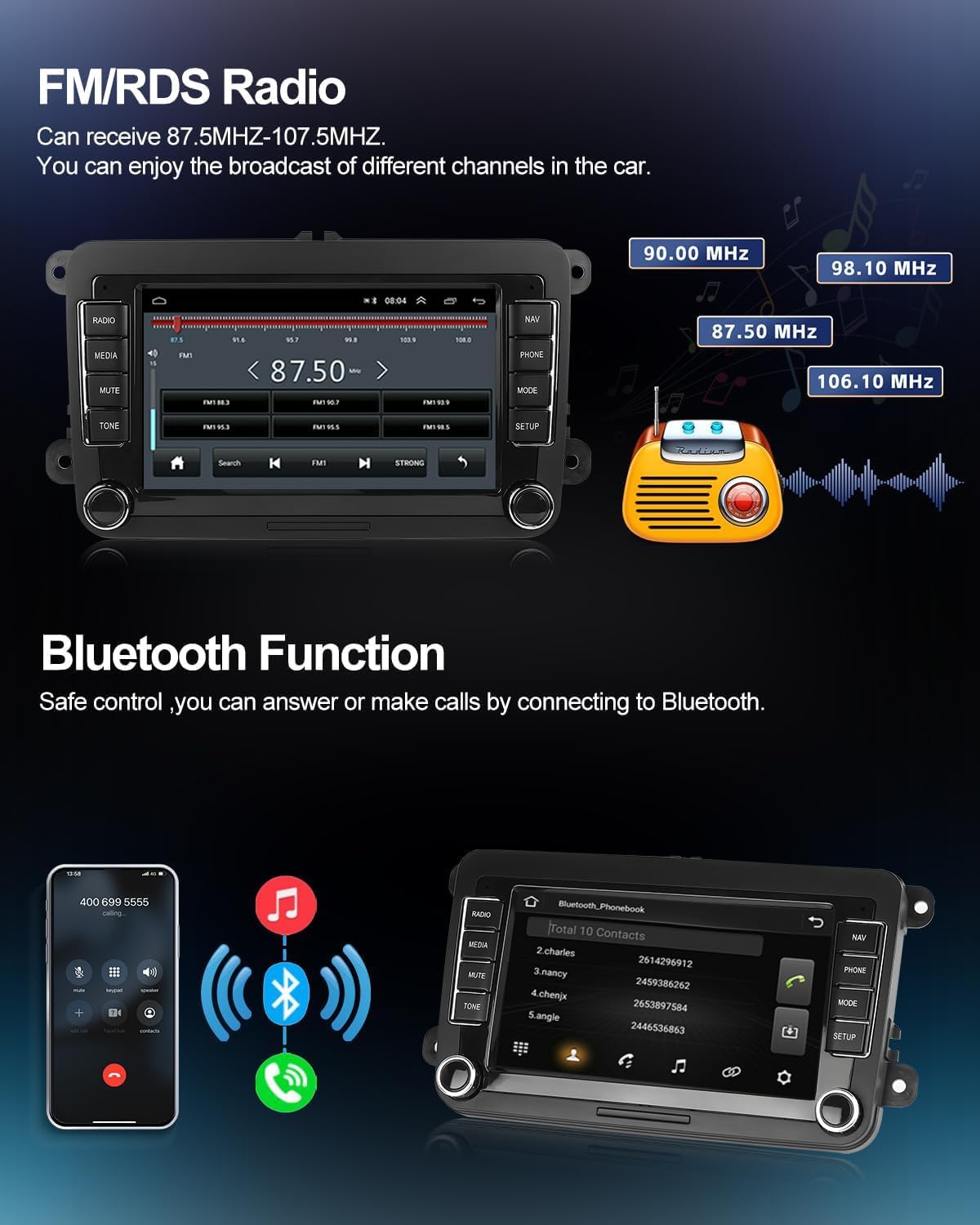
Image: Illustrates the FM radio interface with frequency display and the Bluetooth function showing a phone call interface and music streaming via Bluetooth.
4.4 FM/RDS Radio
Tune into your favorite radio stations using the FM/RDS function. The radio supports stereo tuning and RDS for traffic bulletins. Refer to the UI overview video (0:10-0:15) for radio tuning demonstration.
4.5 GPS Navigation
Utilize the integrated GPS for navigation. The unit supports both online and offline maps, ensuring you can reach your destination without getting lost. Refer to the UI overview video (0:50-0:53) for GPS signal detection.

Image: Shows the car radio displaying WiFi internet access with various app icons and GPS navigation with a map interface.
4.6 Mirror Link
Project your smartphone screen onto the car radio display. Android phones can connect via USB cable and WiFi, allowing two-way control. iOS phones connect via WiFi for one-way control.

Image: Demonstrates the Mirror Link function, showing a smartphone screen mirrored onto the car radio. Also illustrates the Split Screen function, allowing navigation and another application to be displayed simultaneously.
4.7 Steering Wheel Controls
The unit supports your vehicle's original steering wheel controls. Configure the buttons through the settings menu to match your preferences.

Image: Shows the rear view camera display with parking guidelines and the steering wheel control learning interface, allowing customization of button functions.
4.8 Rear View Camera
When the car is in reverse gear, the car radio screen will automatically switch to display the rear camera feed, assisting with safe parking and maneuvering.
5. Advanced Features
5.1 External Device Connectivity
The car radio supports various external devices to enhance your driving experience. These devices are typically sold separately.
- OBD2: Connect an OBD2 scanner for vehicle diagnostics.
- DAB+: Digital Audio Broadcasting for higher quality radio.
- DVR: Connect a Driving Video Recorder for continuous recording.
- Microphone: External microphone for improved call quality.
- TPMS: Tire Pressure Monitoring System for real-time tire data.
5.2 Split Screen Function
The split screen feature allows you to run two applications simultaneously, such as navigation on one side and music playback on the other.
6. Troubleshooting
This section addresses common issues you might encounter with your CAMECHO car radio.
6.1 Screen Unresponsive
If the touchscreen becomes unresponsive, try resetting the unit. Use a thin object (like a needle) to press the reset button (usually located near the NAV button). After resetting, try opening different UI interfaces to check if the screen can be touched. If the issue persists, a five-finger correction method might be required. Press five fingers on the screen for more than 5 seconds. If dots appear, follow the dots and click to complete the screen calibration.
6.2 GPS Navigation Issues
If GPS navigation is not functioning correctly, check the following:
- Verify the GPS antenna wiring is correctly connected.
- Ensure the GPS antenna is installed in an unobstructed location for optimal signal reception.
- Check the GPS signal on the GPS signal detection page within the device settings. (Refer to UI overview video, 0:28-0:39)
6.3 Bluetooth Connection Problems
If you experience issues with Bluetooth connectivity:
- Delete any redundant Bluetooth device names from your phone's paired devices list.
- Turn off the car radio, then turn it back on. Search for the correct Bluetooth name to connect.
- Reset the car radio and search for the connection again. (Refer to UI overview video, 0:39-0:53)
- Insert the reversing image input cable into the back of the car radio to enhance the Bluetooth signal.
6.4 Double Reversing Lines on Screen
If two reversing lines appear on the product screen when the rear camera is active, enter the settings menu and turn off the function for displaying the original reversing line. (Refer to UI overview video, 0:53-1:00)
7. Specifications
| Feature | Specification |
|---|---|
| Brand | CAMECHO |
| Model | 1 |
| Product Dimensions | 22 x 13 x 5 cm; 400 g |
| Memory Capacity | 16 GB (Flash), 1 GB (Digital Storage) |
| Screen Resolution | 1024 x 600 |
| Compatible Devices | Android Mobile, iOS Mobile |
| Connectivity Technology | Bluetooth, USB, FM, WiFi |
| Special Features | Integrated Bluetooth, Touchscreen |
| Screen Size | 7 Inches |
| Screen Type | LCD |
| Audio Output Mode | Various audio output modes |
| Speaker Surround Sound Configuration | 4.0 |
| Output Power | 45 Watts |
| Voltage | 12 Volts |
| Number of USB Ports | 2 |
| Media Type | MP3, MP4, WMA |
| Media Format | .jpg, AVI, WMA |
| Color | Black |
8. Applicable Vehicle Models
This car radio is designed for specific Volkswagen, Skoda, and Seat models. Please verify compatibility with your vehicle's center console and wiring harness before installation.

Image: A table listing various Volkswagen, Skoda, and Seat models with their respective production years, indicating compatibility with the car radio.
Volkswagen Models:
- Amarok (2010-2013)
- Caddy (2003-2013)
- Golf V (2003-2008)
- Golf VI (2008-2013)
- Golf Plus (2003-2013)
- Golf Cabriolet (2011-2013)
- Golf Wagon (2010-2013)
- Golf GTI (2010-2012)
- Golf R (2010-2013)
- Golf Estate (2009-2012)
- Passat (2005-2013)
- Passat Estate (2005-2013)
- Passat Sedan (2006-2013)
- Passat Wagon (2007-2013)
- Passat Alltrack (2012-2013)
- Passat CC (2008-2013)
- Jetta (2005, 2007-2013)
- Jetta GLI (2006-2013)
- Touran (2003-2013)
- Tiguan (2007-2013)
- Sharan (2010-2013)
- Scirocco (2008-2013)
- EOS (2006-2013)
- WT5 Transporter (2010-2014)
- Polo (2009-2013)
- Polo Sedan (2012-2013)
- Polo V 6R (2009-2013)
- New Beetle 2 (2011-2013)
- Rabbit (2007-2013)
- T5 Transporter (2010-2013)
- WT5 Caravelle 2010 Multivan T5 (2010-2013)
- Beetle (2011-2013)
Skoda Models:
- Octavia Limousine (2004-2006)
- Octavia II/III (to 2010)
- Octavia Combi (2004-2006)
- Octavia (2009-2012)
- Fabia Limousine (2004-2008)
- Fabia (2011-2013)
- Roomster (2006-2010)
- Patrick (2004-2008)
- Superb (2008-2013)
- Yeti (2009-2015)
Seat Models:
- Altea (2004, 2005, 2007-2012)
- Altea XL (2007-2013)
- Leon (2006-2013)
- Toledo (2004-2015)
- Alhambra (2010-2016)
9. Warranty and Support
Your CAMECHO car radio comes with a 30-day money-back guarantee. For any technical assistance or inquiries, please contact customer support. Lifetime after-sales support is provided.


