Introduction
This manual provides detailed instructions for the setup, operation, maintenance, and troubleshooting of your Logitech SLIM FOLIO PRO keyboard case for iPad Pro 12.9-inch (3rd generation). Please read this manual thoroughly before using the product to ensure optimal performance and longevity.
The Logitech SLIM FOLIO PRO transforms your iPad Pro into a versatile workstation, offering a comfortable typing experience with backlit keys and robust protection.
Product Overview
The Logitech SLIM FOLIO PRO is an all-in-one keyboard case designed for the iPad Pro 12.9-inch (3rd generation). It features a full-sized keyboard with backlit keys, a secure magnetic latch, and integrated Apple Pencil (2nd Gen) storage and charging.

Figure 1: Logitech SLIM FOLIO PRO with iPad Pro in typing mode, showcasing the keyboard and screen angle.
Key Features:
- Backlit Keys: Adjustable backlighting for typing in various lighting conditions.
- Full Row of iPadOS Shortcut Keys: Provides quick access to common iPad functions.
- Sturdy, Lightweight Case: Protects your iPad Pro from scuffs, scratches, and spills.
- Secure Magnetic Latch: Keeps the case securely closed and protects the iPad screen.
- Apple Pencil (2nd Gen) Storage & Charging: Integrated space for charging and securing your Apple Pencil.
- Power-saving Auto On/Off: Keyboard activates when in typing mode and deactivates when removed from the dock.
- Bluetooth Low Energy Pairing: Easy one-time setup for wireless connectivity.
- Long Battery Life: Up to 3 months on a single charge with 2 hours daily use.
Setup
1. Inserting Your iPad Pro
- Gently align your iPad Pro 12.9-inch (3rd generation) with the protective frame of the SLIM FOLIO PRO case.
- Press firmly around the edges of the iPad until it clicks securely into place within the case. Ensure all corners are fully seated.
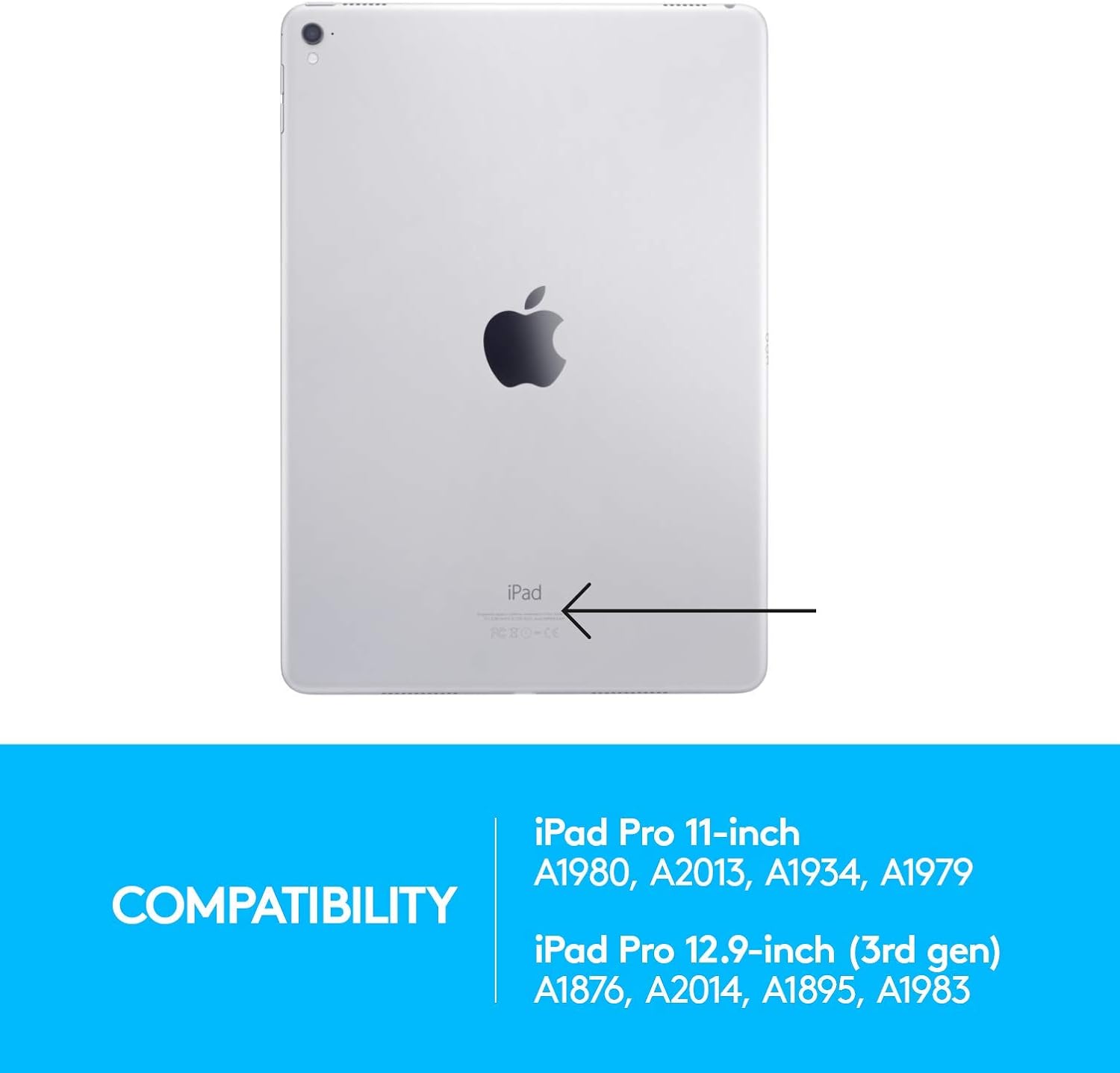
Figure 2: Compatibility information for iPad Pro models, including the 12.9-inch (3rd gen) with model numbers A1876, A2014, A1895, A1983.
2. Bluetooth Pairing
- Ensure your iPad Pro's Bluetooth is enabled. Go to Settings > Bluetooth and toggle it on.
- Open the SLIM FOLIO PRO case and place your iPad into the typing position. The keyboard will automatically power on.
- On the keyboard, press and hold the Bluetooth pairing button (usually located near the top right of the keyboard, often with a Bluetooth symbol) for 3 seconds until the LED indicator light on the keyboard begins to blink rapidly.
- On your iPad, under Bluetooth Devices, select "Logitech SLIM FOLIO PRO" from the list of available devices.
- If prompted, enter the pairing code displayed on your iPad screen using the SLIM FOLIO PRO keyboard and press Enter.
- The LED indicator on the keyboard will turn solid blue, indicating successful pairing.
3. Charging the Keyboard
The SLIM FOLIO PRO keyboard has a rechargeable battery. Use the included USB-C cable to charge the keyboard. Connect one end of the cable to the charging port on the keyboard (typically on the side) and the other end to a USB power adapter or a computer's USB port.
A full charge can last up to 3 months with 2 hours of daily use. The LED indicator will show charging status (e.g., red for low battery, green for charging, off when fully charged).

Figure 3: The keyboard features a 3-month rechargeable battery and reliable Bluetooth LE pairing.
Operating Instructions
Use Modes
The SLIM FOLIO PRO offers three distinct use modes:
- Type Mode: Position your iPad in the upright slot above the keyboard. This activates the keyboard for typing.
- Sketch Mode: Fold the keyboard behind the iPad, allowing for a comfortable angle for drawing or writing with Apple Pencil.
- Read Mode: Fold the keyboard completely behind the iPad, transforming it into a tablet for comfortable reading or browsing.

Figure 4: The three versatile use modes: Type, Sketch, and Read, demonstrating how the case adapts to different activities.
Keyboard Functions
The keyboard features a full row of iPadOS shortcut keys for enhanced productivity:
| Key | Function |
|---|---|
| Home | Returns to the Home screen |
| Screen Brightness | Adjusts screen brightness |
| Search | Activates iPad search function |
| Virtual Keyboard | Shows/hides the on-screen keyboard |
| Media Controls | Previous Track, Play/Pause, Next Track |
| Volume Controls | Mute, Volume Down, Volume Up |
| Lock Screen | Locks the iPad screen |
| Bluetooth Connect | Initiates Bluetooth pairing |
| Keyboard Backlight | Adjusts keyboard backlight brightness (3 levels) |

Figure 5: Close-up view of the backlit keys, demonstrating the illumination for typing in low-light conditions.
Apple Pencil (2nd Gen) Integration
The SLIM FOLIO PRO features a dedicated space for your Apple Pencil (2nd Gen). Simply place the Apple Pencil into the magnetic holder on the side of the case. This allows for convenient charging and secure storage while on the go.

Figure 6: The integrated charging and stowage area for the Apple Pencil (2nd Gen), ensuring it is always ready for use and securely stored.
Maintenance
Cleaning the Case and Keyboard
- To clean the exterior of the case, use a soft, damp cloth. Avoid abrasive cleaners or solvents.
- For the keyboard, use a soft, lint-free cloth. You may lightly dampen the cloth with water or a mild electronics cleaner. Do not spray liquids directly onto the keyboard.
- Ensure the keyboard is powered off and disconnected from any charging cables before cleaning.
Battery Care
- To maximize battery life, avoid fully discharging the battery frequently.
- Store the device in a cool, dry place when not in use for extended periods.
- Charge the battery regularly, even if not in constant use, to prevent deep discharge.
Troubleshooting
Keyboard Not Responding
- Check Battery: Ensure the keyboard is charged. Connect it to a power source using the USB-C cable.
- Re-establish Connection:
- On your iPad, go to Settings > Bluetooth.
- Tap the "i" icon next to "Logitech SLIM FOLIO PRO" and select "Forget This Device".
- Turn off Bluetooth on your iPad, then turn it back on after a few seconds.
- Place your iPad in the typing position in the SLIM FOLIO PRO case.
- Press and hold the Bluetooth pairing button on the keyboard until the LED blinks.
- Select "Logitech SLIM FOLIO PRO" from the Bluetooth devices list on your iPad to re-pair.
- Restart iPad: Sometimes a simple restart of your iPad can resolve connectivity issues.
Backlight Not Working
- Adjust Brightness: Use the keyboard backlight shortcut key (often a sun icon) to cycle through the 3 brightness levels.
- Battery Level: Ensure the keyboard has sufficient battery charge. Backlighting may be disabled or dimmed when the battery is low to conserve power.
iPad Not Fitting Securely
- Verify Model: Ensure your iPad is the 12.9-inch (3rd generation) model. This case is specifically designed for this model and may not fit other iPad versions correctly. Refer to the compatibility section or your iPad's model number.
- Proper Insertion: Ensure you are applying even pressure around all edges when inserting the iPad into the case.
Specifications
| Feature | Detail |
|---|---|
| Model Number | 920-009146 |
| Compatible Devices | iPad Pro 12.9-inch (3rd generation) |
| Connectivity | Bluetooth Low Energy (LE) |
| Keyboard Layout | Full-sized with iPadOS shortcut keys |
| Backlighting | Yes, 3 adjustable levels |
| Battery Type | Rechargeable Lithium-ion |
| Battery Life | Up to 3 months (based on 2 hours daily use) |
| Dimensions (LxWxH) | 0.88 x 9.96 x 7.67 inches (2.24 x 25.30 x 19.48 cm) |
| Weight | 1.56 pounds (0.71 kg) |
| Color | Black |
Warranty and Support
Warranty Information
Logitech products typically come with a limited hardware warranty. Please refer to the warranty card included with your product or visit the official Logitech website for specific warranty terms and conditions applicable to your region.
Customer Support
For further assistance, technical support, or to access additional resources, please visit the official Logitech support website:
You may also find a downloadable PDF user guide for this product at:


