1. Introduction
Thank you for choosing the ASUS F1 Portable LED Projector. This manual provides essential information for the safe and efficient use of your device. The ASUS F1 is designed to deliver a superior viewing experience with its Full HD resolution, high brightness, and integrated audio system, making it ideal for both entertainment and professional presentations.
Key features include:
- 1200-lumen long-life LED light source for best-in-class Full HD visuals.
- Short-throw lens for flexible projection distances (25-Inch to 210-Inch).
- High-fidelity 2.1-channel audio with Harman Kardon audio technology.
- Horizontal and vertical keystone adjustment, plus auto-focus for sharp images.
- Wireless projection for effortless content streaming from mobile devices.
2. Safety Information
Please read all safety instructions carefully before using the projector. Failure to follow these instructions may result in fire, electric shock, or other injuries.
- Power Source: Use only the power adapter supplied with the projector. Ensure the power outlet matches the voltage requirements.
- Ventilation: Do not block any ventilation openings. Ensure adequate space around the projector for proper airflow to prevent overheating.
- Heat: The projector may become warm during operation. This is normal. Avoid touching the ventilation areas directly.
- Light Source: Do not look directly into the projector lens when the lamp is on. The intense light can damage your eyes.
- Moisture: Do not expose the projector to rain, moisture, or excessive humidity. Keep it away from liquids.
- Cleaning: Unplug the projector before cleaning. Use a soft, dry cloth. Do not use liquid or aerosol cleaners.
- Servicing: Do not attempt to service the projector yourself. Refer all servicing to qualified service personnel.
3. Package Contents
Carefully unpack your ASUS F1 Portable LED Projector and check if all items are present and in good condition. If any item is missing or damaged, contact your retailer.

Figure 3.1: ASUS F1 Projector Package Contents
- ASUS F1 Projector
- Remote Control
- HDMI Cable
- Power Adapter
- Power Cord
- Carrying Bag
- Quick Start Guide
- Warranty Card
4. Product Overview
4.1 Front and Side Views

Figure 4.1: Front View of the Projector
The front of the projector features the main projection lens and an adjustable stand for tilt. The side panels include ventilation grilles to ensure proper heat dissipation.

Figure 4.2: Side View of the Projector
4.2 Top Panel Controls
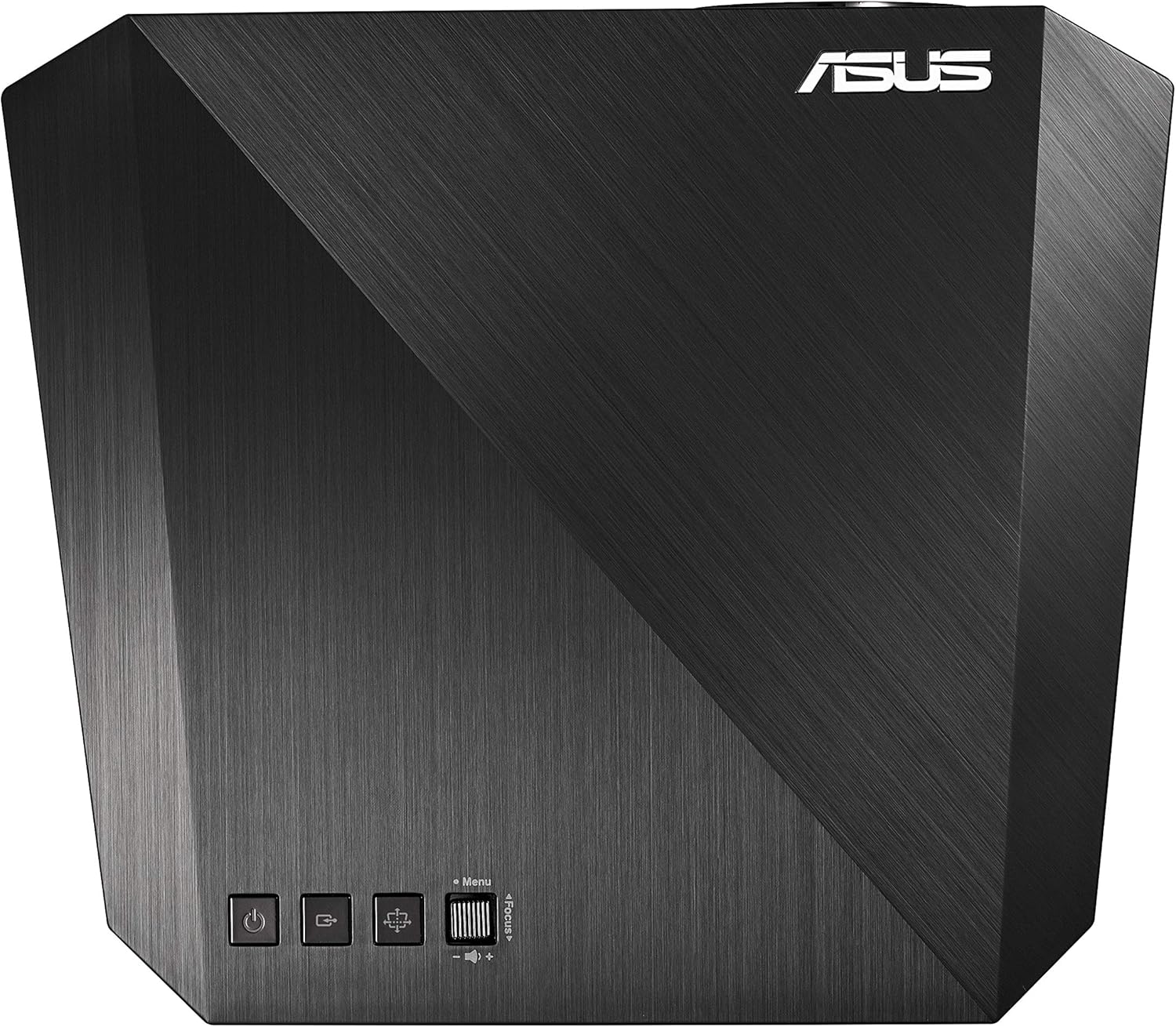
Figure 4.3: Top Panel Controls
The top panel provides essential controls for operating the projector:
- Power Button: Turns the projector on or off.
- Source Button: Selects the input source.
- Menu Button: Accesses the on-screen display (OSD) menu.
- Focus Adjustment: Manual focus control (Focus +/-).
4.3 Rear Panel Ports
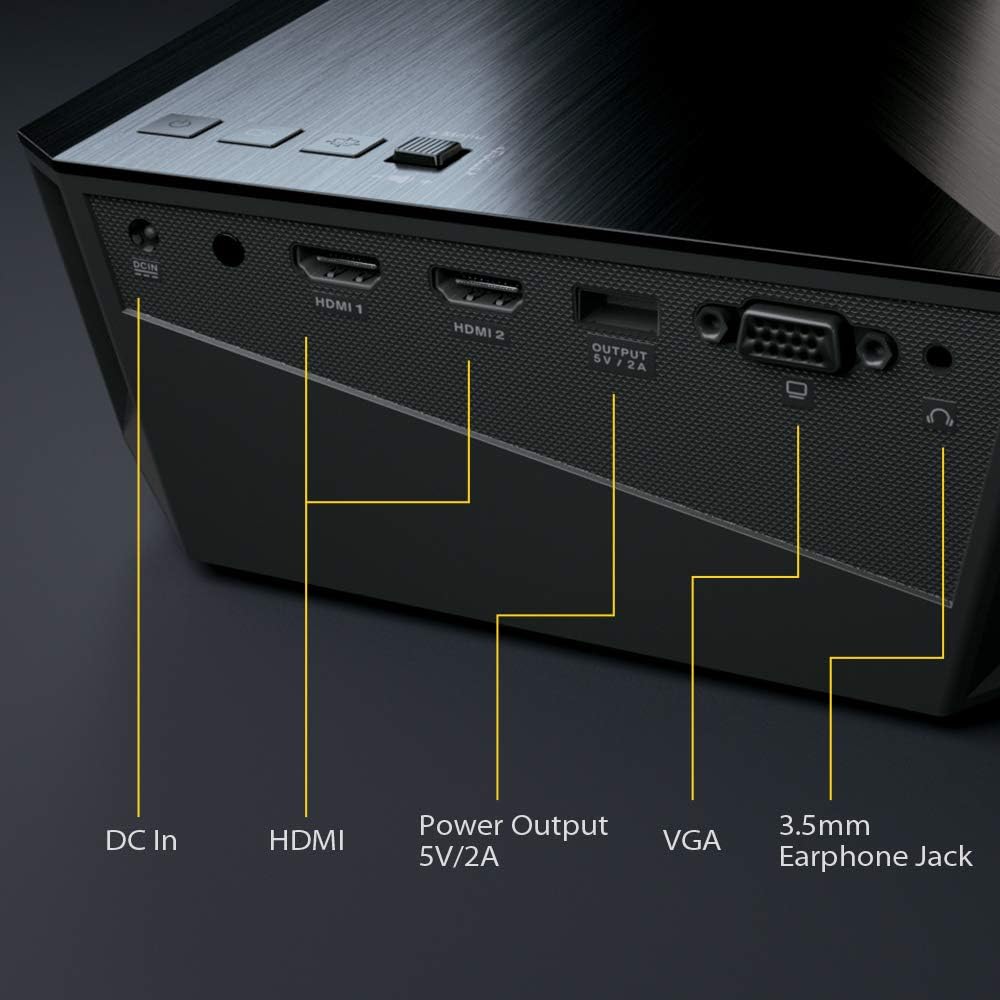
Figure 4.4: Rear Panel Ports
The rear panel houses all necessary connectivity ports:
- DC In: Power input port.
- HDMI 1 / HDMI 2: High-Definition Multimedia Interface inputs for digital video and audio.
- Power Output (5V/2A): USB port for powering external devices.
- VGA: Video Graphics Array input for analog video.
- 3.5mm Earphone Jack: Audio output for headphones or external speakers.
4.4 Remote Control

Figure 4.5: Remote Control
The remote control allows convenient operation of the projector from a distance. It includes buttons for power, input selection, menu navigation, focus adjustment, and volume control.
5. Setup
5.1 Placement
Position the projector on a stable, flat surface. The short-throw lens allows for large images from a short distance. For optimal viewing, ensure the projection surface is smooth and light-colored.

Figure 5.1: Projector in Use
The projector can project images from 25 inches (0.45 m) to 210 inches (3.7 m) diagonally, depending on the distance from the screen.
5.2 Power Connection
- Connect the power adapter to the DC In port on the projector.
- Plug the power cord into the power adapter.
- Plug the other end of the power cord into a wall outlet.
5.3 Connecting Input Sources
Connect your desired video source (e.g., laptop, Blu-ray player, gaming console) to the projector using the appropriate cable.
- HDMI: For high-definition digital video and audio, connect an HDMI cable from your source device to either HDMI 1 or HDMI 2 port on the projector.
- VGA: For analog video, connect a VGA cable from your source device to the VGA port on the projector.
- Wireless Projection: The projector supports wireless content streaming from compatible smartphones, tablets, or other mobile devices. Refer to the on-screen menu for wireless setup instructions.
6. Operating the Projector
6.1 Powering On/Off
- To power on, press the Power button on the projector's top panel or the remote control.
- To power off, press the Power button again. Confirm shutdown if prompted.
6.2 Focus Adjustment
The ASUS F1 features auto-focus for convenience. If manual adjustment is needed:
- Use the Focus +/- buttons on the top panel or remote control to sharpen the image.
6.3 Keystone Correction
Keystone correction adjusts the image shape if the projector is not perfectly perpendicular to the screen.
- Access the OSD menu and navigate to the Keystone settings.
- Adjust horizontal and vertical keystone to achieve a rectangular image.
6.4 Input Source Selection
Press the Source button on the projector or remote control to cycle through available input sources (HDMI 1, HDMI 2, VGA, Wireless).
6.5 Audio Settings

Figure 6.1: Immersive Audio Experience
The projector features built-in 2.1 channel audio with Harman Kardon technology. Adjust volume using the remote control's volume buttons. Further audio settings can be found in the OSD menu.
6.6 Menu Navigation
Press the Menu button to access the On-Screen Display (OSD) menu. Use the arrow keys on the projector or remote to navigate, and the OK button to select options. Press Menu again to exit.
7. Maintenance
Proper maintenance ensures the longevity and optimal performance of your projector.
- Cleaning the Lens: Gently wipe the lens with a soft, lint-free cloth specifically designed for optical surfaces. Do not use abrasive cleaners or excessive force.
- Cleaning Ventilation: Periodically check and clean the ventilation grilles to prevent dust buildup, which can impede airflow and cause overheating. Use a soft brush or compressed air.
- Storage: When not in use for extended periods, store the projector in its carrying bag in a cool, dry, and dust-free environment.
8. Troubleshooting
If you encounter issues with your projector, refer to the following common problems and solutions:
| Problem | Possible Cause / Solution |
|---|---|
| No image on screen |
|
| Image is blurry |
|
| No sound |
|
| Remote control not working |
|
| Projector overheats or shuts down |
|
9. Specifications
Detailed technical specifications for the ASUS F1 Portable LED Projector:
| Feature | Specification |
|---|---|
| Brand | ASUS |
| Model Number | 90LJ00B0-B00520 |
| Product Dimensions | 6 x 21 x 2 cm |
| Item Weight | 1.8 kg |
| Colour | Black |
| Form Factor | Portable |
| Display Type | LED |
| Native Resolution | 1920 x 1080 (Full HD) |
| Brightness | 1200 Lumens |
| Connectivity Technology | HDMI, VGA, Wireless |
| Number of HDMI Ports | 2 |
| Number of VGA Ports | 1 |
| Number of USB 2.0 Ports | 1 (Power Output 5V/2A) |
| Audio | 2.1 Channel with Harman Kardon |
| Wattage | 70 watts |
| Special Features | Portable, Auto Focus, HDMI Connectivity, Keystone Adjustment |
10. Warranty and Support
Your ASUS F1 Portable LED Projector comes with a limited warranty. Please refer to the included Warranty Card for detailed terms and conditions, including warranty period and coverage.
For technical support, product registration, or to download the latest drivers and firmware updates, please visit the official ASUS support website:
You may also contact ASUS customer service for assistance.


