
MYPIN HA0195-NWUSF
MYPIN 4K@60hz MP4 Media Player User Manual
Model: HA0195-NWUSF
Introduction
This user manual provides detailed instructions for the setup, operation, maintenance, and troubleshooting of your MYPIN 4K@60hz MP4 Media Player. Please read this manual thoroughly before using the device to ensure optimal performance and longevity.
The MYPIN 4K@60hz MP4 Media Player is designed to play various media files, including 4K@60hz videos, from external storage devices such as USB drives, SD cards, and HDDs. It supports a wide range of video, audio, and image formats, and offers features like advertising logo and subtitle support, and vertical/splicing screen display.
Package Contents
Verify that all items are present in the package:
- MYPIN 4K Media Player Unit
- Remote Control
- Power Adapter
- HDMI Cable
- AV Cable (RCA)
- User Manual (this document)

Image: Contents of the MYPIN 4K Media Player package, including the player unit, remote control, power adapter, HDMI cable, and AV cable.
Product Overview
The MYPIN 4K Media Player is a compact device designed for playing various media files on your television or display. It features multiple input ports for external storage and output ports for connecting to display devices.

Image: The MYPIN 4K Media Player unit and its accompanying remote control.
Front Panel
- POWER: Power indicator light.
- NET: Network activity indicator (if applicable).
- IR: Infrared receiver for remote control.
Side Panel
- USB1 / USB2: USB 2.0 ports for connecting USB flash drives or external hard drives (up to 8TB, FAT32/NTFS format).
- TF: Micro SD card slot (up to 64GB).
Rear Panel
- LAN: Ethernet port for network connection (if applicable).
- AV OUT: Analog audio/video output for older televisions.
- OPTICAL: Optical audio output.
- HDMI: HDMI 2.0 output for connecting to HDTVs or monitors, supporting up to 4K@60hz resolution.
- DC IN: Power input port.

Image: Rear and side view of the MYPIN 4K Media Player, showing the various input and output ports.
Setup Guide
Follow these steps to set up your MYPIN 4K Media Player:
- Connect to TV:
- For 4K or HD displays: Connect the included HDMI cable from the HDMI port on the media player to an HDMI input on your television or monitor.
- For older displays: Connect the included AV cable from the AV OUT port on the media player to the corresponding RCA inputs (Yellow for video, Red/White for audio) on your television.
- Connect Power: Plug the power adapter into the DC IN port on the media player, then plug the adapter into a wall outlet. The power indicator light on the front of the player should illuminate.
- Insert Storage Device: Insert your USB flash drive, external HDD, or Micro SD card containing your media files into the appropriate port (USB1, USB2, or TF). Ensure the storage device is formatted as FAT32 or NTFS.
- Power On: Use the remote control to power on the media player. Select the correct input source (HDMI or AV) on your television.
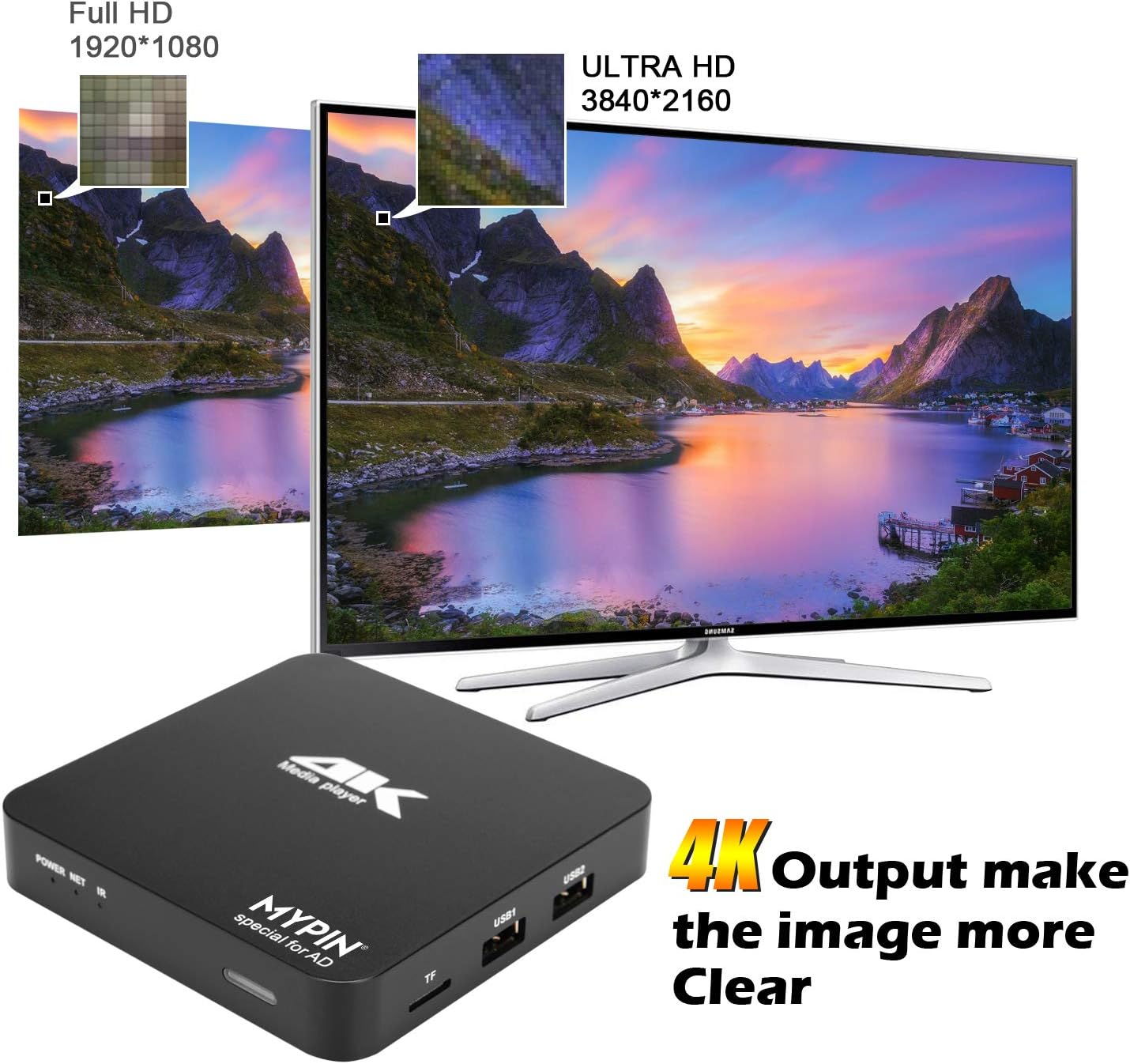
Image: The MYPIN 4K Media Player connected to a television, demonstrating the output capabilities.
Operating Instructions
Navigating the Interface
Upon startup, the media player will display its main interface. Use the remote control's directional buttons (Up, Down, Left, Right) and the OK button to navigate through menus and select options. The "Back" button (curved arrow) returns to the previous screen, and the "Home" button (house icon) returns to the main menu.
Playing Media Files
The player supports various media types including videos, pictures, music, and PPT documents.
- From the main menu, select the desired media type (e.g., "Movie", "Picture", "Music").
- Navigate to your connected storage device (USB, SD Card, HDD).
- Browse through your folders and files. Select a file and press OK to play.

Image: The MYPIN 4K Media Player interface showing video playback, demonstrating its ability to play various media types.
Supported Formats
- Video: MKV, AVI, TS/TP, MP4/M4V, MOV, VOB, M2TS, WMV, PMP, MPG, M2TS, H.265. Supports 4K@60hz.
- Audio: Various popular audio formats.
- Image: Various popular image formats, including PNG for logos.
- Document: PPT.
Advanced Features
Advertising Logo & Subtitles
The player allows for custom advertising logos and subtitles. Logos should be in PNG format (max 400x300 pixels, recommended 300x150 pixels). For subtitles, ensure the subtitle file (e.g., .srt) has the exact same filename as the video file and is placed in the same folder. Use the Movie player or Kodi Player in "APPS" to ensure subtitles display automatically.

Image: Screenshot of the MYPIN 4K Media Player's "Advert Settings" menu, showing options for screen rotation, video ratio, picture playing duration, and logo display settings.
Vertical and Splicing Screen Display
The device supports rotating picture output up to 270 degrees, enabling flexible display configurations for vertical screens or splicing multiple screens.

Image: Demonstration of the MYPIN 4K Media Player's support for horizontal, vertical, and splicing screen display modes.
HDR Support
The player features built-in HDR image processing technology, enhancing contrast and color for compatible content and displays.

Image: Comparison showing the visual difference between "NO HDR" and "HDR" display modes, highlighting the enhanced image quality with HDR processing.
H.265 Hardware Decoding
The device utilizes H.265 hardware decoding for smoother and higher-definition playback of compatible video files.

Image: Illustration demonstrating H.265 hardware decoding for smoother and higher-definition video playback on the MYPIN 4K Media Player.
PPT/Document Presentation
The media player can also be used for presenting PPT documents directly from your storage device.
Image: The MYPIN 4K Media Player connected to a laptop, illustrating its capability to support PPT and other document presentations.
Maintenance
- Cleaning: Use a soft, dry cloth to clean the exterior of the device. Do not use liquid cleaners or aerosols.
- Ventilation: Ensure the media player is placed in a well-ventilated area to prevent overheating. Do not block any ventilation openings.
- Storage: When not in use for extended periods, disconnect the power adapter and store the device in a cool, dry place.
- Firmware Updates: Check the manufacturer's official website periodically for any available firmware updates to improve performance or add new features.
Troubleshooting
| Problem | Possible Cause | Solution |
|---|---|---|
| No power | Power adapter not connected or faulty outlet. | Ensure power adapter is securely connected to the device and a working power outlet. Try a different outlet. |
| No image on TV | Incorrect TV input selected; loose HDMI/AV cable; faulty cable. | Select the correct HDMI or AV input on your TV. Check cable connections. Try a different HDMI/AV cable. |
| No sound | TV volume too low; incorrect audio settings; unsupported audio codec. | Increase TV volume. Check audio settings on the media player. Some audio codecs may not be supported; try converting the file. |
| Cannot read USB drive/SD card | Incorrect format (not FAT32/NTFS); drive/card faulty; file system corruption. | Ensure the storage device is formatted as FAT32 or NTFS. Try a different USB port or SD card slot. Test the drive/card on a computer. |
| Video playback is choppy or freezes | High bitrate video; slow storage device; device overheating. | Ensure the video file is compatible. Use a faster USB 3.0 drive if possible. Ensure adequate ventilation around the player. |
| Subtitles not showing | Subtitle file not named correctly or not in same folder as video; incorrect player used. | Rename subtitle file to exactly match video file name (e.g., movie.mp4 and movie.srt). Place both in the same folder. Use "Movie player" or "Kodi Player" in "APPS". |
Specifications
| Feature | Detail |
|---|---|
| Model Number | HA0195-NWUSF |
| Brand | MYPIN |
| Connectivity | USB, HDMI, AV, Optical, LAN (if applicable) |
| Video Output Resolution | Up to 4K@60hz (3840x2160 pixels), also 1080p, 720p |
| Supported Storage | USB Flash Drive (up to 64GB), HDD (up to 8TB), Micro SD Card (up to 64GB) |
| File System Support | FAT32, NTFS |
| Supported Video Formats | MKV, AVI, TS/TP, MP4/M4V, MOV, VOB, M2TS, WMV, PMP, MPG, H.265 |
| Image Processing | HDR, 10Bit, 60P |
| Dimensions | 7.4 x 6.22 x 2.76 inches (Package Dimensions) |
| Weight | 15.1 ounces |
Warranty and Support
For warranty information and technical support, please refer to the warranty card included with your product or visit the official MYPIN website. Keep your purchase receipt as proof of purchase for warranty claims.
For further assistance, you may contact MYPIN customer service through the contact information provided on their official website or through the retailer where the product was purchased.
Note: Product specifications and features are subject to change without prior notice. For the most up-to-date information, please consult the manufacturer's official resources.
Ask a question about this manual
Ask about setup, troubleshooting, compatibility, parts, safety, or missing instructions. Manuals+ will review the question and use this page’s manual context to help answer it.