
Important Safety Instructions
To ensure safe operation and prolong the life of your monitor, please read and follow these instructions carefully:
- Always disconnect the power cord from the electrical outlet before cleaning the monitor.
- Do not expose the monitor to rain or moisture to avoid electric shock.
- Ensure proper ventilation around the monitor to prevent overheating. Do not block ventilation openings.
- Use only the power adapter and cables supplied by the manufacturer.
- Avoid placing heavy objects on the power cord or monitor.
- If the monitor is damaged or malfunctions, do not attempt to repair it yourself. Contact qualified service personnel.
Package Contents
Before proceeding with the setup, please check the contents of your package to ensure all items are present:
- Acer CB272U smiiprx LED Monitor
- Monitor Stand (Base and Arm)
- Power Cord
- HDMI Cable
- Quick Start Guide / Warranty Card
Setup
1. Assembling the Monitor Stand
- Carefully remove the monitor from its packaging. Place the monitor face down on a soft, clean cloth or surface to prevent scratches to the screen.
- Attach the stand arm to the back of the monitor panel. Ensure it is securely fastened, typically by sliding it into place until it clicks or by tightening screws.
- Connect the stand base to the bottom of the stand arm. Secure the base by tightening the captive screw located underneath the base.

Figure 1: Rear view of the Acer CB272U smiiprx monitor with the stand attached, illustrating the assembly points.
2. Connecting the Monitor to Your Computer
- Connect one end of the provided HDMI cable to the HDMI port on the monitor.
- Connect the other end of the HDMI cable to the HDMI output port on your computer or graphics card.
- Plug the power cord into the monitor's power input, then plug the other end into a grounded electrical outlet.

Figure 2: Angled rear view showing the input ports of the monitor, including HDMI and power connections.
Operating the Monitor
Powering On and Off
Locate the power button on the monitor's bezel. Press it once to turn the monitor on. The power indicator light will illuminate. Press it again to turn the monitor off.
Adjusting Display Settings (OSD Menu)
The On-Screen Display (OSD) menu allows you to customize various monitor settings. Use the control buttons (usually located on the back or bottom right of the monitor) to navigate the OSD menu. Common adjustments include:
- Brightness/Contrast: Adjust the overall luminance and difference between light and dark areas.
- Color Settings: Modify color temperature, gamma, and individual RGB levels.
- Input Source: Manually select the video input (e.g., HDMI).
- Audio: Control volume for the built-in speakers.
Ergonomic Adjustments
The Acer CB272U smiiprx monitor stand offers multiple ergonomic adjustments to optimize your viewing comfort:
- Height Adjustment: Raise or lower the monitor to eye level.
- Tilt: Adjust the screen angle forward or backward to reduce glare.
- Swivel: Rotate the monitor horizontally to share your screen or adjust viewing angle.
- Pivot: Rotate the screen to a portrait orientation for document viewing or coding.
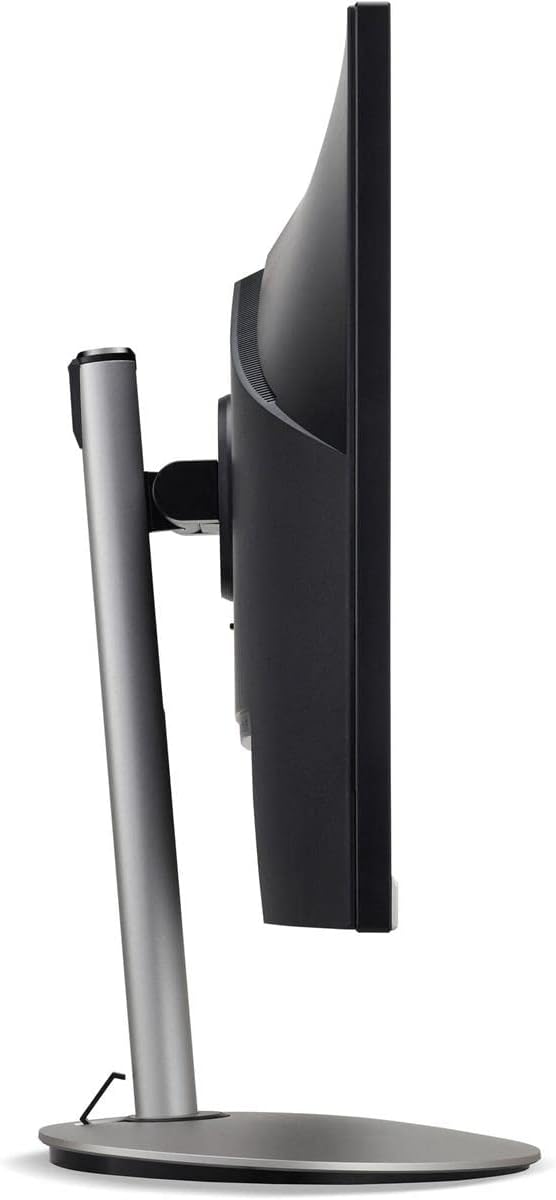
Figure 3: Side profile of the monitor, illustrating its adjustable stand for ergonomic positioning.
Maintenance
Cleaning the Monitor Screen and Casing
To clean your monitor, first ensure it is turned off and unplugged from the power outlet. Use a soft, lint-free cloth. For stubborn marks, lightly dampen the cloth with water or a specialized non-abrasive screen cleaner. Do not spray liquid directly onto the screen or casing. Avoid using harsh chemicals, abrasive cleaners, or solvents.
Storage Guidelines
If you need to store the monitor for an extended period, it is recommended to use its original packaging to protect it from dust, moisture, and physical damage. Store in a cool, dry environment away from direct sunlight and extreme temperatures.
Troubleshooting
Refer to the table below for common issues and their solutions:
| Problem | Possible Cause | Solution |
|---|---|---|
| No image on screen | Power cable disconnected; Video cable disconnected; Incorrect input source selected. | Check power and video cable connections; Ensure the monitor is powered on; Select the correct input source via the OSD menu. |
| Image is blurry or distorted | Incorrect resolution setting; Faulty video cable. | Set the display resolution to 2560 x 1440 at 75 Hz; Try a different HDMI cable. |
| No sound from speakers | Monitor volume too low or muted; Incorrect audio output selected on computer. | Adjust monitor volume via OSD; Unmute audio; Select the monitor as the audio output device in your computer's sound settings. |
| Monitor flickering | Refresh rate mismatch; Interference; Faulty cable. | Ensure refresh rate is set to 75 Hz; Check for nearby electronic devices causing interference; Replace video cable. |
Specifications
Key technical specifications for the Acer CB272U smiiprx LED Monitor:
| Feature | Detail |
|---|---|
| Model Name | CB272U smiiprx |
| Screen Size | 24.1 Inches |
| Native Resolution | 2560 x 1440 (WQHD) |
| Refresh Rate | 75 Hz |
| Response Time | 1 Millisecond (VRB) |
| Aspect Ratio | 16:9 |
| Display Type | LED-backlit LCD / TFT active matrix (IPS) |
| Brightness | 350 cd/m² |
| Contrast Ratio | 1000:1 (Static) |
| Connectivity | HDMI |
| Adaptive Sync | FreeSync |
| Built-in Speakers | Yes |
| Dimensions (WxDxH with stand) | 24.1 in x 9.2 in x 20.5 in |
| Weight (with stand) | 18.1 Pounds |

Figure 4: Monitor dimensions with stand, indicating width, depth, and height.
Warranty Information
The Acer CB272U smiiprx LED Monitor comes with a 3-year manufacturer limited warranty. This warranty covers defects in materials and workmanship under normal use. For complete details regarding warranty coverage, limitations, and how to make a claim, please refer to the warranty documentation included with your product or visit the official Acer support website.
Please retain your proof of purchase (receipt or invoice) as it will be required for any warranty service.
Customer Support
Should you require further assistance, technical support, or wish to download the latest drivers and firmware updates for your monitor, please visit the official Acer support website:
You can also find contact information for Acer customer service in your region on the support website for personalized assistance.


