
Introduction
This manual provides essential instructions for the setup, operation, and maintenance of your KOAMTAC KDC470Ci-BLE 2D Imager Barcode Sled Scanner combined with the Apple iPhone 7/8Plus SmartSled Charging Case. Please read this manual thoroughly before using the device to ensure proper functionality and to prevent damage.
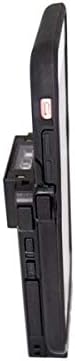
Image: The KOAMTAC KDC470Ci-BLE 2D Imager Barcode Sled Scanner integrated with an Apple iPhone 7/8Plus via the SmartSled Charging Case. This side view highlights the compact design and the connection points between the scanner and the smartphone case.
Product Overview
The KOAMTAC KDC470Ci-BLE is a robust 2D CMOS Imager Barcode Sled Scanner designed for mobile data collection. When paired with the Apple iPhone 7/8Plus SmartSled Charging Case, it transforms your smartphone into a comprehensive barcode scanning solution. Key features include:
- 2D CMOS Imager: Capable of reading various 2D barcodes.
- SmartSled Design: Allows for easy integration and removal of the iPhone 7/8Plus.
- Simultaneous Charging: The SmartSled case enables simultaneous charging of both the KDC470Ci-BLE scanner and the iPhone 7/8Plus via a Micro USB cable or charging cradle.
- Durable Construction: IP65-rated for dust and water resistance, with a 5-foot drop specification.
- Extended Battery Life: Advanced power management features, including a hibernation mode, extend battery life beyond an average work shift. The built-in rechargeable battery can also serve as an external power source for the iPhone.
- Software Compatibility: Includes KT Sync keyboard wedging software and an SDK for Android, Blackberry, iOS, and Windows platforms.
Setup Instructions
- Unpacking: Carefully remove all components from the packaging. Verify that you have the KDC470Ci-BLE scanner, the Apple iPhone 7/8Plus SmartSled Charging Case, and any included cables or accessories.
- Insert iPhone: Gently slide your Apple iPhone 7/8Plus into the SmartSled Charging Case until it is securely seated. Ensure all connectors align properly.
- Attach Scanner: Connect the KDC470Ci-BLE scanner to the SmartSled Charging Case. The scanner is designed to seamlessly attach to the back of the case, forming a single integrated unit.
- Initial Charge: Before first use, fully charge the integrated unit. Connect the Micro USB cable to the SmartSled Charging Case and then to a power source. The scanner and iPhone will charge simultaneously.
- Software Installation:
- For basic keyboard wedging functionality, install the KT Sync software on your host device (e.g., iPhone).
- For custom application development, utilize the provided SDK for your specific operating system (iOS in this case).
- Bluetooth Pairing (if not using direct connection):
- Power on the KDC470Ci-BLE scanner.
- On your iPhone, navigate to Bluetooth settings and search for available devices.
- Select the KDC470Ci-BLE from the list to pair. Follow any on-screen prompts.
Operating Instructions
Scanning Barcodes
- Power On: Ensure the KDC470Ci-BLE scanner is powered on.
- Target Barcode: Point the scanner's imager window at the barcode you wish to scan.
- Activate Scan: Press the scan button located on the side of the KDC470Ci-BLE. A red aiming beam will appear.
- Confirm Scan: Once the barcode is successfully read, the scanner will typically emit an audible beep and/or vibrate, and the data will be transmitted to your connected iPhone application.
Charging the Device
The SmartSled Charging Case allows for convenient charging of both the KDC470Ci-BLE scanner and the iPhone 7/8Plus simultaneously.
- Connect a Micro USB cable to the charging port on the SmartSled case.
- Connect the other end of the USB cable to a compatible USB power adapter or a computer's USB port.
- Alternatively, place the SmartSled unit into a compatible KOAMTAC charging cradle (sold separately) for simultaneous charging.
Power Management
The KDC470Ci-BLE features advanced power management to conserve battery life. When not actively in use, the scanner enters a "hibernation mode" to extend operational time. To reactivate, simply press the scan button or interact with the device via your iPhone application.
Maintenance
- Cleaning: Use a soft, lint-free cloth slightly dampened with water or a mild cleaning solution to clean the exterior of the scanner and case. Avoid harsh chemicals or abrasive materials. Do not spray liquids directly onto the device.
- Storage: Store the device in a cool, dry place away from direct sunlight and extreme temperatures.
- Battery Care: To prolong battery life, avoid fully discharging the battery frequently. If storing for an extended period, ensure the battery is charged to approximately 50%.
- Firmware Updates: Periodically check the KOAMTAC website for firmware updates for your KDC470Ci-BLE scanner. Keeping the firmware updated ensures optimal performance and access to new features.
Troubleshooting
| Problem | Possible Cause | Solution |
|---|---|---|
| Scanner not powering on. | Low or depleted battery. | Charge the device using the Micro USB cable or charging cradle. |
| Unable to scan barcodes. | Barcode damaged or unreadable; scanner not aimed correctly; incorrect symbology settings. | Ensure the barcode is clear. Aim the red beam directly across the barcode. Check scanner settings for supported symbologies. |
| No data transmitted to iPhone. | Bluetooth connection lost; application not configured correctly; iPhone not securely seated in SmartSled. | Verify Bluetooth connection. Restart the scanning application. Re-seat the iPhone in the SmartSled case. |
| Device not charging. | Faulty cable or power adapter; charging port obstruction; iPhone not properly connected. | Try a different Micro USB cable and power adapter. Inspect the charging port for debris. Ensure the iPhone is fully seated in the SmartSled. |
Specifications
- Model Number: 381150 (KDC470Ci-BLE)
- Scanner Type: 2D CMOS Imager
- Compatibility: Apple iPhone 7/8Plus (with SmartSled Case), Desktop, Laptop, Smartphone
- Connectivity: Bluetooth Low Energy (BLE), USB Cable
- Power Source: Battery Powered, USB Cable
- Environmental Rating: IP65
- Drop Specification: 5 feet (1.5 meters)
- Item Weight: 8.8 ounces (approximately 249 grams)
- Package Dimensions: 6.1 x 4.2 x 1.5 inches (approximately 15.5 x 10.7 x 3.8 cm)
- Manufacturer: KOAMTAC
- First Available: November 13, 2018
Warranty and Support
For warranty information and technical support, please refer to the official KOAMTAC website or contact KOAMTAC customer service directly. Keep your purchase receipt as proof of purchase for warranty claims.
- Manufacturer: KOAMTAC
- Website: www.koamtac.com
- Contact: Refer to the KOAMTAC website for contact details and support resources.