
Introduction
This manual provides instructions for the Dino-Lite AF4115ZT USB Digital Microscope. This device offers 20x to 220x optical magnification, 1.3MP image resolution, and features such as polarized light and measurement capabilities. It is designed for various applications including industrial, scientific, medical, educational, and hobbyist needs.
Product Overview
The Dino-Lite AF4115ZT is a compact and versatile digital microscope. Key components and features are detailed below:
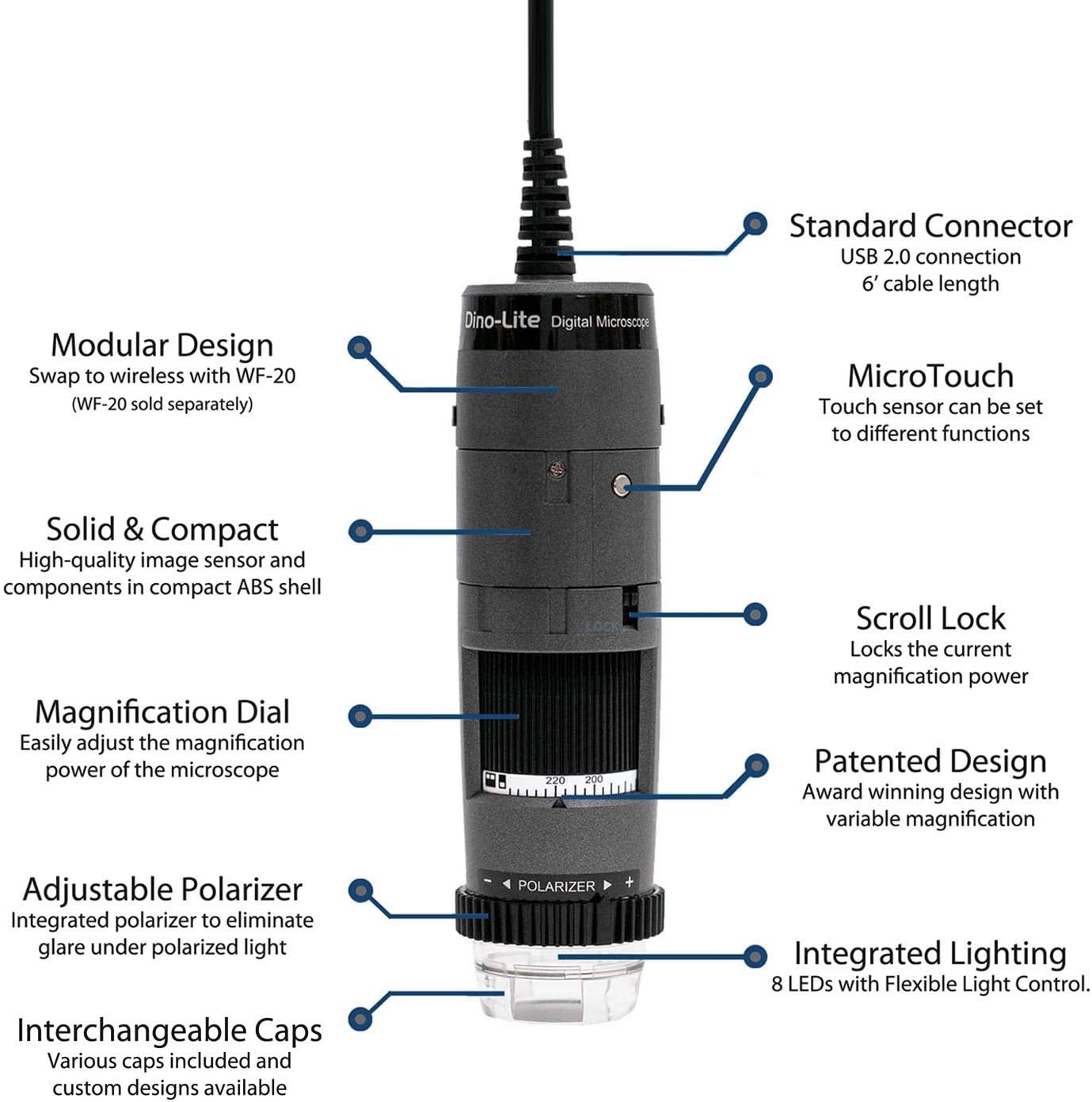
Image: Overview of the Dino-Lite AF4115ZT microscope with its main features labeled, including the standard USB 2.0 connection, MicroTouch button, modular design, compact ABS shell, scroll lock, magnification dial, adjustable polarizer, integrated lighting, and interchangeable caps.
- Standard USB 2.0 Connection: Provides a reliable connection to your computer with a 6-foot cable length.
- Modular Design: Allows for wireless operation with the separately sold WF-20 adapter.
- Solid & Compact: High-quality image sensor and components housed in a durable ABS shell.
- MicroTouch: A touch-sensitive area that can be programmed to capture images, record video, or toggle LEDs.
- Scroll Lock: Locks the current magnification power to prevent accidental changes.
- Magnification Dial: Easily adjust the optical magnification from 20x to 220x.
- Adjustable Polarizer: Integrated to eliminate glare and reflections under polarized light.
- Integrated Lighting: Features 8 LEDs with Flexible Light Control (FLC) for optimal illumination.
- Interchangeable Caps: Various caps are included and custom designs are available for different applications.

Image: The Dino-Lite AF4115ZT microscope, illustrating its compact dimensions (4.65 inches length) and its modular design, showing how it can be adapted for wireless use with the WF-20 module (sold separately), which increases its length to 5.5 inches.
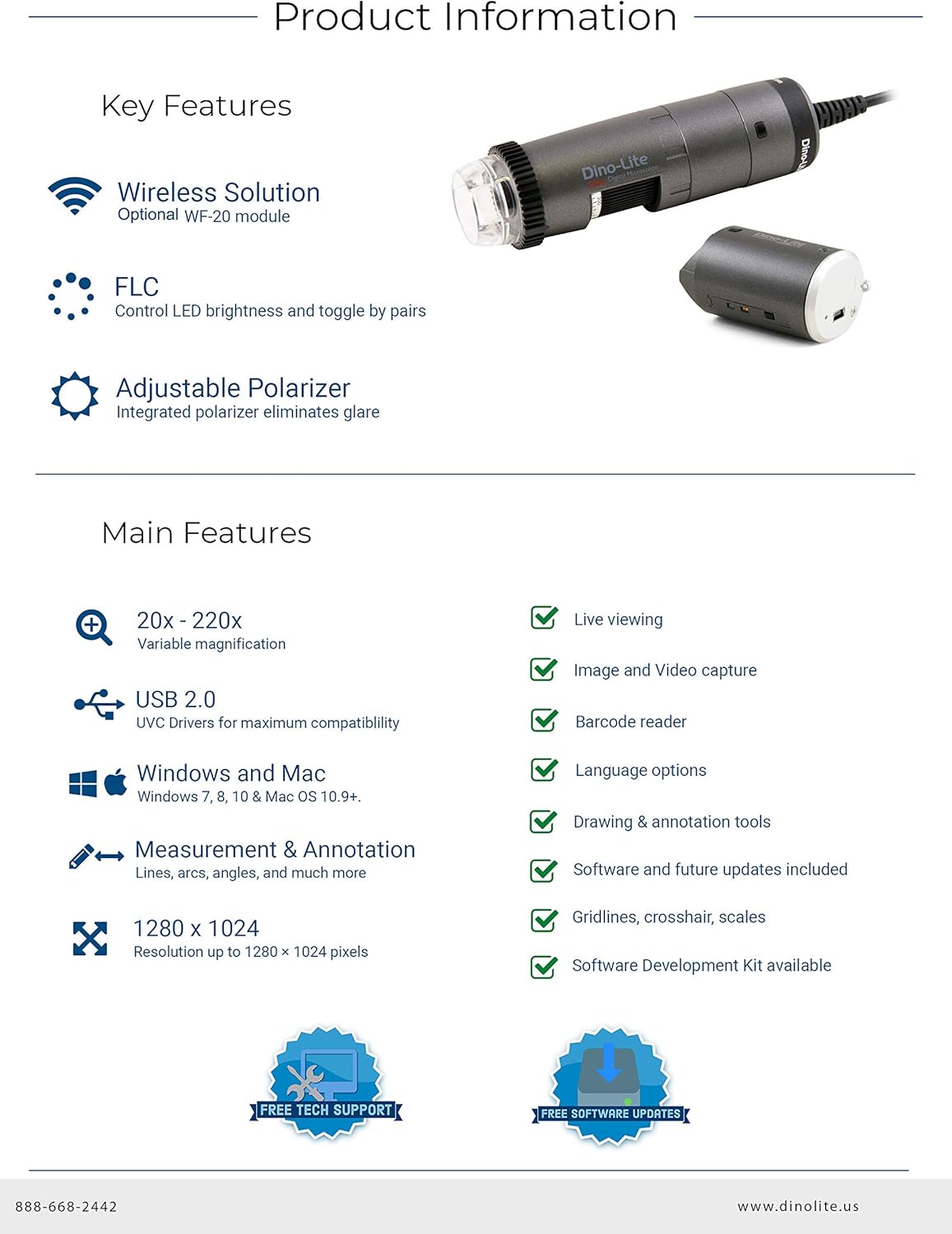
Image: A summary of the Dino-Lite AF4115ZT's key features, including wireless solution compatibility, Flexible Light Control (FLC), adjustable polarizer, 20x-220x variable magnification, USB 2.0, Windows and Mac compatibility, measurement and annotation tools, 1280x1024 resolution, live viewing, image and video capture, barcode reader, language options, drawing and annotation tools, software updates, gridlines, crosshairs, scales, and Software Development Kit (SDK) availability.
Setup Instructions
- Software Installation:
Insert the included CD-ROM into your computer's drive. Follow the on-screen instructions to install DinoCapture 2.0 for Windows or DinoXcope for Mac. Alternatively, download the latest software version from the official Dino-Lite website.

Image: The Dino-Lite AF4115ZT package contents, showing the microscope unit, USB cable, software CD (DinoCapture 2.0), quick guide, various interchangeable caps, and a carrying pouch.
- Connect the Microscope:
Plug the USB connector of the Dino-Lite microscope into an available USB 2.0 port on your computer. The device should be automatically recognized by the installed software.
- Optional Wireless Setup (WF-20 Adapter):
If using the optional WF-20 wireless adapter (sold separately), attach it to the microscope as per its instructions. This enables wireless connectivity to compatible devices like smartphones and tablets.
Video: This video demonstrates the key features and setup of the Dino-Lite AF4115ZT digital microscope, including its working distance at various magnifications, the magnification dial, scroll lock, adjustable polarizer, Flexible Light Control (FLC), interchangeable caps, programmable MicroTouch for photo/video capture and LED toggling, software features like measurements and auto-calibration, and the optional wireless capability.
Operating Instructions
- Adjusting Magnification:
Rotate the Magnification Dial on the microscope body to change the optical magnification. The current magnification level is indicated on the dial. For stable viewing, use an optional stand (sold separately).
Image: The Dino-Lite AF4115ZT microscope, showing the magnification dial used to adjust optical zoom. The image also highlights the scroll lock feature, which secures the chosen magnification.
- Using the Adjustable Polarizer:
Rotate the Adjustable Polarizer ring located at the bottom of the microscope to reduce glare and reflections from shiny surfaces. This feature can be adjusted for full or half polarization.
- Capturing Images and Videos:
Press the MicroTouch button on the microscope body to capture a still image. This button can be programmed within the software to also initiate video recording or toggle the integrated LEDs.
- Software Features (DinoCapture/DinoXcope):
The included software provides advanced functionalities:
- Live Viewing: View real-time images from the microscope on your computer screen.
- Image and Video Capture: Save high-resolution images and videos.
- Measurement Tools: Perform various measurements (lines, circles, angles, etc.) in different units (inch/mil/mm/um).
- Annotation: Add text, drawings, and other annotations directly onto captured images for detailed analysis.
- Auto Calibration: Calibrate the microscope for accurate measurements using a calibration target.

Image: The DinoCapture 2.0 software interface displaying an image of a circuit board with various measurements and annotations applied, demonstrating the software's analytical capabilities.
Maintenance
- Cleaning the Lens: Use a soft, lint-free cloth and a specialized lens cleaning solution to gently clean the optical lens. Avoid abrasive materials or harsh chemicals.
- Cleaning the Body: Wipe the microscope body with a dry or slightly damp cloth. Do not immerse the device in water or use excessive moisture.
- Storage: Store the microscope in a clean, dry place, away from direct sunlight and extreme temperatures. Use the provided pouch for protection when not in use.
- Software Updates: Regularly check the Dino-Lite website for software updates to ensure optimal performance and access to new features.
Troubleshooting
- No Image Display:
Ensure the USB cable is securely connected to both the microscope and the computer. Verify that the Dino-Lite software is running and the correct device is selected. Check if the computer's USB drivers are up to date.
- Unclear or Blurry Image:
Adjust the Magnification Dial to focus the image. Ensure the object is within the microscope's working distance. Clean the optical lens if smudges or dust are present. Adjust the integrated lighting for better illumination.
- Glare or Reflections:
Rotate the Adjustable Polarizer ring to minimize glare from reflective surfaces. Adjust the angle of the microscope relative to the object.
- Software Not Recognizing Device:
Reinstall the Dino-Lite software. Try connecting the microscope to a different USB port. Restart your computer. Ensure your operating system meets the software requirements.
Specifications
| Feature | Detail |
|---|---|
| Model Number | AF4115ZT |
| Magnification | 20x - 220x Optical |
| Image Resolution | 1280 x 1024 (1.3MP) |
| Video Frame Rate | 30 FPS |
| Connectivity | USB 2.0 (WF-20 compatible for wireless) |
| Polarization | Adjustable |
| Lighting | Integrated 8 LEDs with Flexible Light Control (FLC) |
| MicroTouch | Programmable touch-sensitive button |
| Software Compatibility | Windows (XP/Vista/7/8/10), Mac OS 10.5 and above, Android, iOS (with WF-20) |
| Product Dimensions | 1.3 x 1.3 x 4.49 inches |
| Item Weight | 12 ounces |
| Material | Glass, Metal, Plastic |
| Voltage | 5 Volts |
Warranty and Support
Dino-Lite provides comprehensive support for its products. Users benefit from free technical support and regular software updates to enhance functionality and compatibility.
- Technical Support: For assistance with setup, operation, or troubleshooting, contact Dino-Lite customer support.
- Software Updates: Ensure your software is up-to-date by visiting the official Dino-Lite website for the latest versions of DinoCapture 2.0 (Windows) and DinoXcope (Mac).
- Warranty Information: Refer to the product packaging or the official Dino-Lite website for detailed warranty terms and conditions.