
1. Introduction
Thank you for choosing the XTRONS PF71RVTS 7-inch 2 DIN Car Radio. This manual provides essential information for the proper installation, operation, and maintenance of your new car multimedia system. Please read this manual thoroughly before using the product to ensure safe and optimal performance. Keep this manual for future reference.
2. Product Overview and Features
The XTRONS PF71RVTS is a versatile 7-inch 2 DIN car radio designed to enhance your in-car entertainment and navigation experience. It integrates multiple functionalities into a single unit.
Key Features:
- 7-inch Touchscreen Display: Intuitive control and clear visuals.
- 2 DIN Standard Size: Compatible with a wide range of vehicles.
- Multimedia Playback: Supports DVD/CD, USB, and AUX inputs.
- Bluetooth Connectivity: For hands-free calling and audio streaming.
- Integrated GPS Navigation: Reliable route guidance.
- WiFi Connectivity: For internet access and online features.
- Android Operating System: Access to various applications.
- Screen Mirroring Function: Display content from compatible smartphones.
- Steering Wheel Control Support: For convenient operation.
- Powerful Processor: Equipped with an 800MHz Cortex A7 Processor for smooth performance.
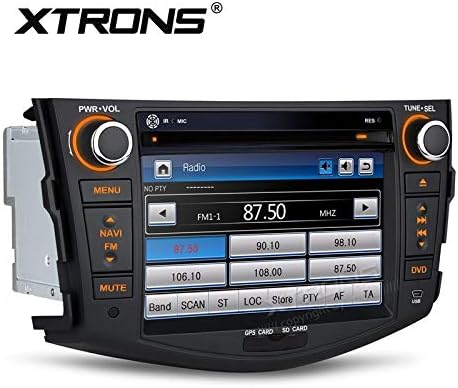
The XTRONS PF71RVTS unit features a 7-inch touchscreen display, physical control knobs for power/volume and tuning/selection, and dedicated buttons for menu, navigation, mute, and DVD access. The radio interface is shown on the screen.

This image shows the main menu of the XTRONS PF71RVTS car radio, providing access to Radio, Navigation, DVD, and Applications. The date and time are visible at the top.
3. Setup and Installation
Proper installation is crucial for the performance and safety of your car radio. It is recommended that installation be performed by a qualified professional.
Compatibility:
This car radio is compatible with various vehicle models. Please verify the dimensions and shape of your vehicle's center console before purchase and installation.
- Toyota RAV4: 2006-2012 models.
- VW Caravelle T5: 03/2003 - 08/2009 models.
- VW Multivan T5: 03/2003 - 08/2009 models.
- VW Touareg (4L): 10/2002 - 04/2010 models.
- VW Transporter T5: 03/2003 - 08/2009 models.
Dimensions:
Ensure the unit's dimensions fit your vehicle's dashboard opening.

The image illustrates the XTRONS PF71RVTS unit seamlessly integrated into a Toyota RAV4 (2006-2012) dashboard. Key dimensions for the face panel are provided: 245mm width and 155mm height, with a 220mm width for the main unit.

This image provides a detailed diagram of the XTRONS PF71RVTS unit's dimensions, including its depth (178mm), height (155mm), and width (220mm). Below, the included accessories are shown: 1 x ISO Wiring Harness, 1 x GPS Antenna, and 1 x User Manual.
Included Accessories:
- 1 x ISO Wiring Harness
- 1 x GPS Antenna
- 1 x User Manual (English)
- Removal Keys
- Microphone for phone calls
- SD Card for navigation
4. Operating Instructions
Basic Operation:
- Power On/Off: Press the PWR-VOL knob to turn the unit on or off.
- Volume Control: Rotate the PWR-VOL knob to adjust the volume.
- Menu Navigation: Use the touchscreen or the 'MENU' button to access different functions.
Radio Operation:
Select the 'Radio' icon from the main menu. Use the TUNE-SEL knob or touchscreen controls to scan for stations, save presets, and switch between FM/AM bands.
DVD/CD Playback:
Insert a DVD or CD into the disc slot. The unit will automatically detect and begin playback. Use the on-screen controls for play, pause, skip, and menu navigation.
USB/AUX Input:
Connect a USB device or an external audio source via the AUX input. Select the corresponding source from the main menu to access media files.
Bluetooth Functionality:
- Enable Bluetooth on your smartphone.
- On the car radio, go to the Bluetooth menu and search for available devices.
- Select your phone from the list and pair the devices.
- Once paired, you can make/receive hands-free calls and stream audio.
GPS Navigation:
Access the navigation system by selecting the 'NAVI' button or the 'Navigation' icon. Ensure the GPS antenna is properly installed for optimal signal reception. Follow the on-screen instructions for route planning and guidance.

The image shows the GPS navigation interface of the XTRONS PF71RVTS, providing clear route guidance with map details, current location, and navigation controls.
Screen Mirroring Function:
This function allows you to mirror the screen of a compatible Android smartphone onto the car radio's display. Connect your smartphone via USB and follow the on-screen prompts to activate screen mirroring. This enables two-way control of your smartphone applications from the head unit.
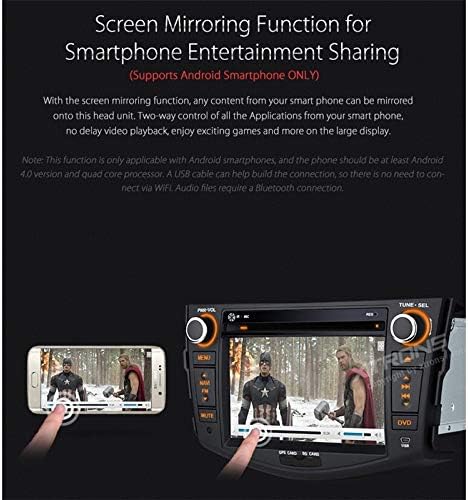
This image highlights the Screen Mirroring function, allowing content from a compatible Android smartphone to be displayed and controlled on the car radio's large screen. This enables sharing entertainment from your phone.
Steering Wheel Control:
If your vehicle supports steering wheel controls, the unit can be configured to respond to these controls. Refer to the detailed wiring diagram in the full user manual for connection instructions and the system settings for programming the controls.
5. Maintenance
Cleaning the Unit:
Use a soft, dry cloth to clean the display and exterior of the unit. For stubborn marks, dampen the cloth slightly with water. Avoid using harsh chemicals, abrasive cleaners, or solvents, as these can damage the surface.
Software Updates:
Periodically check the manufacturer's website for any available software updates. Updates can improve performance, add new features, or fix bugs. Follow the provided instructions carefully when performing any software update.
6. Troubleshooting
If you encounter issues with your XTRONS PF71RVTS unit, refer to the following common problems and solutions:
- No Power:
Check all power connections and fuses. Ensure the ignition is on. - No Sound:
Verify speaker connections. Check volume levels and mute settings. Ensure the correct audio source is selected. - Bluetooth Connection Issues:
Ensure Bluetooth is enabled on both devices. Delete previous pairings and try re-pairing. Move devices closer to each other. - GPS Signal Loss:
Ensure the GPS antenna is properly installed and has a clear view of the sky. Move to an open area if in a tunnel or underground parking. - Touchscreen Unresponsive:
Try restarting the unit. If the issue persists, a factory reset might be necessary (note: this will erase all user data). - Disc Read Error:
Ensure the disc is clean and free of scratches. Try a different disc.
For more complex issues, please consult a qualified technician or contact XTRONS customer support.
7. Specifications
| Brand | XTRONS |
| Model Number | PF71RVTS |
| Connectivity Technology | Bluetooth, USB, Wi-Fi |
| Driver Type | Android |
| Compatible Devices | Smartphone |
| Output Power | 50 Watts |
| Control Method | Touch |
| Audio Output Type | Speakers |
| Processor | 800MHz Cortex A7 |
| System | WinCE6.0 (for some functions, Android for others) |
8. Warranty and Support
XTRONS products are manufactured to high-quality standards. For information regarding warranty coverage, please refer to the warranty card included with your product or visit the official XTRONS website. For technical support, troubleshooting assistance, or service inquiries, please contact XTRONS customer support through their official channels.


