
1. Introduction
This manual provides detailed instructions for the setup, operation, and maintenance of your Ipega PG-9076 Wireless Game Controller. Please read this manual carefully before use to ensure proper functionality and to maximize your gaming experience. This controller is designed for compatibility with Android, iOS, and Windows devices.
2. Product Overview
The Ipega PG-9076 controller features a design similar to an Xbox controller, incorporating standard gaming buttons along with additional multimedia controls. It includes a retractable phone holder for mobile gaming.
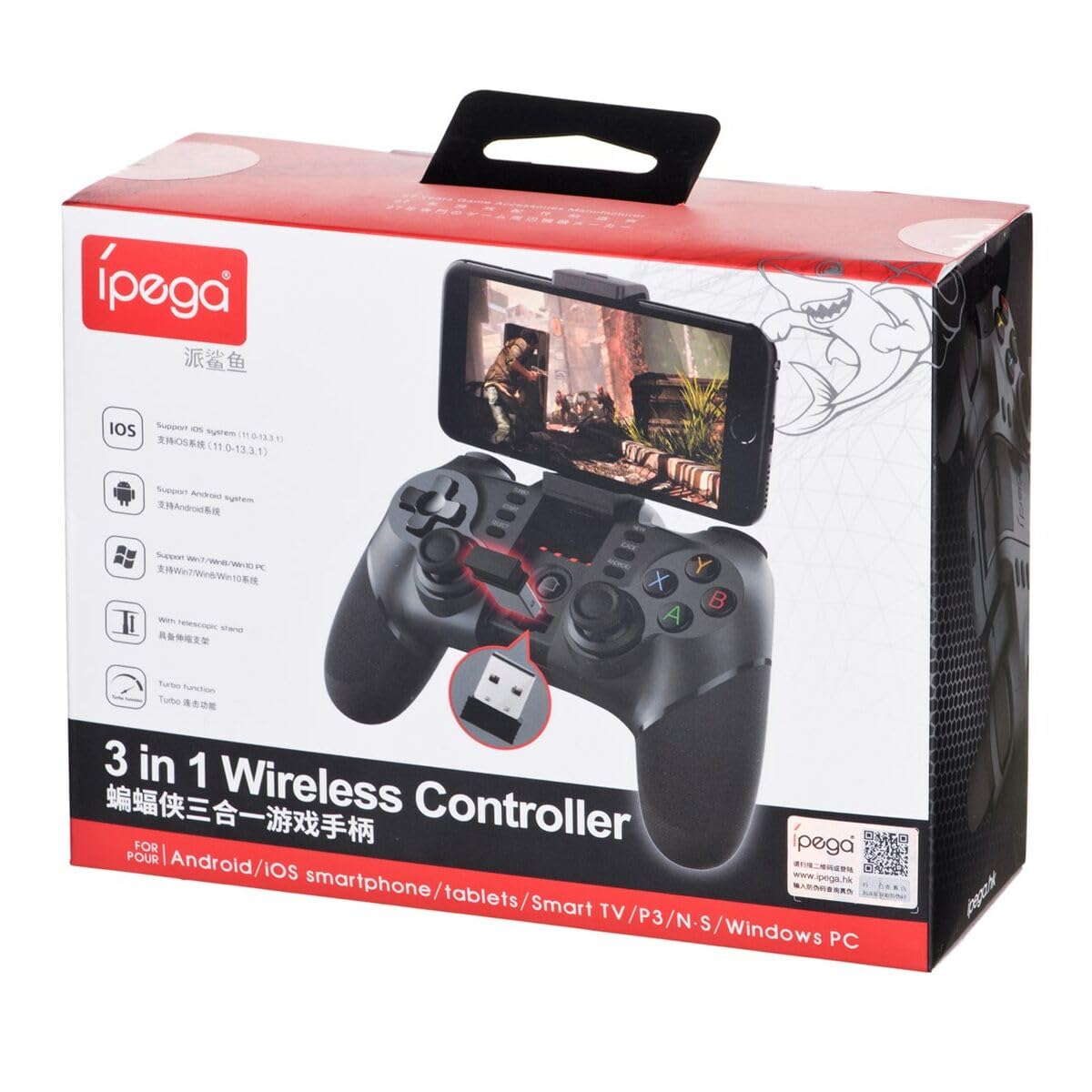
Figure 2.1: Ipega PG-9076 controller with a smartphone mounted, showcasing its mobile gaming capability.

Figure 2.2: Front view of the controller, highlighting the dual analog sticks, D-pad, action buttons (A, B, X, Y), and mode selection buttons (SELECT, START, ANDROID, IOS, TURBO, CLEAR).

Figure 2.3: Rear view of the controller, displaying the product label with model number, input specifications, and a QR code for additional information or support.
Key Features:
- Bluetooth 3.0 connectivity for wireless operation.
- Integrated multimedia buttons (volume, play/pause, track control).
- Retractable phone holder, accommodating devices up to 9 cm wide.
- Compatible with Android (3.2+), iOS (4.3+), and Windows.
- Built-in 380 mAh rechargeable battery.
3. Setup and Connection
Before first use, ensure the controller is fully charged. Refer to Section 5 for charging instructions.
3.1. Pairing with Android Devices
- Ensure your Android device's Bluetooth is enabled.
- On the controller, press and hold the ANDROID button simultaneously with the HOME button until the indicator light flashes rapidly.
- On your Android device, search for Bluetooth devices and select "PG-9076" to pair.
- Once paired, the indicator light on the controller will remain solid.
3.2. Pairing with iOS Devices
- Ensure your iOS device's Bluetooth is enabled.
- On the controller, press and hold the IOS button simultaneously with the HOME button until the indicator light flashes rapidly.
- On your iOS device, search for Bluetooth devices and select "PG-9076" to pair.
- Once paired, the indicator light on the controller will remain solid.
3.3. Connecting to Windows PC
The controller can be connected to a Windows PC via Bluetooth or USB cable.
3.3.1. Bluetooth Connection (PC)
- Ensure your PC has Bluetooth enabled.
- On the controller, press and hold the START button simultaneously with the HOME button until the indicator light flashes rapidly.
- On your PC, go to Bluetooth settings, search for devices, and select "PG-9076" to pair.
- Once paired, the indicator light on the controller will remain solid.
3.3.2. USB Cable Connection (PC)
- Connect the controller to your PC using the provided USB cable.
- The PC should automatically detect and install the necessary drivers.
- Configuration within the operating system and individual games may be required for optimal performance.

Figure 3.1: The USB dongle (if included with your model) can be inserted into the controller for wireless connection to devices that do not have built-in Bluetooth, such as some PCs or Smart TVs.

Figure 3.2: The included USB cable is used for charging the controller and can also be used for a wired connection to a PC.
4. Operating Modes
The PG-9076 supports various gaming modes depending on the connected device and game type.
4.1. Android Gaming
- Supports most games with 'Arcade Mode' (often indicated by a controller symbol).
- Compatible with various simulator games.
- Ensure your Android OS is version 3.2 or newer.
4.2. iOS Gaming
- Compatible with games that support 'iCade' mode.
- Ensure your iOS is version 4.3 or newer.
4.3. Windows PC Gaming
- Can be used via Bluetooth or USB cable.
- System and in-game configuration may be necessary for full compatibility and optimal control mapping.
4.4. Multimedia Functions
The controller includes dedicated multimedia buttons for:
- Volume control (up/down)
- Play/Pause
- Fast forward/Rewind
5. Charging and Battery
The controller is equipped with a rechargeable internal battery.
5.1. Charging Instructions
- Connect the provided USB cable to the micro-USB port on the controller.
- Connect the other end of the USB cable to a USB power source (e.g., PC, USB wall adapter).
- The charging indicator light will illuminate during charging and turn off when fully charged.
5.2. Battery Specifications
- Battery Capacity: 380 mAh
- Charging Time: Approximately 2 to 5 hours (may vary based on charger output).
- Operating Autonomy: Up to 12 hours of continuous gameplay.
- Standby Time: Up to 30 days when fully charged.
6. Maintenance
To ensure the longevity and optimal performance of your controller, follow these maintenance guidelines:
- Keep the controller dry and away from moisture.
- Avoid exposing the controller to extreme temperatures.
- Clean the controller with a soft, dry cloth. Do not use harsh chemicals or abrasive cleaners.
- Store the controller in a safe place when not in use to prevent physical damage.
7. Troubleshooting
If you encounter issues with your Ipega PG-9076 controller, refer to the following common problems and solutions:
7.1. Controller Does Not Turn On
- Ensure the battery is charged. Connect the controller to a power source and allow it to charge for at least 30 minutes.
- Press and hold the HOME button for a few seconds to attempt to power on.
7.2. Unable to Pair via Bluetooth
- Make sure the controller is in the correct pairing mode for your device (Android, iOS, or PC).
- Ensure Bluetooth is enabled on your device and it is discoverable.
- Move the controller closer to your device (within 8 meters).
- Turn off and on your device's Bluetooth, then try pairing again.
- Clear any previous pairings of the controller from your device's Bluetooth list.
7.3. Buttons or Joysticks Not Responding Correctly
- Ensure the controller is fully charged. Low battery can affect performance.
- Restart the controller and your device.
- For PC, check in-game settings and system controller configurations.
- Some games, especially those designed for touchscreens, may not fully support external controllers.
8. Specifications
| Feature | Specification |
|---|---|
| Model | PG-9076 |
| Brand | Ipega |
| Connectivity Technology | Bluetooth 3.0 |
| Operating Distance | Up to 8 meters (barrier-free) |
| Power Input | DC 5V 500 mAh |
| Operating Voltage | DC 3.7V |
| Operating Current | 30 mAh |
| Battery Capacity | 380 mAh |
| Charging Time | 2-5 hours |
| Battery Autonomy (Gameplay) | Up to 12 hours |
| Standby Time | Up to 30 days |
| Device Clamp Width | Up to 9 cm |
| Product Dimensions | 19.1 x 7.5 x 7.4 cm |
| Product Weight | 304 g |
| Compatible Platforms | Android, iOS, Windows |
9. Warranty and Support
For warranty information, please refer to the terms provided by your retailer at the time of purchase. Extended warranty options may be available from third-party providers.
For technical support or further inquiries, you may scan the QR code located on the back of your controller or visit the official Ipega support channels. The QR code on the product label links to http://weixin.qq.com/r/uUUHHyPERX46rWd89xCr.


