
DJI CP.ZM.00000097.01
DJI Osmo Pocket User Manual
Model: CP.ZM.00000097.01
1. Introduction
The DJI Osmo Pocket Gimbal is a remarkably compact and intelligent 3-axis stabilized handheld camera designed to transform everyday moments into cinematic memories. Weighing just over four ounces and standing only 4.8 inches high, this all-in-one unit provides exceptional stability for smooth video capture. It features a 1/2.3-inch sensor and a wide f/2.0, 80° angle-of-view lens, capable of recording up to 4K60 cinematic video and 12MP still photos. The Osmo Pocket supports intelligent functions such as ActiveTrack, FaceTrack, Motionlapse, 180° and 3x3 panoramic shots, FPV mode, and NightShot, enabling a wide range of creative effects.
2. What's in the Box
- DJI Osmo Pocket Handheld Gimbal Camera
- USB-C Adapter
- Lightning (iOS) Adapter
- Charging Cable
- Protective Cover
3. Product Overview
Familiarize yourself with the components of your DJI Osmo Pocket.

Figure 3.1: Front view of the DJI Osmo Pocket, showing the gimbal, camera lens, and integrated screen.

Figure 3.2: Direct front view of the Osmo Pocket, highlighting the camera and control buttons.

Figure 3.3: Side view demonstrating the Osmo Pocket connected to a smartphone for expanded viewing and control.

Figure 3.4: Angled view of the Osmo Pocket, showcasing its compact design and gimbal mechanism.

Figure 3.5: A different angled perspective of the Osmo Pocket, emphasizing its portability.
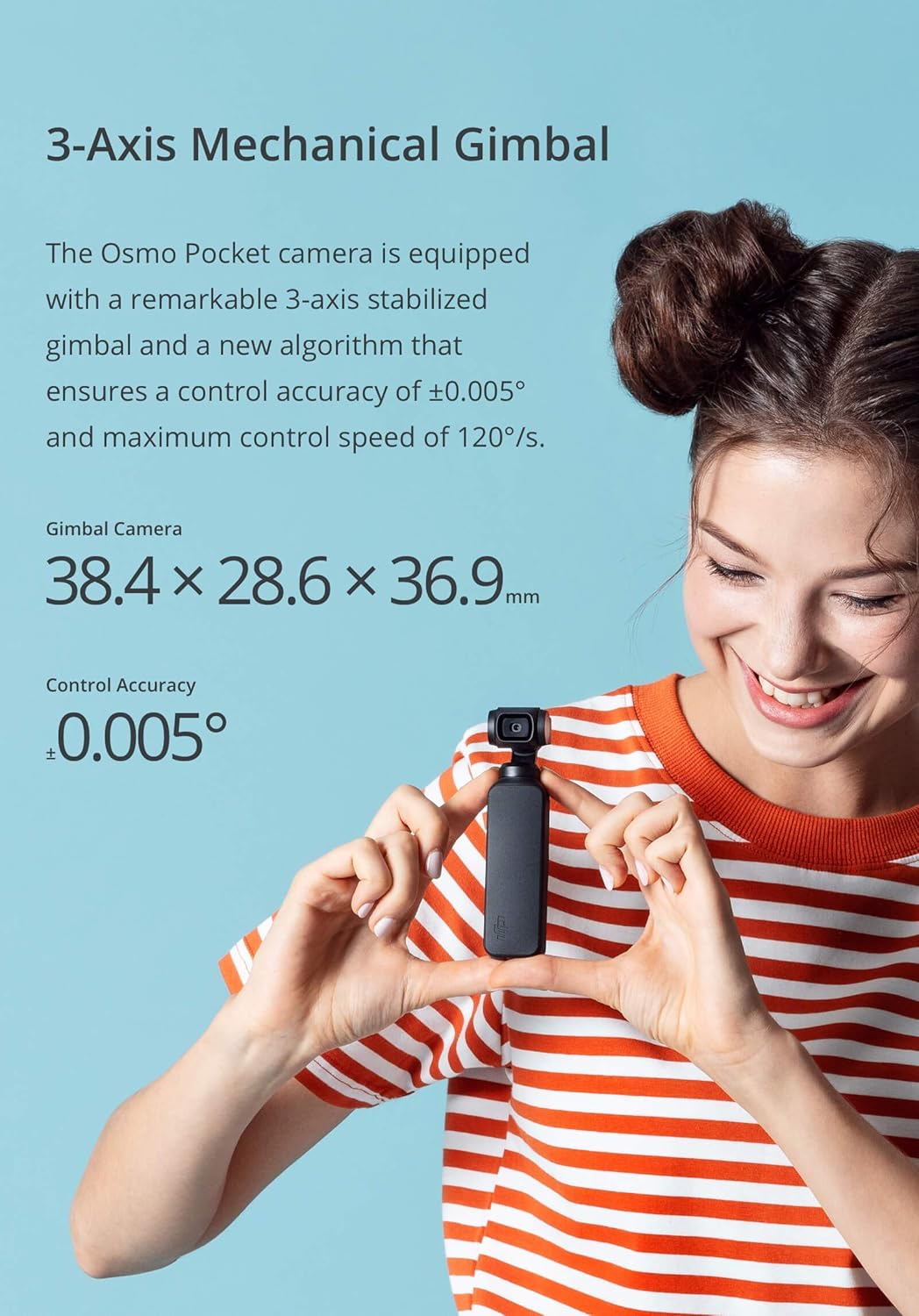
Figure 3.6: Illustration of the 3-axis mechanical gimbal, highlighting its precision and control accuracy.

Figure 3.7: Visual comparison demonstrating the superior stabilization provided by the Osmo Pocket's mechanical gimbal compared to electronic and optical image stabilization.

Figure 3.8: Diagram showing the compact dimensions of the DJI Osmo Pocket.
4. Setup
4.1 Charging the Device
Before first use, fully charge your Osmo Pocket using the provided charging cable. Connect the USB-C end to the Osmo Pocket and the other end to a USB power adapter (not included). The battery indicator will show charging status.
4.2 Inserting a microSD Card
The Osmo Pocket supports microSD cards up to 256GB. Insert the microSD card into the slot on the side of the device until it clicks into place. Ensure the card is formatted correctly for optimal performance.
4.3 Activating the Osmo Pocket
To activate your Osmo Pocket, download and install the DJI Mimo app on your compatible mobile device (iOS 10.0, Android 7.0 or above). Connect your Osmo Pocket to your mobile device using the appropriate adapter (USB-C or Lightning). Follow the on-screen prompts in the DJI Mimo app to complete activation.
5. Operating the Osmo Pocket
5.1 Basic Controls
- Power Button: Press and hold to power on/off.
- Shutter/Record Button: Press once to take a photo or start/stop video recording.
- Function Button: Press once to switch between photo and video modes. Double-press to recenter the gimbal. Triple-press to switch between front and rear camera (if applicable).
- Touchscreen: Swipe up, down, left, or right to access various settings and modes.
5.2 Intelligent Functions
The Osmo Pocket offers several intelligent shooting modes for enhanced creativity:
- ActiveTrack: Tap on the subject on the screen, and the Osmo Pocket will automatically follow it.
- FaceTrack: When in selfie mode, the device automatically detects and tracks your face.
- Motionlapse: Create dynamic time-lapse videos with camera movement.
- Pano: Capture wide panoramic shots (180° and 3x3 options available).
- NightShot: Optimized for low-light photography, capturing vivid details.
- Story Mode: Pre-set templates for quick and easy video creation with music and effects.
5.3 Connecting to DJI Mimo App
For advanced control, live view, and editing features, connect your Osmo Pocket to the DJI Mimo app. Use the included adapters to establish a physical connection. The app provides access to detailed settings, intelligent shooting modes, and a powerful editor.
6. Maintenance
- Cleaning: Use a soft, dry cloth to clean the camera lens and screen. Avoid harsh chemicals.
- Storage: Store the Osmo Pocket in its protective cover when not in use to prevent damage to the gimbal.
- Temperature: Avoid exposing the device to extreme temperatures.
- Firmware Updates: Regularly check for and install firmware updates via the DJI Mimo app to ensure optimal performance and new features.
7. Troubleshooting
7.1 Gimbal Malfunction
If the gimbal is not stabilizing correctly or appears stuck, try the following:
- Ensure the protective cover is removed.
- Recalibrate the gimbal through the DJI Mimo app settings.
- Restart the Osmo Pocket.
7.2 Connection Issues with DJI Mimo App
If the app fails to connect:
- Ensure the correct adapter is securely connected.
- Check if the DJI Mimo app is updated to the latest version.
- Restart both the Osmo Pocket and your mobile device.
7.3 Overheating
The device may become warm during extended use, especially when recording 4K video. If it overheats significantly, it may temporarily shut down. Allow it to cool down before resuming use. Ensure proper ventilation and avoid direct sunlight.
8. Specifications
| Feature | Detail |
|---|---|
| Product Dimensions | 4.8 x 1.45 x 1.13 inches (1.3"D x 1.45"W x 4.8"H) |
| Item Weight | 4.1 ounces (116 Grams) |
| Model Number | CP.ZM.00000097.01 |
| Sensor Size | 1/2.3-inch |
| Lens Aperture | f/2.0 |
| Field of View (FOV) | 80° |
| Max Video Resolution | 4K/60fps at 100Mbps |
| Still Photo Resolution | 12 MP (1.55 µm pixel size) |
| Max MicroSD Card Capacity | 256GB |
| Battery Type | Lithium Polymer |
| Compatible Devices | Cellphone, Tablet (iOS 10.0+, Android 7.0+) |
9. Warranty and Support
For detailed warranty information and technical support, please refer to the official DJI website or contact DJI customer service. Keep your proof of purchase for warranty claims.
You can find more information and support resources on the DJI Store on Amazon.
Related documentsCP.ZM.00000097.01


Ask a question about this manual
Ask about setup, troubleshooting, compatibility, parts, safety, or missing instructions. Manuals+ will review the question and use this page’s manual context to help answer it.