
1. Introduction
This user manual provides essential information for the safe and efficient installation, operation, and maintenance of your PNY NVIDIA Quadro RTX 4000 graphics card. Please read this manual thoroughly before proceeding with installation or use to ensure optimal performance and longevity of your product.
2. Safety Information
Observe the following safety precautions during installation and operation:
- Always disconnect power from your computer before installing or removing any internal components.
- Wear an anti-static wrist strap to prevent electrostatic discharge (ESD) damage to the graphics card and other components.
- Handle the graphics card by its edges; avoid touching the gold connector pins or the components on the circuit board.
- Ensure proper ventilation within your computer case to prevent overheating.
- Do not expose the graphics card to moisture or extreme temperatures.
3. Package Contents
Verify that all items are present in your product packaging:
- PNY NVIDIA Quadro RTX 4000 Graphics Card
- Documentation (this manual, quick start guide)
- Display Adapters (may vary by region/bundle)

Image 3.1: An assortment of display adapters, including DisplayPort to DVI, USB-C to DisplayPort, and DisplayPort to HDMI, which may be included with the graphics card.
4. Product Overview
The PNY NVIDIA Quadro RTX 4000 is a professional graphics card designed for demanding visual computing workloads. It features NVIDIA's Turing GPU architecture, offering advanced capabilities for ray tracing, AI acceleration, and high-performance graphics.
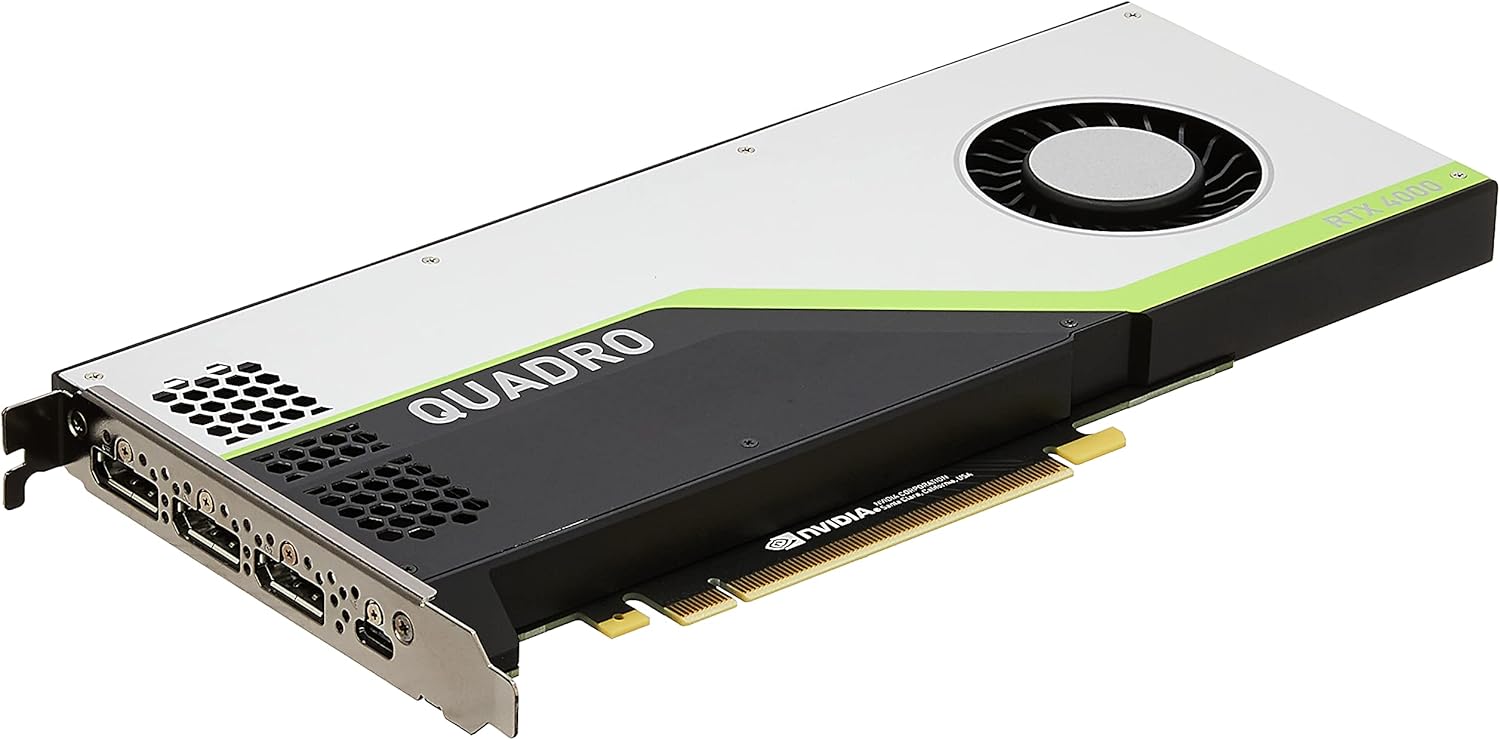
Image 4.1: Main image of the PNY NVIDIA Quadro RTX 4000 graphics card, shown from an angled perspective, highlighting its cooling fan and branding.
Key Features:
- NVIDIA Turing GPU architecture for enhanced performance.
- 36 RT Cores for accelerated photorealistic ray-traced rendering.
- 288 Tensor Cores for AI acceleration.
- 8 GB GDDR6 memory for large datasets.
- Support for multiple high-resolution displays.
- VirtualLink connector for next-generation VR HMDs.

Image 4.2: Rear view of the PNY NVIDIA Quadro RTX 4000 graphics card, displaying the intricate circuit board and various electronic components.

Image 4.3: Top edge view of the PNY NVIDIA Quadro RTX 4000 graphics card, featuring the NVIDIA logo and "RTX 4000" text.

Image 4.4: Rear output panel of the PNY NVIDIA Quadro RTX 4000 graphics card, showing three DisplayPort 1.4 connectors and one VirtualLink (USB-C) port.

Image 4.5: Side view of the PNY NVIDIA Quadro RTX 4000 graphics card, illustrating the 8-pin power connector required for operation.
5. Setup and Installation
Follow these steps to install your PNY NVIDIA Quadro RTX 4000 graphics card:
- Prepare Your System: Power off your computer and disconnect all power cables. Open the computer case.
- Locate PCIe Slot: Identify an available PCI Express x16 slot on your motherboard.
- Remove Slot Cover: Remove the metal slot cover from the back of your computer case corresponding to the chosen PCIe slot.
- Insert Graphics Card: Carefully align the graphics card with the PCIe slot and press down firmly until it is securely seated. Ensure the retention clip on the motherboard engages.
- Secure Card: Secure the graphics card to the computer case with a screw or retention mechanism.
- Connect Power: Connect the required 8-pin PCIe power connector from your power supply unit (PSU) to the graphics card. Ensure a firm connection.
- Close Case: Close your computer case and reconnect all power cables.
- Connect Display: Connect your display monitor(s) to the DisplayPort or VirtualLink (USB-C) outputs on the graphics card.
- Power On: Power on your computer.
6. Operating Instructions
Driver Installation:
After physical installation, the operating system may install a basic display driver. For full functionality and performance, install the latest official NVIDIA Quadro drivers:
- Visit the official NVIDIA website (www.nvidia.com/drivers).
- Select 'Quadro' as the product type, 'RTX Series' as the product series, and 'Quadro RTX 4000' as the product.
- Choose your operating system and download the recommended driver.
- Run the downloaded installer and follow the on-screen instructions. A system restart may be required.
Display Configuration:
Once drivers are installed, you can configure your display settings through the NVIDIA Control Panel (Windows) or system display settings. This allows you to set resolutions, refresh rates, and multi-monitor configurations.
7. Maintenance
Cleaning:
Periodically clean the graphics card and surrounding area within your computer case to prevent dust buildup, which can impede cooling and performance. Use compressed air to gently clear dust from the fan and heatsink fins. Ensure the computer is powered off and unplugged before cleaning.
Driver Updates:
Regularly check the NVIDIA website for updated drivers. Keeping your drivers current ensures access to the latest performance optimizations, bug fixes, and compatibility improvements for professional applications.
8. Troubleshooting
If you encounter issues with your graphics card, consider the following:
- No Display Output:
- Ensure the graphics card is fully seated in the PCIe slot.
- Verify the 8-pin power connector is securely attached.
- Check that your monitor cables are correctly connected to the graphics card and the monitor.
- Test with a different display cable or monitor if possible.
- Driver Installation Issues:
- Download the latest drivers directly from the NVIDIA website.
- Temporarily disable antivirus software during installation.
- Use a driver uninstaller utility (e.g., Display Driver Uninstaller) to remove previous drivers before installing new ones.
- Performance Problems/Overheating:
- Ensure adequate airflow within your computer case.
- Clean dust from the graphics card's fan and heatsink.
- Monitor GPU temperatures using system monitoring software.
- Verify your power supply unit (PSU) meets the minimum wattage requirements for your system, including the graphics card.
9. Specifications
Detailed technical specifications for the PNY NVIDIA Quadro RTX 4000 graphics card:

Image 9.1: A diagram illustrating the dimensions of the PNY NVIDIA Quadro RTX 4000 graphics card, showing its length and height.
| Feature | Specification |
|---|---|
| Brand | PNY |
| Model Number | VCQRTX4000-PB |
| Graphics Processor | NVIDIA Quadro RTX 4000 |
| Chipset Brand | NVIDIA |
| Graphics RAM Size | 8 GB GDDR6 |
| CUDA Cores | 2304 |
| RT Cores | 36 |
| Tensor Cores | 288 |
| Peak Performance (FP32) | 7.1 TFLOPS |
| Peak Performance (FP16) | 14.2 TFLOPS |
| Peak Performance (INT8) | 28.5 TOPS |
| Deep Learning Performance | 57.0 TFLOPS |
| Max Screen Resolution | 3840x2160 (per display) |
| Simultaneous Displays | 4 (at 7680x4320 resolution at 60Hz) |
| Video Output Interface | DisplayPort (x3), VirtualLink (USB-C) (x1) |
| Item Weight | 1.87 pounds |
| Product Dimensions (LxWxH) | 8 x 4 x 2 inches |
10. Warranty and Support
PNY products are backed by a limited warranty. For specific warranty terms and conditions, please refer to the warranty information included with your product or visit the official PNY website. For technical support, driver downloads, and additional resources, please visit the PNY support portal or contact their customer service.
PNY Support Website: www.pny.com/support


