
1. Introduction
The TP-Link Archer T2U Plus is an AC600 High Gain Wireless Dual Band USB Adapter designed to provide high-speed Wi-Fi connectivity for desktop PCs and laptops. It supports both 2.4 GHz and 5 GHz bands, offering flexible connectivity options and enhanced range with its 5dBi high-gain antenna. This manual provides instructions for setting up, operating, and maintaining your adapter.

Image: The TP-Link Archer T2U Plus AC600 High Gain Wireless Dual Band USB Adapter.
2. Package Contents
Verify that your package contains the following items:
- AC600 High Gain Wireless Dual Band USB Adapter (Archer T2U Plus)
- Quick Installation Guide
- Resource CD (for drivers and utility)

Image: The retail packaging for the Archer T2U Plus, showing the adapter and its key features.
3. System Requirements
Before installation, ensure your system meets the following requirements:
- An available USB port (USB 2.0 or higher recommended).
- Operating System: Windows 11/10/8.1/8/7/XP or Mac OS 10.15 and earlier.
- CD-ROM drive (for driver installation from Resource CD) or internet access (for driver download).

Image: Icons representing compatible operating systems: Windows 10, Windows 8.1, Windows 8, Windows 7, Windows XP, and Mac OS.
4. Setup and Driver Installation
4.1 Hardware Installation
- Insert the Adapter: Plug the Archer T2U Plus USB adapter into an available USB port on your computer. Ensure it is securely seated.
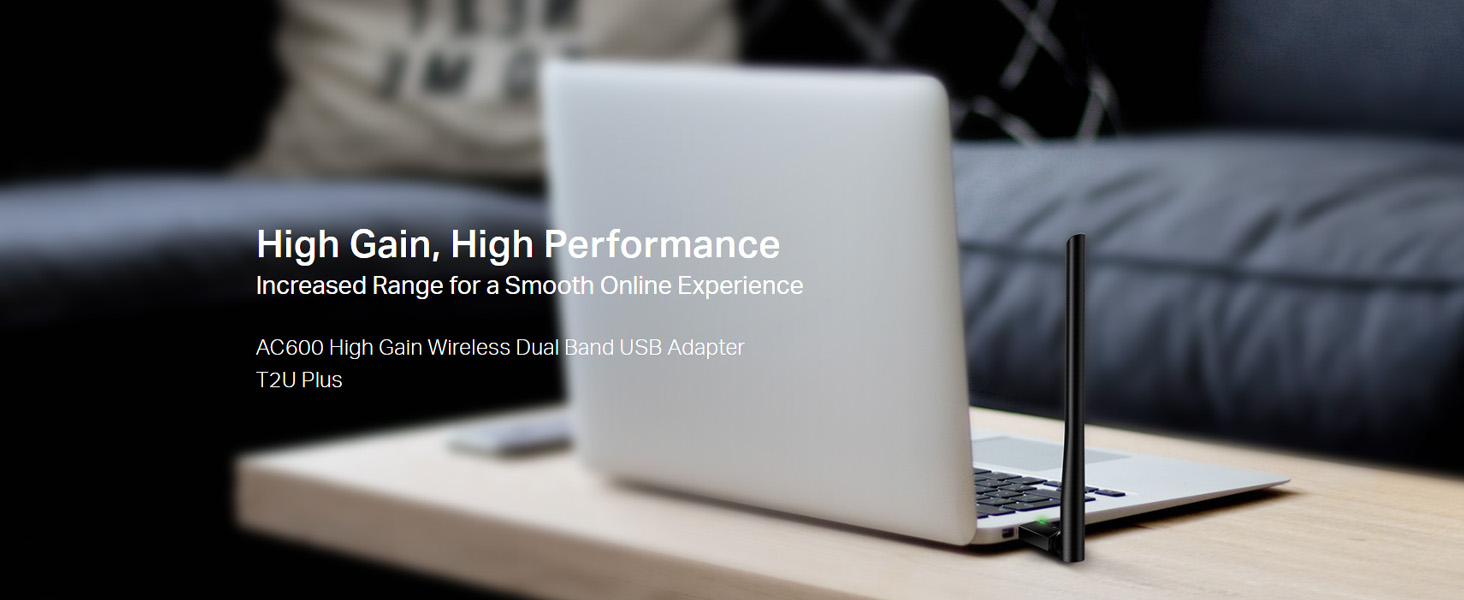
Image: The Archer T2U Plus adapter connected to a laptop's USB port, demonstrating its compact form factor.
4.2 Driver Installation
The adapter requires a driver to function correctly. You can install it using the provided Resource CD or by downloading it from the TP-Link website.
Option A: Using the Resource CD
- Insert the Resource CD into your computer's CD-ROM drive.
- Follow the on-screen instructions to run the setup wizard.
- Select the Archer T2U Plus model and proceed with the driver installation.
- Restart your computer if prompted.
Option B: Downloading Drivers Online
- Visit the official TP-Link support website (www.tp-link.com/support/download/).
- Search for "Archer T2U Plus" and download the latest driver compatible with your operating system.
- Extract the downloaded file (if compressed) and run the setup executable.
- Follow the installation wizard and restart your computer if required.
5. Operating Instructions
5.1 Connecting to a Wi-Fi Network
- After successful driver installation, the adapter will be detected by your operating system.
- Click the Wi-Fi icon in your system tray (Windows) or menu bar (Mac OS).
- Select your desired Wi-Fi network (SSID) from the list of available networks.
- Enter the network password (security key) if prompted and click Connect.
- The adapter will establish a connection to the Wi-Fi network.
5.2 Dual Band Functionality
The Archer T2U Plus supports both 2.4 GHz and 5 GHz Wi-Fi bands. The 5 GHz band offers faster speeds and less interference, ideal for streaming and gaming, while the 2.4 GHz band provides wider coverage.
- 2.4 GHz Band: Up to 200 Mbps data rate, suitable for general web browsing and email.
- 5 GHz Band: Up to 433 Mbps data rate, ideal for HD video streaming and online gaming.
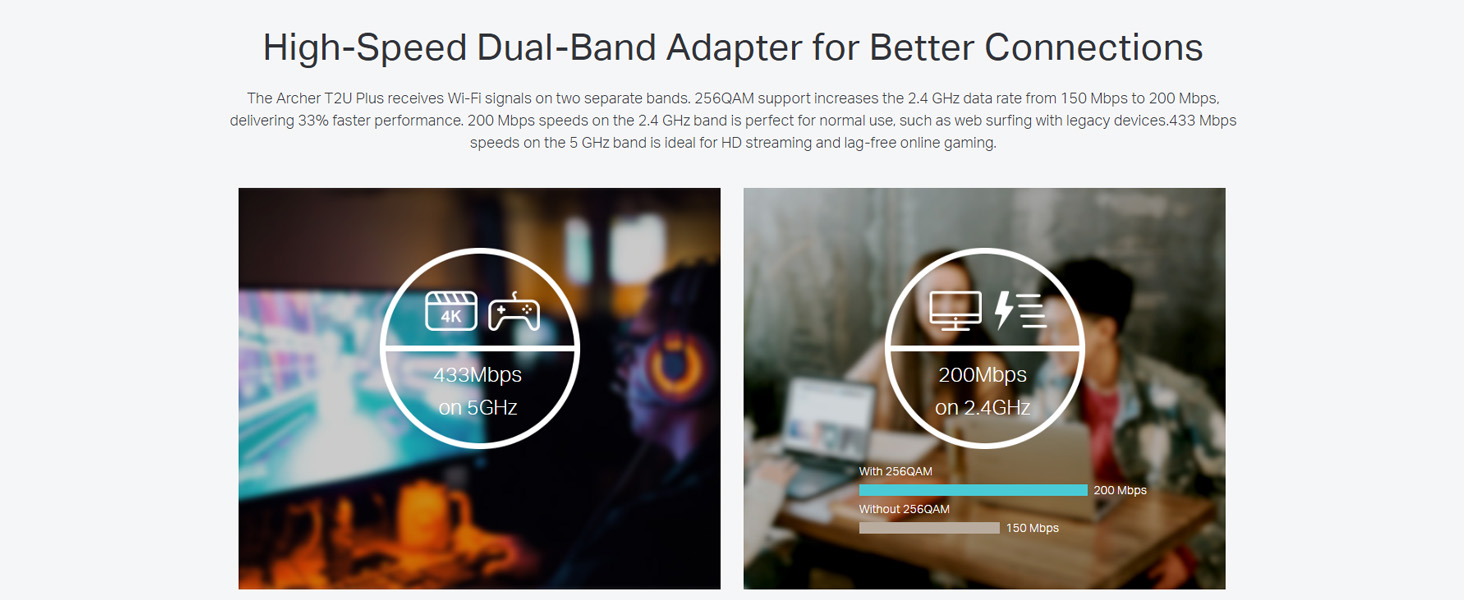
Image: A visual representation comparing the data rates and typical uses for the 2.4 GHz (200 Mbps) and 5 GHz (433 Mbps) bands.
5.3 Antenna Adjustment
The adapter features an adjustable, multi-directional 5dBi high-gain antenna to optimize signal reception and transmission.
- Rotate and adjust the antenna in various directions to find the optimal position for signal strength and performance in your environment.
- Experiment with different angles to achieve the best possible Wi-Fi range and stability.

Image: The Archer T2U Plus adapter illustrating its adjustable antenna, capable of rotating up to 180 degrees and tilting 90 degrees for optimal signal.
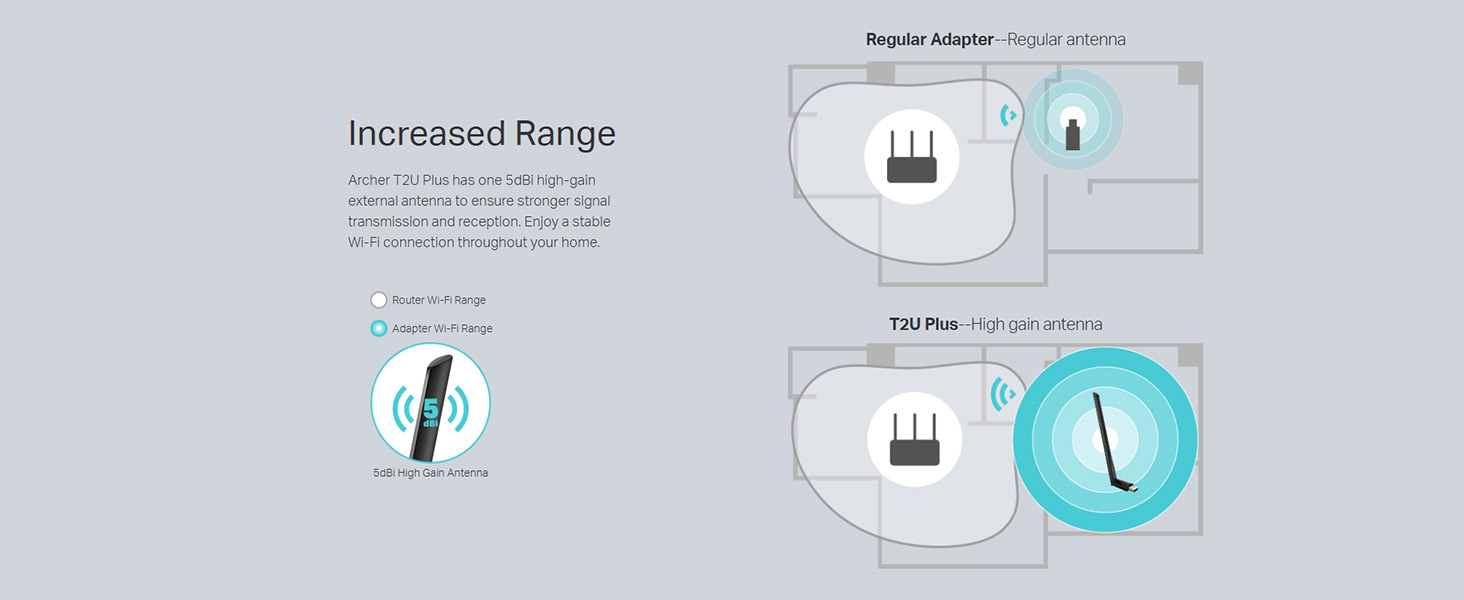
Image: A diagram comparing the Wi-Fi coverage area of a regular adapter with a standard antenna versus the extended range provided by the Archer T2U Plus's high-gain antenna.
6. Maintenance
6.1 Driver Updates
Regularly check the TP-Link support website for updated drivers. Keeping your drivers current ensures optimal performance, compatibility, and security.
6.2 Cleaning
To maintain the adapter's performance, keep it clean and free from dust. Use a soft, dry cloth to wipe the device. Avoid using liquid cleaners or solvents.
7. Troubleshooting
If you encounter issues with your Archer T2U Plus adapter, refer to the following common troubleshooting steps:
- No Wi-Fi Connection:
- Ensure the adapter is securely plugged into a USB port.
- Verify that the drivers are correctly installed. Reinstall if necessary.
- Check if your router is powered on and broadcasting a Wi-Fi signal.
- Try connecting to a different USB port.
- Slow Wi-Fi Speed:
- Ensure you are connected to the 5 GHz band if your router supports it, for faster speeds.
- Adjust the antenna position for better signal reception.
- Reduce interference by moving the adapter away from other electronic devices.
- Update your adapter's drivers to the latest version.
- Adapter Not Detected:
- Try plugging the adapter into another USB port.
- Restart your computer.
- Manually install the drivers from the Resource CD or TP-Link website.
8. Specifications
| Brand | TP-Link |
| Model | Archer T2U Plus |
| Hardware Interface | USB, USB 2.0 |
| Data Transfer Rate | 600 Megabits Per Second (200 Mbps on 2.4 GHz, 433 Mbps on 5 GHz) |
| Antenna Type | 5dBi High-Gain External Antenna |
| Compatible Operating Systems | Windows 11/10/8.1/8/7/XP, Mac OS 10.15 and earlier |
| Product Dimensions (L x W x H) | 5.8L x 1.8W x 17.3H Centimeters |
| Item Weight | 12 Grams |
| Color | Black |
9. Warranty and Support
9.1 Warranty Information
This product comes with a 3-year warranty from the date of purchase. Please retain your proof of purchase for warranty claims. The warranty covers manufacturing defects and malfunctions under normal use conditions.
9.2 Technical Support
For technical assistance, driver downloads, or further inquiries, please contact TP-Link support:
- Toll-Free Support: 1800-209-4168
- Email Support: support.in@tp-link.com
- Website: www.tp-link.com/in/support/


