
8Bitdo 6922621501855
8BitDo Pro 2 Wired Controller User Manual
Your guide to setting up, operating, and maintaining your 8BitDo Pro 2 Wired Controller for Xbox and Windows.
1. Introduction
The 8BitDo Pro 2 Wired Controller is a high-performance gaming controller officially licensed for Xbox Series X, Xbox Series S, Xbox One, and Windows 10 and above. Designed for precision and comfort, it features a classic d-pad, trigger vibration, enhanced grip, and a 3-meter wired connection. This manual provides essential information to help you get the most out of your controller.

Figure 1: Front view of the 8BitDo Pro 2 Wired Controller, showcasing its button layout and wired USB-C connection.
2. Setup
2.1 Connecting the Controller
The 8BitDo Pro 2 is a wired controller and connects directly to your device via a USB-C cable. The product may ship with either a non-detachable or detachable USB-C cable version at random.
- Locate the USB-C port on the top of your 8BitDo Pro 2 controller.
- Connect the USB-C end of the cable to the controller.
- Connect the USB-A end of the cable to an available USB port on your Xbox console (Xbox Series X, Xbox Series S, Xbox One) or Windows 10 (or above) PC.
- The controller will automatically be recognized and ready for use.

Figure 2: Illustration showing the two possible versions of the USB-C cable: non-detachable (left) and detachable (right).
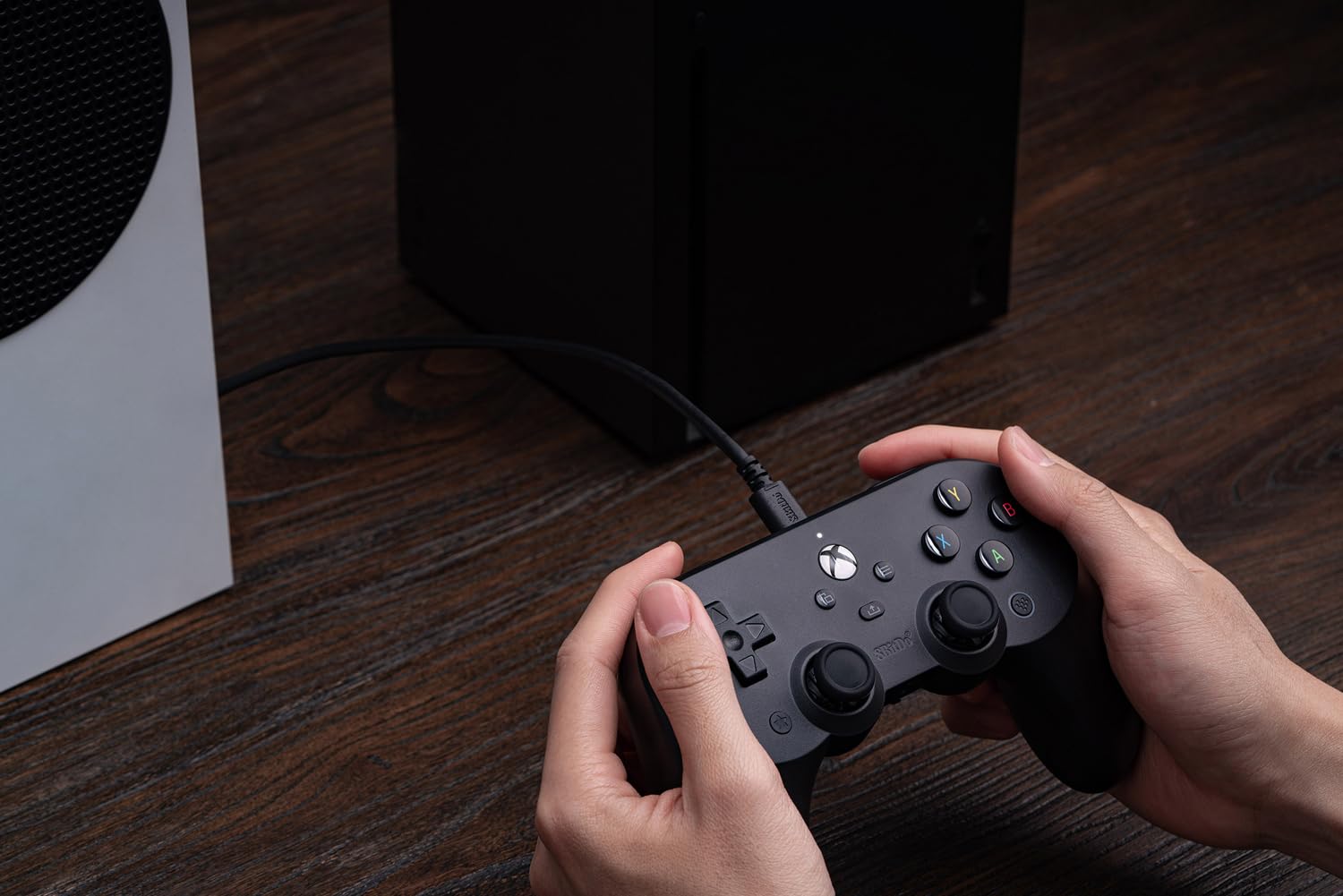
Figure 3: The 8BitDo Pro 2 controller connected via its USB-C cable to an Xbox Series S console, ready for gameplay.
3. Operating the Controller
3.1 Basic Controls
The 8BitDo Pro 2 controller features standard Xbox button layouts, including:
- A, B, X, Y Buttons: Standard action buttons.
- D-Pad: Classic directional pad for precise movement.
- Left & Right Analog Sticks: For 360-degree movement and camera control.
- Left & Right Triggers (LT, RT): Pressure-sensitive triggers, featuring trigger vibration for enhanced feedback.
- Left & Right Bumpers (LB, RB): Digital buttons located above the triggers.
- Xbox Button: Powers on the console, opens the guide, or returns to the home screen.
- View Button: Used for various in-game functions or to open context menus.
- Menu Button: Used for in-game menus or system options.

Figure 4: A close-up view of the central Xbox button, View button (left), and Menu button (right) on the controller.
3.2 Advanced Features
- Two Extra Pro-level Back Buttons: Located on the underside of the controller, these can be mapped to various functions for quick access during gameplay.
- 3.5mm Audio Jack: Directly connect your headphones for in-game audio and chat.
- Trigger Vibration: Provides immersive feedback during gameplay, especially for actions like shooting or driving.
- Enhanced Grip: Textured surface on the handles ensures a secure and comfortable hold during extended gaming sessions.

Figure 5: Visual representation of key features: Trigger Vibration, the 3.5mm Audio Jack, and the Pro-level Back Buttons.

Figure 6: A detailed close-up of one of the programmable Pro-level Back Buttons located on the underside of the controller.
3.3 Ultimate Software Customization
Unlock the full potential of your controller with the 8BitDo Ultimate Software, available on Xbox and PC. This software allows for extensive customization:
- Button Mapping: Remap any button to your preferred layout.
- Stick & Trigger Sensitivity: Adjust the sensitivity of analog sticks and triggers for precise control.
- Vibration Control: Fine-tune the intensity of the controller's vibration feedback.
- Profiles: Create and save multiple custom profiles for different games or genres.
Download the Ultimate Software from the official 8BitDo website or your console's app store.

Figure 7: An overview of the 8BitDo Ultimate Software interface, highlighting options for button mapping, stick/trigger adjustment, and vibration control.
4. Maintenance
Proper care will extend the life of your 8BitDo Pro 2 Wired Controller:
- Cleaning: Use a soft, dry cloth to wipe down the controller regularly. For stubborn dirt, a slightly damp cloth can be used, but ensure no moisture enters the ports or crevices.
- Cable Care: Avoid sharp bends or kinks in the USB-C cable. Do not pull the cable to disconnect the controller; always grasp the connector.
- Storage: Store the controller in a clean, dry place away from extreme temperatures and direct sunlight when not in use.
5. Troubleshooting
If you encounter issues with your 8BitDo Pro 2 Wired Controller, consider the following common solutions:
- Controller Not Responding:
- Ensure the USB-C cable is securely connected to both the controller and your console/PC.
- Try connecting the controller to a different USB port on your device.
- Restart your console or PC.
- Input Lag or Disconnections:
- Ensure the cable is not damaged. Try a different compatible USB-C cable if available.
- Avoid placing the cable near sources of electromagnetic interference.
- Software Issues (e.g., customization not applying):
- Ensure you have the latest version of the 8BitDo Ultimate Software installed.
- Check for any firmware updates for your controller via the Ultimate Software.
For further assistance, please refer to the official 8BitDo support resources.
6. Specifications
| Feature | Detail |
|---|---|
| Model Number | 6922621501855 |
| Compatibility | Xbox Series X, Xbox Series S, Xbox One, Windows 10 and above |
| Connection Type | Wired USB-C (3-meter cable) |
| Dimensions | 6.02 x 2.56 x 3.94 inches |
| Weight | 11.2 ounces |
| Special Features | Ultimate Software customization, Two Pro-level Back Buttons, 3.5mm Audio Jack, Trigger Vibration, Enhanced Grip |
| Manufacturer | 8Bitdo |
| Release Date | December 8, 2021 |
7. Warranty and Support
For information regarding product warranty, returns, or technical support, please visit the official 8BitDo website or contact their customer service directly. Keep your proof of purchase for warranty claims.
Official 8BitDo Store: 8BitDo Store on Amazon
Related documents6922621501855


Ask a question about this manual
Ask about setup, troubleshooting, compatibility, parts, safety, or missing instructions. Manuals+ will review the question and use this page’s manual context to help answer it.