
1. Introduction
This manual provides comprehensive instructions for the setup, operation, maintenance, and troubleshooting of your Logitech G815 LIGHTSYNC RGB Mechanical Gaming Keyboard. Please read this manual thoroughly before using the product to ensure optimal performance and longevity.
2. Package Contents
Verify that all items are present in your product packaging:
- Logitech G815 LIGHTSYNC RGB Mechanical Gaming Keyboard
- USB Cable
- User Documentation (this manual)

Image 1: Logitech G815 LIGHTSYNC RGB Mechanical Gaming Keyboard. This image displays the full keyboard with its RGB lighting active, showcasing its sleek design and key layout.
3. Setup
- Connect the Keyboard: Plug the USB cable from the keyboard into an available USB 2.0 port on your computer. The keyboard requires two USB ports for full functionality (one for keyboard data and power, one for the USB passthrough port).
- Install Logitech G HUB Software: For full customization of LIGHTSYNC RGB lighting, G-keys, and other advanced features, download and install the Logitech G HUB software from the official Logitech G website.
- USB Passthrough: The keyboard features a dedicated USB 2.0 passthrough port. Connect a second USB cable from the keyboard to your computer to enable this port for connecting other devices, such as a mouse or flash drive.

Image 2: Close-up view of the USB passthrough port on the Logitech G815 keyboard. This port allows for convenient connection of additional USB devices directly through the keyboard.
4. Operating Instructions
4.1 Key Features
- Low-Profile GL Clicky Mechanical Switches: Experience speed, accuracy, and performance with a distinctive sound and tactile feedback. These switches are designed for a responsive typing and gaming experience.
- LIGHTSYNC RGB Lighting: Customize per-key RGB lighting with 16.8 million colors using Logitech G HUB software. Lighting can synchronize with in-game actions, audio, or screen color.
- Programmable G-Keys: Five dedicated G-keys (G1-G5) are located on the left side of the keyboard. These can be programmed with custom macros and commands for specific games or applications using Logitech G HUB. Three onboard profiles (M1, M2, M3) allow for quick switching between G-key assignments.
- Dedicated Media Controls: Convenient media keys and a precision-engineered edgeless volume wheel provide quick control over audio and video playback (play, pause, skip, mute).
- Game Mode Button: This button disables the Windows key to prevent accidental interruptions during gameplay. Additional keys can be disabled via Logitech G HUB.

Image 3: Overview of the Logitech G815 keyboard highlighting key features such as G-keys, LIGHTSYNC RGB, Game Mode, Onboard Profiles, USB Passthrough, and Media Controls.
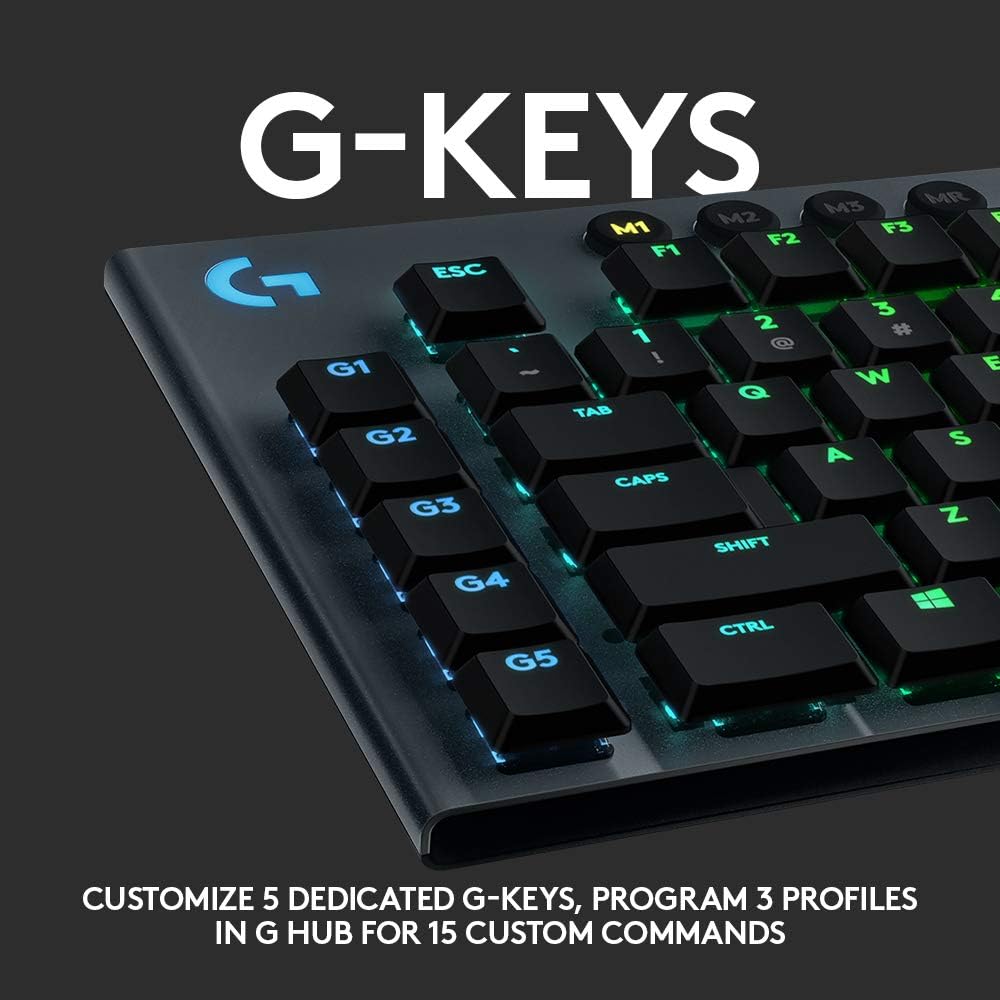
Image 4: Close-up of the five dedicated G-keys (G1-G5) on the left side of the keyboard, which can be customized for macros and commands.

Image 5: Detailed view of the precision-engineered volume control wheel, offering tactile feedback for media adjustments.

Image 6: Illustration of the LIGHTSYNC RGB lighting capabilities, showing vibrant, customizable backlighting across the keys.
4.2 Logitech G HUB Software
The Logitech G HUB software is essential for unlocking the full potential of your G815 keyboard. It allows you to:
- Customize LIGHTSYNC RGB lighting effects and colors.
- Program macros and commands for the G-keys.
- Create and manage multiple profiles for different games and applications.
- Adjust game mode settings.
- Update keyboard firmware.
Download the software from the official Logitech G website: www.logitechg.com/ghub
5. Maintenance
- Cleaning: Use a soft, lint-free cloth to wipe the keyboard surface. For deeper cleaning, a can of compressed air can remove debris from between the keys. Avoid using harsh chemicals or abrasive materials.
- Storage: Store the keyboard in a dry environment, away from extreme temperatures and direct sunlight.
6. Troubleshooting
| Issue | Possible Solution |
|---|---|
| Keyboard not responding |
|
| RGB lighting not working or incorrect |
|
| G-keys not functioning |
|
| USB Passthrough not working |
|
For further assistance, please visit the Logitech G support website or contact customer service.
7. Specifications
| Feature | Detail |
|---|---|
| Model | G815 |
| Part Number | 920-009178 |
| Connectivity | Wired USB 2.0 |
| Switch Type | Low Profile GL Clicky Mechanical |
| Backlighting | LIGHTSYNC RGB (16.8 million colors) |
| Programmable Keys | 5 dedicated G-keys |
| Media Controls | Dedicated media keys, volume roller |
| USB Passthrough | Yes, 1x USB 2.0 port |
| Material | Aircraft-grade aluminum alloy |
| Dimensions (LxWxH) | 20.19 x 9.02 x 1.73 inches |
| Weight | 3.52 pounds |
| Operating System Compatibility | Windows, macOS, Android |
8. Warranty and Support
Your Logitech G815 LIGHTSYNC RGB Mechanical Gaming Keyboard comes with a limited hardware warranty. For detailed warranty information, please refer to the warranty card included in your product packaging or visit the official Logitech G website.
For technical support, FAQs, and driver downloads, please visit: support.logi.com


