
1. Introduction
This manual provides essential information for setting up, operating, maintaining, and troubleshooting your HP Elite E7500 Desktop Computer. This renewed system is designed for reliable performance in various environments, from business to home and educational use. Please read this manual thoroughly to ensure proper use and longevity of your computer system.
2. What's in the Box
Upon unpacking, verify that all the following items are included:
- HP Elite E7500 Desktop Tower
- Keyboard
- Mouse
- WiFi Adapter
- Power Cable
- Monitor Cables (VGA/DVI/DisplayPort/HDMI, as applicable for your specific monitors)
- Dual 19-inch LCD Monitors (Brands Vary)
3. Setup Guide
3.1. Connecting Your Monitors
- Place your monitors on a stable surface.
- Connect the video cables from the monitors to the corresponding video output ports on the back of the HP Elite desktop tower. Your system may have VGA, DVI, DisplayPort, or HDMI ports. Ensure a secure connection.
- Connect the power cables from the monitors to a power outlet.

Figure 3.1: Rear view of the HP Elite E7500 desktop tower, highlighting the various connectivity ports including video outputs, USB ports, and audio jacks.
3.2. Connecting Peripherals
- Keyboard: Connect the keyboard's USB cable to any available USB port on the desktop tower.
- Mouse: Connect the mouse's USB cable to any available USB port on the desktop tower.
- WiFi Adapter: Insert the provided USB WiFi adapter into an available USB port. Drivers for the adapter should install automatically with Windows 10.
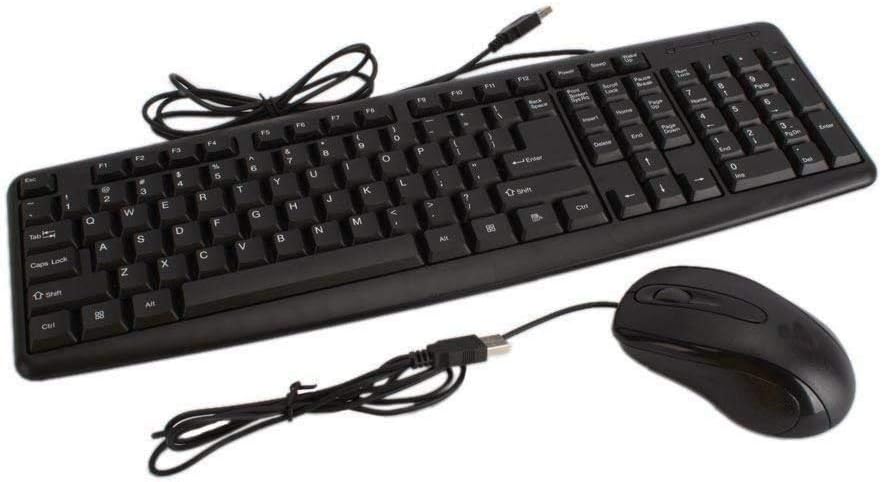
Figure 3.2: Wired keyboard and mouse, typically connected via USB ports on the desktop.

Figure 3.3: A typical USB WiFi adapter, used for wireless internet connection.
3.3. Powering On
- Connect the desktop tower's power cable to the power input on the back of the tower, then plug it into a power outlet.
- Press the power button on the front of the desktop tower.
- Press the power button on each monitor.
- The system will boot into Windows 10. Follow any on-screen prompts for initial setup.
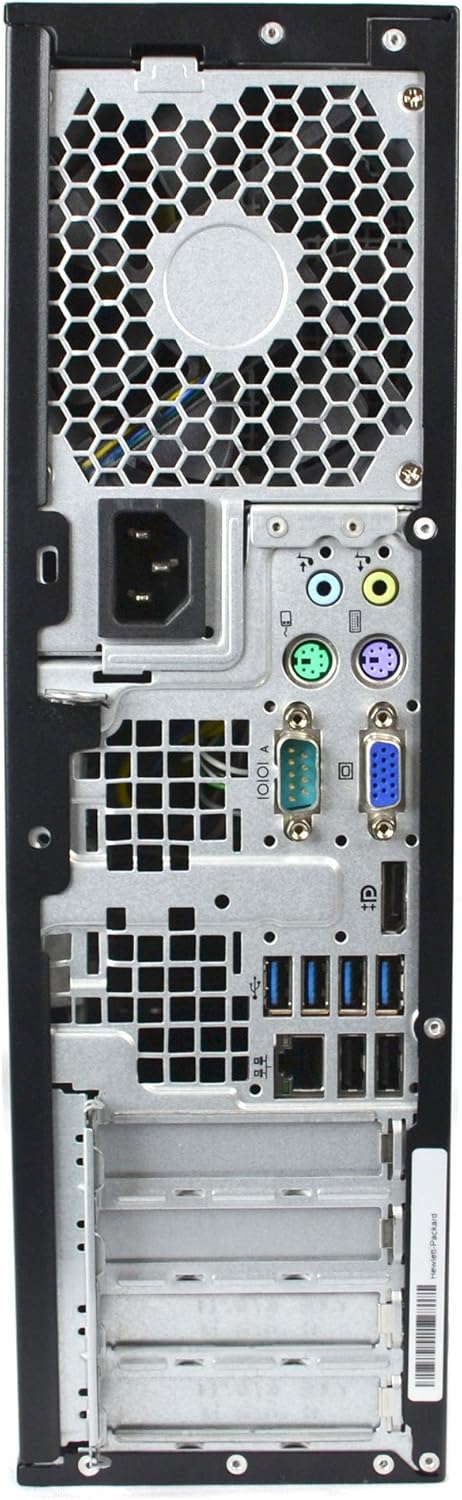
Figure 3.4: Front view of the HP Elite E7500 desktop tower, showing the power button and front USB/audio ports.
4. Operating System (Windows 10)
Your HP Elite E7500 Desktop Computer comes with a fresh installation of Windows 10 Home. Here are some basic operating instructions:
- First Boot: The system may guide you through a brief setup process to personalize your Windows experience, including setting up a user account and connecting to a network.
- Internet Connection: If using the WiFi adapter, click the network icon in the system tray (bottom right of the screen), select your network, and enter the password. For wired connections, simply plug an Ethernet cable into the network port on the back of the PC.
- Updates: It is recommended to regularly check for and install Windows updates to ensure system security and performance. Go to Settings > Update & Security > Windows Update.
- Dual Monitor Setup: To configure your dual monitors, right-click on the desktop and select Display settings. From there, you can arrange your displays, change resolution, and set display modes (e.g., Extend, Duplicate).
5. Key Features and Specifications
The HP Elite E7500 Desktop Computer is configured with the following specifications:
| Component | Specification |
|---|---|
| Processor | Intel Core 2 Duo E7500 @ 2.9 GHz |
| RAM | 8 GB DDR3 SDRAM |
| Storage | 1 TB SATA Hard Disk Drive (HDD) |
| Operating System | Windows 10 Home |
| Graphics | Integrated Graphics (Dedicated Graphics Card Interface: PCI Express) |
| Optical Drive | DVD Drive |
| Connectivity | WiFi (802.11bgn), Ethernet |
| USB Ports | 10 Total USB Ports |
| Video Output | DisplayPort, HDMI (may vary based on specific unit/graphics card) |
| Monitors | Dual 19-inch LCD Monitors (Brands Vary) |
6. Maintenance
Regular maintenance helps ensure the optimal performance and longevity of your HP Elite E7500 Desktop Computer:
- Keep it Clean: Regularly dust the exterior of the computer and monitors with a soft, dry cloth. Use compressed air to clear dust from vents and ports to prevent overheating.
- Software Updates: Keep your Windows operating system and all installed software up to date. This includes security patches and driver updates.
- Antivirus Protection: Ensure you have active antivirus software and perform regular scans to protect against malware.
- Data Backup: Periodically back up important files to an external drive or cloud storage to prevent data loss.
- Proper Shutdown: Always shut down the computer properly through the Windows Start menu rather than simply cutting power.
7. Troubleshooting
Here are solutions to some common issues you might encounter:
7.1. No Display on Monitors
- Check Power: Ensure both the computer and monitors are plugged in and powered on.
- Check Cables: Verify that all video cables are securely connected to both the computer and monitors. Try reseating them.
- Input Source: On your monitor, press the 'Input' or 'Source' button to cycle through available video inputs (e.g., VGA, DVI, HDMI, DisplayPort) to match the connection type.
- Single Monitor Test: If using dual monitors, try connecting only one monitor at a time to isolate the issue.
7.2. No Internet Connection
- WiFi Adapter: Ensure the USB WiFi adapter is properly inserted and its drivers are installed. Check the network icon in the system tray.
- Ethernet Cable: If using a wired connection, ensure the Ethernet cable is securely plugged into both the computer and the router/modem.
- Router/Modem: Restart your internet router and modem.
- Windows Network Troubleshooter: Right-click the network icon in the system tray and select "Troubleshoot problems."
7.3. Slow Performance
- Close Unused Programs: Close any applications running in the background that are not actively being used.
- Disk Cleanup: Run Windows Disk Cleanup to remove temporary files. Search for "Disk Cleanup" in the Start menu.
- Defragment Hard Drive: For HDD systems, regularly defragmenting the drive can improve performance. Search for "Defragment and Optimize Drives" in the Start menu.
- Check for Malware: Perform a full system scan with your antivirus software.
8. Warranty & Support
This HP Elite E7500 Desktop Computer is a renewed product. Please refer to the specific warranty information provided by your seller at the time of purchase. Typically, renewed products come with a limited warranty covering hardware defects.
For technical support, please contact the seller or the Microsoft Authorized Refurbisher (MAR) from whom you purchased the system. Contact information should be included with your purchase documentation.
Additional support resources for Windows 10 can be found on the official Microsoft Support website: support.microsoft.com/en-us/windows


