
Introduction
The Remo+ RemoBell S is a wired smart doorbell camera designed to enhance your home security. It provides high-definition video surveillance with a wide viewing angle, motion detection, two-way audio communication, and smart home integration. This manual provides essential information for the proper installation, operation, and maintenance of your RemoBell S.
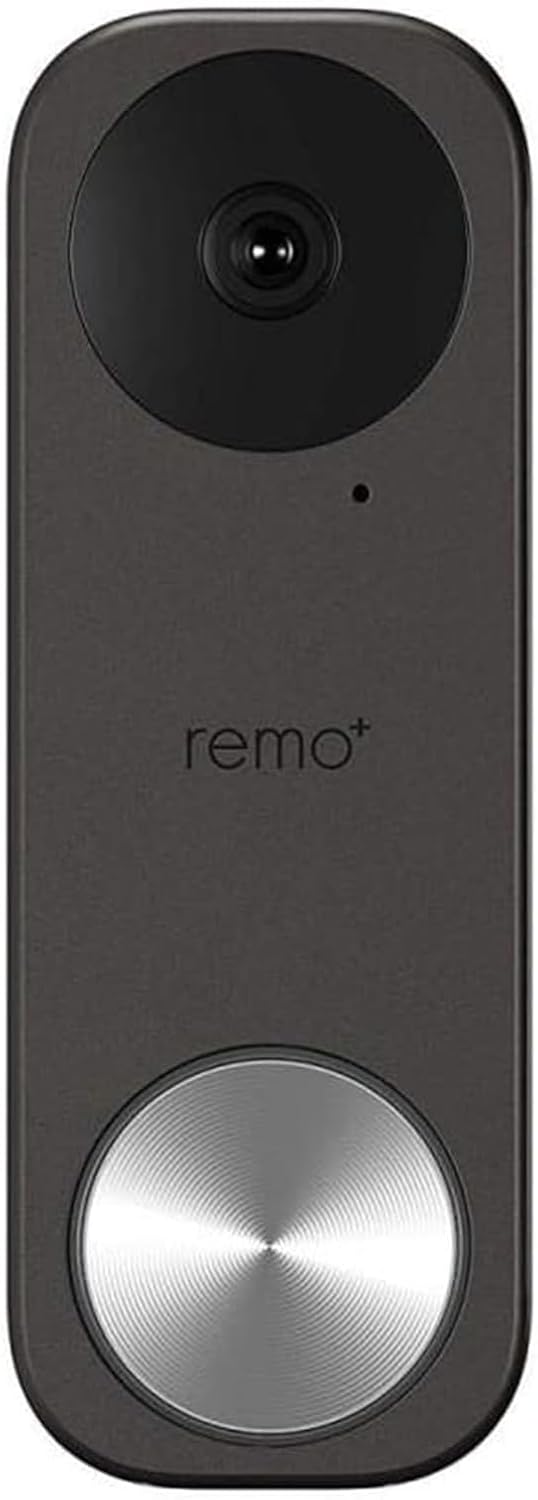
Figure 1: Front view of the Remo+ RemoBell S Smart Doorbell Camera.
What's Included
Please ensure all components are present before beginning installation:
- RemoBell S Smart Doorbell Camera
- Mounting Plate(s)
- Installation Screws and Anchors
- Wiring Harness
- User Manual (this document)

Figure 2: Remo+ RemoBell S product packaging, showing the doorbell and included accessories.
Setup
1. Power Requirements and Wiring
The RemoBell S requires a wired connection to your existing doorbell's transformer, providing 16-24 Volts AC. Ensure your current transformer meets these specifications for optimal performance. If your existing transformer does not meet these requirements, it may need to be replaced.
2. Physical Installation
- Turn off Power: Before any wiring, locate your doorbell's circuit breaker and turn off the power to your doorbell system. Verify power is off using a voltage tester.
- Remove Existing Doorbell: Carefully remove your old doorbell button from the wall. Disconnect the two existing wires.
- Choose Mounting Option: The RemoBell S includes multiple mounting plates. Select the appropriate plate for your installation (e.g., flat or angled bracket if mounting against a wall).
- Mount the Bracket: Position the chosen mounting plate on the wall where your old doorbell was located. Mark the drill holes. Drill pilot holes if necessary and secure the mounting plate using the provided screws and anchors.
- Connect Wiring: Connect the two wires from your existing doorbell system to the terminals on the back of the RemoBell S. Ensure a secure connection.
- Attach Doorbell to Bracket: Carefully attach the RemoBell S camera unit to the mounted bracket.
- Restore Power: Turn the power back on at your circuit breaker. The doorbell should power on and indicate readiness for app setup.
Video 1: An overview of the RemoBell S features and quick setup process.
3. App Setup and Pairing
- Download the Remo+ App: Download the official Remo+ app from your smartphone's app store (iOS or Android).
- Create Account/Log In: Open the app and create a new account or log in with existing credentials.
- Add Device: Follow the in-app instructions to add a new device. Select the RemoBell S from the list of available products.
- Connect to Wi-Fi: The RemoBell S operates on 2.4 GHz Wi-Fi networks. Ensure your smartphone is connected to a 2.4 GHz network during the setup process. Input your Wi-Fi network name and password when prompted.
- Pairing: The app will guide you through the pairing process, which may involve scanning a QR code or following voice prompts from the doorbell.

Figure 3: Simple setup process for the Remo+ RemoBell S.
Operating Instructions
1. Live View and Two-Way Talk
Access live video streaming of your front door anytime through the Remo+ app. When a visitor presses the doorbell or motion is detected, you will receive a push notification. Tap the notification to view the live feed and engage in two-way conversation with your visitor.

Figure 4: Monitoring live view from the RemoBell S on a smartphone.
2. Motion Detection
Customize motion detection zones to focus on specific areas of interest. Adjust sensitivity levels within the app to minimize false alerts. You will receive instant push notifications when motion is detected, even if the doorbell is not pressed.

Figure 5: Smart motion alerts and two-way communication via the RemoBell S.
3. Night Vision
The RemoBell S features infrared night vision, providing clear video footage in low-light conditions or complete darkness. This ensures continuous surveillance and security around the clock.

Figure 6: Clear night vision capabilities of the RemoBell S.
4. Cloud Storage
The device includes 3-day rolling cloud storage at no additional cost, allowing you to review recent activity. Optional paid plans are available for extended storage durations.
5. Smart Connectivity
The RemoBell S integrates seamlessly with Amazon Alexa, Google Assistant, and IFTTT, allowing for enhanced smart home functionality and voice control.

Figure 7: RemoBell S integration with Google Home and Amazon Alexa.
Maintenance
To ensure optimal performance and longevity of your RemoBell S, regular maintenance is recommended:
- Cleaning: Periodically wipe the camera lens and the doorbell's exterior with a soft, damp cloth to remove dust and debris. Avoid using harsh chemicals.
- Firmware Updates: Keep your device's firmware updated through the Remo+ app to access the latest features and security enhancements.
- Connectivity Check: Regularly check your Wi-Fi connection strength in the app to ensure stable operation.
Troubleshooting
If you encounter issues with your RemoBell S, try the following solutions:
- Wi-Fi Connectivity Issues:
- Ensure your Wi-Fi network is 2.4 GHz. The device does not support 5 GHz networks.
- During initial setup, connect your smartphone to the 2.4 GHz Wi-Fi band.
- If using a mobile phone for setup, temporarily disable cellular data (LTE) to prevent interference.
- Verify your router's 2.4 GHz and 5 GHz bands have different SSIDs.
- Check your router's settings for the maximum number of connected devices, especially on guest networks, and increase if necessary.
- No Power/Chime Not Working:
- Confirm your existing doorbell transformer provides 16-24 Volts AC. An incompatible transformer may prevent proper operation.
- Ensure all wiring connections are secure.
- If using a mechanical chime, verify the chime type setting in the Remo+ app is correctly configured.
- False Motion Alerts:
- Adjust motion detection sensitivity settings in the app to a lower level.
- Refine motion zones to exclude areas with frequent, irrelevant movement (e.g., busy streets, swaying trees).
- Consider using an angled mounting plate to direct the camera away from high-traffic areas if applicable.
- Video Quality Issues:
- Ensure a strong Wi-Fi signal at the doorbell's location.
- Adjust video quality settings (e.g., from 'Best' to 'Average') in the app if experiencing buffering or poor streaming.
- Device Reset: If experiencing persistent issues, you may need to reset the device. Consult the app or quick start guide for specific reset instructions.
Specifications
| Feature | Specification |
|---|---|
| Model Number | RMBL-1809H |
| Indoor/Outdoor Usage | Outdoor |
| Power Source | Wired (16-24V AC) |
| Connectivity Protocol | Wi-Fi (2.4 GHz) |
| Video Capture Resolution | 1080p |
| Field Of View | 180 Degrees |
| Low Light Technology | Night Color (Infrared) |
| Alert Type | Motion Only |
| International Protection Rating | IP54 |
| Compatible Devices | Amazon Alexa, Android, Google Assistant, iOS |
| Item Dimensions L x W x H | 5.1 x 0.84 x 1.8 inches |
| Item Weight | 4.64 ounces |
Warranty and Support
The RemoBell S comes with a manufacturer's warranty. For specific warranty terms, technical support, or service inquiries, please refer to the official Remo+ website or contact their customer service directly. Keep your proof of purchase for warranty claims.

